Browser management means an organisation sets the rules for its staff's web browsers from one central place.
This guide is for new IT staff, small business owners and students who want to know how it works. Most work now happens in a browser, so the browser's settings matter as much as the laptop's. Browsers are listed alphabetically, and the order is not a ranking.
In short
- A managed browser follows rules set by the organisation, such as which extensions are allowed.
- Admins send the rules using a cloud console, Windows Group Policy, a device management tool or a settings file.
- In Chrome, you can see if your browser is managed in the menu, and see the rules at chrome://policy.
- Good management covers extensions, updates and sign-in, with reports so IT can check the rules are working.
What you will learn
- Explain what browser management is and why organisations use it.
- Check whether your own browser is managed.
- Spot the main settings a small business should control first.
- Ask your IT team or supplier the right questions.
- Browser rule (policy)
- a setting the organisation chooses and sends to the browser.
- Add-on (extension)
- a small program that adds features to a browser.
- Joining up a browser (enrolment)
- linking a browser to the organisation so it can receive rules.
What is browser management?
Think of a company car fleet. The firm decides which extras are fitted, when each car is serviced and which add-ons drivers may bolt on. Drivers still drive, but within agreed rules.
Browser management works the same way for web browsers such as Chrome, Edge and Firefox. An administrator (the person who looks after the organisation's IT) picks the settings once. Each staff browser then receives them. These settings are called policies.
Some policies are mandatory, which means the user cannot change them. Others are recommended, which means they set a starting value that the user may change.[5]
Where the comparison stops working: a car is one object in one place. A person may use several browsers, on several devices, with work and personal profiles. Management only covers the browsers that have been joined up to the organisation.
Why does it matter?
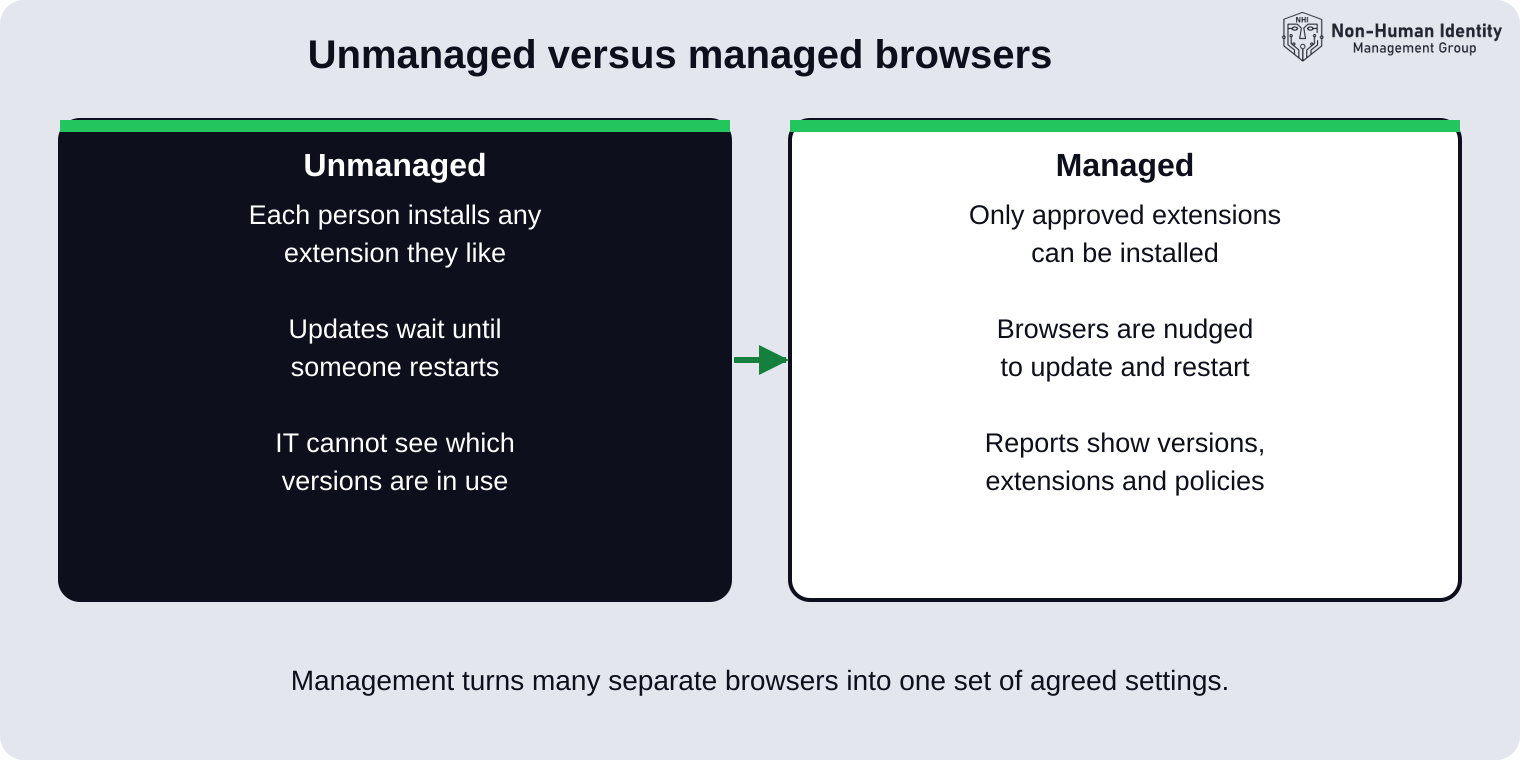
The browser is where staff open email, files and business apps. A risky add-on or an out-of-date browser can expose all of that. Without management, each person decides these things alone.
If you run a small business
What could happen: a staff member installs a free add-on that can read every page they open.
Check this: ask your IT supplier whether staff browsers are managed, and who approves extensions.
If you are new to IT work
What could happen: you are asked "is that laptop up to date?" and have no way to check.
Check this: find out which management tool your team uses, and where its reports live.
If you use a work laptop
What could happen: you are unsure what your employer can see or change in your browser.
Check this: look for "Managed by your organization" in the browser menu, and read your workplace IT policy.
What does it look like?
Admins often see a list of every managed browser. Here is a made-up report for three laptops at a small firm.
Example only. All values are made up.
Managed browsers report (EXAMPLE firm, FAKE data)
Device         Version     Extensions                 Policies
LAPTOP-0001    current     2 approved                 OK
LAPTOP-0002    3 behind    2 approved, 1 unknown      OK      (1)(2)
LAPTOP-0003    current     2 approved                 Error   (3)
- In a real screen, this line would show a browser that has not restarted to finish its updates.
- An add-on nobody approved. It may be harmless. It may also read the pages you open.
- A rule did not work. The browser may be missing a setting the firm needs.
Why this is risky: without a report like this, nobody would know about these three problems.
The safer way: the firm allows only approved extensions, asks browsers to restart for updates and checks the report each week. Chrome's cloud reports can show each browser's version, its add-ons and its rules.[1]
How does it work?
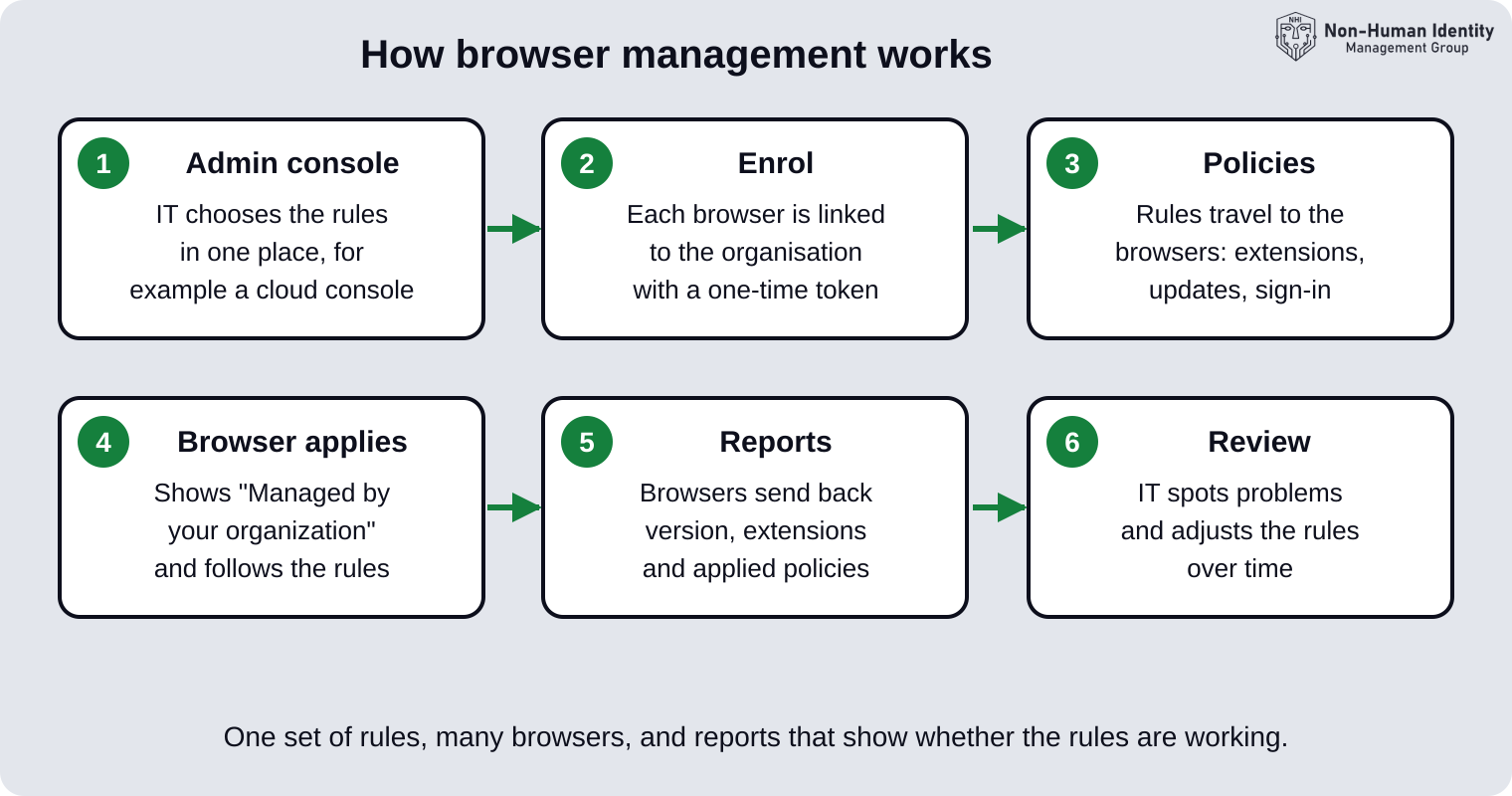
- Pick a tool. Chrome can be managed from a cloud console called Chrome Enterprise Core.[1] Edge can be managed with Windows Group Policy or Microsoft Intune.[5] Firefox can be managed with a settings file called policies.json, or with Group Policy on Windows.[6]
- Join up the browsers. For Chrome's cloud console, the admin creates an enrolment token (a one-time joining code) and places it on each computer. The token is set for the whole computer, not per user.[2]
- Set the rules. The admin chooses policies, such as which extensions are allowed, blocked or installed for everyone.[3]
- The browser applies them. In Chrome, a managed browser shows "Managed by your organization" at the bottom of the menu.[4]
- Check and adjust. The admin reads reports, and anyone can open chrome://policy or edge://policy to see which rules have arrived.[4][5]
Many organisations also use a device management tool (software that sets rules for whole laptops and phones). It can deliver browser policies alongside other settings.[2] Some firms go further and use an enterprise browser, a browser built with extra controls for work data. That is covered in the practitioner guide.
A worked example
Bruno Vance runs a fictional design studio with twenty staff. Everyone uses Chrome on Windows laptops. Each person set up their own browser.
Bruno hires Dana Rosen as his first IT person. In her first week, Dana asks a simple question: "Which add-ons are people using?" Nobody knows.
Dana thinks of a company car fleet. Right now every driver has fitted their own extras, and nobody keeps the service log. She suggests joining the browsers up to Chrome's cloud console, which the studio can use at no extra cost.[1]
She creates an enrolment token and adds it to each laptop through the studio's device tool. After a restart, each browser shows "Managed by your organization".
The first report surprises Bruno. Three laptops are behind on updates. Five have a coupon add-on that can read every page.
Dana sets three rules to start with. Only extensions on an approved list can be installed. The two design tools the team needs are installed for everyone. Browsers are asked to restart when an update is waiting.
She tells staff what is changing and why, and explains what the studio can see. She checks chrome://policy on two laptops to confirm the rules arrived.
A month later the report shows every browser on a recent version, and no unknown add-ons in the latest report.
Myths and mistakes
| What people think | What is true |
|---|---|
| Browsers update themselves, so we do not need to manage them. | Browser updates usually take effect after a restart. Management lets you nudge restarts and see which versions are in use. |
| Managing the laptop also manages the browser. | Browser settings are a separate set of rules. They need to be chosen and sent as well. |
| Once rules are set, the job is done. | Rules can fail to apply. Check reports and chrome://policy to confirm they arrived.[3] |
| Blocking all extensions is the safest choice. | Staff may switch to other browsers to get the tools they need. An approved list is usually easier to live with. |
| Browser management is only for big companies. | Chrome's cloud console is offered at no extra cost, and other browsers can be managed with tools many firms already have.[1] |
What can I do this week?
- Check your own browser menu for "Managed by your organization".
- Open chrome://policy or edge://policy and look at the rules that apply to you.
- Ask your IT team or supplier which browsers staff use and how they are managed.
- List the extensions your team really needs, as a start for an approved list.
- Agree how quickly browsers must restart after an update.
Checklist
- Every work browser is joined up to a management tool.
- Extensions are limited to an approved list, with an owner who reviews requests.
- Browsers are prompted to restart so updates take effect.
- Reports on versions, extensions and policies are checked regularly.
- Staff know what the organisation can see and why.
- Policies are tested on a few devices before they go to everyone.
- Every browser in use at work is covered, not only the main one.
Common questions
How do I know if my browser is managed?
In Chrome, open the menu and look at the bottom. If it says "Managed by your organization", it is managed. You can also type chrome://management in the address bar. In Edge, edge://policy lists the rules that apply.
Can my employer see my browsing on a managed browser?
It can, depending on the settings chosen. Google says an admin of a managed Chrome browser can restrict features, install extensions and monitor activity.[4] Your workplace IT policy should explain what is collected. Keep personal browsing on personal devices.
Does browser management cost money?
Often not much. Google offers its Chrome cloud console at no extra cost, though some support options are paid.[1] Edge and Firefox can be managed with tools such as Group Policy that many firms already have.
What should a small business manage first?
Start with extensions, updates and sign-in. Allow only approved extensions, make sure browsers restart to finish updates, and decide which accounts may sign in to work browsers. Then check reports to confirm the rules work.
Is browser management the same as an enterprise browser?
No. Browser management means setting rules for ordinary browsers like Chrome, Edge or Firefox. An enterprise browser is a browser built for work, with extra controls such as limits on copying or downloads.
Where next?
Ready for the detail? Read the practitioner guide: Enterprise Browser and Browser Security Guide. It goes further into baseline hardening policies, extension control, session theft and browser data controls.
Also useful:
Related NHI Mgmt Group resources: Work and Personal Browser Profiles · Browser Extension Security Guide · ChromeOS and Chromebook Security Guide
Key terms
- Browser management
- Controlling browser settings, extensions and updates from one place to reduce risk.
- Managed browser
- A browser that receives and follows rules set by an organisation.
- Policy
- A setting an organisation chooses and sends to a browser or device.
- Browser extension
- A small add-on that changes how a browser works, and may be able to read the pages you open.
- Group Policy
- A Windows tool for sending settings to many computers and users at once.
- Mobile device management
- Software that enrols laptops and phones and sets rules for them centrally.
- Enterprise browser
- A managed browser built to enforce security controls for work apps and data.
Sources and further reading
- Chrome Enterprise Core. Chrome Enterprise and Education Help, Google. https://support.google.com/chrome/a/answer/9116814, accessed 28 Nov 2026.
- Enroll cloud-managed Chrome browsers. Chrome Enterprise and Education Help, Google. https://support.google.com/chrome/a/answer/9301891, accessed 28 Nov 2026.
- Set Chrome app and extension policies (Windows). Chrome Enterprise and Education Help, Google. https://support.google.com/chrome/a/answer/7532015, accessed 28 Nov 2026.
- Check if your Chrome browser is managed. Google Chrome Help, Google. https://support.google.com/chrome/answer/9281740, accessed 28 Nov 2026.
- Configure Microsoft Edge policy settings on Windows devices. Microsoft Learn, Microsoft. https://learn.microsoft.com/en-us/deployedge/configure-microsoft-edge, accessed 28 Nov 2026.
- Customize Firefox using policies.json. Firefox Enterprise Help, Mozilla. https://support.mozilla.org/en-US/kb/customizing-firefox-using-policiesjson, accessed 28 Nov 2026.