Microsoft Intune is a cloud service that lets an organisation set up, protect and manage its staff's laptops and phones.
This guide is for small business owners, new IT staff and anyone whose employer has asked them to "enrol" a device. You do not need to be technical to be affected: if your company uses Microsoft 365, Intune may decide which devices can open your work email.
In short
- Intune lets IT set rules for many devices at once, from a website, with no server in the office.
- A device must be enrolled (signed up for management) before the full set of rules can apply to it.
- Devices that break the rules can be blocked from work email and files until they are fixed.
- Intune can lock or wipe devices remotely, so the admin accounts that control it need strong protection.
What you will learn
- Explain what Intune does in one sentence.
- Check what your employer can and cannot see on a personal phone.
- Spot the difference between removing work data and wiping a whole device.
- Ask who controls your Intune admin accounts and how they are protected.
- Signing up a device (enrolment)
- connecting a laptop or phone to Intune so it can receive the company's settings.
- Device rules (compliance policy)
- a list of checks a device must pass, such as having a screen lock.
- Device management (MDM)
- looking after whole devices, such as laptops and phones, from one central place.
What is Microsoft Intune?
Think of a fleet manager for company cars. From head office, they decide which cars staff may use and that every car must pass its safety checks. A car that fails is kept off the road until it is fixed.
Intune does this for laptops, phones and tablets. It is a cloud service: it runs on Microsoft's computers, and IT staff use it through a website called the Intune admin center. It works with Windows, macOS, iPhone and iPad, Android and Linux devices.[1]
Intune can manage a device in two ways. Mobile device management (MDM) manages the whole device. Mobile application management (MAM) manages only the work apps and their data, such as Outlook and Teams. MAM is common on personal phones, because the person keeps control of their own apps and content.[1]
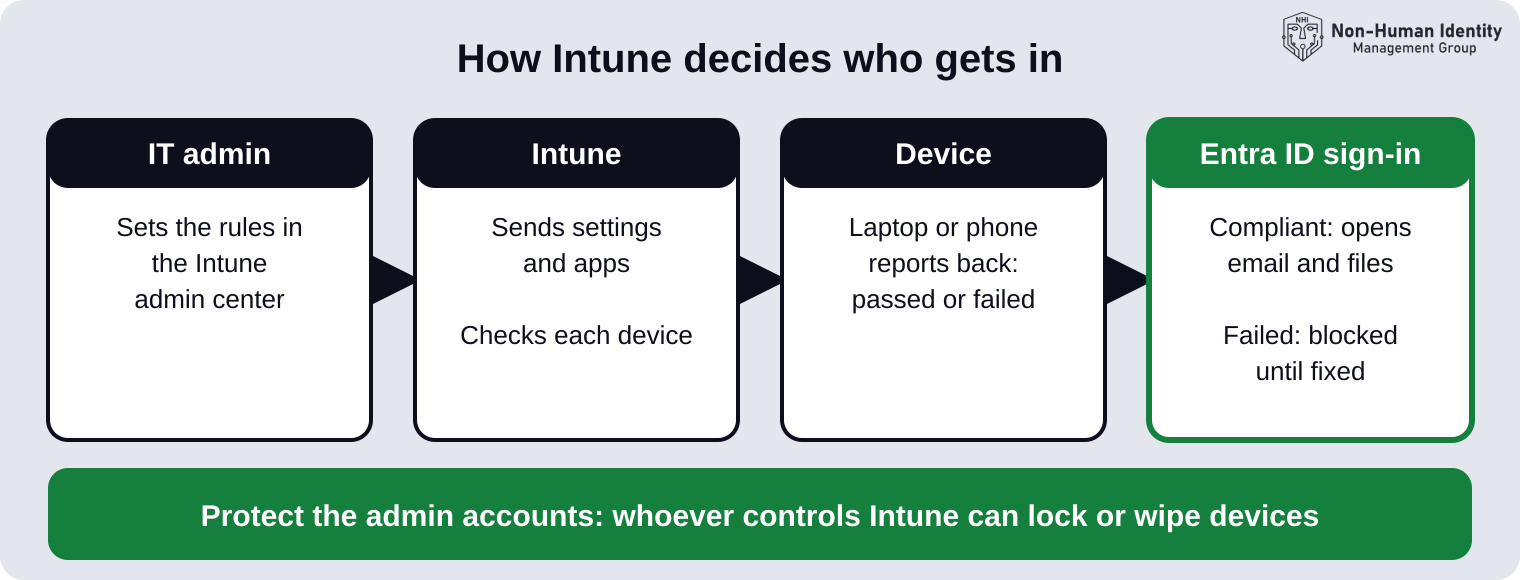
Intune does not check passwords itself. Sign-in is handled by Microsoft Entra ID, Microsoft's service for user accounts. Intune tells Entra ID whether each device meets the rules, and Entra ID uses that to allow or block access.[1]
Where the comparison stops working: a fleet manager cannot reach into a car on the motorway. Intune can lock or erase a device from far away, so whoever controls Intune holds a lot of power.
Why does it matter?
Laptops and phones get lost, go out of date and leave with staff. Intune gives one place to keep them in order. It also becomes a powerful target, because the same console can wipe many devices at once.
In March 2026, Stryker, a US medical technology company, reported a cyber attack that disrupted its internal Microsoft environment.[6] BleepingComputer reported, citing a source, that the attacker used a compromised admin account and Intune's wipe command on nearly 80,000 devices.[7] Read our Stryker Intune wiper attack page for the full story.
If you run a small business
What could happen: a lost laptop still holds customer files, and you have no way to lock it.
Check this: ask whether your company devices are enrolled and can be locked remotely.
If you are new to IT work
What could happen: you press wipe when you meant to remove only work data from a personal phone.
Check this: learn the difference between retire and wipe before you touch either.
Next: Microsoft Intune Guide
If your employer asks you to enrol your phone
What could happen: you worry your boss can read your messages and see your photos.
Check this: read what Microsoft says your organisation can and cannot see, then ask IT about anything unclear.
Next: MDM vs EMM vs UEM
What does it look like?
Here is a made-up rule set. An IT person might set up something like it for a small office.
Example only. All values are made up.
Policy name:   EXAMPLE Office laptops rules
Applies to:    Group "Studio staff (FAKE)"     (1)
Screen lock:   Required                         (2)
Disk encryption: Required                       (3)
Minimum system version: 0.0 (EXAMPLE)           (4)
If a device fails: mark it not compliant,
  email the user, then lock after 0 days        (5)
- The group of staff whose devices get these rules.
- The device must have a password, PIN or similar lock.
- The device's storage must be scrambled, so a thief cannot read it.
- In a real file, this line would contain the oldest system version allowed.
- What happens when a device fails a check.
Why this is risky: rules only help on devices that are enrolled and in the right group. A laptop nobody enrolled misses them. Intune also has one setting for devices with no rules. By default, it marks them as compliant.[2]
The safer way: give every device a rule set. If you use Entra ID to block access, change that default to "Not compliant". Then a device with no rules cannot reach work data.[2]
How does it work?
- Enrol. A device is signed up, either by the person through the Company Portal app or automatically when a new company device is first switched on.[1]
- Set up. Intune sends settings and work apps to the device, such as Wi-Fi details and email.[1]
- Check. Compliance policies test the device, for example for a screen lock, encryption and a recent system version.[2]
- Decide. Intune reports the result to Entra ID. There, a Conditional Access rule can allow or block work email and files. This is a sign-in rule that looks at the device, the person and other signals.[2]
- Act. When a device is lost or someone leaves, IT can lock it. They can also remove only the work data, called retire. Or they can reset it to factory settings, called wipe.[3]
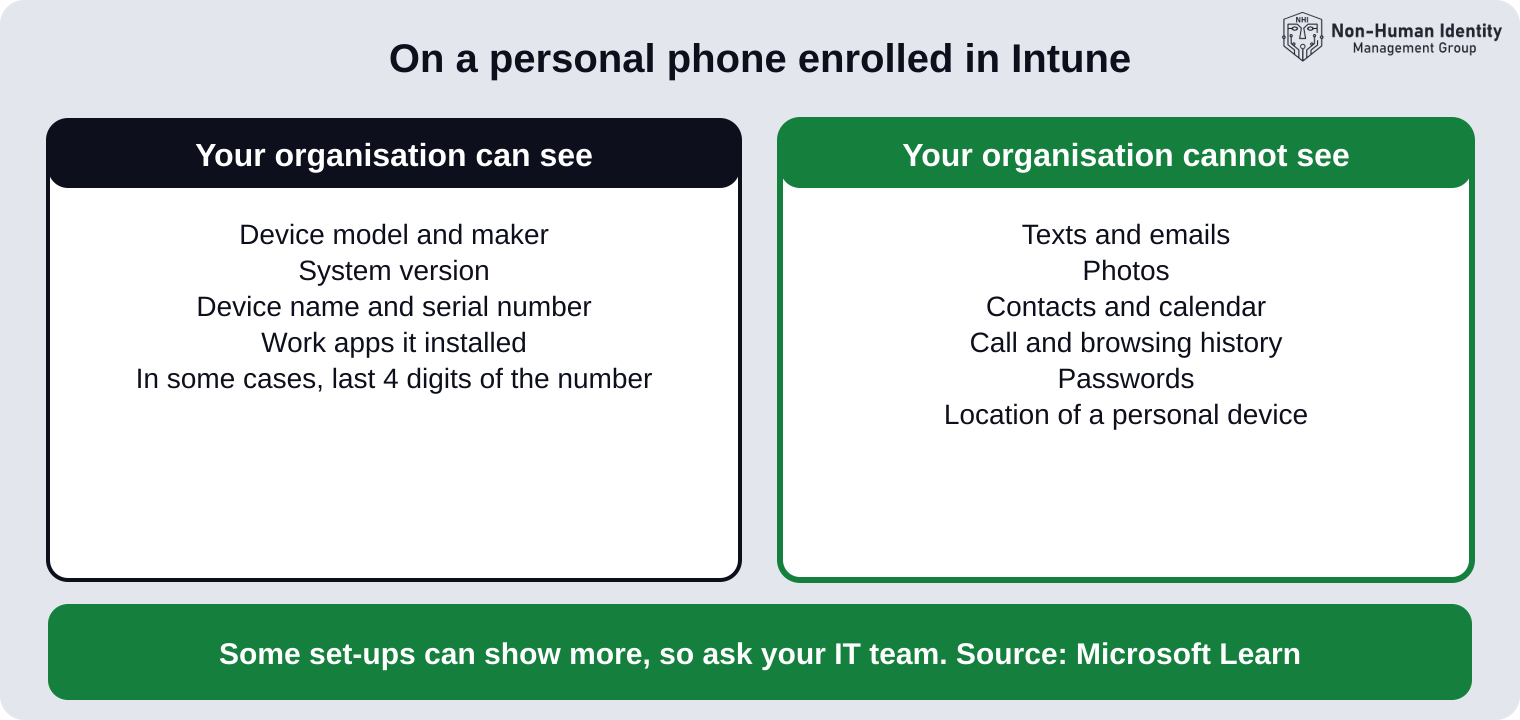
On a personal phone, your organisation can see some details, such as the model, the system version and the work apps it installed. Microsoft says it cannot see your call and browsing history, emails, texts, contacts, photos or passwords, and cannot see a personal device's location.[4] Some set-ups can show more, so ask your IT team if you are unsure.
A worked example
Rania Bergmann runs Hazel Studio, a fictional design studio with nine staff. Cyrus Wojcik, a freelance IT helper, looks after their Microsoft 365 account.
One Monday, a designer leaves a studio laptop on a train. Rania calls Cyrus in a panic. The laptop holds client drawings.
Cyrus checks Intune. The laptop is enrolled, its disk is encrypted and it needs a PIN. That lowers the risk a lot. He sends a remote lock to the laptop.
Two days later the laptop has not been found. Rania and Cyrus agree to wipe it. Because the laptop belongs to the studio and the client files are also stored in the cloud, nothing is lost.
The same week, a part-time designer leaves. She used her own phone for work email. Here Cyrus uses retire, not wipe. Work email and apps are removed, and her own photos and apps stay where they are.[3]
Rania then remembers the fleet manager. If someone stole Cyrus's admin login, they could wipe every studio laptop. So they turn on multi-factor sign-in for both admin accounts. Cyrus also sets up multi-admin approval, so a wipe needs a second admin to say yes.[5]
The studio now has a short written rule: which devices are enrolled, who can wipe them, and when to choose retire.
Myths and mistakes
| What people think | What is true |
|---|---|
| If I enrol my phone, my boss can read my messages. | Microsoft says the organisation cannot see texts, emails, photos or browsing history on a personal device.[4] |
| Retire and wipe are the same thing. | Retire removes work data and leaves personal data. Wipe resets the device to factory settings.[3] |
| Devices with no rules are blocked automatically. | By default they are marked compliant. Change the setting if you rely on compliance to block access.[2] |
| Intune is only for big companies. | It runs in the cloud with no servers to buy, so small teams can use it too, depending on their Microsoft plan.[1] |
| The admin account is just another login. | Whoever holds it may be able to lock or wipe every device. Treat it as one of your most sensitive accounts. |
What can I do this week?
- Ask IT or your supplier which company devices are enrolled in Intune, and which are not.
- Check who holds Intune admin rights, and remove anyone who no longer needs them.
- Make sure every admin account uses multi-factor sign-in.
- Agree when to use retire and when to use wipe, and write it down.
- If you are asked to enrol a personal phone, read Microsoft's privacy page first and ask about anything unclear.
Checklist
- Every company laptop and phone is enrolled.
- Each device type has a compliance policy with a screen lock and encryption.
- Devices with no policy are treated as not compliant.
- Work email and files need a compliant device or protected work apps.
- Only a few named people hold Intune admin rights, each with multi-factor sign-in.
- Wipes and other big changes need a second admin's approval.
- Staff know whom to call straight away when a device is lost.
- Leavers' devices are retired or wiped as part of the leaving process.
Common questions
Is Intune the same as Microsoft 365?
No. Microsoft 365 is a bundle of work apps such as Outlook, Teams and Word. Intune is the service that manages the devices and apps people use to reach them. Some Microsoft 365 business plans include Intune, so check your own plan.
Can my employer see my photos if I enrol my phone?
No, according to Microsoft. On a personal device, your organisation cannot see photos, texts, emails, contacts, passwords or browsing history. It can see details such as the phone model and the work apps it installed. Ask IT if your set-up differs.[4]
What happens to my phone when I leave the company?
On a personal phone, IT will usually use retire. That removes work apps, settings and data, and Microsoft says your personal data is not removed. A company-owned device may be wiped instead, which resets it to factory settings.[3]
Do I have to enrol my whole phone?
Not always. Some organisations protect only the work apps, such as Outlook and Teams, without enrolling the whole device. This is called app protection. Your IT team decides which approach to use, so ask which one applies to you.[1]
Why does Intune need extra protection?
Because it can change, lock or erase many devices at once. If an attacker controls an Intune admin account, they may be able to do the same. Strong sign-in, few admins and a second approval for big actions reduce that risk.[5]
Where next?
Ready for the detail? Read the practitioner guide: Microsoft Intune Guide. It goes further into admin roles and privileged access, the app and service accounts that connect to Intune, logging and a hardening baseline.
Also useful:
- Mobile Device Management for Beginners
- How to enable Intune multi-admin approval for wipes, scripts and role changes
- MDM vs EMM vs UEM
Related NHI Mgmt Group resources: Microsoft Intune Guide · Mobile Device Management Security Guide · Mobile Device Management Policy Template
Key terms
- Microsoft Intune
- A Microsoft cloud service for managing and protecting an organisation's devices and apps.
- Mobile device management (MDM)
- Managing whole devices, such as laptops and phones, from one central place.
- Mobile application management (MAM)
- Managing only work apps and their data, not the rest of the device.
- Enrolment
- Signing a device up to Intune so it can receive the organisation's settings.
- Compliance policy
- A set of checks a device must pass, such as having a screen lock.
- Conditional Access
- Sign-in rules that allow or block access based on signals such as the device and the person.
- Retire
- An Intune action that removes work data and management but leaves personal data.
- Wipe
- An Intune action that resets a device to factory settings.
Sources and further reading
- What is Microsoft Intune? Microsoft Learn, Microsoft. https://learn.microsoft.com/en-us/intune/intune-service/fundamentals/what-is-intune, accessed 28 Nov 2026.
- Use compliance policies to set rules for devices you manage with Intune. Microsoft Learn, Microsoft. https://learn.microsoft.com/en-us/intune/intune-service/protect/device-compliance-get-started, accessed 28 Nov 2026.
- Device action: retire. Microsoft Learn, Microsoft. https://learn.microsoft.com/en-us/intune/intune-service/remote-actions/device-retire, accessed 28 Nov 2026.
- What information can my organization see when I enroll my device? Microsoft Learn, Microsoft. https://learn.microsoft.com/en-us/intune/intune-service/user-help/what-info-can-your-company-see-when-you-enroll-your-device-in-intune, accessed 28 Nov 2026.
- Use access policies to require multi admin approval. Microsoft Learn, Microsoft. https://learn.microsoft.com/en-us/intune/intune-service/fundamentals/multi-admin-approval, accessed 28 Nov 2026.
- Customer Updates: Stryker Network Disruption. Stryker, updated 1 April 2026. https://www.stryker.com/us/en/about/news/2026/a-message-to-our-customers-03-2026.html, accessed 28 Nov 2026.
- Stryker attack wiped tens of thousands of devices, no malware needed. BleepingComputer, 16 March 2026 (news report). https://www.bleepingcomputer.com/news/security/stryker-attack-wiped-tens-of-thousands-of-devices-no-malware-needed/, accessed 28 Nov 2026.