AI on phones and PCs means AI tools built into your device, some running on the device itself.
This guide is for anyone with a newer phone or laptop who wants to know what these features do with their data. You do not need to be technical: the choices are in your settings.
In short
- Newer phones and PCs have a small AI model on the device, plus links to bigger AI in the cloud.
- Simple tasks can stay on the device. Bigger tasks may be sent to the maker's servers.
- Screen memory features, such as Recall on some Windows PCs, are off until you turn them on.
- Spend ten minutes in your settings: check what is on, what uses the cloud and what outside apps are linked.
What you will learn
- Explain the difference between AI on your device and AI in the cloud.
- Spot which AI features on your phone or PC can see your screen or messages.
- Check the settings that decide what is saved and what is shared.
- Decide whether you need these features at all.
- Built-in helper (AI assistant)
- an AI tool that comes with your phone or PC and can write, sum up or find things for you.
- AI chip (NPU)
- a part of a newer device made to run AI quickly without draining the battery.
- On-device AI
- AI that does its work on your own phone or PC instead of a distant computer.
What is AI on phones and PCs?
Think of doing your sums at the kitchen table versus posting them to an accountant. At the table, the paper never leaves your house. When you post it, someone else's office handles it.
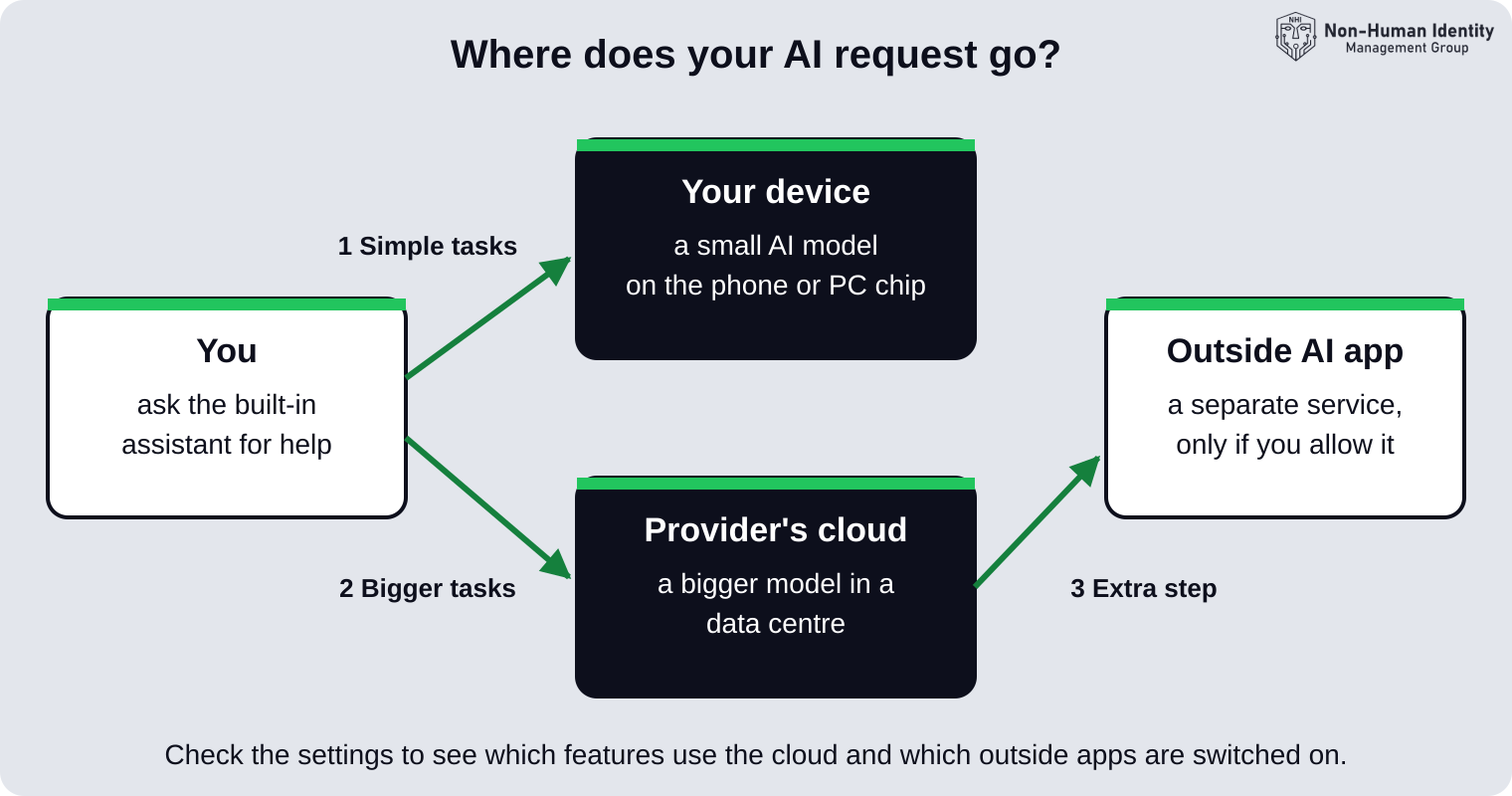
AI on your device works the same way. Many newer phones and laptops carry a small AI model, a program trained to understand and write text. It runs on a special part called an AI chip, or NPU (neural processing unit).[1] It can sum up a message or tidy your writing without the internet.
Bigger jobs need a bigger model, so some requests go to the maker's computers in a data centre, called the cloud. Google tells app builders to send requests to the cloud when its small phone model is not enough.[2] Apple sends some requests to its own cloud system, built for private AI work.[3]
Some features go further. On some Windows PCs, a feature called Recall saves regular pictures of your screen, called snapshots, so you can search for things you saw earlier.[4]
Where the comparison stops working: with post, you choose each envelope. With AI features, the device often decides where each request goes, so the settings are where you have your say.
Why does it matter?
These tools can see a lot: your messages, photos and screen. Knowing what they keep, and where it goes, helps you use them with confidence.
If you use your phone for everything
What could happen: you link an outside AI app to your assistant and share more than you meant to.
Check this: look in your AI settings for any outside apps that are switched on.
If you share a laptop at home
What could happen: saved screen snapshots could include private pages you looked at.
Check this: give each person their own sign-in, and filter banking sites from screen memory.
Next: Copilot+ PCs Explained
If you run a small business
What could happen: staff use AI features on work laptops with customer details on screen.
Check this: agree which AI features are allowed on work devices, and who decides.
What does it look like?
Example only. All values are made up.
Settings > AI features (FakePhone 0000)
  Writing help ............ On    [on this device]  (1)
  Message summaries ....... On    [on this device]
  Advanced answers ........ On    [uses cloud]      (2)
  Outside app: ExampleBot . On    [asks first]      (3)
  Screen memory ........... Off                     (4)
  Delete saved history .... [ Delete ]              (5)
- This feature works on the phone itself.
- This one sends your request to the maker's cloud.
- An outside AI service is linked, and it asks before it gets your request.
- Screen memory is off, which is how such features start.
- A button to clear what the device has saved.
Why this is risky: if you never open this screen, you do not know what is shared or saved.
The safer way: open your AI settings once, turn off what you do not use, and clear old history.
How does it work?
- You ask. You tap a button, speak, or type a request, such as "sum up this email".
- The device decides. If the task is simple, the small model on the AI chip handles it on the device.
- Bigger tasks may go to the cloud. The request goes to the maker's servers, and the answer comes back. Apple says that in its private cloud system, your data is not kept after the answer is sent.[3]
- Some features hand off to outside apps. You may be offered a link to a separate AI service, with its own privacy rules.
- Some features remember. Screen memory saves snapshots on the device. Microsoft says Recall snapshots are stored and analysed on the PC, encrypted (scrambled so only you can unlock them) and not sent to Microsoft.[4]
On Android phones, Google says its on-device model keeps no record of what you asked or what it answered once the task is done.[2] Each maker words its promises differently, so read the one for your device.
Screen memory comes with controls. On Windows, Recall is off until you choose to save snapshots. You need to confirm it is you, with your face or fingerprint, before you can open it. You can pause it, delete snapshots, and filter out apps and websites.[4][5] On work devices that the company manages, Recall is removed by default.[4]
A worked example
This story is made up to show how it can happen.
Tariq Hussain is a driving instructor in Bradford. He buys a new laptop for his lessons and his accounts. On the first day, a pop-up asks if he wants to try the new AI features. He clicks yes to everything and gets on with his day.
A few weeks later, his teenage nephew borrows the laptop for homework. Tariq remembers a line from the setup screen about saving snapshots of the screen. He wonders what his nephew could find.
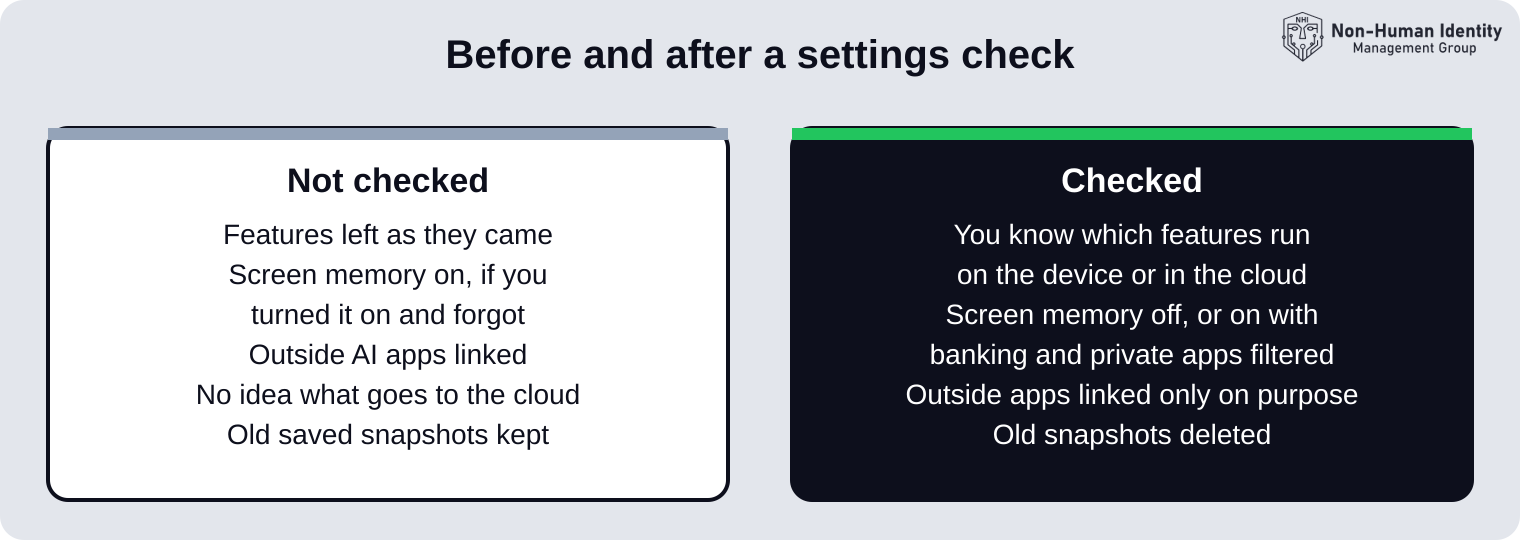
That evening he opens the AI settings. He finds that he did turn on screen memory. It has been saving snapshots, including his online banking pages.
He takes three steps. First, he deletes all saved snapshots. Second, he turns screen memory back on but filters out his banking site and his accounts app. Third, he makes his nephew his own sign-in, so the two of them no longer share one account.
He then checks the other AI features. Writing help runs on the laptop, which he is happy with. One outside AI app is linked that he does not remember choosing. He switches it off.
Last, he reads the short privacy page for his laptop's AI features. He now knows which tasks stay on the laptop and which go to the cloud.
What made the difference: Tariq treated the AI settings like any other privacy setting, and checked them once he had a reason to.
Myths and mistakes
| What people think | What is true |
|---|---|
| On-device AI means nothing ever leaves my phone. | Some tasks stay on the device, but makers also send bigger tasks to the cloud. Check which features do which.[2][3] |
| Screen memory records everything from day one. | On Windows, Recall saves nothing until you turn on snapshot saving.[4] |
| I need a new AI phone or PC to stay safe. | No. These features are optional extras. Security updates matter far more for safety. |
| Linking an outside AI app is the same as using the built-in one. | An outside app is a separate service with its own rules. Read what it keeps before you link it. |
| Turning a feature off deletes what it saved. | Not always. Look for a separate delete option for saved history or snapshots. |
What can I do this week?
- Open the AI section of your phone and PC settings and list what is switched on.
- Turn off any AI feature you do not use.
- Check for linked outside AI apps, and unlink any you did not choose.
- If you use screen memory, filter out banking, health and email apps, and delete old snapshots.
- Give each person who uses a shared computer their own sign-in.
Checklist
- I know which AI features on my devices are switched on.
- I know which of them work on the device and which use the cloud.
- Outside AI apps are linked only if I chose them.
- Screen memory is off, or on with private apps and sites filtered.
- I know how to delete saved AI history or snapshots.
- Shared computers have a separate sign-in for each person.
- My devices get their security updates.
Common questions
Do I need on-device AI?
No, most people do not need it. It can save time on writing, summaries and search, and some of it works offline. But your phone or PC stays just as useful without it. Turn on the features you find helpful and leave the rest off.
Is on-device AI more private than cloud AI?
Usually, yes, for the tasks that stay on the device, because your data does not travel. Google says this keeps data local and works offline.[2] But many features mix device and cloud, so check each feature rather than the device as a whole.
Can Microsoft see my Recall snapshots?
Microsoft says no. It says snapshots stay on your PC, are encrypted, and are not sent to Microsoft. One exception it names: if you send feedback and attach screenshots, that data is shared.[4]
What happens to my data when a request goes to the cloud?
The maker's own privacy rules apply, so read its privacy page. Apple, for example, says its private AI cloud keeps no user data after the answer is returned.[3] Outside apps you link follow their own rules.
Where next?
Ready for the detail? Read the practitioner guide: On-Device AI and AI PCs Hub. It goes further into hardware requirements, how each platform splits work between device and cloud, and the controls for work devices.
Also useful:
- On-Device AI Security Guide
- Copilot+ PCs Explained
- What Is an NPU? TOPS, AI PC Chips and What the Numbers Mean
- AI and Privacy for Beginners
Related NHI Mgmt Group resources: iPhone Security and Privacy Settings Guide · Android Security and Privacy Settings Guide · Securing Your Smartphone Guide
Key terms
- AI assistant
- An AI tool that helps you write, sum up or find things when you ask it.
- Neural processing unit (NPU)
- A chip inside a device made to run AI tasks quickly and with little battery use.
- Large language model
- An AI program trained on lots of text that predicts and writes words.
- On-device AI
- AI that runs on your own phone or PC, so the data for that task stays on the device.
- Encryption
- Scrambling data so only someone with the right key can read it.
- Data retention
- How long a service keeps your data before it deletes it.
Sources and further reading
- Copilot+ PCs developer guide (NPU devices). Microsoft Learn. https://learn.microsoft.com/en-us/windows/ai/npu-devices/, accessed 28 Nov 2026.
- Gemini Nano. Android Developers, Google. https://developer.android.com/ai/gemini-nano, accessed 28 Nov 2026.
- Private Cloud Compute: A new frontier for AI privacy in the cloud. Apple Security Research, 10 June 2024. https://security.apple.com/blog/private-cloud-compute/, accessed 28 Nov 2026.
- Manage Recall. Microsoft Learn. https://learn.microsoft.com/en-us/windows/client-management/manage-recall, accessed 28 Nov 2026.
- Privacy and control over your Recall experience. Microsoft Support. https://support.microsoft.com/en-us/windows/privacy-and-control-over-your-recall-experience-d404f672-7647-41e5-886c-a3c59680af15, accessed 28 Nov 2026.
- Get started with the next generation of Apple Intelligence. Apple Support, 5 November 2026. https://support.apple.com/en-us/121115, accessed 28 Nov 2026.