TLS (Transport Layer Security) is the technology that protects data while it travels between two computers, and HTTPS is the normal web protocol (HTTP) running inside a TLS connection.
When you see a padlock or "https://" in your browser, TLS is at work. This guide explains what that padlock does and does not tell you, in plain English, for newcomers, students, career changers and managers who are not security specialists. It covers how a secure connection is set up, a worked example, common myths and simple first steps for a small team.
By the end of this guide you will be able to:
- Explain what TLS and HTTPS are and how they relate.
- Understand the three things TLS protects: identity, privacy and integrity.
- Describe what happens when a browser opens a secure connection.
- Identify what the padlock does not prove, and the first steps to get HTTPS right.
Key takeaways
- HTTPS is HTTP inside TLS. TLS does the protecting; HTTPS is how the web uses it.
- The padlock means the connection is protected. It does not mean the website or the people behind it are honest.
- TLS gives three protections. It checks the server's identity, keeps the data private in transit and shows whether anyone changed it on the way.
- Certificates are the identity part. A trusted organisation vouches that a public key belongs to a website name.
- Old versions should be switched off. Current guidance is to use TLS 1.3 where you can, keep TLS 1.2 only with good settings, and disable older versions.
What it is, in plain English
The internet passes your data through many machines you do not control: your Wi-Fi router, your internet provider, and networks in between. Without protection, anyone on that path could read or change what you send. TLS (Transport Layer Security) wraps the conversation between your device and a server so that outsiders cannot read it or alter it without being noticed. It replaced an older protocol called SSL (Secure Sockets Layer), which is why people still say "SSL certificate".
HTTPS is simply the web's normal language, HTTP, carried inside a TLS connection. The "S" stands for secure. The same TLS technology also protects email, apps and connections between servers.
The latest TLS standard, version 1.3, says TLS is designed to stop eavesdropping, tampering and message forgery, and lists three protections: authentication (the server is always proved, the client optionally), confidentiality (only the two ends can see the data) and integrity (changes to the data are detected).[1]
A helpful comparison is a sealed, tamper-evident envelope sent by a courier who checks the address on the recipient's ID card. Nobody on the way can read the letter, a broken seal shows tampering, and the ID check confirms the letter reaches the named recipient. Where the analogy breaks down: the ID check only proves the recipient's name matches. It says nothing about whether that person is trustworthy, and the same is true of the padlock.
Why it matters to you
- If you run a small business: your website, email and online shop handle passwords and customer details. TLS protects them on the way.
- If you are new to a security job: expired certificates, old TLS versions and confusing browser warnings are some of the most common issues you will be asked to look at.
- If you are a manager: knowing that the padlock is not a trust badge helps you set realistic staff training and supplier checks.
Criminals know people trust the padlock. The FBI's Internet Crime Complaint Center (IC3) warned that phishing sites use certificates so they look secure, and advised people not to trust a website just because it shows a padlock or "https".[4] A free, automatically issued certificate shows that the requester controlled the website name when it was checked; it does not describe the organisation behind it.[5]
Without TLS, someone on the same public Wi-Fi, or anyone in the network path, could read a password as it is sent, or quietly change a page or a bank account number. This is called a man-in-the-middle attack. TLS makes this much harder, as long as the browser checks the certificate and the user does not click past warnings.
How it works, step by step
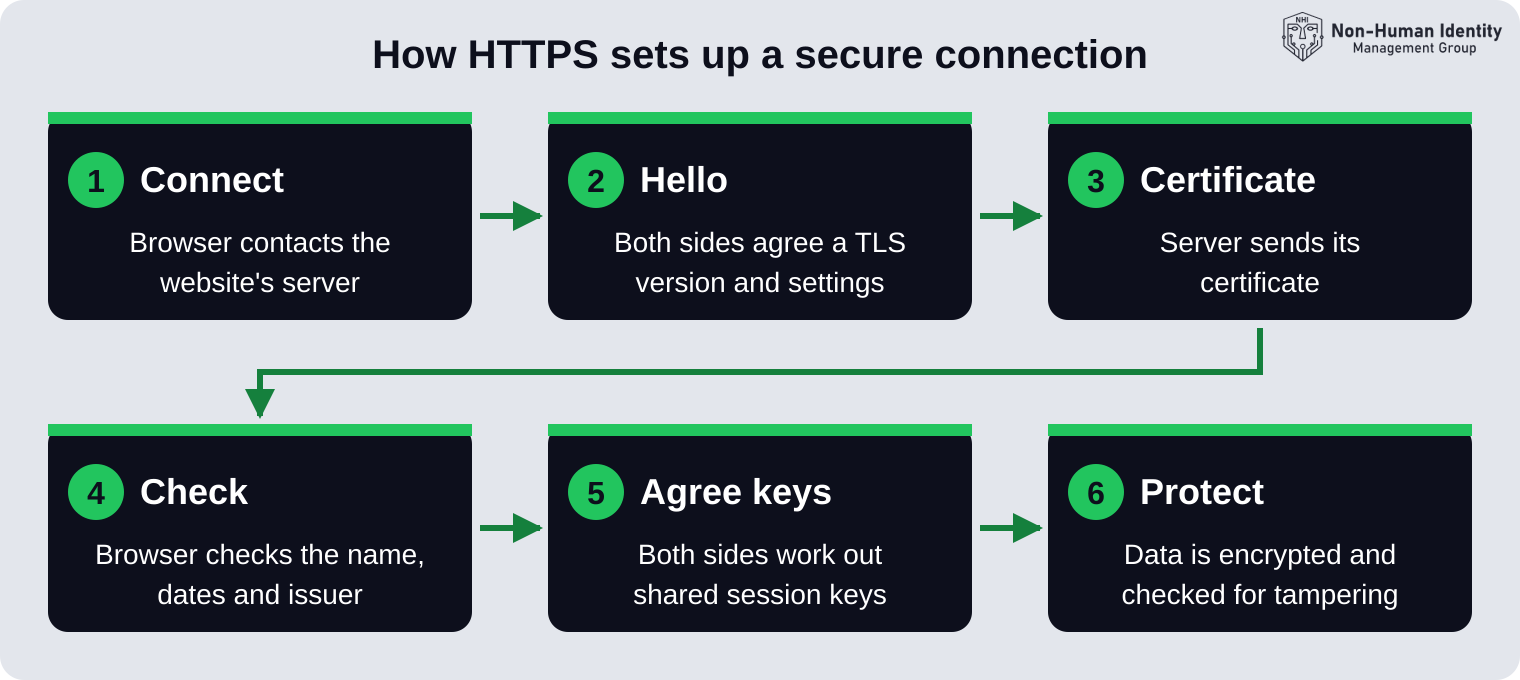
The setup conversation is called the TLS handshake. It takes a fraction of a second, and you never see it.
- Connect. Your browser contacts the website's server, usually on port 443, the standard port for HTTPS.
- Hello. The browser and server agree which TLS version and which encryption methods they both support. The TLS standard describes this as negotiating the version and algorithms.[1]
- Certificate. The server sends its digital certificate: an electronic document that links the website's name to a public key, signed by a certificate authority (CA) that browsers trust.
- Check. The browser checks that the certificate is for the name you typed, is within its valid dates and was signed by a trusted CA. The server also proves it holds the matching private key. If anything fails, the browser shows a warning.
- Agree keys. Both sides work out shared secret session keys without ever sending them across the network.[1]
- Protect. Everything that follows, such as the web page, your password or a form, is encrypted with those keys and checked for tampering.
Before any of this, the website owner must obtain a certificate. Services such as Let's Encrypt check that the requester controls the domain, for example by asking them to publish a special DNS record or web file, then issue the certificate and record it in public Certificate Transparency logs.[5]
Websites can also send an instruction called HSTS (HTTP Strict Transport Security). It tells the browser to use only HTTPS for that site in future and not to let the user click past certificate errors. Its weak spot is the very first visit, before the browser has seen the instruction; sites can close that gap by joining the browsers' preload list.[6]
A worked example
Harbour Lane Bakery is a fictional five-person business with an online ordering site. Priya, the owner, gets an email from a customer saying the site shows "Your connection is not private".
Priya asks her IT contractor, Tom, to look. Tom opens the certificate details in his browser and sees the certificate expired two days earlier. The hosting company's automatic renewal had stopped when the business changed its domain settings. Tom renews the certificate, switches automatic renewal back on and sets a calendar reminder to check it monthly.
While he is there, Tom checks the server settings. TLS 1.0 and 1.1 are still switched on for an old card reader that the bakery no longer uses. He turns them off, leaving TLS 1.2 and 1.3, in line with the UK National Cyber Security Centre (NCSC) advice.[2] He also adds a redirect so anyone typing the plain "http://" address is sent to HTTPS, and plans to add HSTS once he is sure every part of the site works over HTTPS.
Finally, Priya reminds her two staff that a padlock on a login page does not mean the page is genuine. They agree to reach the supplier portal only from a saved bookmark. None of this makes the bakery immune to attack, but customers stop seeing warnings and the most common TLS mistakes are fixed.
Myths and misunderstandings
| What people think | What is true |
|---|---|
| The padlock means the website is safe. | It means the connection is protected. Phishing sites can have valid certificates too. |
| HTTPS encrypts everything about my visit. | It hides the page content and your data, but the network can still see which server you connect to. |
| Only shops and banks need HTTPS. | Every site benefits, because TLS also makes it much harder to alter pages on the way. |
| SSL and TLS are different products. | TLS is the successor to SSL. All SSL versions should be disabled. |
| Once installed, a certificate looks after itself. | Certificates expire and must be renewed, ideally automatically. |
| Clicking past a certificate warning is harmless. | A warning can be the sign of an interception attempt. Stop and check first. |
Key terms
- Transport Layer Security (TLS)
- The protocol that protects data in transit between systems: it authenticates the server, agrees session keys and encrypts traffic so outsiders cannot read or alter it unnoticed.
- HTTPS
- The secure version of HTTP, the web's protocol. It uses TLS to encrypt traffic and authenticate the server.
- Encryption
- Turning readable data into scrambled data that cannot be understood without the correct key.
- Digital certificate
- An electronic credential, valid for a set period, that links a name such as a website address to a public key.
- A trusted organisation that issues and signs digital certificates, binding identities to public keys.
- Public-key cryptography
- Cryptography that uses a pair of keys: a public key anyone can see and a private key kept secret.
- Private key
- The secret half of a key pair, used to prove identity or sign data. Anyone who steals it can pretend to be its owner.
- TLS handshake
- The opening exchange in which the two sides prove identity, agree keys and set up a secure session before data is sent.
- HSTS
- HTTP Strict Transport Security: a browser instruction to use only HTTPS for a site in future.
- Man-in-the-middle attack
- An attack where someone secretly sits between two parties who think they are talking directly, so they can read or change the messages.
Common questions
What is the difference between TLS and HTTPS?
TLS is the protection layer. HTTPS is the web protocol HTTP running over TLS. Email and apps use TLS too, without the HTTPS name.
Which TLS version should we use?
The NCSC advises using TLS 1.3 where possible, keeping TLS 1.2 only with recommended settings while you plan to move to 1.3, and disabling TLS 1.0, TLS 1.1 and all SSL versions.[2] US federal guidance from NIST also requires TLS 1.3 support.[3]
Why do certificates expire?
Expiry limits how long a stolen or mistaken certificate can be misused and forces regular rechecks. Certificate lifetimes are getting shorter, which is why automatic renewal matters.
Does a free certificate give weaker protection than a paid one?
The encryption is the same. Paid certificates may include extra checks on the organisation, but browsers treat a valid domain-validated certificate as secure for the connection.
Can my employer see my HTTPS traffic?
Some organisations use TLS inspection on company devices, which decrypts traffic at a proxy for security checks. This only works because the company installs its own trusted certificate on those devices.
What should I do when I see a certificate warning?
Do not enter any passwords or details. Check you typed the right address, try again later or on another network, and report it if it is a site your organisation runs.
First steps
Three things you can do this week:
- List your websites and services. Write down every site, portal and mail service your organisation runs, and check each one loads over HTTPS without warnings.
- Check certificate expiry and renewal. For each site, note the expiry date and confirm renewal is automatic. Add a reminder for any that are not.
- Ask about TLS versions. Ask your hosting provider or IT contractor to confirm that SSL, TLS 1.0 and TLS 1.1 are switched off and that HTTP redirects to HTTPS. If switching an old version off breaks a critical system, treat any return to it as a controlled, approved and recorded exception with an end date.
Checklist
- Every public website and login page uses HTTPS, and plain HTTP redirects to it.
- We have a list of our certificates with owners and expiry dates.
- Certificate renewal is automatic, and someone is alerted if it fails.
- SSL, TLS 1.0 and TLS 1.1 are switched off on our services.
- TLS 1.3 is enabled where our platforms support it.
- HSTS is turned on once the whole site works over HTTPS.
- Private keys for our certificates are stored securely and access is limited.
- Staff know that a padlock does not prove a site is genuine.
Check your understanding
1. What are the three protections TLS provides?
Answer: authentication of the server (and optionally the client), confidentiality of the data, and integrity, meaning changes are detected.
2. Does a padlock prove a website is run by a real, honest business?
Answer: no. It proves the connection is protected and the certificate matches the site name. Criminals can get certificates for phishing sites.
3. What does HSTS do, and what is its weak spot?
Answer: it tells the browser to use only HTTPS for a site in future. Its weak spot is the first visit, before the browser has received the instruction, which preloading addresses.
4. Why should old TLS versions be switched off?
Answer: they have known weaknesses and current guidance says to disable them, leaving TLS 1.2 with good settings and TLS 1.3.
Suggested learning pathway
- Man-in-the-Middle Attacks for Beginners: a related beginner guide to read next.
- For the building blocks behind certificates, start with the PKI Basics Guide.
- For certificates used by servers and software, see Machine Identities and Certificates for Beginners.
- For how the versions differ, see SSL and TLS Versions Compared.
- For the attack TLS helps defend against, see the Man-in-the-Middle Attacks Guide.
- For shorter certificate lifetimes and expiry outages, see the Certificate Expiry Outages and 47-Day TLS Certificates Guide.
- For how organisations decrypt traffic for security checks, see the TLS Inspection Guide.
- For where TLS sits next to another secure protocol, see SSH vs TLS.
Standards and references
- RFC 9846, The Transport Layer Security (TLS) Protocol Version 1.3. IETF, RFC Editor, Proposed Standard, July 2026 (obsoletes RFC 8446). https://www.rfc-editor.org/rfc/rfc9846, accessed 27 Nov 2026.
- Using Transport Layer Security to protect data. National Cyber Security Centre (NCSC), last updated 15 Oct 2026. https://www.ncsc.gov.uk/guidance/using-tls-to-protect-data, accessed 27 Nov 2026.
- SP 800-52 Rev. 2, Guidelines for the Selection, Configuration, and Use of Transport Layer Security (TLS) Implementations. National Institute of Standards and Technology (NIST), 29 Aug 2019. https://csrc.nist.gov/pubs/sp/800/52/r2/final, accessed 27 Nov 2026.
- Cyber Actors Exploit 'Secure' Websites in Phishing Campaigns, Alert I-061019-PSA. FBI Internet Crime Complaint Center (IC3), 10 Jun 2019. https://www.ic3.gov/PSA/2019/PSA190610.
- How It Works. Let's Encrypt. https://letsencrypt.org/how-it-works/, accessed 27 Nov 2026.
- Strict-Transport-Security header. MDN Web Docs, Mozilla, last modified 11 Sep 2026. https://developer.mozilla.org/en-US/docs/Web/HTTP/Reference/Headers/Strict-Transport-Security, accessed 27 Nov 2026.
Related NHI Mgmt Group resources: PKI Basics Guide · Machine Identities and Certificates for Beginners · SSL and TLS Versions Compared