Endpoint security is the set of controls that protect the devices people and systems use, such as laptops, desktops, phones, tablets and servers, from being taken over, infected or used to steal data.
This guide is for newcomers, students, career changers and managers who are not security specialists. It explains what an endpoint is, why endpoints are a favourite target, the main layers of protection, a worked example, common myths and simple steps a small team can take this week.
By the end of this guide you will be able to:
- Explain what an endpoint is and what endpoint security means.
- Understand why updates, screen locks and encryption matter.
- Describe the difference between antivirus and endpoint detection and response.
- Identify practical steps to protect your own team's devices.
Key takeaways
- Every connected device is an endpoint. Laptops, phones, desktops, servers and virtual machines all count.
- Updates come first. Keeping devices and apps updated fixes weaknesses that criminals look for, and devices that no longer get updates should be replaced.
- Protection comes in layers. Screen locks, encryption, antivirus, a firewall and careful app choices each reduce a different risk.
- Know what you have. You cannot protect a device you do not know about, so keep a simple list.
- Plan for loss and theft. Encryption and remote management make a lost laptop a nuisance rather than a data leak.
What it is, in plain English
An endpoint is any device that runs an operating system and connects to a network: a laptop, desktop, phone, tablet, server or virtual machine. It is called an endpoint because it sits at the end of a network connection, where people and programs actually do their work.
Endpoint security means the controls that protect those devices: keeping them updated, configuring them safely, detecting harmful software, encrypting stored data, and being able to respond when something goes wrong. The UK National Cyber Security Centre (NCSC) publishes device security guidance on choosing, configuring and using phones, tablets, laptops and desktops, which covers areas such as updates, settings and device management.[2]
A helpful comparison is looking after a car. You service it (updates), lock it (screen lock), keep valuables out of sight (encryption) and fit an alarm (antivirus and monitoring). Where the analogy breaks down: a car thief has to be there in person, while an attacker can reach a laptop from anywhere in the world through email, websites or a network connection.
Why it matters to you
- If you run a small business: your laptops and phones hold your email, customer details and banking. One infected or stolen device can expose all of it.
- If you are new to a security job: endpoint alerts and device checks are among the most common daily tasks in a security team.
- If you are a manager: knowing that every device is updated, encrypted and monitored is basic evidence for audits, insurers and customers.
Devices are where people click links, open attachments and type passwords, so they are a natural first target. Harmful software, called malware, can steal data, lock files or give an attacker a way back in. The Center for Internet Security (CIS) has a whole control, Control 10: Malware Defenses, about controlling the installation, spread and running of malicious code on an organisation's devices.[4]
Devices also travel. The NCSC notes that phones and tablets are more likely to be lost or stolen because they leave the office, which makes locking access especially important.[1]
How it works, step by step
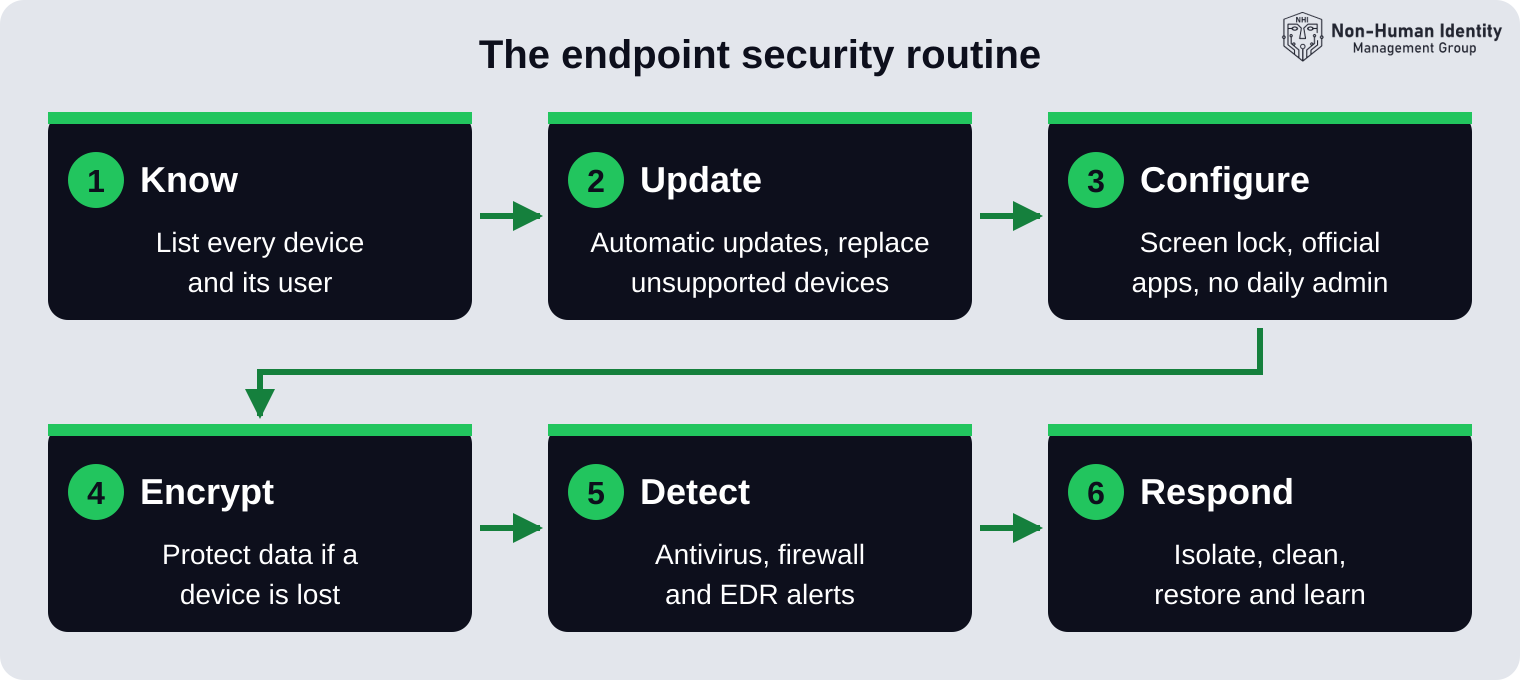
Endpoint security is less a single product and more a routine. A simple way to think about it:
- Know your devices. Keep a list of every laptop, phone, desktop and server that can reach your data, and who uses it.
- Keep them updated. Turn on automatic updates for the operating system and apps. The NCSC advises keeping devices and software up to date because updates fix weaknesses criminals could use, and replacing devices that no longer receive updates.[1]
- Set them up safely. Use a screen lock, such as a 6-digit PIN, a strong password or fingerprint or face recognition, and install apps only from official stores.[1] Give everyday users accounts without admin rights.
- Protect stored data. Turn on full-disk encryption, which scrambles everything on the device so it cannot be read without the key. Windows BitLocker is designed to protect data when a device is lost, stolen or poorly decommissioned.[5] On a Mac, FileVault requires your login password to access the data.[6]
- Detect threats. Check that built-in antivirus and the device firewall are switched on. The NCSC notes that modern devices usually have both built in and enabled by default, but a previous user may have turned them off.[1] Larger teams often add endpoint detection and response (EDR).
- Respond and recover. When something looks wrong, isolate the device, investigate, clean or rebuild it, and restore data from backups. Change any passwords that may have been exposed.
Antivirus and EDR: what is the difference?
Antivirus software detects and blocks known malware on a device. Next-generation antivirus also looks at behaviour, not only known patterns. EDR goes further: it records what happens on devices, raises alerts on suspicious activity and gives a security team tools to investigate and contain a threat. Microsoft, for example, describes its Defender for Endpoint product as a platform to help organisations block, detect, investigate and respond to threats on endpoints, combining EDR with next-generation protection and attack surface reduction.[3] Other vendors offer similar products under different names.
| Layer | What it reduces | Typical example |
|---|---|---|
| Updates | Attacks on known software weaknesses | Automatic operating system and app updates |
| Screen lock | Someone using a lost or unattended device | 6-digit PIN, password or biometrics |
| Encryption | Data being read from a lost or stolen device | BitLocker, FileVault, built-in phone encryption |
| Antivirus | Known malware running | Built-in antivirus switched on |
| Device firewall | Unwanted network connections to the device | Built-in firewall switched on |
| EDR | Attacks going unnoticed | Alerts, investigation and device isolation |
| Device management | Settings drifting and lost devices staying active | Mobile device management (MDM) with remote lock or wipe |
A worked example
Northfield Architects is a fictional firm with 12 staff, each with a laptop and a work phone. Until recently, nobody had checked the devices since they were bought.
Ana, the office manager, spends an afternoon on a basic review:
- Inventory: she lists all 24 devices and finds one old laptop that no longer gets updates. It is replaced.
- Updates: automatic updates are turned on everywhere.
- Encryption: she turns on BitLocker and FileVault and stores the recovery keys in the firm's management account, away from the laptops.
- Accounts: staff now use standard accounts day to day; one separate admin account is kept for installing software.
- Management: phones and laptops are enrolled in the device management tool that comes with the firm's office suite.
Two months later, an architect leaves a laptop on a train. Ana checks the management tool, confirms the laptop is encrypted and sends a remote lock. The laptop is never found, but because the disk is encrypted, a finder who does not know the password faces a much harder job reading the drawings and client details on it. Ana still asks the architect to change their passwords, records the loss and reviews whether any personal data was on the device, in case it needs to be reported.
Myths and misunderstandings
| What people think | What is true |
|---|---|
| Macs and phones do not need any security. | All devices need updates, screen locks and care with apps. The NCSC notes Apple devices have built-in virus protection and that phones generally do not need extra antivirus if you install only official apps, but the other basics still apply.[1] |
| Antivirus is all you need. | Antivirus is one layer. Updates, encryption, screen locks and limited admin rights each cover risks antivirus does not. |
| Updates can wait until it is convenient. | Delaying updates leaves known weaknesses open. Automatic updates are the simplest safe default. |
| Servers are not endpoints. | Servers run operating systems and connect to networks, so they are endpoints too and need the same basics. |
| Encryption means a lost laptop is no problem. | Encryption protects stored data, but you may still need to change passwords, check what was on the device and decide whether to report it. |
Key terms
- Endpoint
- Any device that runs an operating system and connects to a network, such as a laptop, desktop, server, virtual machine or phone.
- Endpoint security
- The set of controls that protect laptops, desktops, servers and mobile devices from compromise, including hardening, malware detection, patching and response.
- Malware
- Software designed to harm, such as by stealing data, encrypting files or giving an attacker access.
- Antivirus software
- Endpoint protection that detects and blocks known malware on devices.
- Next-generation antivirus (NGAV)
- Malware protection that uses behaviour analysis as well as known patterns.
- Endpoint detection and response (EDR)
- Security software that monitors devices for suspicious activity and supports investigation and containment.
- Patch management
- The process of testing and installing software updates that fix weaknesses.
- Full-disk encryption
- Encrypting a whole storage drive so its data cannot be read without the right key if the device is lost or stolen.
- Mobile device management (MDM)
- Enrolling, configuring, monitoring and controlling devices through central policy.
- Firewall
- A control that filters network traffic according to rules, so unwanted connections are blocked.
Common questions
What counts as an endpoint?
Any device that runs an operating system and connects to a network: laptops, desktops, phones, tablets, servers and virtual machines.
Do I need to buy antivirus?
Often not for a small team. Modern Windows and Apple devices include built-in protection; the first job is to check it is switched on.[1] Larger organisations often choose an EDR product for better visibility.
What is the difference between antivirus and EDR?
Antivirus mainly detects and blocks malware. EDR records activity on devices and gives a security team tools to investigate and contain attacks.
Why should staff not use admin accounts every day?
If malware runs while you are signed in as an admin, it can usually do far more damage, such as installing software or changing security settings.
What should I do if a work device is lost?
Report it straight away, lock or wipe it remotely if you can, change passwords used on it, and check whether personal data was on it in case you need to report a breach.
What is mobile device management?
A central tool for enrolling devices, applying settings such as screen locks and encryption, and locking or wiping devices remotely.
First steps
- Make a device list. Note every laptop, phone and server, who uses it and whether it still gets updates.
- Turn on automatic updates on every device and app, and plan to replace any device that no longer receives them.
- Check the basics are on: screen lock, built-in antivirus, device firewall and disk encryption. Store encryption recovery keys somewhere safe, away from the device.
- Remove daily admin rights. Give staff standard accounts and keep admin accounts for when they are needed.
Checklist
- We have an up-to-date list of every device that can reach our data.
- Automatic updates are on for operating systems and apps.
- No device in use is past the end of its update support.
- Every device has a screen lock.
- Laptops and phones are encrypted, and recovery keys are stored safely.
- Antivirus and the device firewall are switched on.
- Staff use standard accounts for everyday work.
- Apps come from official stores, and unused apps are removed.
- We know how to lock or wipe a lost device and who to tell.
Check your understanding
1. Is a server an endpoint?
Answer: yes. Any device that runs an operating system and connects to a network is an endpoint.
2. What does full-disk encryption protect against?
Answer: someone reading the data on a lost, stolen or discarded device without the key or password.
3. Why should you replace a device that no longer gets updates?
Answer: new weaknesses found in its software will not be fixed, so it stays open to attack.
4. Name one thing EDR does that basic antivirus usually does not.
Answer: it records activity on the device and gives a security team tools to investigate and contain an attack.
Suggested learning pathway
- EDR, XDR and MDR for Beginners: a related beginner guide to read next.
- Mobile Device Management for Beginners: a related beginner guide to read next.
- For the wider basics a small organisation needs, start with Small Business Cybersecurity Basics Guide.
- For stronger sign-in on every device, see Multi-Factor Authentication for Beginners and Password Security for Beginners.
- For the threat endpoint security most often guards against, see Ransomware Basics for Small Businesses Guide.
- For the difference between protection tools, read EDR vs Antivirus.
- For turning on encryption properly, see the Disk Encryption Guide: BitLocker and FileVault.
- For practitioner-level settings, use the Endpoint Hardening Checklist and the EDR Guide.
Standards and references
- Protecting your devices. Small organisations guide to cyber security, National Cyber Security Centre (NCSC), published 9 Apr 2026, reviewed 21 Jul 2026. https://www.ncsc.gov.uk/collection/small-organisations-guide-to-cyber-security/protecting-your-devices, accessed 27 Nov 2026.
- Device security guidance. National Cyber Security Centre (NCSC), version 2.1, reviewed 13 May 2025. https://www.ncsc.gov.uk/collection/device-security-guidance, accessed 27 Nov 2026.
- Microsoft Defender for Endpoint. Microsoft Learn, Microsoft, last updated 28 Jul 2026. https://learn.microsoft.com/en-us/defender-endpoint/microsoft-defender-endpoint, accessed 27 Nov 2026.
- CIS Critical Security Control 10: Malware Defenses. Center for Internet Security (CIS). https://www.cisecurity.org/controls/malware-defenses, accessed 27 Nov 2026.
- BitLocker overview. Microsoft Learn, Microsoft, last updated 17 Nov 2026. https://learn.microsoft.com/en-us/windows/security/operating-system-security/data-protection/bitlocker/, accessed 27 Nov 2026.
- Protect data on your Mac with FileVault. Mac User Guide, Apple Support. https://support.apple.com/guide/mac-help/protect-data-on-your-mac-with-filevault-mh11785/mac, accessed 27 Nov 2026.
Related NHI Mgmt Group resources: Mobile Device Security Guide · Endpoint Privilege Management Guide · Travel Cybersecurity Guide