In Active Directory, groups decide what people can open, and OUs decide how accounts are organised and managed.
This guide is for people new to IT work, students and small business owners whose network runs on Microsoft Active Directory. You do not need to be an administrator to follow it. If staff keep getting access they should not have, the cause is often how groups and OUs were set up.
In short
- A group is a named set of accounts. Give access to the group, and every member gets it.
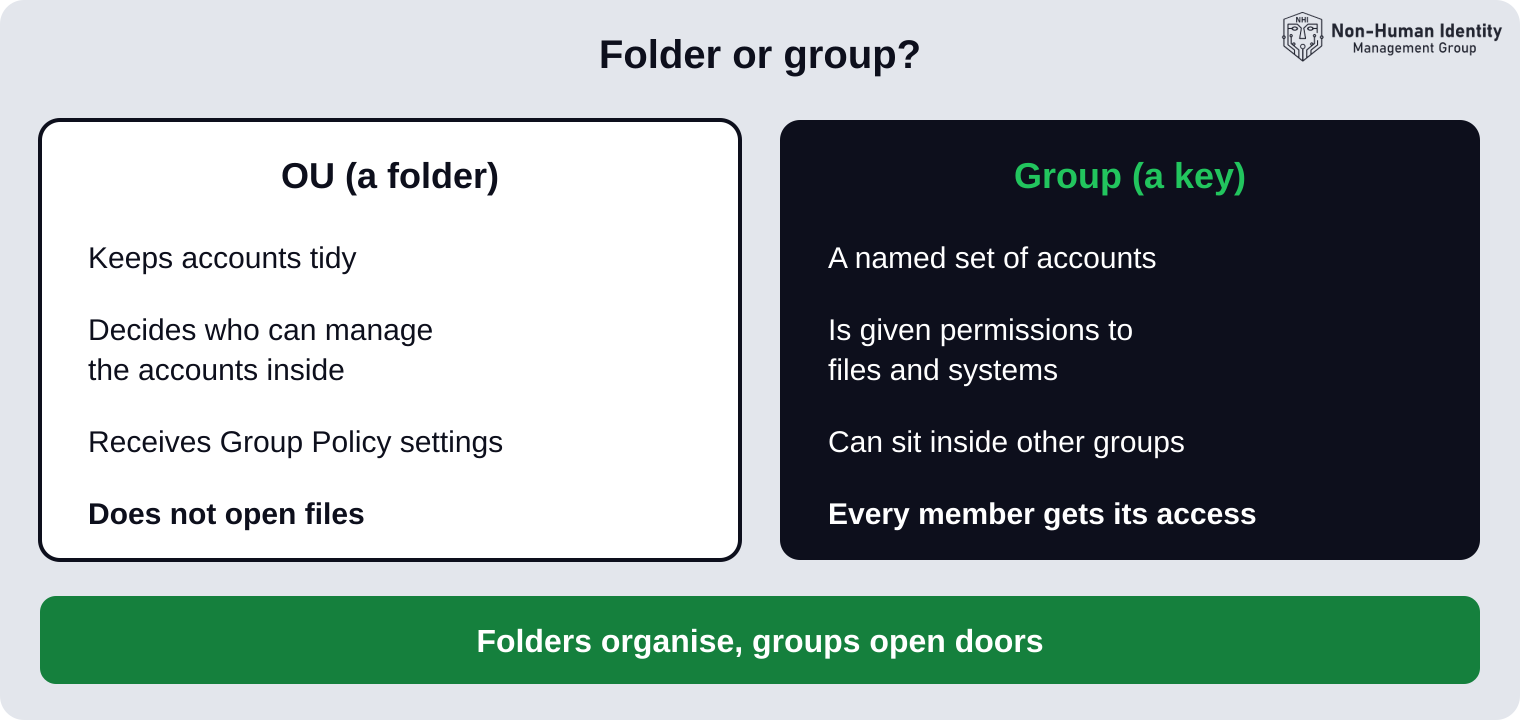
- An organisational unit, or OU, is a folder for tidying accounts. It controls who manages them and which settings they get.
- Putting someone in a folder does not give them access to files. Adding them to a group does.
- Name groups clearly, keep the powerful ones small and check members regularly.
What you will learn
- Explain the difference between a group and an OU.
- Spot a group set-up that hides who really has access.
- Check who is in your most powerful groups.
- Ask clear questions before adding someone to a group.
- Team label (security group)
- a named set of accounts that all get the same access at once.
- Folder for accounts (organisational unit, OU)
- a container that keeps accounts tidy and decides who manages them.
- Shared rules (Group Policy)
- settings, such as screen lock times, sent to the computers and people in a folder.
What are Active Directory groups and OUs?
Think of an office. Each staff member's file sits in a drawer of a filing cabinet, sorted by department. Separately, each person carries a keyring, and the keys on it open certain doors. An OU is the drawer. A group is a key on the keyring.
Active Directory is Microsoft's shared list of the people, computers and groups on a work network. Our Active Directory for Beginners guide explains the basics. This guide looks closer at two building blocks inside it.
A security group is a set of user accounts, computer accounts and other groups, managed as one.[1] You give a permission, which is a right to open or change something, to the group. Everyone in it gets that permission.[2]
An organisational unit (OU) is a container for tidying users, computers and groups. Microsoft describes OUs as boundaries for who may manage what. You can also aim Group Policy settings at an OU.[3]
Where the comparison stops working: a person's file sits in one drawer only. A person can carry many keys, and a group can sit inside another group, so one key can quietly open several doors.
Why does it matter?
Messy groups are one of the most common reasons people keep access they should not have. Clean groups make it quick to see who can open what.
If you are new to IT work
What could happen: you move a new starter into the Finance folder and expect them to see finance files. Nothing changes, because folders do not grant file access.
Check this: ask which group gives access to the files, not which folder the account sits in.
If you run a small business
What could happen: years of "just add them to that group" leave a cleaner or contractor able to open payroll files.
Check this: ask your IT provider for a list of who is in each group that opens sensitive files.
If you help manage a team
What could happen: someone changes role, joins new groups and keeps the old ones, so their access only grows.
Check this: when someone moves team, ask IT to remove the old groups as well as adding new ones.
What does it look like?
Here is a made-up view of a small company's directory, showing folders and groups.
Example only. All values are made up.
example.local
  OU Staff
    OU Sales            (accounts: 6)          (1)
    OU Finance          (accounts: 3)
  OU Laptops            (computers: 9)         (2)
  Group  Role-Finance        members: 3         (3)
  Group  Files-Payroll-Read  members: Role-Finance, Group2  (4)
  Group  Group2              members: 11        (5)
  Group  Domain Admins       members: 5         (6)
- A folder for sales staff. It decides who manages these accounts and which settings they get.
- A folder for laptops, so laptop settings can be aimed at them.
- A group for the people who do finance work.
- A group that opens the payroll files. Its members are other groups.
- A vaguely named group inside the payroll group. Nobody knows who its 11 members are or why.
- The most powerful group in the domain, with more members than it likely needs.
Why this is risky: through Group2, eleven unknown people can read payroll. Five people hold full control of the whole network.
The safer way: every group has a clear name, a stated purpose and an owner. Payroll access comes only through Role-Finance, and the admin group is kept very small.
How does it work?
Most well-run networks follow a simple pattern.
- Sort accounts into folders. Accounts go into OUs by who manages them or which settings they need, such as laptops or staff in one office.[3]
- Aim settings at folders. Group Policy settings are linked to OUs, as well as to sites and to the whole domain. Settings from a child folder are applied after those from its parent.[4]
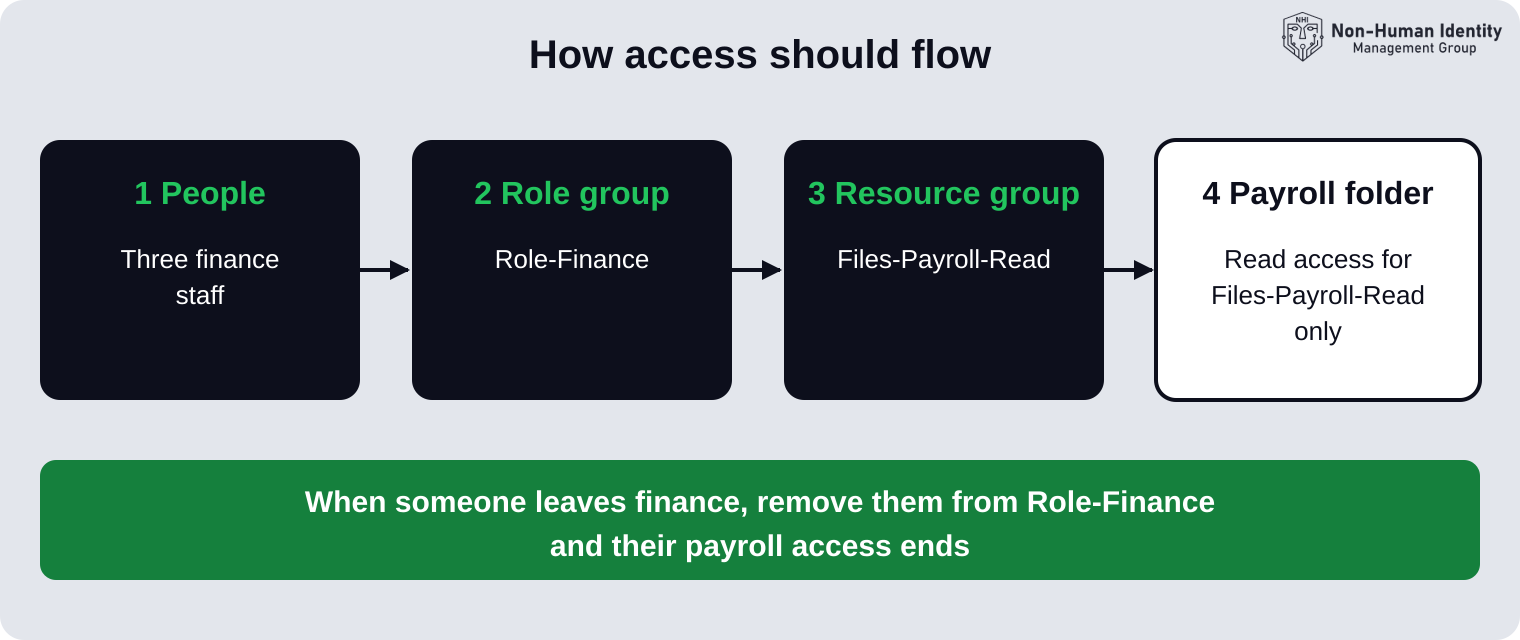
- Put people into role groups. Make a group for each job, such as Role-Finance, and add the people who do it.
- Nest role groups into resource groups. Make a group for each shared resource, such as Files-Payroll-Read. Add the role groups to it, and give the permission to that group. Microsoft describes this pattern of nesting groups and granting access to the outer one.[2]
- Keep powerful groups small. Microsoft advises keeping the top admin groups free of day-to-day accounts. People join them only when needed, and leave straight after.[5]
Microsoft's cloud directory, Entra ID, also has groups but has no OUs. It uses a different container, called an administrative unit, to limit who can manage which accounts.[6]
A worked example
Hana Haddad has just joined Birch Gym, a fictional chain of three gyms, as its first IT assistant. Her manager, Anil Iyer, asks her to find out why a front desk worker could open the staff pay folder.
Hana looks at the pay folder's permissions. Only one group can open it: Files-Pay-Read. That looks fine, so she checks who is in it.
Inside she finds the Role-Managers group, as expected. She also finds a group called Temp-Access. Someone added it two years ago to help with a payroll problem and never removed it. Temp-Access has 14 members, including front desk staff.
Anil agrees with her plan. They remove Temp-Access from the pay group and check the folder again. Only managers can now open it, in the records available to them. Hana also asks the front desk team whether anyone needs payroll access for their job. Nobody does.
Next, Hana checks the most powerful group, Domain Admins. It has four members. One is a former contractor. Anil confirms he left, so they remove him and disable his account.
Last, Hana writes a short rule for the team. Every group needs a clear name, a purpose and an owner. Temporary access gets an end date in the description, and they will review sensitive groups every three months.
Myths and mistakes
| What people think | What is true |
|---|---|
| Moving someone to the Finance OU gives them finance access. | OUs organise and manage accounts. Access to files is usually given through groups.[3] |
| Email lists and security groups are the same thing. | Distribution groups are for email only. Only security groups can be given permissions.[2] |
| Giving access to each person directly is simpler. | It is quick at first but hard to track. Microsoft recommends giving permissions to groups instead.[2] |
| If I can see a group's members, I know who has access. | Groups can sit inside other groups. You need to look inside each one to see everyone. |
| Admins should stay in Domain Admins so they can work quickly. | Microsoft advises keeping top admin groups free of everyday accounts and granting narrower rights for daily tasks.[5] |
What can I do this week?
- Ask for the list of members of Domain Admins and check each name with a manager.
- Pick one sensitive shared folder and find out which groups can open it.
- Look inside each of those groups, including any groups nested inside them.
- Rename or document one vaguely named group, with its purpose and owner.
- Agree that when someone moves team, their old groups are removed.
Checklist
- I can explain the difference between a group and an OU.
- I know that access to files comes through groups, not folders.
- Every group that opens sensitive files has a clear name and an owner.
- I have checked nested groups, not just direct members.
- The top admin groups have very few members, and each one is known.
- Team moves remove old groups as well as adding new ones.
- Sensitive groups are reviewed on a regular schedule.
Common questions
Can I give an OU permission to open a shared folder?
Not in the usual way. Permissions on files are given to accounts and security groups, which the system can recognise at sign-in. An OU is a container, not a member. Use a group for access, and use OUs for tidying, managing and settings.
What is the difference between global and domain local groups?
They are group types with different reach, called scopes. A common pattern puts people into global groups, nests those inside domain local groups, and gives permissions to the domain local groups. The practitioner guide covers scopes in more detail.
Why is nesting groups risky?
Nesting is useful, but it can hide access. A group inside a group inside another group means someone may open files nobody expected. Keep nesting shallow, name groups clearly and check nested members when you review access.
Do service accounts go into groups too?
Yes. Service accounts, which are accounts that programs use instead of people, often sit in groups. They need the same care: a named owner, only the access they need and regular checks. Our service accounts beginner guide explains more.
Does Microsoft Entra ID have OUs?
No. Entra ID has groups, but uses administrative units to limit who can manage which accounts. They are flat and cannot be nested. Many businesses use both Active Directory and Entra ID, so both kinds of container may matter.
Where next?
Ready for the detail? Read the practitioner guide: Active Directory and Entra ID Hardening Guide. It goes further into protecting admin groups, tiering admin accounts and hardening both directories.
Also useful:
- Active Directory for Beginners
- Role-Based Access Control for Beginners
- Least Privilege for Beginners
- Group Policy Security Guide
- Service Accounts for Beginners
Related NHI Mgmt Group resources: Access Reviews Guide · RBAC Role Matrix Template · Microsoft Entra ID for Beginners
Key terms
- Active Directory
- Microsoft's directory service for managing the people, computers and groups on a work network.
- Security group
- A named set of members that is given access, so every member gets it.
- Organisational unit (OU)
- A container in Active Directory for organising accounts, sharing out admin work and aiming settings.
- Group Policy
- A Windows feature that sends agreed settings to the computers and people in a domain, site or OU.
- Domain Admins
- A built-in group with full control of a domain, so its membership should stay very small.
- Role-based access control
- Giving access by job role, by putting people into groups that match their role.
- Least privilege
- Giving each person or program only the access it needs, for only as long as needed.
Sources and further reading
- Security principals. Windows Server documentation, Microsoft Learn, Microsoft. https://learn.microsoft.com/en-us/windows-server/identity/ad-ds/manage/understand-security-principals, accessed 28 Nov 2026.
- Active Directory security groups. Windows Server documentation, Microsoft Learn, Microsoft. https://learn.microsoft.com/en-us/windows-server/identity/ad-ds/manage/understand-security-groups, accessed 28 Nov 2026.
- Reviewing OU design concepts. Windows Server documentation, Microsoft Learn, Microsoft. https://learn.microsoft.com/en-us/windows-server/identity/ad-ds/plan/reviewing-ou-design-concepts, accessed 28 Nov 2026.
- Group Policy hierarchy. Microsoft Learn, Microsoft. https://learn.microsoft.com/en-us/previous-versions/windows/desktop/policy/group-policy-hierarchy, accessed 28 Nov 2026.
- Implementing least-privilege administrative models. Windows Server documentation, Microsoft Learn, Microsoft. https://learn.microsoft.com/en-us/windows-server/identity/ad-ds/plan/security-best-practices/implementing-least-privilege-administrative-models, accessed 28 Nov 2026.
- Administrative units in Microsoft Entra ID. Microsoft Learn, Microsoft. https://learn.microsoft.com/en-us/entra/identity/role-based-access-control/administrative-units, accessed 28 Nov 2026.