App permissions are the choices that decide which parts of your phone an app may use.
This guide is for anyone with a smartphone who wants to know what those "Allow?" pop-ups mean. You do not need any technical knowledge. If you use apps for shopping, banking, maps or messages, you already make these choices every week.
In short
- An app has to ask before it can use sensitive things like your location, camera, microphone, contacts or photos.
- You can say yes, say no, or allow it only while you use the app or just this once.
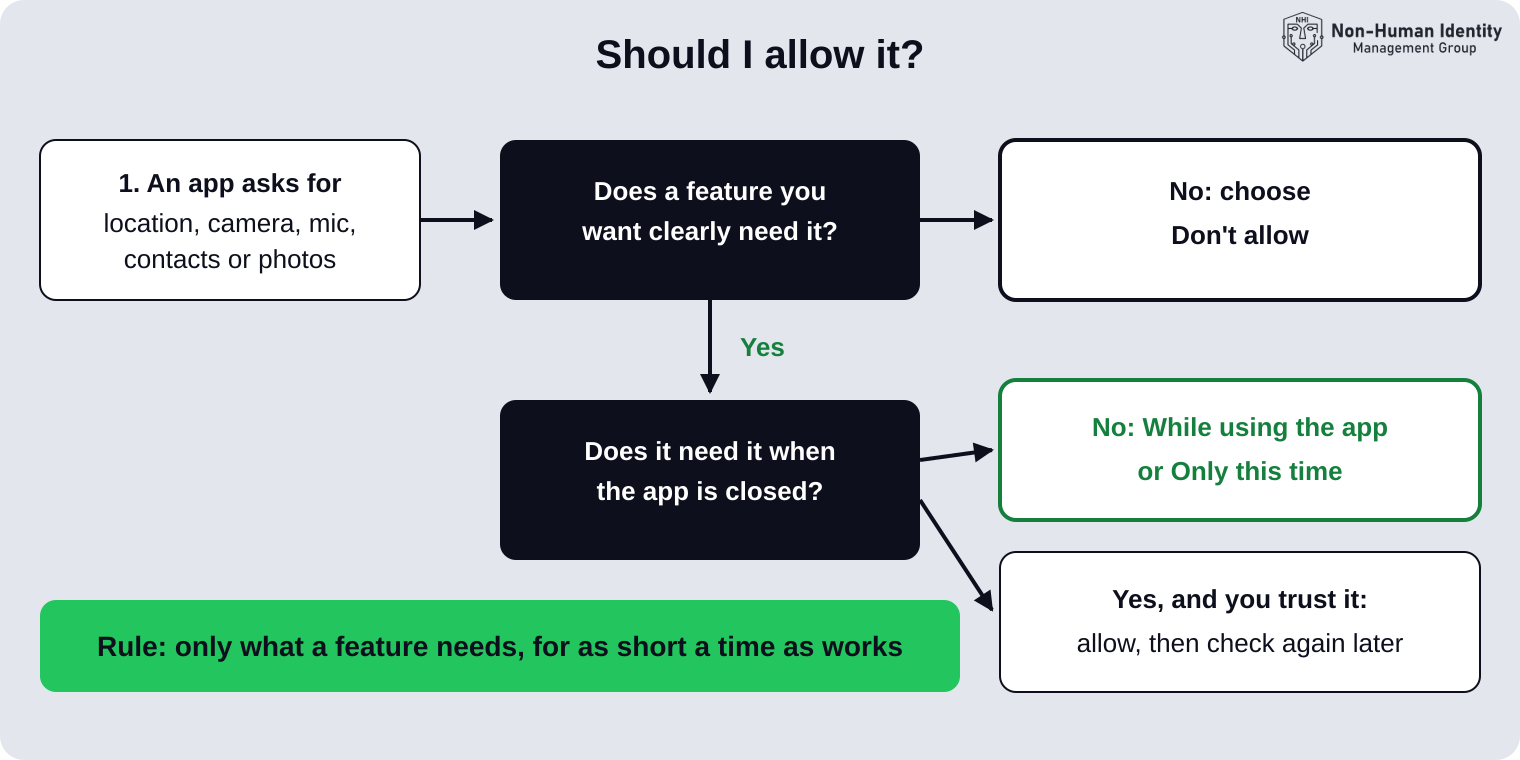
- A good rule: allow a permission only when a feature you want clearly needs it.
- You can check and change every choice later in your phone's settings.
What you will learn
- Explain what an app permission is in one sentence.
- Spot a request that does not match what the app does.
- Choose the safest option that still lets the app work.
- Check which apps can reach your location, camera and contacts.
- Access request (permission prompt)
- the pop-up where an app asks to use part of your phone.
- Only while in use
- an option that lets the app use something only when it is open on your screen.
- Phone settings list (permission manager)
- the place in settings that shows which apps can use what.
What are app permissions?
Think of a house guest. You might let a plumber into the kitchen, but not into your bedroom or your desk drawers. App permissions work the same way: you decide which rooms of your phone each app may enter.
Your phone keeps your private things behind closed doors. These include your location, camera, microphone, contacts, photos and calendar. An app can only open those doors if you say yes.[1]
Some low-risk access is given quietly when you install an app. For more sensitive things, the phone shows a pop-up and waits for your answer. Android calls these sensitive ones "runtime" or "dangerous" permissions. The app must ask for them while it is running.[1] iPhones show a similar request the first time an app wants the information.[2]
Where the comparison stops working: a plumber leaves when the job is done. An app you said yes to can keep its access until you change it. The exceptions are when you chose a time limit, or the phone tidies up for you.
Why does it matter?
Every yes shares a little more about you. The FTC, a US consumer protection agency, suggests turning off permissions an app does not need. It also suggests deleting apps that ask for lots they do not need.[3]
If you use apps every day
What could happen: a free game you said yes to can see where you are, even when you are not playing.
Check this: which apps have location set to "All the time" or "Always"?
If you help an older relative with their phone
What could happen: they tap "Allow" on every pop-up to make it go away.
Check this: sit with them once and look at the permissions list together.
If you are new to IT support work
What could happen: a staff phone app with access to contacts copies client names off the device.
Check this: ask whether work phones have rules about which apps and permissions are allowed.
What does it look like?
Here is a made-up pop-up from a torch app. A torch only needs to switch on the phone's light.
Example only. All values are made up.
  Allow "Example Torch FAKE" to access
  this device's location?               (1)

  [ While using the app ]                (2)
  [ Only this time ]                     (3)
  [ Don't allow ]                        (4)
- In a real screen, this line would name the app and the thing it wants. A torch has no clear need for your location.
- The app can use it only while it is open on screen.
- The app can use it for this visit, then must ask again next time.
- The app cannot use it. Most apps keep working without the extra access.
Why this is risky: if you tap yes without thinking, the app can learn where you live, work and travel. That has nothing to do with being a torch.
The safer way: ask "does the feature I want need this?" If not, tap "Don't allow". If it does, pick the shortest option that works.
How does it work?
- The app asks. When an app first wants something sensitive, the phone shows a pop-up. On an iPhone it can include the app maker's reason.[2][4]
- You choose. For location, camera and microphone, Android offers "While using the app", "Ask every time" (or "Only this time") and "Don't allow". Location can also be set to "All the time". Then the app can use it even when you are not using the app.[5] iPhones offer "Allow Once" for location.[4]
- The phone remembers. Your answer is saved. A one-time permission ends soon after you leave the app, and the app must ask again next time.[6]
- You can change your mind. On Android, open Settings, then Apps, pick the app and tap Permissions. On an iPhone, open Settings, then Privacy & Security.[5][2]
- The phone tidies up. On newer Android phones, if you do not use an app for a few months, the phone can remove its sensitive permissions for you.[6]
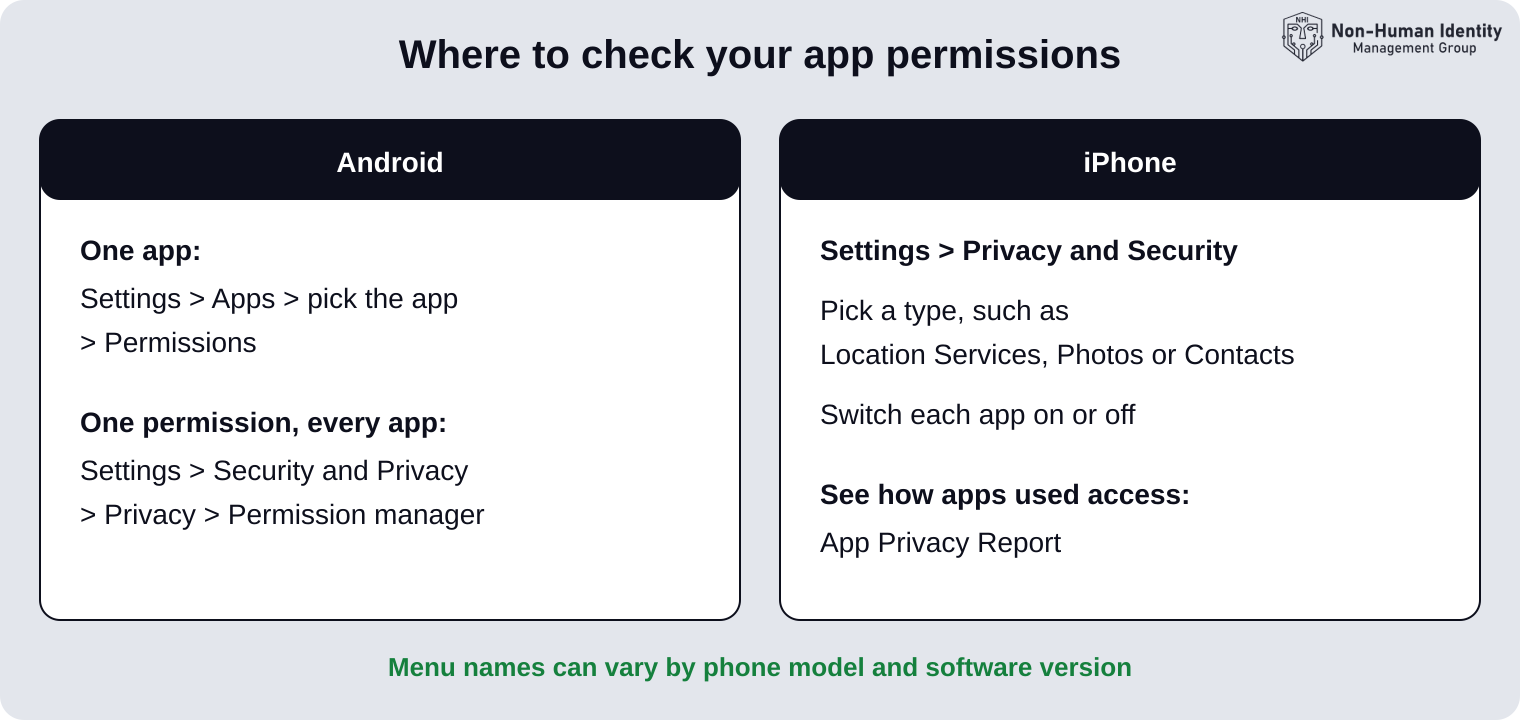
Menu names can differ between phone makers and software versions, so the steps above are a guide, not an exact map. The help pages from Google and Apple show the current wording.[5][2]
A worked example
Celia Jensen is 71 and has just got her first smartphone. Her grandson, Quinn Mbeki, offers to help her set it up one Sunday.
Celia has already installed three apps. There is a weather app, a puzzle game and a photo printing app from Linden Opticians, where she buys her glasses. She tells Quinn, "I just press Allow. Otherwise the boxes keep coming."
Quinn reminds her of a house guest. "You would let the window cleaner into the garden, but not into your handbag." Together they open the phone's permission settings.
The weather app has location set to "All the time". Celia only checks the weather when she opens the app, so they change it to "While using the app". The forecast still works.
The photo app can see all her photos. It needs some of them to print, so they leave it on but agree to look again next month.
The puzzle game can see her contacts and her location. A puzzle has no clear need for either. They turn both off and the game still loads. Quinn says that if a feature she wants needs one of them, she can turn it back on.
Last, Quinn shows her the "Only this time" button for the next pop-up. Celia writes "Does it need it?" on a sticky note and puts it by her chair.
The phone is not risk-free, but Celia now makes a choice instead of tapping yes by habit.
Myths and mistakes
| What people think | What is true |
|---|---|
| If I say no, the app will be no use. | Most apps keep working. Only the feature that needs the access may be switched off. Developers are told to plan for a no.[6] |
| Once I say yes, I cannot undo it. | You can change any permission later in settings.[2][5] |
| Apps from the official store only ask for what they need. | Store apps still decide what to ask for. You are the one who chooses what to allow. |
| Location is either on or off. | You can often choose "While using the app", "Only this time" or "Allow Once" instead of "All the time".[4][5] |
| Deleting an app I no longer use is pointless. | An unused app can keep the access you gave it. Deleting it removes that access from your phone. |
What can I do this week?
- Open your phone's permission settings and look at location first.
- Change any app set to "All the time" or "Always" unless it truly needs it.
- Turn off camera, microphone and contacts access for apps that have no clear need.
- Delete two apps you have not opened in months.
- Next time a pop-up appears, ask "does the feature I want need this?"
Checklist
- I have checked which apps can use my location.
- Only apps I trust and need have location "All the time".
- Camera and microphone access is limited to apps that use them, like video calls.
- Apps that do not need my contacts or photos cannot see them.
- Unused apps are deleted, or their permissions are removed automatically.
- I choose "Only this time" or "While using the app" when I am unsure.
- I help family members check their phones too.
Common questions
Which app permissions are the most sensitive?
Location, camera, microphone, contacts and photos are usually the most sensitive. They can reveal where you go, what you say and who you know. Android treats these as permissions the app must ask for while it runs, and singles out the camera and microphone as particularly sensitive.
Why does a simple app want so much access?
Sometimes there is a good reason, such as sharing a photo inside a chat. Sometimes the app collects more data than it needs. If you cannot think of a feature that needs the access, it is reasonable to say no and see whether the app still works.
What does "Only this time" mean?
It lets the app use the access for your current visit only. On Android, once you leave the app, the access ends after a short while and the app must ask again. It is a good choice when you are not sure yet.
Can I see what an app has done with its access?
Partly. On an iPhone, the App Privacy Report in Privacy & Security settings shows how apps use the permissions you gave them. Android phones show which apps hold each permission in the permission manager. Neither shows what an app does with data after it leaves your phone.
Are permissions on work phones different?
They can be. Many employers manage work phones with a tool that sets rules for apps and permissions. If you have a work phone, ask your IT team what is allowed before changing settings or installing new apps.
Where next?
Ready for the detail? Read the practitioner guide: Mobile App Permissions. It goes further into how Android and iOS group permissions, how organisations set permission rules on work phones and how to measure risky access.
Also useful:
- Smartphone Security for Beginners
- Android Security and Privacy Settings Guide
- iPhone Security and Privacy Settings Guide
- Spyware for Beginners
- Location Data Privacy Guide
Related NHI Mgmt Group resources: Data Privacy for Beginners · Mobile App Security for Beginners · Least Privilege for Beginners
Key terms
- App permissions
- The parts of your phone, such as camera, contacts or location, that an app is allowed to use.
- Runtime permission
- A sensitive permission the app must ask you for while it is running, not just at install.
- Background location
- Location access an app can use even when you are not using it.
- Approximate location
- A rough area rather than your exact spot, offered on some phones as a safer choice.
- Privacy dashboard
- A settings screen that shows which apps recently used sensitive permissions.
- Least privilege
- Giving each person or program only the access it needs, and no more.
Sources and further reading
- Permissions on Android. Android Developers, Google. https://developer.android.com/guide/topics/permissions/overview, accessed 28 Nov 2026.
- Control access to information in apps on iPhone. iPhone User Guide, Apple. https://support.apple.com/guide/iphone/control-access-to-information-in-apps-iph251e92810/ios, accessed 28 Nov 2026.
- How To Protect Your Privacy on Apps. Consumer Advice, US Federal Trade Commission. https://consumer.ftc.gov/articles/how-protect-your-privacy-apps, accessed 28 Nov 2026.
- About privacy and Location Services. Apple Support, Apple. https://support.apple.com/en-us/102515, accessed 28 Nov 2026.
- Change app permissions on your Android phone. Android Help, Google. https://support.google.com/android/answer/9431959, accessed 28 Nov 2026.
- Request runtime permissions. Android Developers, Google. https://developer.android.com/training/permissions/requesting, accessed 28 Nov 2026.