Spyware is harmful software that secretly watches what you do on a device and sends it to someone else.
This guide is for anyone with a phone, tablet or laptop who wants to know how spyware gets in, how to spot it and what to do. You do not need to be famous to be a target: most spyware is spread to ordinary people through fake apps and links.
In short
- Spyware hides on a device and copies things like messages, passwords and location.
- It most often arrives as an app you are tricked into installing, usually from outside the official app store.
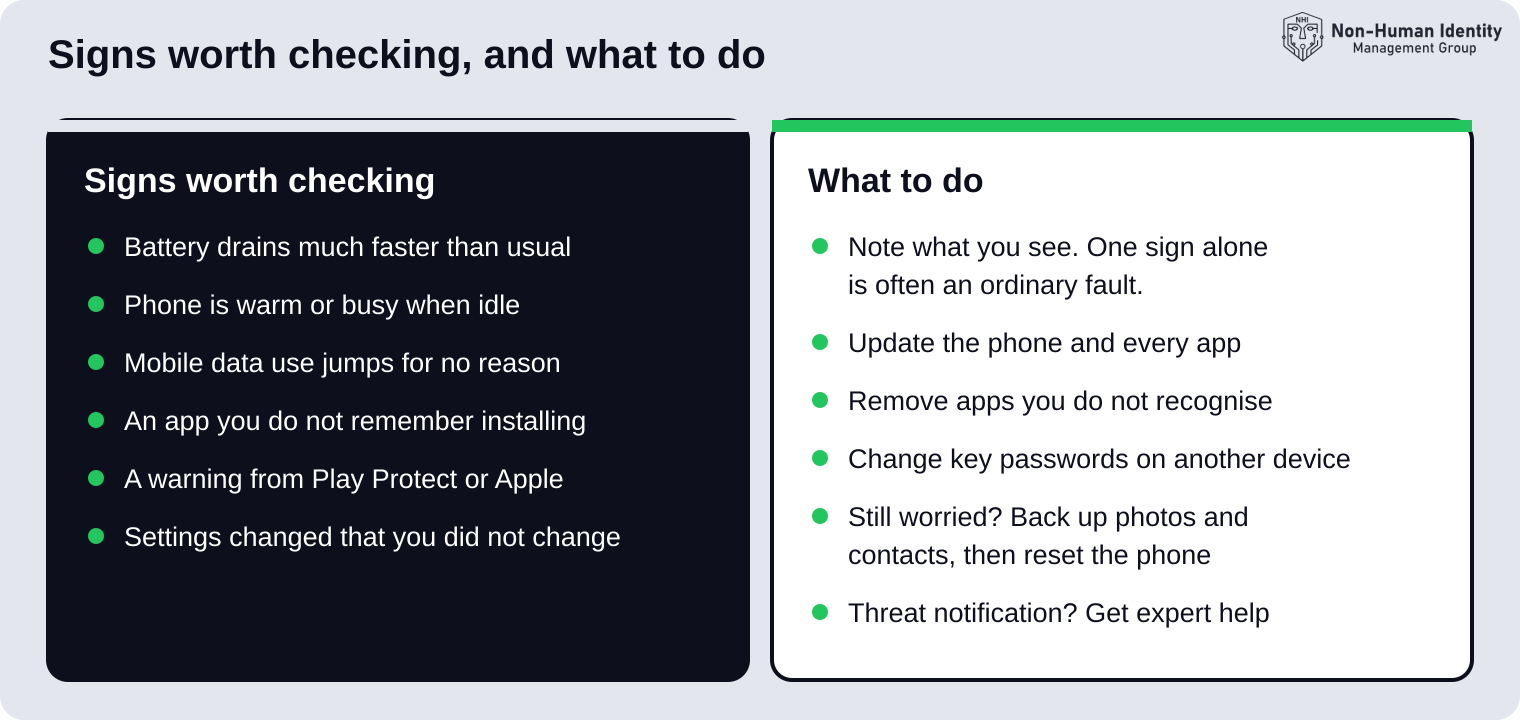
- Signs include fast battery drain, a warm idle phone, odd data use and apps you do not remember adding. Each one alone is often an ordinary fault.
- Update your phone, remove unknown apps and change key passwords from another device. If the worry stays, back up photos and reset the phone.
What you will learn
- Explain what spyware is in one sentence.
- Spot the common ways spyware gets onto a phone.
- Check your phone for warning signs and unknown apps.
- Know the steps to remove it and when to ask for expert help.
- Spying app (spyware)
- software that quietly collects what you do and sends it to someone else.
- App access rights (permissions)
- the things an app is allowed to use, such as your camera, contacts or location.
- Back to new (factory reset)
- wiping a phone so it goes back to how it was when you bought it.
What is spyware?
Think of a tiny listening bug hidden in your living room. You carry on as normal, and someone else hears every word. Spyware does the same thing inside a phone or computer.
Spyware is one kind of malware, which means any software made to cause harm.[1] What makes spyware different is that it tries to stay hidden. It may copy your messages, the passwords you type, your photos or where you go.
Most spyware is aimed at many people at once. Criminals want bank logins, card details or accounts they can sell. A much rarer and very costly kind is called mercenary spyware. It is aimed at a few chosen people, such as journalists and activists.[2]
Where the comparison stops working: a bug in a room picks up only sound in that room. Spyware on a phone can reach your messages, camera and location wherever you take it.
Why does it matter?
Your phone holds the keys to most of your life. Spyware on it can open the door to your money, your accounts and your private messages.
If you use your phone for banking
What could happen: spyware copies your bank password as you type it, and a criminal signs in as you.
Check this: turn on the extra sign-in check your bank offers, so a password alone is not enough.
If you use one phone for work and home
What could happen: spyware from a personal app reads your work email and files too.
Check this: ask your IT team what they need you to do if you think your phone is infected.
If your work puts you in the public eye
What could happen: journalists, campaigners and politicians are the people rare, costly spyware is aimed at.[2]
Check this: learn what a genuine warning from Apple or Google looks like, and where to get expert help.
What does it look like?
Spyware often starts as an app that looks helpful. Here is the kind of screen you might see while installing one.
Example only. All values are made up.
Install "SuperFast Phone Cleaner (FAKE)"?           (1)
  From: download.example.invalid                     (2)
This app wants to:
  [x] Read your text messages                        (3)
  [x] Use the microphone at any time                 (3)
  [x] See your location all the time                 (3)
  [x] Use accessibility to control your screen       (4)
  [ Allow ]   [ Deny ]
- A "cleaner" or "battery saver" app with a big promise. In a real screen, the name would look friendly and familiar.
- The app comes from a website, not the official app store.
- A cleaning app has no need to read your texts, listen or track you.
- Accessibility settings help people with disabilities use a phone. Spyware asks for them because they let an app see and press things on your screen.
Why this is risky: once you tap Allow, the app can do everything on that list quietly, in the background.
The safer way: install apps only from the official app store. Tap Deny when an app asks for access it does not need.
How does it work?
This is a simple view so you can spot it. It is not a guide to doing it.
- The lure. A text, advert or website pushes you to install a "free" app or tap a link.
- The install. You install the app yourself, often from outside the app store. Very rarely, costly spyware uses a software flaw to get in without a tap. A flaw like this is called a vulnerability.[2]
- The access. The app asks for permissions, such as your messages, location or microphone.
- Quiet collecting. It copies what you type, say and look at, and tries to stay out of sight.
- Sending it out. It sends what it collects to the criminal over the internet.
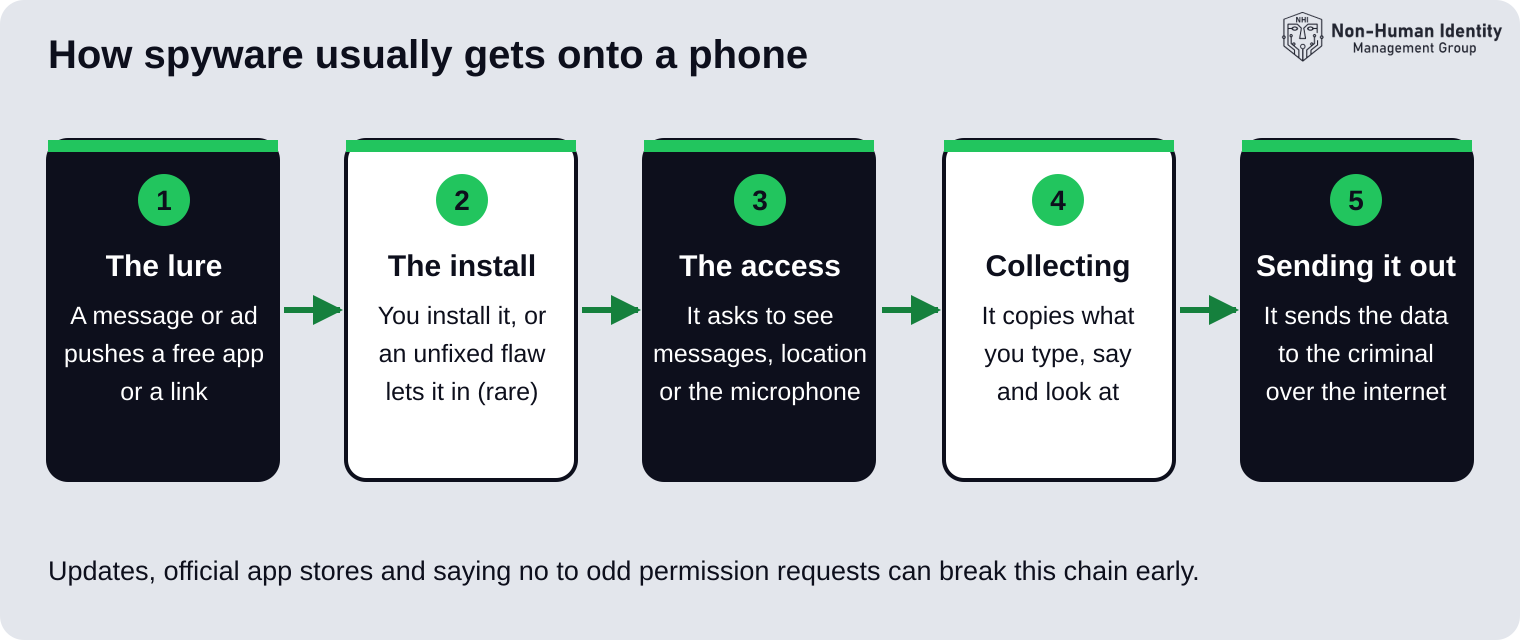
Phones have some built-in help. On Android, Google Play Protect checks apps, warns you about harmful ones and may remove them, including apps from outside the Play Store.[3] Updates also matter, because they fix the flaws that some spyware relies on.[4]
Spyware is not only a theory. In April 2025 the UK's National Cyber Security Centre warned about two kinds of phone spyware. They were aimed at people linked to certain groups and causes.[5]
A worked example
This story is made up to show how it can happen.
Nathan Brooks-Ward is a warehouse worker in Leeds. His phone battery has been running low by lunchtime, so a pop-up advert for a free "battery booster" app catches his eye.
The advert sends him to a website, not the app store. The phone warns him that installing apps from unknown sources can be risky. He taps through it. The app asks to read his texts and use accessibility settings, and he taps Allow to make the pop-ups stop.
Over the next week his battery gets worse, not better. The phone feels warm in his pocket even when he is not using it. His monthly data is nearly gone by the middle of the month. Then Google Play Protect shows a warning that a harmful app is on his phone.
Nathan reads up on the signs and decides to act. He follows the warning and removes the app. He updates the phone and every app. He checks his app list and removes two others he does not remember adding.
Because the app could read his texts, he treats his passwords as known. On his partner's laptop he changes his email password first, then his bank password. He signs out of all other devices and turns on app-based sign-in codes.
He calls his bank on the number on his card. There are no strange payments in the records the bank can see so far, but it adds a watch to his account. A week later the battery and data use are back to normal.
What made the difference: Nathan treated several small signs together as a warning, and he changed his passwords from a different device.
Myths and mistakes
| What people think | What is true |
|---|---|
| Only famous people get spyware. | The rare, costly kind targets a small number of people.[2] Ordinary spyware is spread widely through fake apps and links. |
| A slow or hot phone means spyware. | Not on its own. Old batteries and busy apps cause this too. Look for several signs together. |
| iPhones cannot get spyware. | They are harder to infect with ordinary apps, but no phone is free of risk. Apple sends warnings to people it thinks were targeted.[2] |
| Deleting the app fixes everything. | It is a good first step. Also change your passwords from another device, because the app may already have copied them. |
| A security warning from Apple asks me to click a link to fix it. | Apple says its threat warnings never ask you to click links, install apps or give passwords.[2] A message that does may itself be a scam. |
What can I do this week?
- Turn on automatic updates for your phone and apps.[4]
- Scroll through your app list and remove anything you do not use or do not recognise.
- Open your phone's privacy settings and check which apps can use your microphone, camera, location and texts. Turn off anything that looks odd.
- On Android, check that Google Play Protect is turned on.[3]
- Turn on an extra sign-in check for your email and bank, so a stolen password alone is not enough.
Checklist
- My phone and apps update automatically.
- I install apps only from the official app store.
- I say no when an app asks for access it has no clear need for.
- I have checked my app list for apps I do not recognise.
- My email and bank use an extra sign-in check, not just a password.
- I know the signs of spyware, and that one sign alone is often an ordinary fault.
- I know to change passwords from a different device if I suspect spyware.
Common questions
How do I know if spyware is on my phone?
Look for several signs at once. Watch for fast battery drain, a warm phone when idle, a jump in data use or apps you do not know. One sign alone is often a normal fault. A warning from Play Protect or Apple is a stronger reason to act.
Will a factory reset remove spyware?
Usually, for the everyday kind. A reset wipes installed apps and settings. Back up photos and contacts first, but do not restore old apps from a backup without checking them. Change your passwords from another device too, because a reset does not undo what was already copied.
What should I do if I get a threat warning from Apple?
Check it is real by signing in at Apple's own account website. Do not use a link in the message. Apple suggests you turn on Lockdown Mode, an extra-strict setting, and get expert help, such as Access Now's Digital Security Helpline.[2][6]
Is there an extra-safe setting on Android?
Yes. Supported Android phones offer Advanced Protection. It turns on Google's strongest safety settings in one go, such as blocking apps from unknown places. You do not need to be an expert to use it.[7]
What if I think someone I know put spyware on my phone?
Talk to a specialist support service before you remove anything. Removing it may alert the person who installed it, and a specialist can help you plan safely. This guide covers spyware from criminals and fake apps, not this situation.
Where next?
Ready for the detail? Read the practitioner guide: Mobile Spyware Infection Response Playbook. It goes further into keeping evidence before a reset, specialist checking tools, and how an organisation handles a suspected case.
Also useful:
- Malware for Beginners
- Smartphone Security for Beginners
- Mobile App Permissions
- Commercial Spyware Guide
Related NHI Mgmt Group resources: Securing Your Smartphone Guide · Apple Lockdown Mode Guide · Phishing for Beginners
Key terms
- Spyware
- Harmful software that secretly watches a device and collects data without the owner's consent.
- Malware
- Any software made on purpose to cause harm, such as stealing data or locking files.
- Mercenary spyware
- Costly spyware sold to powerful buyers and aimed at a few chosen people.
- App permissions
- The things an app is allowed to use on your device, such as the camera or location.
- Sideloading
- Installing an app from somewhere other than the official app store.
- Factory reset
- Wiping a phone or tablet so it goes back to its original software, removing installed apps and settings.
- Lockdown Mode
- An extra-strict phone setting that turns off some features to make targeted attacks harder.
Sources and further reading
- Malware: How To Protect Against, Detect, and Remove It. Federal Trade Commission (FTC) Consumer Advice, updated 1 May 2026. https://consumer.ftc.gov/articles/how-recognize-remove-avoid-malware, accessed 28 Nov 2026.
- About Apple threat notifications and protecting against mercenary spyware. Apple Support, 13 August 2026. https://support.apple.com/en-us/102174, accessed 28 Nov 2026.
- Use Google Play Protect to help keep your apps safe and your data private. Google Play Help. https://support.google.com/googleplay/answer/2812853, accessed 28 Nov 2026.
- Install the latest software and app updates. National Cyber Security Centre (NCSC). https://www.ncsc.gov.uk/collection/top-tips-for-staying-secure-online/install-the-latest-software-and-app-updates, accessed 28 Nov 2026.
- BADBAZAAR and MOONSHINE: Spyware targeting Uyghur, Taiwanese and Tibetan groups and civil society actors (alert). National Cyber Security Centre (NCSC), 9 April 2025. https://www.ncsc.gov.uk/news/advisory-badbazaar-moonshine, accessed 28 Nov 2026.
- About Lockdown Mode. Apple Support. https://support.apple.com/en-us/105120, accessed 28 Nov 2026.
- Improve device security with Advanced Protection for Android. Android Help (Google). https://support.google.com/android/answer/16339980, accessed 28 Nov 2026.