Smartphone security means the simple habits and settings that keep your phone, and what is on it, safe.
This guide is for anyone with a phone who wants to keep it safe from hackers and dodgy apps. You do not need to be good with technology: a few settings, switched on once, do most of the work.
In short
- Your phone holds your money, messages, photos and the codes that unlock your other accounts.
- Lock it with a PIN and face or fingerprint unlock, and turn on automatic updates.
- Get apps only from the official app store, and check what each app is allowed to see.
- Switch on find-my-phone and theft protection now, before you ever need them.
What you will learn
- Explain why your phone is worth protecting.
- Check the four settings that matter most.
- Spot an app that asks for more than it needs.
- Know what to do first if your phone is lost or stolen.
- Fix for a weak spot (security update)
- a free download from the phone maker that closes a known gap criminals could use.
- App access (permissions)
- the parts of your phone an app is allowed to use, such as your camera, contacts or location.
What is smartphone security?
Think of your phone as a handbag that holds your wallet, your keys, your post and your photo albums at once. You would zip it up, keep it in good repair and not let strangers put things inside. Smartphone security is the same care, applied to your phone.
In plain terms, it means four things. You lock the phone so others cannot just pick it up and use it. You keep its software up to date. You are careful about which apps you let in. And you get ready in case it is lost or stolen.
Your phone also often receives the text codes and app prompts that prove it is you when you sign in elsewhere. So a phone in the wrong hands can open doors to your email and bank, not just the phone itself.
Where the comparison stops working: a stolen handbag is gone, and you notice. A phone can be spied on while it is still in your pocket. A harmful app does this quietly, so the warning signs are easier to miss.
Why does it matter?
For many people, the phone is now the key to everything else. Losing control of it can mean losing control of your accounts too.
If you use your phone for banking
What could happen: a thief who gets into an unlocked phone may open your banking app or read the codes your bank texts you.
Check this: your phone asks for a PIN or your face before it opens, and your banking app has its own lock.
If you help an older relative with their phone
What could happen: they install a fake app from a link in a message, and it watches what they type.
Check this: automatic updates are on, and their apps all came from the official store.
If you use your own phone for work
What could happen: a lost phone with work email on it exposes your employer's and customers' information.
Check this: ask your employer what they expect, such as a work app or a managed profile.
What does it look like?
Here is a made-up app asking for access when you install it. The app is a simple torch.
Example only. All values are made up.
"FAKE Torch Pro" (from example.invalid)       (1)
  would like to:
  - use your camera flash                     (2)
  - read your contacts                        (3)
  - read your text messages                   (4)
  - see your location at all times            (5)
[ Allow ]   [ Don't allow ]
- The app came from a website link, not the official app store.
- A torch needs the flash. This one makes sense.
- A torch has no need for your contacts.
- Reading texts could let it see the codes your bank sends you.
- Tracking you all the time is far more than a torch needs.
Why this is risky: the app asks for much more than its job needs. Text messages and contacts are exactly what a spying app wants.
The safer way: tap "Don't allow", delete the app, and pick one from the official store that asks only for the flash.
How does it work?
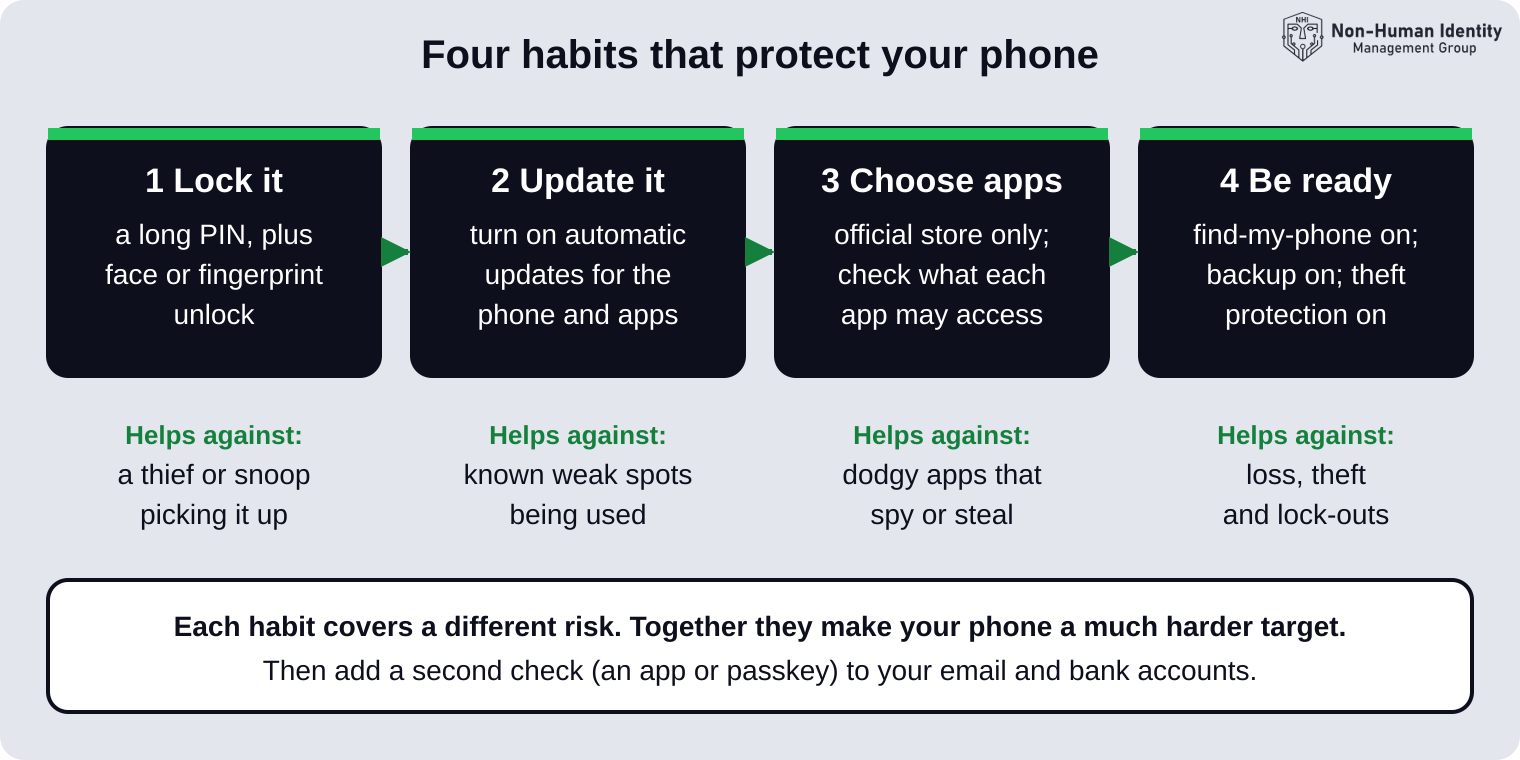
Each habit closes a different gap. Here they are in the order we suggest setting them up.
- Lock the screen. Set a PIN or password, then add face or fingerprint unlock so the phone stays quick to open. This is what keeps out someone who picks up your phone.
- Turn on automatic updates. Phone makers fix weak spots through security updates. On an iPhone, automatic updates can install overnight while it charges on wi-fi.[1] Update your apps too.
- Be choosy about apps. Get apps from the official store. On Android, a built-in checker called Google Play Protect scans apps and warns you about harmful ones.[2] Then review what each app may access. Android lets you change this app by app, in the app's Permissions screen.[3]
- Get ready for loss or theft. Switch on find-my-phone. On Android it can show the phone on a map, ring it, lock it or wipe it.[4] On recent iPhones, Stolen Device Protection asks for your face or fingerprint for some changes when you are away from familiar places, such as home.[5]
- Check your phone is still supported. Old phones stop getting updates after some years, and when that happens it is time to plan a replacement.[6]
Some settings only help if they are on before something goes wrong. Apple says Stolen Device Protection needs to be turned on before the phone is lost or stolen.[5]
A worked example
This story is made up to show how it can happen.
Chloe Pritchard runs a small dog-walking round in Bristol. Her phone holds her bookings, her customers' door codes and her banking app.
One evening a friend shares a link to a free photo editing app. It is not in the official store. When Chloe opens the download, the app asks to read her texts and contacts. That feels odd for a photo app, so she stops and taps "Don't allow". Then she deletes the download.
The near miss makes her check the rest of her phone. She finds her screen lock is a simple swipe, with no PIN. She sets a six-digit PIN and adds her fingerprint. She sees that automatic updates are off, and an update has been waiting for weeks. She turns them on and installs it that night.
Next she opens her app list. A game she no longer plays can still see her location. She removes it. A note-taking app has access to her microphone, so she switches that off.
Last, she turns on find-my-phone and theft protection, and checks that her photos and contacts are backed up.
A month later Chloe leaves her phone on a bus. From a friend's laptop she signs in and sees it on a map. She marks it as lost, which locks it and shows a message with a contact number. The bus company finds it and she collects it the next day.
What made the difference: Chloe set things up while nothing was wrong, so the tools were ready when she needed them.
Myths and mistakes
| What people think | What is true |
|---|---|
| Phones do not get hacked, only computers. | Phones run software with weak spots too, which is why phone makers send security updates.[1] |
| Updates just add features I do not want. | Updates also carry security fixes. Turning on automatic updates is one of the simplest things you can do. |
| An app in the official store is always safe. | Official stores check apps, which lowers the risk a lot. Still read what each app wants to access.[2] |
| I can turn on find-my-phone after it goes missing. | These tools need to be switched on, signed in and connected beforehand.[4] Set them up today. |
| A swipe or pattern lock is good enough. | A swipe lock offers little protection, and simple patterns are easy to watch over your shoulder. Use a PIN plus face or fingerprint unlock. |
What can I do this week?
- Set a PIN or password on your phone, then add face or fingerprint unlock.
- Turn on automatic updates for the phone and your apps, then install any update that is waiting.
- Open your app list. Delete apps you no longer use, and switch off access they do not need.
- Switch on find-my-phone, backups and theft protection.
- Write down your mobile provider's and bank's help numbers somewhere other than your phone.
Checklist
- My phone asks for a PIN, password, face or fingerprint before it opens.
- Automatic updates are on for the phone and for apps.
- My phone still gets security updates from its maker.
- All my apps came from the official app store.
- I have checked which apps can see my location, camera, microphone and contacts.
- Find-my-phone is switched on, and I know how to use it from another device.
- My photos and contacts are backed up.
- My email and bank use a second check, such as an app or passkey, as well as a password.
Common questions
Do I need antivirus on my phone?
We suggest most people do not need to buy one. Keeping the phone updated and using the official app store covers much of the same ground. On Android, Google Play Protect is built in and checks apps for you.[2] Your employer may ask for extra tools on a work phone.
What should I do first if my phone is lost or stolen?
Use find-my-phone from another device to locate it and mark it as lost, which locks it.[4] Then call your mobile provider to block the SIM, and your bank. If you think it is gone, wipe it and change your main passwords.
How can I tell if an app is asking for too much?
Ask whether the app needs that access to do its job. A map app needs your location. A torch or a game does not need your texts or contacts. If it does not fit, choose "Don't allow" or pick a different app.
Is public wi-fi safe on my phone?
It is usually fine for everyday browsing, because most sites and apps now scramble what you send. Be more careful with banking on unknown networks. Using your mobile data instead is a simple option when you are unsure.
When should I replace an old phone?
Plan to replace it when it stops getting security updates from its maker. After that, new weak spots are not fixed. The UK cyber security centre suggests checking whether your device is still supported.[6]
Where next?
Ready for the detail? Read the practitioner guide: Mobile Device Security Guide. It goes further into managing phones for a whole organisation, app protection rules and mobile threat tools.
Also useful:
- Securing Your Smartphone Guide
- iPhone Security and Privacy Settings Guide
- Android Security and Privacy Settings Guide
- Mobile App Security for Beginners
- SIM Swap Fraud for Beginners
Related NHI Mgmt Group resources: Lost or Stolen Device Response Checklist · Two-Factor Authentication for Everyone Guide · Wi-Fi Security for Beginners
Key terms
- Screen lock
- A PIN, password, face or fingerprint check that must be passed before the phone opens.
- Security update
- A free fix from a software maker that closes a known weakness.
- App permissions
- The parts of your phone, such as camera, contacts or location, that an app is allowed to use.
- Malware
- Harmful software that damages a device, spies on it or steals from it.
- Sideloading
- Installing an app from somewhere other than the official app store, such as a website link.
- Remote wipe
- Erasing a lost or stolen phone from another device, so a finder cannot read what was on it.
Sources and further reading
- Update your iPhone or iPad. Apple Support. https://support.apple.com/en-us/118575, accessed 28 Nov 2026.
- Use Google Play Protect to help keep your apps safe and your data private. Google Play Help. https://support.google.com/googleplay/answer/2812853, accessed 28 Nov 2026.
- Change app permissions on your Android phone. Android Help (Google). https://support.google.com/android/answer/9431959, accessed 28 Nov 2026.
- Find, secure, or erase a lost Android device. Android Help (Google). https://support.google.com/android/answer/6160491, accessed 28 Nov 2026.
- About Stolen Device Protection for iPhone. Apple Support. https://support.apple.com/en-us/120340, accessed 28 Nov 2026.
- Securing your devices. National Cyber Security Centre (NCSC), published 15 November 2019, reviewed 30 November 2022. https://www.ncsc.gov.uk/guidance/securing-your-devices, accessed 28 Nov 2026.