Bring your own device, or BYOD, means using your own phone or laptop for work.
This guide is for staff who read work email on their own phone, and for anyone who runs a small team. If your business lets people use their own devices, some of its data now lives on things it does not own.
In short
- BYOD can be safe enough when work data is kept apart from personal data.
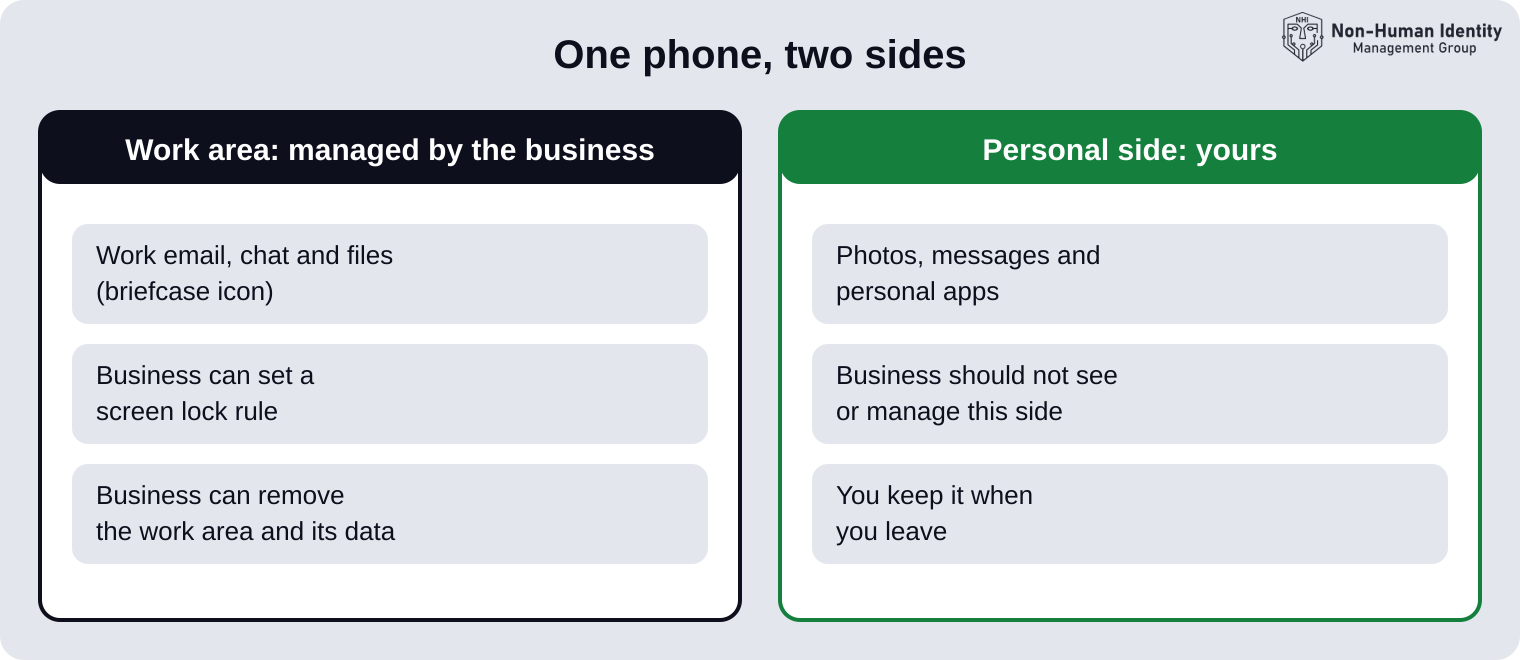
- Phones can hold work apps in a separate work area that the business manages.
- The business should manage only the work area, not your photos or messages.
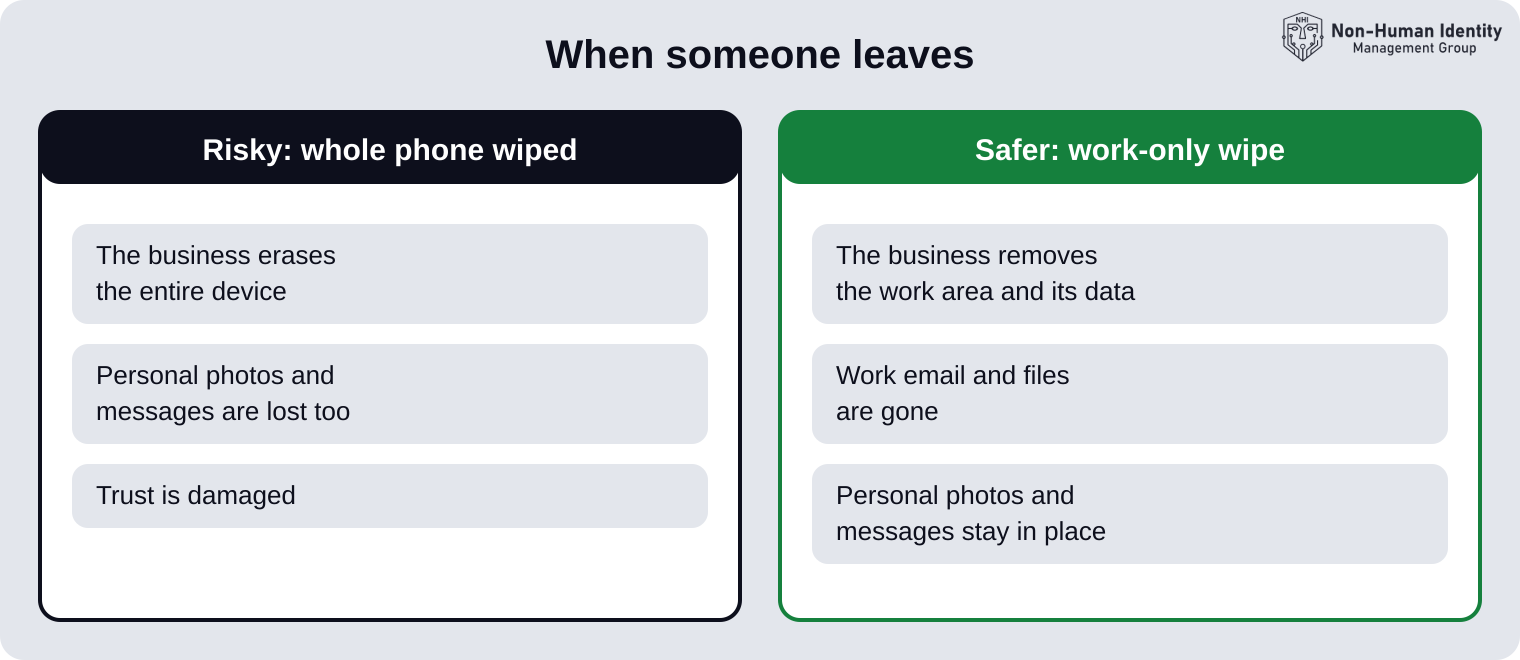
- When someone leaves, the business removes its work data, not the whole phone.
What you will learn
- Explain what BYOD means in one sentence.
- Spot the difference between the work area and the personal side of a phone.
- Check what your employer can and cannot see on your device.
- Ask what happens to work data when someone leaves.
- Work area on a phone (work profile)
- a separate space on a personal phone that holds only work apps and data.
- Device management (MDM)
- software a business uses to set rules on phones and laptops.
- Work-only wipe (selective wipe)
- removing work data from a device while leaving personal data in place.
What is BYOD?
Think of a locked work drawer in your own desk at home. The company can lock that drawer, fill it and empty it, but the rest of the desk stays yours.
BYOD works the same way. You use your own phone, tablet or laptop to do some of your job. That might mean work email, chat, calendars or shared files. The business still owns its data, but you own the device.[1]
To keep things apart, many phones can create a work area. On Android this is called a work profile, and work apps show a small briefcase icon. Your personal apps and data stay on the other side.[2] Apple devices offer a similar setup for personal devices, which limits what the business can manage.[3]
Where the comparison stops working: a desk drawer has solid sides. On a phone, work and personal data share one device, so a virus or an out-of-date phone can affect both sides.
Why does it matter?
BYOD saves money and is handy for staff. But work data on a personal device is harder to protect, and the owner's privacy matters too.[1]
If you use your own phone for work
What could happen: you lose your phone, and work email is open to whoever finds it.
Check this: use a screen lock and keep your phone updated.
Next: BYOD Policy Template
If you run a small business
What could happen: a member of staff leaves, and your customer files stay on their laptop.
Check this: list who uses a personal device for work, and for what.
Next: BYOD vs COPE
If you are new to IT support
What could happen: you set up full control of a staff phone, and the owner feels watched.
Check this: manage only the work apps and tell people what you can see.
Next: BYOD Security Programme
What does it look like?
Here is a made-up summary screen, like the one many phones show after you join a work scheme.
Example only. All values are made up.
Work profile: EXAMPLE Engineering Ltd (made up)
Managed apps:   Mail, Chat, Files            (1)
Your organisation CAN:
  - set a screen lock rule                   (2)
  - remove the work profile and its data     (3)
Your organisation CANNOT see:
  - personal photos, messages or apps        (4)
Support: [email protected]
- In a real screen, this line would list the work apps the business manages.
- A rule such as needing a PIN to open the phone.
- This is the work-only wipe, used if you leave or lose the phone.
- The personal side stays private. Check your own scheme's screen to be sure.
Why this is risky: without a work area, work files mix with personal ones. Removing them later is hard, and the business may ask for more control than it needs.
The safer way: work apps sit in a managed work area. The business sets a few clear rules for that area, and leaves the rest of the device alone.
How does it work?
Here is how a typical BYOD scheme runs, from joining to leaving.
- Agree the rules. The business writes a short policy. It says which devices and apps are allowed, and what the business can and cannot see.
- Join the scheme. You sign in with your work account, and the phone sets up a work area for the work apps to go into.[2]
- Apply basic rules. The business checks a few settings for the work area, such as a screen lock. Many schemes also ask for the phone to be kept up to date.
- Work as normal. Work data stays in the work apps, and copying it into personal apps can be blocked.
- Leave cleanly. If you leave or lose the device, the business removes work data from the work apps. Your personal data is meant to stay in place.[4]
Tools differ in the details. For example, one vendor's selective wipe removes company data the next time the app opens, so it may not happen straight away.[4] Laptops are harder to split this way than phones, so some businesses let personal laptops reach work apps only through a web browser.
A worked example
Arash Sato is a site surveyor at Ironbridge Engineering, a fictional firm with thirty staff. He wants to read work email on his own phone, so he does not have to carry two.
His manager sends him the firm's one-page BYOD policy. It says the firm will manage a work area on his phone and nothing else. Arash is wary at first. He does not want his employer looking at his family photos.
He thinks of it as a locked work drawer in his own desk. He reads the policy again. The firm can see which work apps he has and whether his phone has a screen lock. It cannot see his personal photos or messages.
Arash signs in with his work account. His phone sets up a work area, and work email and chat appear with a briefcase icon. He sets a PIN because the scheme asks for one. He also turns on automatic updates.
A year later Arash takes a job elsewhere. On his last day, the IT helper removes his work area. His work email and files are gone from the phone. His photos, messages and personal apps are still there, as the policy said they would be.
Arash is pleased. The firm got its data back, and he kept his privacy. Both sides knew the rules from the start.
Myths and mistakes
| What people think | What is true |
|---|---|
| If I join BYOD, my employer can read all my messages. | Schemes built on a work area are designed to manage work apps only. Check your scheme's privacy screen.[2] |
| When I leave, they will wipe my whole phone. | A work-only wipe removes work data and is meant to leave personal data alone.[4] |
| BYOD is just as safe as a company phone. | The business has less control over a device it does not own, so the risks are different.[1] |
| Saving work files to my personal cloud is fine. | It moves work data outside the work area. Keep work files in work apps. |
| Updates can wait. | Out-of-date phones and laptops are easier to break into. Turn on automatic updates. |
What can I do this week?
- Check that every device you use for work has a screen lock.
- Turn on automatic updates on your phone and laptop.
- Ask your employer what it can see on your device, in writing.
- If you run a team, list who uses personal devices for work and for which apps.
Checklist
- We have a short written BYOD policy that staff have read.
- The policy says what the business can and cannot see.
- Work apps sit in a managed work area, not loose on the device.
- Devices used for work have a screen lock and current updates.
- Work data can be removed without wiping personal data.
- Leavers have their work data removed on their last day.
- Staff know who to tell if a device is lost or stolen.
Common questions
Is it safe to use my own phone for work?
It can be safe enough, if work apps sit in a managed work area and the phone has a screen lock and current updates. The risks differ from a company phone, so follow your employer's BYOD rules and ask about anything you are unsure of.
Can my employer see my photos and messages?
Not in a well-run scheme that uses a work area. Android and Apple both offer setups for personal devices where the business manages work apps and accounts only.[2][3] Ask your employer to tell you in writing what they can see.
What happens to my phone when I leave?
Usually the business removes only its work area and data. This is called a selective or work-only wipe. Your personal photos, messages and apps are meant to stay. Check your BYOD policy, because each scheme sets its own rules.
What should I do if I lose a phone I use for work?
Tell your employer straight away, even if you think the phone will turn up. They can remove the work data or block access. Then follow your phone maker's steps to lock or find the device.
Do I have to join a BYOD scheme?
Not always. Many employers offer a choice between using your own device and having a company one. If you are unhappy with what a scheme asks for, ask whether a company device is available instead.
Where next?
Ready for the detail? Read the practitioner guide: BYOD Security Programme. It goes further into access tiers, choosing the work container for each platform and how to protect personal laptops.
Also useful:
Related NHI Mgmt Group resources: BYOD Security Programme · BYOD Policy Template · BYOD vs COPE
Key terms
- BYOD
- Using a personal phone, tablet or laptop for work.
- Work profile
- A separate area on a personal phone that holds only work apps and data.
- Mobile device management
- Software a business uses to set rules on phones, tablets and laptops.
- App protection policy
- Rules that protect work data inside specific apps, such as blocking copying to personal apps.
- Remote wipe
- Removing data from a device from a distance, either all of it or only work data.
- BYOD policy
- A written set of rules on how personal devices may be used for work.
Sources and further reading
- Bring your own device (BYOD), device security guidance, version 2.1. National Cyber Security Centre (UK), reviewed 13 May 2025. https://www.ncsc.gov.uk/collection/device-security-guidance/bring-your-own-device, accessed 28 Nov 2026.
- Android Work Profile. Android Enterprise Help, Google. https://support.google.com/work/android/answer/6191949, accessed 28 Nov 2026.
- User Enrollment and device management. Apple Platform Deployment, Apple. https://support.apple.com/guide/deployment/user-enrollment-and-device-management-dep23db2037d/web, accessed 28 Nov 2026.
- How to wipe only corporate data from Intune-managed apps. Microsoft Learn, Microsoft. https://learn.microsoft.com/en-us/intune/intune-service/apps/apps-selective-wipe, accessed 28 Nov 2026.