DHCP is the service that hands each device on a network its address and settings when it joins.
This guide is for students, people new to IT support and anyone curious about how a laptop "just connects" to Wi-Fi. If you run a small office network, it also explains one quiet way an attacker, or a mistake, can take over where your traffic goes.
In short
- When a device joins a network, it asks out loud for settings. A DHCP server answers with an address, a gateway and DNS servers.
- The address is lent for a set time, called a lease, and the device renews it before it runs out.
- DHCP does not check who is answering, so a fake or rogue server can hand out bad settings.
- Network switches can be set to block answers from anywhere except the real server. This is called DHCP snooping.
What you will learn
- Explain the four-step chat a device has with a DHCP server.
- Spot the settings DHCP gives a device, and why each matters.
- Explain what a rogue DHCP server is and why it is risky.
- Check whether your network has protection against rogue servers.
- Address handout service (DHCP)
- a service that gives devices their network address and settings automatically.
- Loan period (lease)
- the time a device may keep its address before it must ask again.
- Fake answerer (rogue DHCP server)
- a device that hands out settings when it should not.
What is DHCP?
Picture the front desk at a conference. Each guest arrives and asks, "Where do I go?" The desk hands them a name badge, a table number and directions to the exits. DHCP does the same job for devices joining a network.
DHCP stands for Dynamic Host Configuration Protocol. A protocol is an agreed set of rules for how devices talk. When your phone joins Wi-Fi, it asks for settings. A DHCP server replies with an IP address, which is the device's address on the network. It also sends a subnet mask and a default gateway, the router that leads to the rest of the world. Last come DNS servers, which turn names like example.com into addresses.[2]
Without DHCP, someone would type these settings into every device by hand. Typing errors and two devices given the same address are common results.[2]
Where the comparison stops working: guests can see who is behind the front desk. A device asking for settings shouts to the whole local network, and it usually accepts the first answer, without checking who sent it.
Why does it matter?
The settings from DHCP decide where a device sends its traffic. Whoever answers controls the directions. So the answer needs to come from the right place.
If you are new to IT support
What could happen: laptops suddenly get odd addresses and lose the internet after someone plugs in a spare router.
Check this: compare a broken laptop's gateway and DNS servers with a working one.
If you run a small office network
What could happen: a rogue server sends staff traffic through a device an attacker controls.
Check this: ask your IT supplier whether DHCP snooping is switched on for your switches.
If you are studying networking
What could happen: exam and interview questions ask you to name the four DHCP messages in order.
Check this: learn the steps Discover, Offer, Request and Acknowledge, and what each one does.
What does it look like?
Here are made-up network details from two laptops in the same office.
Example only. All values are made up.
EXAMPLE office network details
Laptop A (working)
  DHCP server:      192.168.50.2      (1)
  IP address:       192.168.50.31
  Default gateway:  192.168.50.1
  DNS server:       192.168.50.2
  Lease expires:    in 7 days         (2)
Laptop B (problem)
  DHCP server:      192.168.0.1       (3)
  Default gateway:  192.168.0.1       (4)
  DNS server:       192.168.0.1
- The office DHCP server that IT set up.
- How long the laptop may keep its address.
- A different server answered. In a real system, this line would show the address of a spare router or a rogue device.
- Its traffic now goes to that device, not the office router.
Why this is risky: Laptop B trusts a device nobody approved. That device can see or redirect its traffic.
The safer way: let only the real server answer. Switches with DHCP snooping drop answers from other ports.
How does it work?
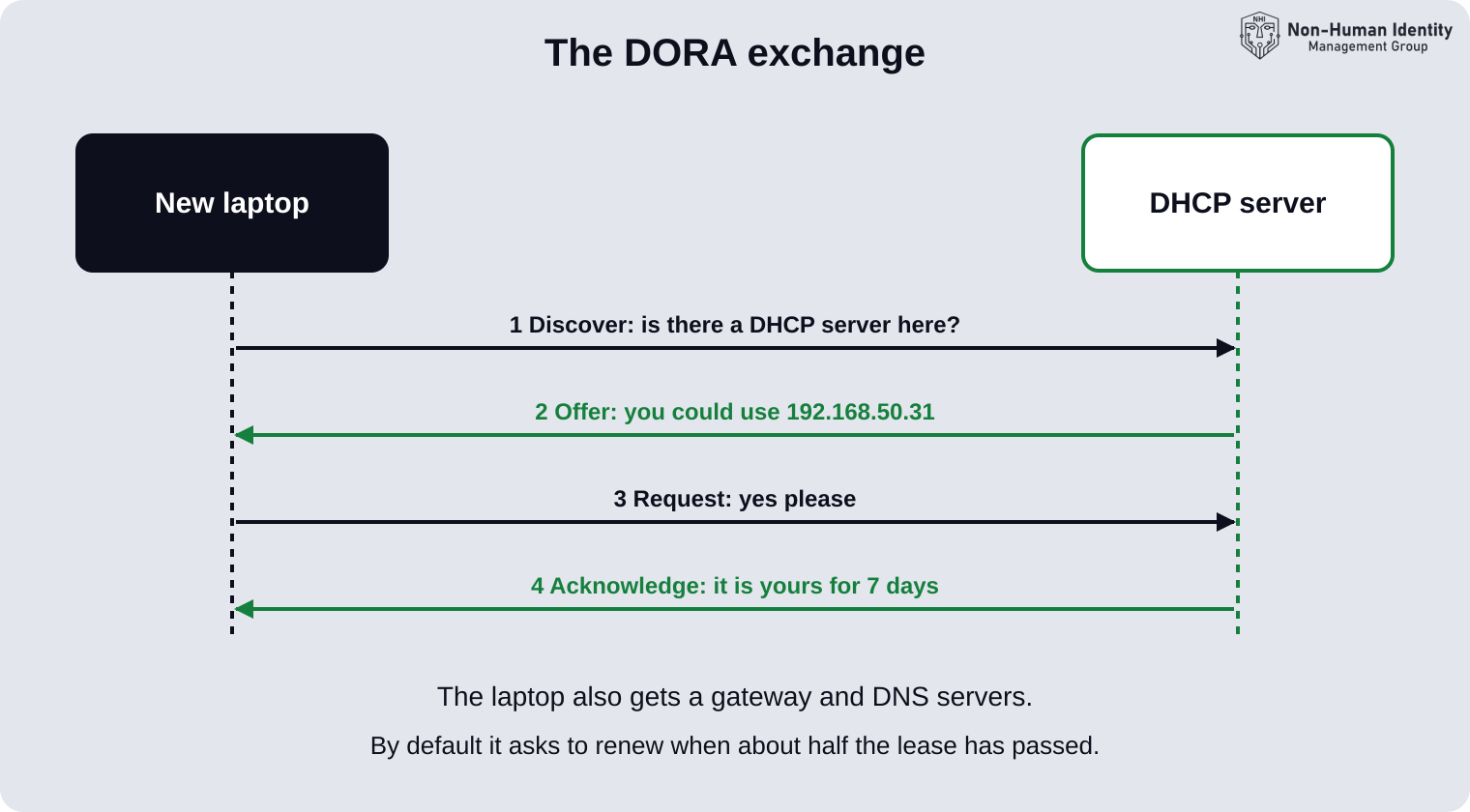
The chat between a device and the server has four steps. People remember them as DORA.[1]
- Discover. The new device sends a message to everyone on its local network: "Is there a DHCP server here?"[1]
- Offer. A server replies with an offer: an address and settings the device could use.[1]
- Request. The device replies, "Yes, I would like that offer."[1]
- Acknowledge. The server confirms, and the device starts using the address.[1]
- Renew. The address is only lent. By default, the device tries to renew when half the lease has passed.[1] Unused addresses go back to the pool for other devices.[2]
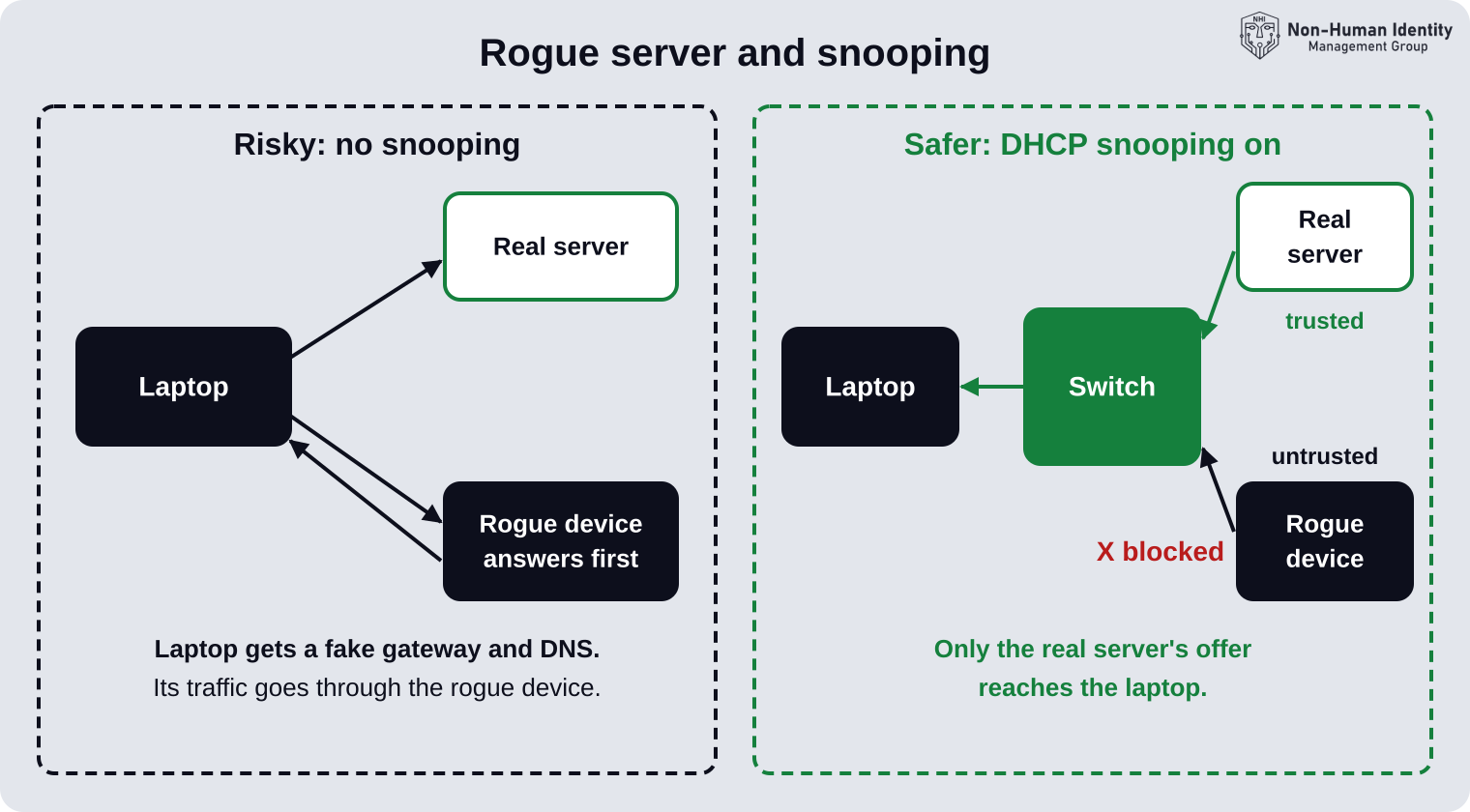
The problem sits in step 2. The DHCP standard itself says that, in its basic form, it is not secure. Anyone on the local network can set up a server that hands out false settings, such as a fake gateway or fake DNS servers.[1] This is a rogue DHCP server. It may be an attacker's device, or a home router that someone plugged into the office network.
The standard also warns that a harmful device could ask for every free address. Real devices then get no address at all.[1] This is often called DHCP starvation.
A common defence is DHCP snooping on the network switches, the boxes that devices plug into. Each port is marked trusted or untrusted. Server answers are blocked from untrusted ports, so only the port leading to the real server can hand out addresses.[3] The switch also keeps a table of which device got which address on which port. Other switch protections use that table too.[3]
A worked example
Jana Yeboah looks after IT for a fictional design studio, Fernhill Studio. On Monday morning, half the staff say the internet is slow and some websites show warnings.
Jana compares two laptops. One has the usual gateway, 192.168.50.1. The other shows a gateway of 192.168.0.1 and a DHCP server she does not recognise.
She walks the office. Under a desk in the meeting room she finds a small home router. Jonah Brandt, a new designer, admits he plugged it in on Friday to get better Wi-Fi for a client demo.
Jonah meant no harm. But the router has its own DHCP server switched on. It has been answering laptops' Discover messages, sometimes faster than the real server. Those laptops now send all their traffic through a cheap router with a default admin password.
Jana unplugs the router. She asks staff to restart their laptops so they ask for fresh settings. The office server answers, and the problems stop.
Then she fixes the cause, not only the symptom. Her switches support DHCP snooping, so she turns it on. She marks the port that leads to the real server as trusted and leaves the desk ports untrusted. She also adds a line to the staff guide: ask IT before plugging any network box in.
A week later, she tests the setup with a spare router on a desk port. The laptop there still gets its address from the office server.
Myths and mistakes
| What people think | What is true |
|---|---|
| A device checks who its DHCP server is. | Basic DHCP has no check. A device usually takes an offer from whichever server answers. |
| A rogue server is always an attacker. | It is often a mistake, such as a home router plugged into the office network. |
| An address from DHCP is yours to keep. | It is a lease. The device must renew it, and unused addresses go back to the pool. |
| DHCP only gives out an address. | It also gives the gateway and DNS servers, which decide where traffic goes. |
| Switching on DHCP snooping is enough on its own. | The trusted ports must be set correctly, or the real server is blocked or a rogue one is let through. |
What can I do this week?
- Open your laptop's network details and find its DHCP server, gateway, DNS servers and lease time.
- Write down which device is the real DHCP server at home or at work.
- Ask your IT team or supplier whether DHCP snooping is switched on.
- Tell colleagues to ask IT before plugging in any router or network box.
Checklist
- I can name the four DHCP steps: Discover, Offer, Request, Acknowledge.
- I know DHCP gives a gateway and DNS servers as well as an address.
- I know an address is leased and must be renewed.
- I can explain what a rogue DHCP server is.
- We know which device is our real DHCP server.
- DHCP snooping is switched on, with only the real server's port trusted.
- Staff know to ask before plugging in network equipment.
Common questions
Where is the DHCP server on my home network?
It is usually your home router. The same box that connects you to the internet also hands out addresses to your phone, laptop and TV. In offices, it is often a separate server or a feature of the main router or firewall.
What happens if the DHCP server stops working?
Devices that already have a lease keep working until it runs out. New devices cannot get an address. Many systems then give themselves a temporary address that only works locally, so they appear connected but cannot reach the internet.
Is a static address safer than DHCP?
Not by itself. A static address is typed in by hand and cannot be changed by a rogue server, which suits servers and printers. But typing settings into every device causes mistakes and clashes, so most devices use DHCP with protections on the switches.
Can a rogue DHCP server read my passwords?
It can send your traffic through a device it chooses. Pages that use encryption, shown by https and a padlock, still protect what you type. A rogue server can, however, point you to fake websites, so certificate warnings deserve attention.
Does IPv6 use DHCP too?
Yes, there is a version for IPv6 called DHCPv6, and devices can also set themselves up from router messages. The same rogue-server risk applies, and switches have matching protections for IPv6. The practitioner guide covers these.
Where next?
Ready for the detail? Read the practitioner guide: DHCP Security Guide. It goes further into switch settings for snooping, IPv6 protections, server hardening and using lease logs in investigations.
Also useful:
- Layer 2 Attacks Guide
- Windows Server DNS and DHCP Security Guide
- Man-in-the-Middle Attacks for Beginners
- Network Security for Beginners
Related NHI Mgmt Group resources: Networking Fundamentals for Defenders Guide · Layer 2 Attacks Guide · DHCP Security Guide
Key terms
- DHCP
- The service that gives devices their network address and settings automatically.
- Lease
- The time a device may keep an address before it must renew it.
- Default gateway
- The router a device sends traffic to when the other address is not on its own network.
- DNS
- The service that turns website names into network addresses.
- Rogue DHCP server
- A device handing out network settings without approval, by mistake or on purpose.
- DHCP starvation
- Using up every free address so real devices cannot get one.
- DHCP snooping
- A switch feature that blocks DHCP answers from ports not marked as trusted.
Sources and further reading
- RFC 2131: Dynamic Host Configuration Protocol. IETF, March 1997. https://www.rfc-editor.org/rfc/rfc2131, accessed 28 Nov 2026.
- What is Dynamic Host Configuration Protocol (DHCP) Server in Windows Server? Microsoft Learn, Microsoft. https://learn.microsoft.com/en-us/windows-server/networking/technologies/dhcp/dhcp-top, accessed 28 Nov 2026.
- Operate and Troubleshoot DHCP Snooping on Catalyst 9000 Switches. Cisco. https://www.cisco.com/c/en/us/support/docs/ip/dynamic-host-configuration-protocol-dhcp-dhcpv6/217055-operate-and-troubleshoot-dhcp-snooping.html, accessed 28 Nov 2026.