In Active Directory, DNS is the lookup service computers use to find the servers that check sign-ins.
This guide is for people new to IT work, students and small business owners with an office network. If staff sign in to work computers with one company login, DNS quietly decides whether that works.
In short
- Work computers use DNS to find the domain controllers, the servers that check passwords and hand out access.
- If a computer asks the wrong DNS server, it may not find them, so sign-ins and joining the domain can fail.
- In Active Directory, DNS records are usually stored in the directory itself and copied between domain controllers.
- Point work computers at your own internal DNS servers, and control who can add or change records.
What you will learn
- Explain why Active Directory needs DNS.
- Spot a computer set to use the wrong DNS server.
- Check where your work computers send their DNS questions.
- Ask who can change the records your sign-ins rely on.
- Address book for networks (DNS)
- the service that turns names like server.example.com into the numbers computers use to connect.
- Company directory (Active Directory)
- Microsoft's system that keeps track of users, computers and what they may access.
- Sign-in server (domain controller)
- a server that holds the directory and checks who is signing in.
What is DNS in Active Directory?
Think of the contacts list on your phone. You tap a name, and the phone finds the number for you. If the contact is missing or wrong, the call does not go through.
Active Directory is the company directory many offices use to manage logins. The servers that run it are called domain controllers. When you sign in to a work computer, it has to find a domain controller first. It does this by asking DNS, the network's contacts list.
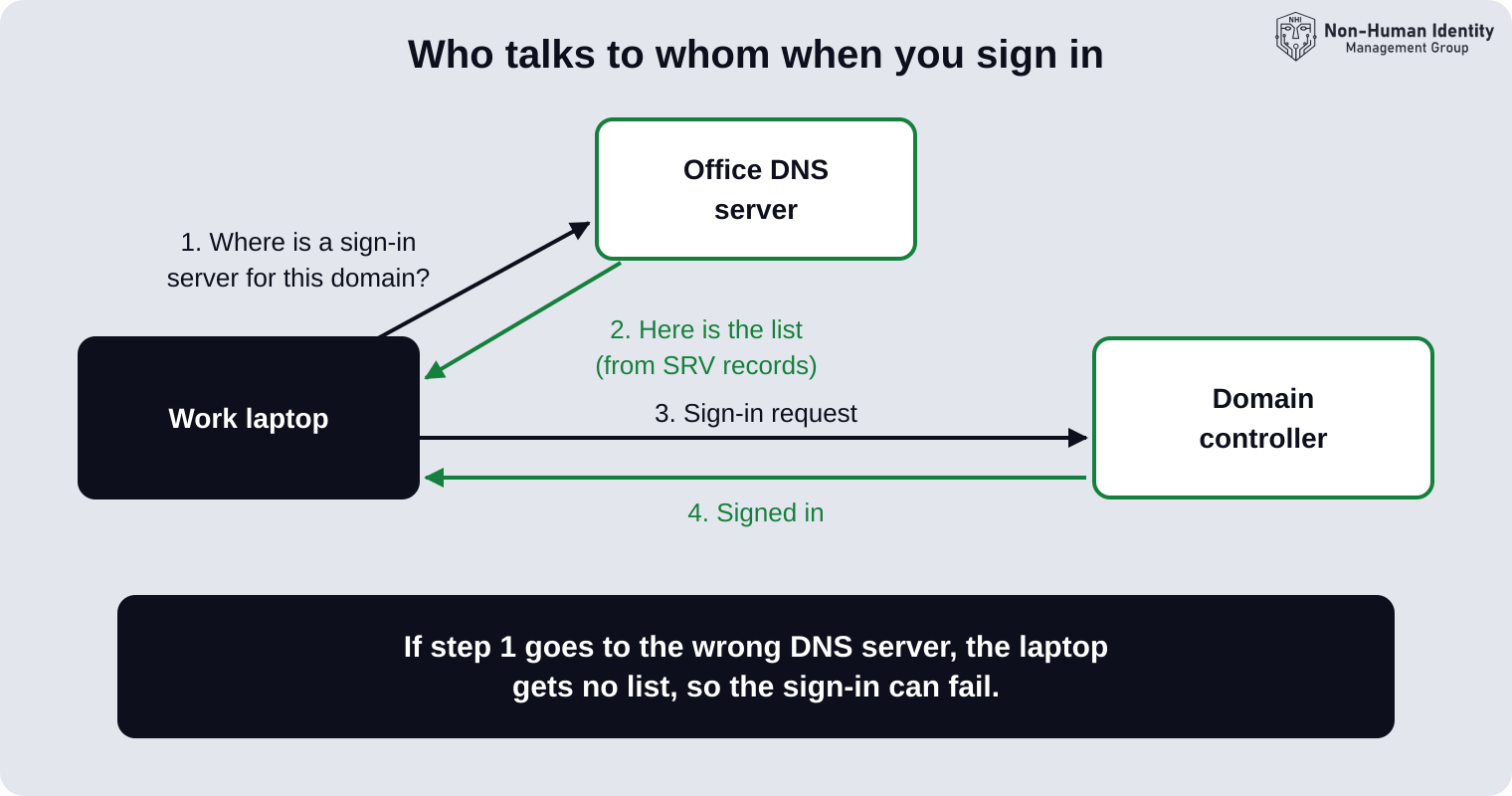
Domain controllers add special entries to DNS, called SRV records (service records). These say, in effect, "a sign-in server for this domain is here". Computers look up those entries to find one.[1]
Where the comparison stops working: your phone has one contacts list. A work network can have many DNS servers, and a computer only checks the ones it has been told to use.
Why does it matter?
When DNS points to the wrong place, sign-ins can fail even though the passwords and servers are fine. Microsoft warns that pointing a server's DNS settings at an internet provider's DNS can cause problems joining the domain and signing in.[4] And if the wrong people can change DNS records, they may be able to send computers to the wrong server.
If you run a small office network
What could happen: a new router hands out the wrong DNS server, and staff cannot sign in on Monday.
Check this: ask your IT supplier which DNS servers your work computers use.
If you are new to IT support work
What could happen: you reset a password three times when the real problem is DNS.
Check this: when sign-ins fail on one computer, check its DNS settings early.
If you are studying for an IT qualification
What could happen: you learn AD and DNS as two topics and miss how tightly they connect.
Check this: follow one sign-in from start to finish, as in Figure 1 below.
Next: Kerberos for Beginners
What does it look like?
Here is a made-up network settings card for one office laptop, as an IT helper might note it down.
Example only. All values are made up.
Laptop:          RECEPTION-02
Domain:          office.example.com
IP address:      192.0.2.57
DNS server 1:    203.0.113.53   (home-style router)   (1)
DNS server 2:    (blank)                               (2)
Websites:        working                               (3)
Work sign-in:    fails, "cannot reach the domain"      (4)
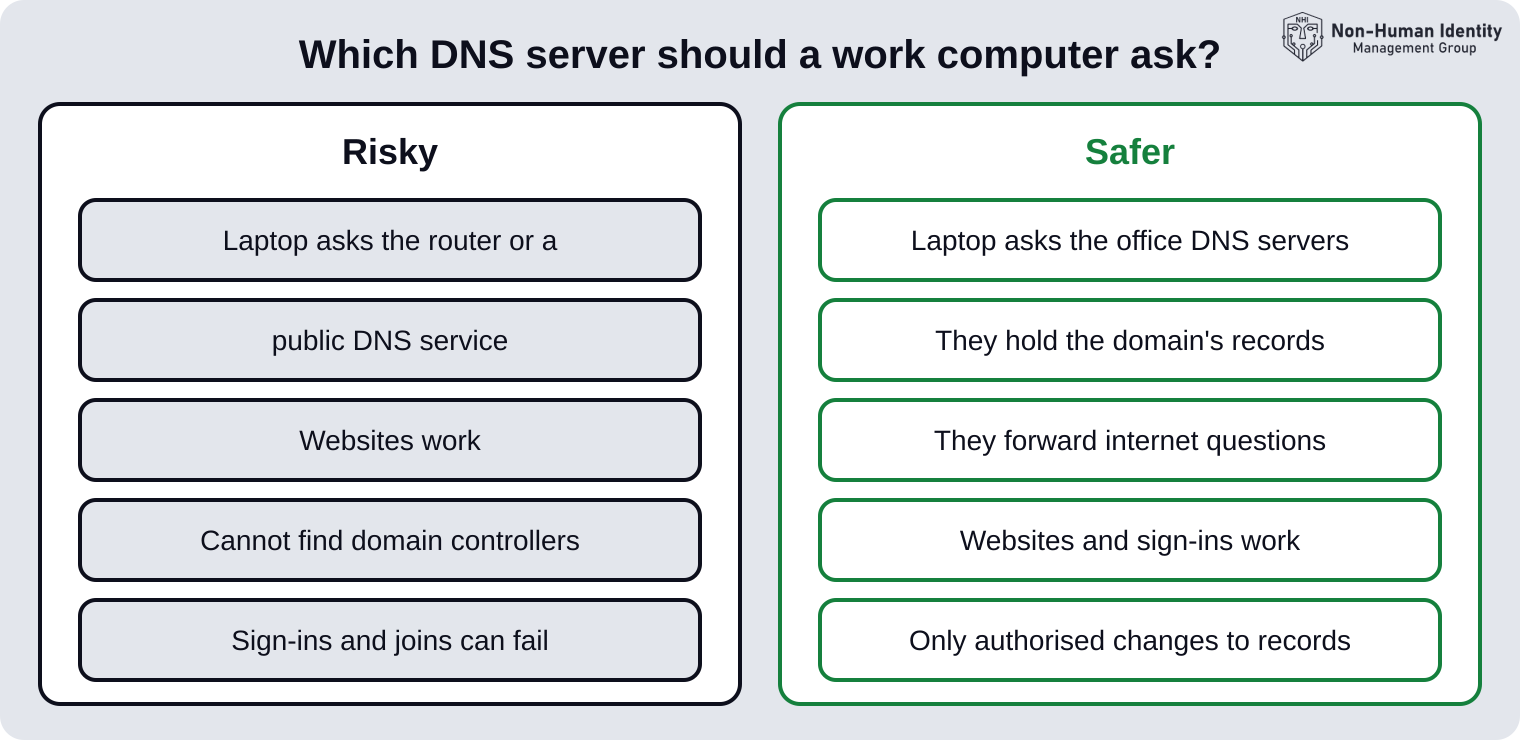
- The laptop asks the router for names. The router knows nothing about the office domain.
- No second internal DNS server is set, so there is no backup.
- Websites still load, because the router can look up internet names.
- The laptop cannot find a domain controller, so the work sign-in fails. The message text is made up.
Why this is risky: staff often think "the internet works, so the network is fine". But the laptop is asking a contacts list that does not have the office's sign-in servers in it.
The safer way: set work computers to use the office's own DNS servers, often running on the domain controllers. Those servers pass internet questions on to the outside world, a step called forwarding. Microsoft recommends this set-up.[4]
How does it work?
Here is what happens, in plain steps, when you sign in to a work computer on the office network.
- Signposts go up. Each domain controller adds SRV records to DNS, saying which services it offers and which site it is in.[1]
- The computer asks. When you sign in, your computer asks DNS for the SRV records of its domain.[1]
- It picks a server. It checks the servers DNS named, uses the first one that replies and remembers that answer for next time.[1]
- The sign-in happens. The computer sends your sign-in to that domain controller, which checks it.
- Records stay up to date. Computers update their own DNS entry when their address changes. This is called dynamic update.[2]
In many offices, the DNS records live inside Active Directory itself. Microsoft calls these Active Directory-integrated zones. A zone is the set of records for one domain name. The records are copied to other domain controllers by the directory's own copying process, called replication. Any domain controller running DNS for the domain can accept changes.[3]
These zones also allow secure dynamic update. Only authorised computers and users may change a record. Microsoft says this helps stop unauthorised computers overwriting existing names. It is the default for these zones on Windows Server.[2][3]
A worked example
Xena Achterberg is the practice manager at Heron Dental, a fictional clinic with fifteen staff. Reza Engel is the IT contractor who looks after its network.
On Monday morning, three reception laptops show a message that they cannot reach the domain. Websites load fine. Xena calls Reza.
Reza thinks of the contacts list. If the laptops are asking the wrong list, they cannot find the sign-in server. He checks one laptop's settings and sees the DNS server is the new internet router. The internet company swapped the router on Friday, and it now hands out its own address for DNS.
He changes the router's settings so that it hands out the clinic's two internal DNS servers instead. Both run on the domain controllers. He then restarts one laptop to test. It finds a domain controller and Xena signs in.
Next, Reza checks the internal DNS servers. They forward internet questions to the provider, so websites still work. He also confirms that the clinic's zone allows only secure updates.
Last, he adds a note to the clinic's IT file. It says the router must hand out the internal DNS servers, not its own. Xena adds a DNS check to the list for any future router change.
Sign-ins work again before the first patient arrives.
Myths and mistakes
| What people think | What is true |
|---|---|
| Websites load, so DNS is fine. | A public DNS server can find websites but not your office's sign-in servers. |
| A public DNS service is a good backup for work computers. | Microsoft advises against it for domain members. Use internal servers that forward to the internet.[4] |
| Sign-in failures are always password problems. | A computer that cannot find a domain controller cannot check any password. Check DNS early. |
| DNS is only a networking job. | In Active Directory, DNS records are part of how sign-ins work, so changes to them need the same care as access changes. |
| Anyone may edit DNS records, as it is only an address book. | A changed record can send computers to the wrong server. Keep secure updates on and limit who can make changes. |
What can I do this week?
- Check which DNS servers one work computer uses, and compare them with your list of domain controllers.
- Ask what your router or address service hands out for DNS.
- Confirm that your Active Directory zones allow only secure updates.
- Write down who can add or change DNS records, and check that the list is short.
Checklist
- Work computers use internal DNS servers that hold the domain's records.
- Each site has at least two internal DNS servers, where possible.
- Internal DNS servers forward internet questions outward.
- Active Directory zones allow only secure dynamic updates.
- Only named admins can change DNS records by hand.
- Router and network changes include a DNS check before and after.
- Help desk staff check DNS early when sign-ins fail.
Common questions
Why does Active Directory need DNS?
Computers use DNS to find the servers that check sign-ins. Those servers put special records in DNS, and computers look them up first. Without the right DNS answers, a computer may not find a server to check your login. Then joining the domain and signing in can fail.
Can work computers use a public DNS service?
Not directly. Microsoft advises pointing work computers at your own DNS servers that hold the domain's records. Those servers can then pass internet questions on to a provider or public service. That way staff still reach websites.
What is an SRV record?
It is a DNS entry that says where a service can be found, not just where a computer is. Domain controllers add SRV records. Other computers use them to find a server that can check sign-ins for the domain.
Why can I still browse the web when I cannot sign in?
Because looking up a website and finding your office's sign-in servers are two different questions. A router or public DNS server can answer the first. Only DNS servers that hold your domain's records can answer the second.
Who should be allowed to change DNS records?
A short list of named admins, plus computers that update their own entries through secure updates. We suggest treating DNS changes like access changes. Each one is approved, recorded and checked, because a wrong record can send computers to the wrong server.
Where next?
Ready for the detail? Read the practitioner guide: Active Directory Integrated DNS Security. It goes further into default zone permissions, wildcard records, secure updates with address services and how to detect record tampering.
Also useful:
- Active Directory for Beginners
- DNS Security for Beginners
- Kerberos for Beginners
- Active Directory Fundamentals
Related NHI Mgmt Group resources: Active Directory Security Checklist · Active Directory Security Monitoring and Event IDs Guide · Active Directory and Entra ID Hardening Guide
Key terms
- Domain Name System
- The service that turns names into network addresses, often called DNS.
- Active Directory
- Microsoft's directory that manages users, computers and their access in a company network.
- Domain controller
- A server that holds the directory and checks sign-ins for a domain.
- SRV record
- A DNS entry that says which server offers a service, such as sign-in.
- Dynamic DNS
- Computers updating their own DNS entries when their address changes.
- Domain join
- Adding a computer to a company domain so it trusts the domain controllers.
- Kerberos
- The ticket system Active Directory uses to prove who you are to other services.
Sources and further reading
- Domain controller location in Windows. Microsoft Learn, Microsoft. https://learn.microsoft.com/en-us/windows-server/identity/ad-ds/manage/dc-locator, accessed 28 Nov 2026.
- Dynamic update. Microsoft Learn, Microsoft. https://learn.microsoft.com/en-us/windows-server/networking/dns/dynamic-update, accessed 28 Nov 2026.
- Active Directory-integrated DNS zones. Microsoft Learn, Microsoft. https://learn.microsoft.com/en-us/windows-server/identity/ad-ds/plan/active-directory-integrated-dns-zones, accessed 28 Nov 2026.
- Best practices for DNS client settings in Windows Server. Microsoft Learn, Microsoft. https://learn.microsoft.com/en-us/troubleshoot/windows-server/networking/best-practices-for-dns-client-settings, accessed 28 Nov 2026.