Home router security means setting up the box that connects your home to the internet so strangers cannot use it.
This guide is for anyone with home broadband who wants to make it safer, with no technical knowledge needed. If you work from home or run a small business from home, your work traffic passes through this box too.
In short
- Your router is the gateway between every device in your home and the internet.
- Change its admin password, keep its software updated and use WPA2 or WPA3 for your Wi-Fi.
- Turn off remote management unless you really need it, and give visitors a guest network.
- Check the list of connected devices now and then, and remove any you do not recognise.
What you will learn
- Explain what your router does in one sentence.
- Check the five settings that matter most.
- Spot an unknown device on your home network.
- Decide when an old router should be replaced.
- Internet box (router)
- the box from your broadband provider that links your home devices to the internet and to each other.
- Settings page (admin page)
- the private web page where you change the router's settings, protected by its own password.
- Built-in software (firmware)
- the software inside the router that makes it work, which the maker updates to fix problems.
What is home router security?
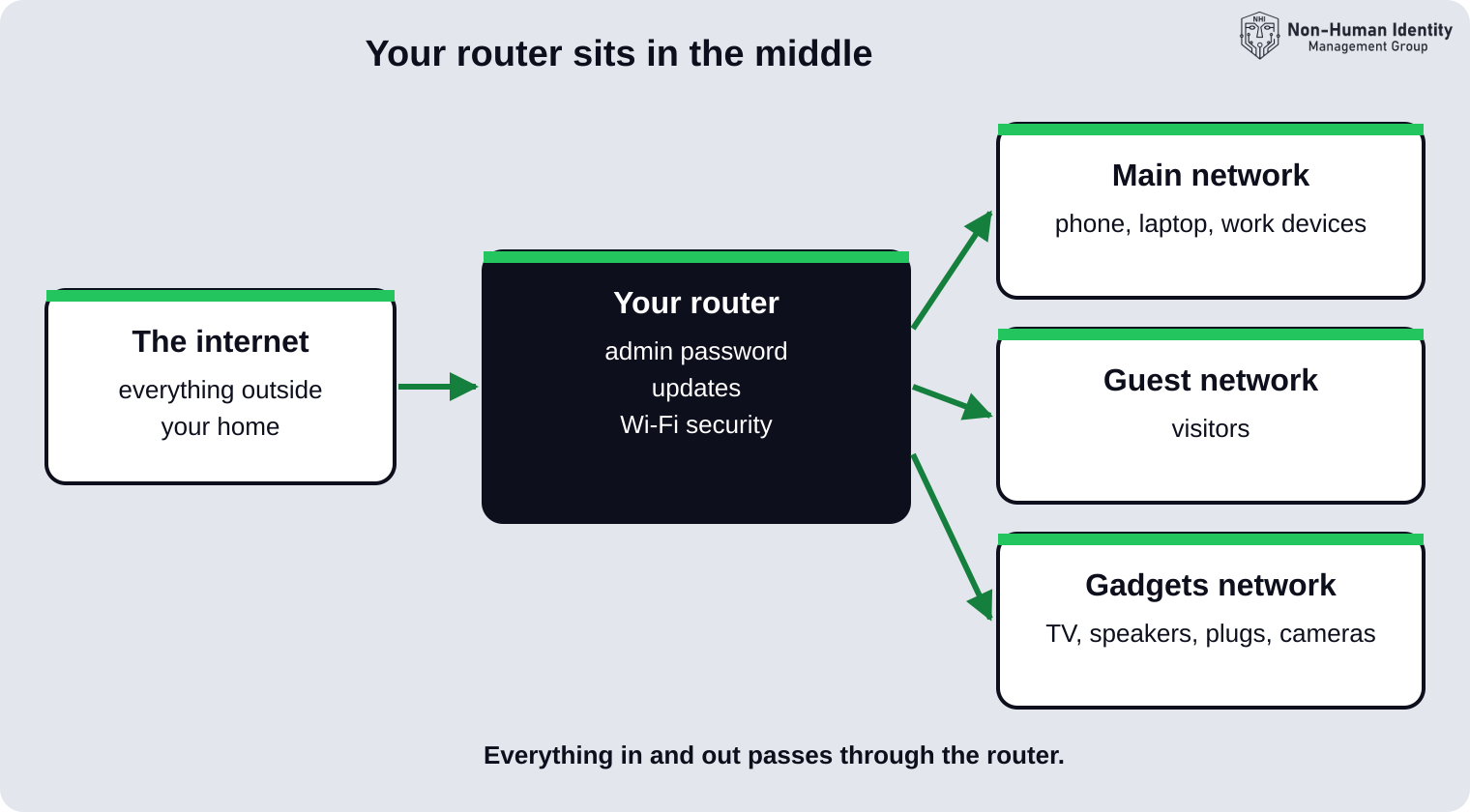
Think of the front gate to your home. Every visitor and every parcel passes through it, so a good lock on the gate protects everything behind it. Your router is that gate for your home network.
Your phone, laptop, smart TV and speakers all reach the internet through the router. It also decides who may join your Wi-Fi, and it holds a settings page where all of this can be changed.
Router security means looking after that gate. You set your own password for the settings page and keep the router's firmware up to date. You also use strong Wi-Fi protection and switch off features you do not need.
Where the comparison stops working: you can see who walks through a gate. Devices join a network silently, so you have to open the router's device list to see who is connected.
Why does it matter?
A router that is never updated, or still uses a factory password, is easier for criminals to take over. They can then misuse your connection or watch where your traffic goes.
If you have smart gadgets at home
What could happen: a cheap camera or plug with weak security becomes a way into your home network.
Check this: put smart gadgets on a separate or guest network if your router allows it.
If you work from home
What could happen: your work laptop shares a network with family devices that are not kept up to date.
Check this: ask your employer what they expect of your home Wi-Fi, and keep the router updated.
If you still use an old router
What could happen: the maker no longer sends updates, so known problems stay unfixed.[3]
Check this: look up your model on the maker's website and see if it still gets updates.
Next: Botnets for Beginners
If you offer Wi-Fi to guests or customers
What could happen: visitors who know your main Wi-Fi password can reach your own devices.
Check this: turn on a guest network with its own password.
What does it look like?
Example only. All values are made up.
FakeRouter 0000 settings
Admin password:     factory default           (1)
Firmware:           EXAMPLE 1.0, update ready (2)
Wi-Fi security:     WPA2/WPA3 Personal
Remote management:  ON                        (3)
Connected devices:
  Kitchen-Speaker   Laptop-Family   Phone-0000
  unknown-device-0000                         (4)
- The password printed by the maker is still in use.
- A software update is waiting but has not been installed.
- The settings page can be reached from the internet.
- A device nobody in the house recognises. In a real screen, this line would show a device name or model.
Why this is risky: together these make the settings page easier to reach and easier to break into, and someone unknown may already be on your Wi-Fi.
The safer way: set your own admin password, install the update, turn remote management off, and remove the unknown device and change the Wi-Fi password.
How does it work?
Most home routers have the same core settings, though the names differ. Your router's label or manual gives the settings page address.
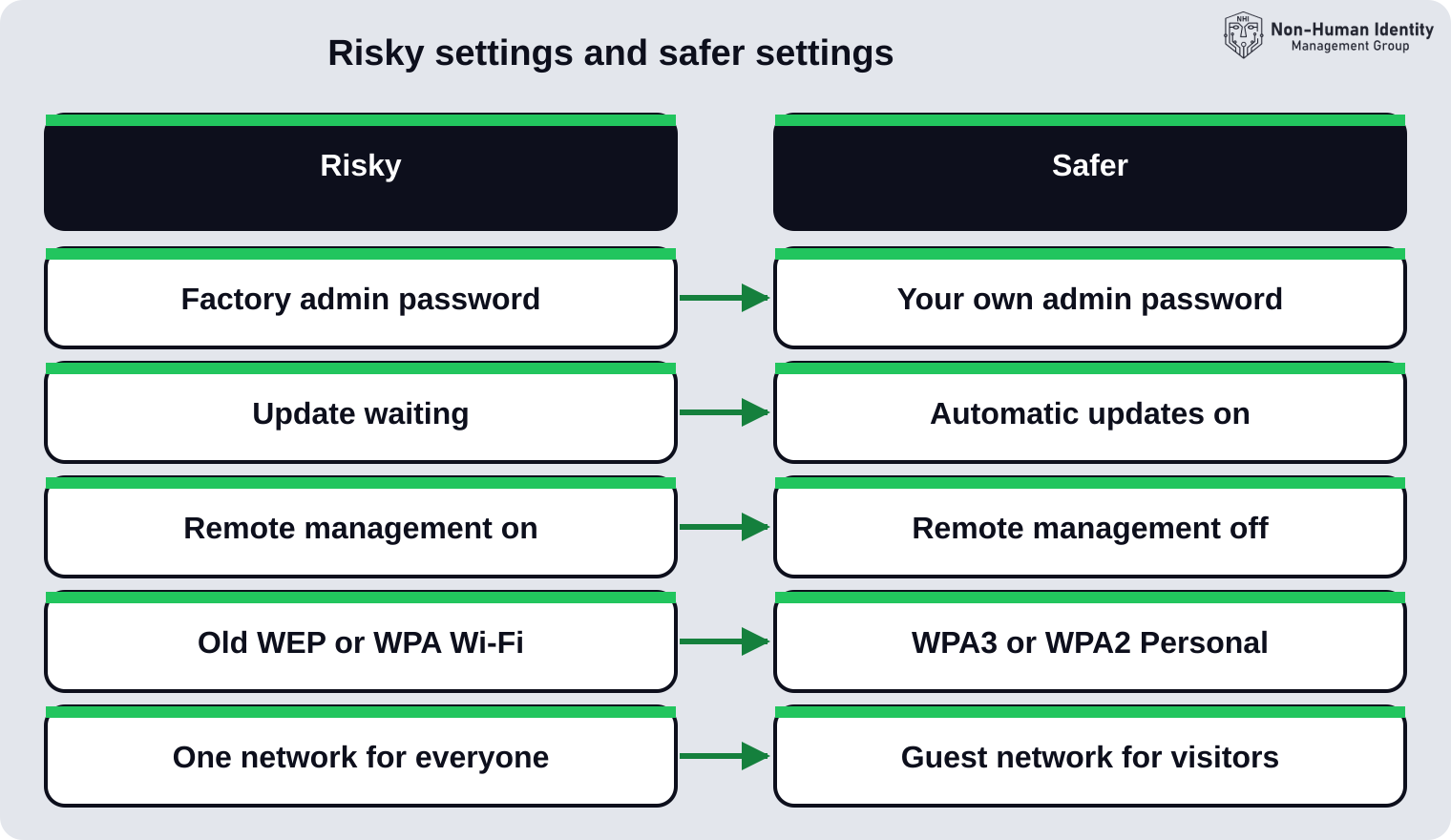
- Change the admin password. Replace the factory username and password for the settings page with your own.[1][2]
- Update the firmware. Turn on automatic updates if your router offers them, or check the maker's website for new versions.[1][2]
- Use strong Wi-Fi protection. Choose WPA3 or WPA2 Personal, which scramble your Wi-Fi traffic. Set a strong Wi-Fi password. Avoid the older WEP and WPA settings.[1][2]
- Turn off what you do not use. Switch off remote management, which lets the settings be changed over the internet. The FTC also suggests turning off WPS and UPnP, two features that make it easier for devices to connect without asking.[1]
- Separate guests and gadgets. Turn on a guest network for visitors, and consider a separate one for smart gadgets.[2]
- Check who is connected. Open the device list in the settings page or the router app. Remove anything you do not recognise, then change the Wi-Fi password.[2]
Old routers are a particular risk. The FBI warned in 2025 that criminals were taking over out-of-date routers with remote management turned on. They used them to hide their own crimes. The FBI said routers from 2010 or earlier are likely to have stopped getting updates.[3]
Newer products may help. Since 29 April 2024, UK law has covered connectable products sold to consumers. Their passwords must be unique to each product, or set by the user.[4]
A worked example
This story is made up to show how it can happen.
Kwame Mensah lives in Manchester with his partner and two lodgers. The broadband has felt slow for weeks, and he wonders if a neighbour is using it.
He finds the settings page address on the sticker under the router. He signs in with the password printed on the same sticker. That reminds him the password has never been changed, so he sets his own and saves it in his password manager.
The settings page says a software update is ready. He installs it, and turns on automatic updates. He sees that remote management is switched on. Nobody in the house uses it, so he turns it off.
Then he opens the list of connected devices. He counts phones, laptops, the TV and a speaker. One device is called "unknown-device". Nobody in the house owns it.
Kwame removes it and changes the Wi-Fi password. He checks that the Wi-Fi security is set to WPA2 or WPA3. He gives the new password to the lodgers in person. He also sets up a guest network for visitors.
A week later he checks the device list again. Every device on it belongs to someone in the house.
What made the difference: Kwame looked at the device list instead of guessing. Changing the Wi-Fi password then removed the stranger without any special tools.
Myths and mistakes
| What people think | What is true |
|---|---|
| My provider set it up, so it is already secure. | Some settings are left to you. Check the admin password, updates and Wi-Fi security yourself. |
| Routers do not need updates. | Makers release updates to fix problems. Turn on automatic updates where you can.[2] |
| The Wi-Fi password and the admin password are the same thing. | They are different. One lets devices join, the other lets someone change the router's settings. Both need care. |
| Hiding my network name makes it safe. | Strong Wi-Fi protection and a strong password matter more. Do pick a name that does not reveal your provider or router model.[2] |
| An old router is fine if it still works. | If the maker no longer sends updates, plan to replace it.[3] |
What can I do this week?
- Sign in to your router's settings page and change the admin password.
- Check for a software update, and turn on automatic updates if offered.
- Make sure your Wi-Fi uses WPA2 or WPA3, and turn off remote management.
- Look at the connected devices list and name the ones you know.
- Set up a guest network for visitors.
Checklist
- The router's admin password is my own, not the factory one.
- The router gets updates, ideally automatically.
- My Wi-Fi uses WPA2 or WPA3 with a strong password.
- Remote management is off unless I need it.
- Visitors use a guest network.
- I check the connected devices list now and then.
- I know whether my router still gets updates from its maker.
Common questions
How do I get into my router's settings?
Look at the sticker on the router or in its manual. It usually shows a web address or app to use, and the starting admin password. Many broadband providers also explain this on their help pages. Change that starting password once you are in.
What should I do if I find an unknown device?
Remove or block it in the settings page, then change your Wi-Fi password and reconnect your own devices. The Northern Ireland Cyber Security Centre suggests removing unrecognised devices to be on the safe side. Some devices have odd names, so check your own gadgets first.[2]
Where next?
Ready for the detail? Read the practitioner guide: Securing Your Home Router Guide. It goes further into a 30-minute safe set-up, when to replace your router, and what to do if your router is taken over.
Also useful:
- Wi-Fi Security for Beginners
- IoT Security for Beginners
- Securing Your Wi-Fi Network Guide
- Securing Smart TVs and IoT at Home Guide
Related NHI Mgmt Group resources: Smart Home Security Guide · Private DNS on Phones and Home Networks Guide · Public Wi-Fi Safety Guide
Key terms
- Router
- A device that connects the devices in your home to the internet and directs traffic between them.
- Firmware
- The built-in software that runs a device such as a router, updated by the maker.
- Default password
- A password set by the maker before you get the device, which you should change.
- WPA3
- The newest common setting for scrambling Wi-Fi traffic. WPA2 is the older one still widely used.
- SSID
- Your Wi-Fi network's name, the one you see when you pick a network.
- Remote management
- A router feature that lets its settings be changed over the internet from outside your home.
- UPnP
- A feature that lets devices open connections through the router without asking you.
- Firewall
- A filter that lets some network traffic in and keeps the rest out.
Sources and further reading
- How To Secure Your Home Wi-Fi Network. US Federal Trade Commission (FTC), Consumer Advice, December 2022. https://consumer.ftc.gov/articles/how-secure-your-home-wi-fi-network, accessed 28 Nov 2026.
- Securing your home network and Wi-Fi. Northern Ireland Cyber Security Centre. https://www.nicybersecuritycentre.gov.uk/securing-your-home-network-and-wi-fi, accessed 28 Nov 2026.
- Cyber Criminal Proxy Services Exploiting End of Life Routers (Alert I-050725-PSA). Federal Bureau of Investigation, Internet Crime Complaint Center (IC3), 7 May 2025. https://www.ic3.gov/PSA/2025/PSA250507, accessed 28 Nov 2026.
- The UK Product Security and Telecommunications Infrastructure (Product Security) regime. UK Government, GOV.UK, last updated 2 May 2024. https://www.gov.uk/government/publications/the-uk-product-security-and-telecommunications-infrastructure-product-security-regime, accessed 28 Nov 2026.