Wi-Fi security is the set of settings and habits that stop strangers from joining your wireless network, reading the data sent over it, or tricking your devices into connecting to a fake one.
This guide is for newcomers, small business owners, students, career changers and managers who are not wireless specialists. It explains how Wi-Fi protection works in plain English, the main ways wireless networks are attacked (at concept level only), a worked example and simple steps you can take this week. If you are new to networks in general, start with Networking Fundamentals for Beginners.
By the end of this guide you will be able to:
- Explain how WPA2 and WPA3 protect a wireless network.
- Describe the main ways Wi-Fi networks are attacked.
- Understand the difference between a shared password and per-user sign-in.
- Identify practical steps to secure a home or small office network.
Key takeaways
- Radio signals go through walls. Anyone nearby can pick up your Wi-Fi signal, so the protection has to come from encryption and sign-in, not from walls.
- Use WPA3 where you can. It is the current Wi-Fi security standard, with WPA2 as a fallback for older devices.
- The password and the router matter as much as the standard. A long passphrase, updated router software and a changed admin password do much of the work.
- Fake networks are a real risk. An attacker can set up a network with a trusted name to lure devices in, especially in public places.
- Separate what you do not trust. Put guests and smart devices on their own network, away from your work computers.
What it is, in plain English
A wireless access point (often built into your home or office router) sends and receives data by radio. Your laptop or phone finds it by its SSID, the network name you see in the Wi-Fi list. Because radio travels in every direction, anyone in range can receive the signal. Wi-Fi security does two jobs: it checks who is allowed to join, and it encrypts (scrambles) the data so outsiders cannot read it.
These jobs are done by a security protocol. WPA2 (Wi-Fi Protected Access 2) has been used for many years. WPA3 is its successor. The Wi-Fi Alliance, the industry body that certifies Wi-Fi products, says WPA3-Personal gives users increased protection from password-guessing attempts, and that WPA3 is mandatory for Wi-Fi CERTIFIED devices.[1]
A helpful comparison is a conversation in a busy café. Everyone nearby can hear you talk, so you agree a secret language with your friend first. Wi-Fi encryption is that secret language, and the Wi-Fi password is how you prove you are allowed to learn it. Where the analogy breaks down: on a network using one shared password, everyone who knows it is "a friend", including a former employee or a visitor who was given it once.
Why it matters to you
- If you run a small business: your Wi-Fi is often the front door to your files, printers and tills. A weak password or an old router can let someone in from the car park.
- If you are new to a security job: wireless reviews come up in audits, and you will be asked which security mode is used, who has the password and how guests are kept separate.
- If you are a manager: staff work from home and public places, so their safety on networks you do not control matters as much as the office network.
The US National Security Agency (NSA) warns that public Wi-Fi brings particular risks: a malicious actor can set up a fake access point, known as an evil twin, that copies a real network, and even a network that needs a password might not encrypt the traffic going over it.[2] Captured traffic can expose login details that lead to further compromise.[2]
Weaknesses are also found in the protocols themselves. In 2017, researchers disclosed KRACK (key reinstallation attacks), serious weaknesses in WPA2; their advice was to install security updates for affected products as soon as they became available.[3] This is one reason keeping routers and devices updated matters.
How it works, step by step
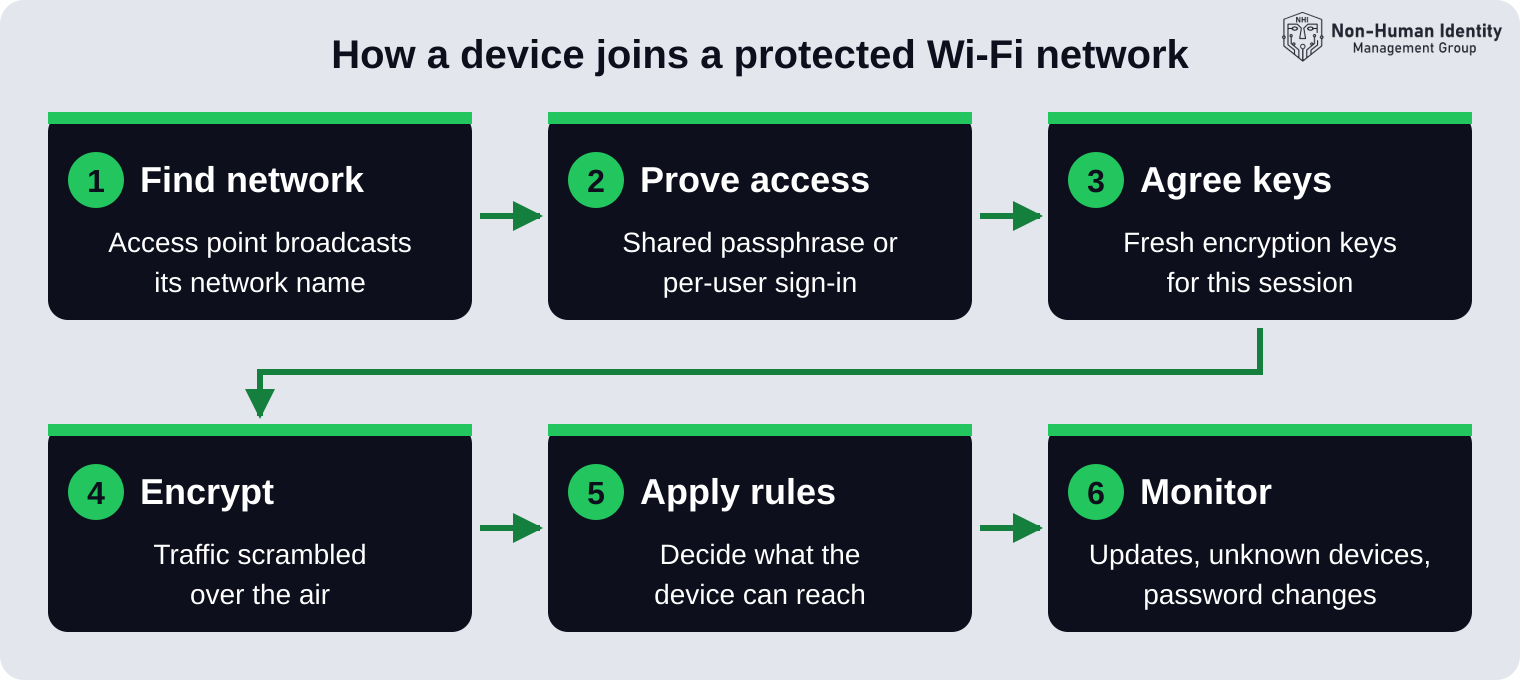
Here is what happens when a device joins a protected network.
- Find the network. The access point broadcasts its SSID. Your device lists it, or joins automatically if it has been there before.
- Prove you may join. On a home or small office network (the "Personal" mode), you enter a shared passphrase. On larger networks (the "Enterprise" mode), each person or device signs in with their own account or certificate, checked by a central server, often a RADIUS server.
- Agree fresh keys. The device and access point use the passphrase or sign-in to work out encryption keys for this session, without sending the password itself over the air.
- Encrypt the traffic. Everything sent between the device and the access point is now scrambled with those keys.
- Apply network rules. The router or network decides what the device can reach, for example the internet only for guests, or internal printers for staff.
- Monitor and maintain. The router's software is updated, unknown devices are spotted, and the passphrase or accounts are changed when people leave.
The table below compares the common security modes you will see in router settings.
| Mode | How people join | Where it fits |
|---|---|---|
| Open (no security) | Anyone, no password; traffic not encrypted by Wi-Fi | Avoid for anything you control |
| Wi-Fi Enhanced Open | Anyone, but traffic is encrypted without a password[1] | Public hotspots where a password is impractical |
| WEP or original WPA | Shared password, outdated protection | Retire; replace the equipment if it offers nothing newer |
| WPA2-Personal | One shared passphrase | Fallback for older devices |
| WPA3-Personal | One shared passphrase, stronger against guessing[1] | Homes and small offices |
| WPA2 or WPA3-Enterprise | Each person or device signs in individually | Organisations that need to know who is connected and remove one person's access |
The main ways wireless networks are attacked, at concept level, are:
- Password guessing: trying many passwords against a network. Long passphrases and WPA3 make this much harder.
- Evil twin and rogue access points: a fake or unauthorised access point that lures devices to connect, so traffic can be intercepted.[2]
- Eavesdropping: reading traffic on open or weakly protected networks.[2]
- Router takeover: using default admin passwords or unpatched router software to change settings.
A worked example
Elm Street Dental is a fictional practice with 12 staff. Its Wi-Fi was set up years ago by a contractor: one network called "ElmStreetDental", WPA2, a short password written on the reception wall, and patients were given the same password to use in the waiting room.
The practice manager, Aisha, reads about Wi-Fi risks and asks a local IT supporter, Marcus, to help. They make four changes over two afternoons:
- Two networks: a staff network and a separate guest network that can reach only the internet. Smart TVs and the card reader's own Wi-Fi go on a third network for devices.
- WPA3 with a fallback: the staff network uses WPA3, with WPA2/WPA3 mixed mode for one older tablet until it is replaced. The NSA lists WPA2/3 as an acceptable fallback for older devices.[4]
- New passphrase: a long passphrase for staff, not displayed anywhere, and a different guest passphrase that is changed monthly.
- Router care: the router admin password is changed from the default, automatic updates are turned on, and Marcus notes the date the router stops getting updates.
A month later, a former locum who still knew the old password cannot join the staff network. That does not make the practice untouchable: someone who learns the new staff passphrase could still join, which is why Aisha plans to change it whenever a staff member leaves.
Myths and misunderstandings
| What people think | What is true |
|---|---|
| Hiding the network name makes it secure. | The NSA advises not to hide the SSID, as this adds no additional security.[4] Use strong encryption and a strong passphrase instead. |
| Any password-protected public network is safe. | A public network that needs a password might still not encrypt traffic, and a fake network can copy its name.[2] |
| Allowing only known device addresses (MAC filtering) keeps people out. | Device addresses are sent openly and can be copied. Treat MAC filtering as tidying, not protection. |
| Once the router is set up, it can be left alone. | Routers need updates and should be replaced when they reach end of support.[4] |
| A VPN fixes every Wi-Fi risk. | A VPN encrypts your traffic on untrusted networks, which the NSA strongly advises,[2] but it does not secure the network itself or the devices on it. |
Key terms
- SSID
- The broadcast name of a wireless network that devices use to find and join it.
- Wireless access point
- The device that sends and receives Wi-Fi signals and connects wireless devices to the network.
- WPA2
- The Wi-Fi security standard used for many years to protect wireless networks from unauthorised access and eavesdropping.
- WPA3
- The current Wi-Fi security protocol, designed to give stronger protection than earlier standards.
- WPA2-Enterprise
- An enterprise Wi-Fi model that uses per-user credentials instead of one shared password.
- RADIUS
- Remote Authentication Dial-In User Service: a protocol that centralises sign-in checks for network access such as Wi-Fi and VPN.
- Evil twin
- A fake wireless access point that imitates a real network's name so nearby devices connect to it.
- Rogue access point
- An unauthorised access point connected to or placed near a trusted network.
- Guest network
- A separate Wi-Fi network for visitors or lower-trust devices that limits what they can reach.
- WPS
- Wi-Fi Protected Setup: a convenience feature for connecting devices quickly that can weaken router security.
Common questions
Is WPA3 much better than WPA2?
It is stronger, especially against password guessing,[1] and it is the current standard. WPA2 with a long passphrase is still a reasonable fallback where older devices need it.
How long should my Wi-Fi password be?
The NSA recommends a passphrase of at least twenty characters for home networks.[4] A few random words strung together are easier to remember than a short jumble.
Should I turn off WPS?
We suggest turning it off if you do not use it. It is a convenience feature, and features you do not use add exposure.
Is public Wi-Fi safe to use?
It carries extra risk. The NSA suggests using a personal or work hotspot where possible, a VPN otherwise, sites that use HTTPS, and turning off auto-connect.[2] See the Public Wi-Fi Safety Guide.
When does a business need WPA3-Enterprise?
When you need each person or device to sign in individually, so you can see who is connected and remove one person's access without changing a shared password for everyone.
What about smart devices that cannot use WPA3?
Put them on a separate network for devices. The NSA recommends separating primary, guest and smart-device (IoT) networks.[4] See IoT Security for Beginners.
First steps
- Log in to your router and check which security mode is set. Choose WPA3, or WPA2/WPA3 mixed mode if older devices need it.
- Change the router's admin password from the default and turn on automatic updates if the router offers them.
- Create a guest network and move visitors and smart devices onto it.
- Change the staff Wi-Fi passphrase to a long one, and plan to change it when someone with access leaves. If a change breaks an older device, keep any temporary fallback (such as mixed mode) approved, recorded and time-limited, with a date to replace the device.
Checklist
- Our Wi-Fi uses WPA3, or WPA2/WPA3 mixed mode only where older devices need it.
- No network we control uses open, WEP or original WPA security.
- The staff passphrase is long and not displayed in public areas.
- The router admin password has been changed from the default.
- Router software is updated, and we know when support ends.
- Guests and smart devices use separate networks from staff computers.
- WPS is turned off unless we actively use it.
- Staff know the risks of public Wi-Fi and use a hotspot or VPN when travelling.
Check your understanding
1. Why can someone outside your building attack your Wi-Fi?
Answer: radio signals pass through walls, so anyone in range can receive them. Protection comes from encryption and sign-in.
2. What is an evil twin?
Answer: a fake access point that copies a real network's name to lure devices into connecting.
3. Does hiding your network name make it secure?
Answer: no. It adds no real security; use strong encryption and a strong passphrase.
4. What is the main advantage of Enterprise mode over Personal mode?
Answer: each person or device signs in individually, so you can see who is connected and remove one person's access without changing everyone's password.
Suggested learning pathway
- Start with the foundations: Networking Fundamentals for Beginners.
- Then the wider picture: Network Security for Beginners.
- For separating guests and devices: Network Segmentation for Beginners.
- For protecting traffic on untrusted networks: VPNs for Beginners.
- For strong passphrases: Password Security for Beginners.
- For the practitioner detail on enterprise wireless: Wi-Fi Security Guide.
- For checking devices before they join: Network Access Control (NAC) Guide.
Standards and references
- Discover Wi-Fi: Security. Wi-Fi Alliance. https://www.wi-fi.org/discover-wi-fi/security, accessed 27 Nov 2026.
- Securing Wireless Devices in Public Settings, Cybersecurity Information Sheet. National Security Agency (NSA), July 2021. https://media.defense.gov/2021/Jul/29/2002815141/-1/-1/0/CSI_SECURING_WIRELESS_DEVICES_IN_PUBLIC.PDF.
- Key Reinstallation Attacks: Breaking WPA2 by forcing nonce reuse. Mathy Vanhoef (researcher), 2017. https://www.krackattacks.com/, accessed 27 Nov 2026.
- Best Practices for Securing Your Home Network, Cybersecurity Information Sheet. National Security Agency (NSA), February 2023. https://media.defense.gov/2023/Feb/22/2003165170/-1/-1/0/CSI_BEST_PRACTICS_FOR_SECURING_YOUR_HOME_NETWORK.PDF.
Related NHI Mgmt Group resources: Wi-Fi Security Guide · Public Wi-Fi Safety Guide · Router Brand Security Support Periods Tracker