OAuth scopes are the named permissions an app asks for when it wants to use your account data.
This guide is for anyone who has seen a list like "Read your email" or "See all your files" and wondered how much they were agreeing to. You do not need any technical background. If your business connects apps to email, files or calendars, these lists decide what each app can reach.
In short
- Each line on a permission screen is a scope: one named thing the app may do, such as read your calendar.
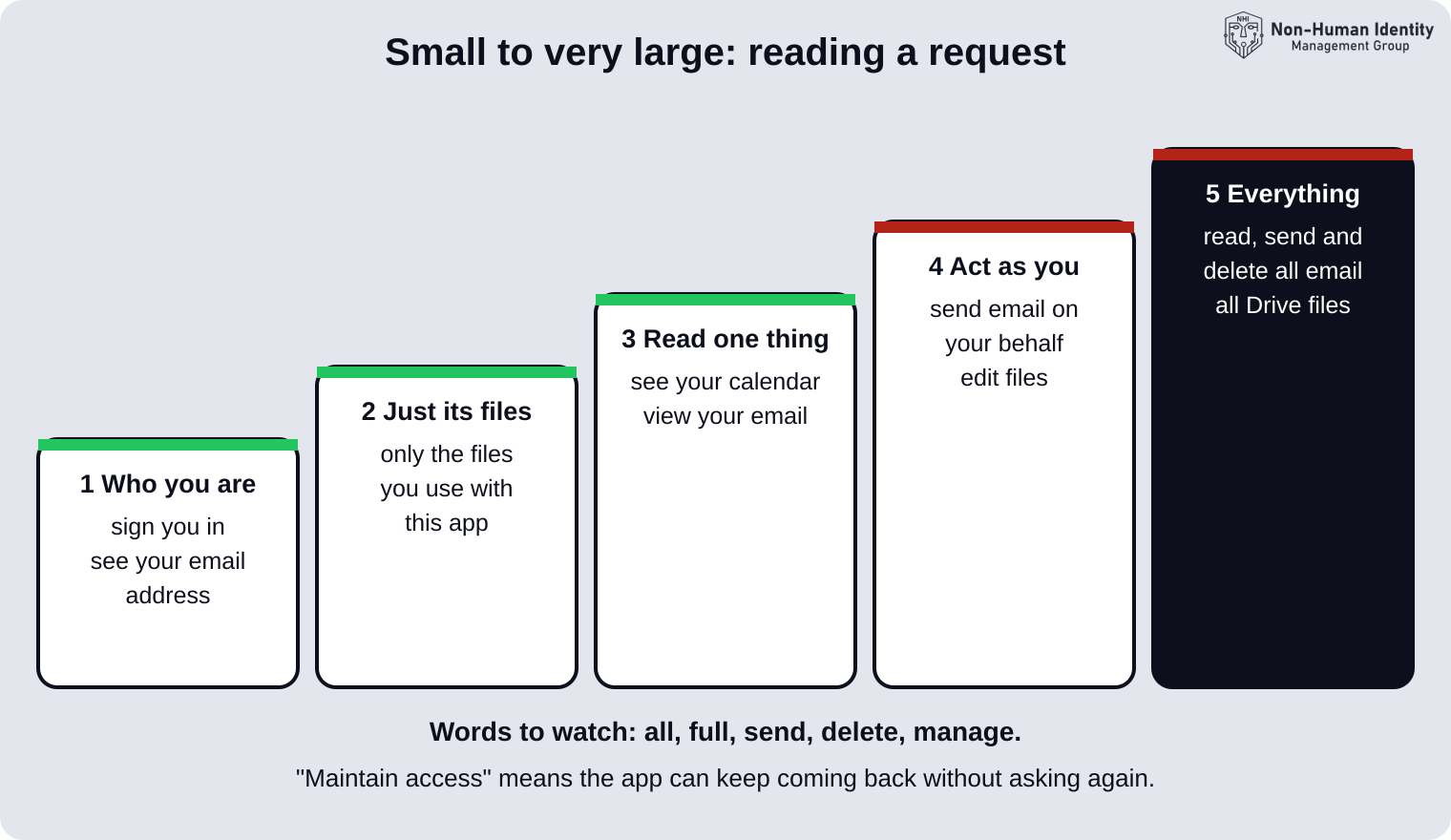
- Words like "all", "full", "send" and "delete" mean a much bigger request than "only the files you use with this app".
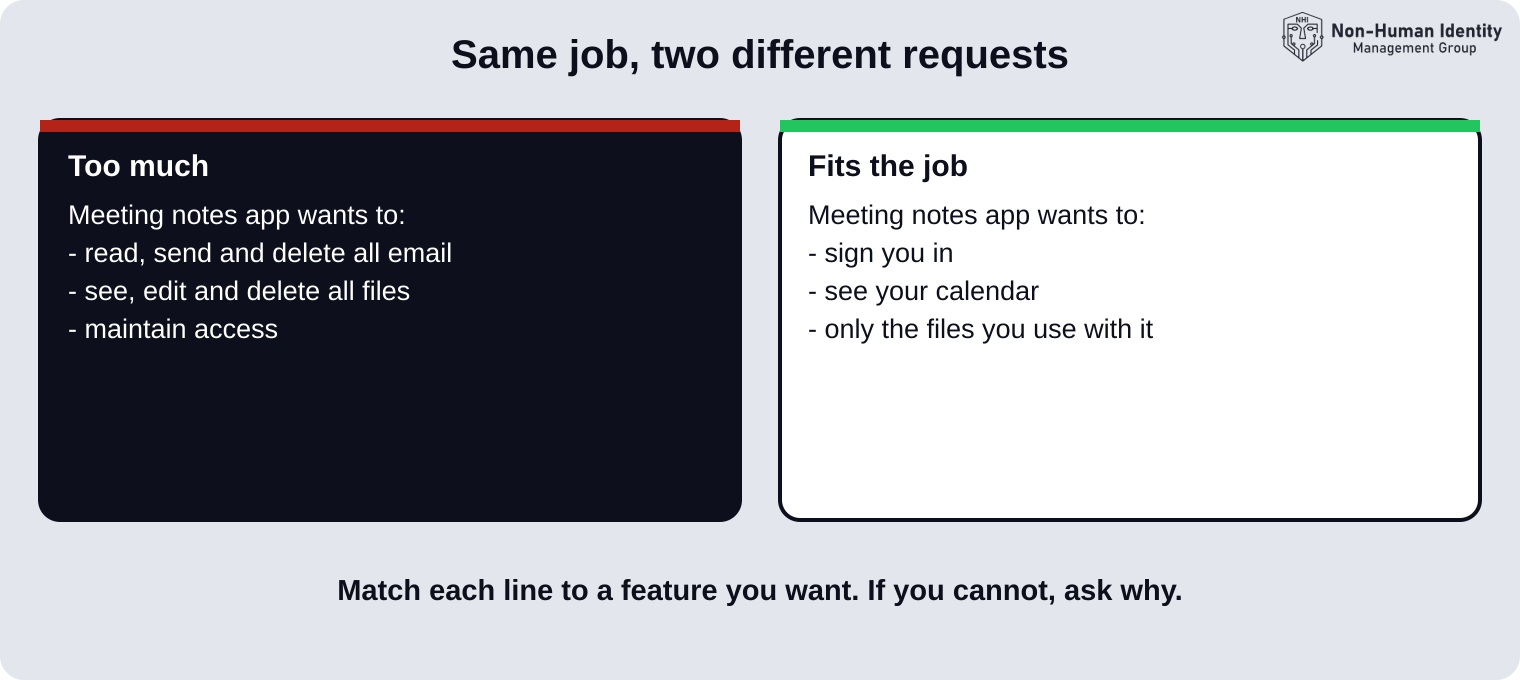
- Compare what the app asks for with what it does. A note-taking app rarely needs to send email as you.
- Most services let you see and remove an app's access later, and the app keeps its access until you do.
What you will learn
- Explain what a scope is in one sentence.
- Read common permission lines and tell a small request from a big one.
- Spot a request that does not match what the app is for.
- Ask an app maker or your IT team why a big request is needed.
- Permission line (scope)
- one named thing an app asks to do, such as "See your calendar".
- Permission screen (consent screen)
- the page that lists the scopes and asks you to allow or cancel.
- Digital pass (access token)
- what the app gets after you agree. It only opens what the scopes allow.
What are OAuth scopes?
Think of a job sheet you give a builder. One sheet says "fix the kitchen tap". Another says "any work, any room, keys to the whole house". Both get the builder in, but the second gives far more.
Scopes work the same way. Apps that connect to your email, files or calendar use OAuth. It is a shared set of rules that gives apps limited access without your password. The app sends a list of scopes. The service shows them to you in plain words. If you agree, the app gets a digital pass that covers just those scopes.
The service does not have to give everything that was asked for. The OAuth rules let it grant less, as long as it tells the app what it actually got.[1]
Where the comparison stops working: you can watch a builder work. You usually cannot see what an app does with its access, and it may keep that access for months.
Why does it matter?
The scopes you approve set the limit of the damage if the app, or the firm behind it, goes wrong. Microsoft advises giving an app only the smallest permission it needs.[2]
If you connect apps at home
What could happen: a free quiz or photo app gets full access to your email, and you forget about it.
Check this: before you press Allow, read each line and ask if the app really needs it.
Next: OAuth 2.0 for Beginners
If you run a small business
What could happen: a scheduling tool approved by one person can read and delete every file in a shared drive.
Check this: keep a list of connected apps and the biggest permission each one holds.
If you are learning to build apps
What could happen: you ask for broad scopes "just in case", people refuse to connect, and a leak of your app's passes exposes more.
Check this: ask only for the scopes each feature needs, and add more later if a feature calls for it.
What does it look like?
Here is a made-up permission screen for a meeting notes app. The scope names on the right are what the app really sends. The service turns them into the plain words you see.
Example only. All values are made up.
"NoteTaker EXAMPLE" wants to:
  Sign you in                                 (1)
  See and download any calendar you can access (2)
  Read, compose, send and permanently delete
  all your email                              (3)
  Maintain access to data you have given it   (4)
notes.example.invalid          [Cancel] [Allow]
- A small request. It lets the app know who you are.
- Read-only calendar access. That fits a meeting notes tool.
- Full email access. In a real screen, this line would come from the broadest mail scope the service offers.
- The app can keep coming back without asking you again.
Why this is risky: line 3 is far bigger than the job. If the app is breached, someone could read, send and delete your email.
The safer way: cancel, and ask the maker why it needs your mail. A notes tool that reads the calendar should not need more.
How does it work?
- The app's maker decides which scopes the app will ask for.
- When you connect the app, the service shows those scopes in plain words on the permission screen.
- You allow or cancel. At work, some requests need an administrator to approve them instead.
- The service gives the app a pass that covers only the approved scopes, sometimes fewer than asked for.[1]
- The app shows the pass each time it uses your data. Microsoft says short passes usually last about an hour, and longer-lasting ones let the app get new passes for much longer.[4]
Decoding common requests
Here is what some common lines mean. The wording comes from Google's and Microsoft's own lists.[3][4]
| What the screen says | What it means in practice | Size of request |
|---|---|---|
| Sign you in / See your primary email address | The app learns who you are. It cannot read your data. | Small |
| See, edit, create and delete only the specific Google Drive files you use with this app | The app sees only files you open or make with it. | Small |
| See and download any calendar you can access | The app can read every calendar you can see, but not change it. | Medium |
| View your email messages and settings | The app can read all your mail, but not send or delete it. | Large |
| Send email on your behalf | The app can send mail that looks like it came from you. | Large |
| See, edit, create and delete all of your Google Drive files | Full control of every file in your Drive. | Very large |
| Read, compose, send and permanently delete all your email from Gmail | Full control of your mailbox. | Very large |
| Maintain access to data you have given it access to | The app can keep getting new passes without asking you again. | Adds time to any request |
A worked example
Gita Gallardo runs a small tutoring business from home. She wants an app that turns her lesson calendar into invoices. She finds one with good reviews and clicks "Connect with Google".
The permission screen lists three lines. "See your primary email address" seems fine. "See and download any calendar you can access" fits the job. The third line says "See, edit, create, and delete all of your Google Drive files".
Gita stops. She keeps her students' reports and her own tax papers in Drive. She does not want a new tool to be able to change or delete them. Why would an invoice tool need that much? She presses Cancel and emails the app's support team to ask, quoting the exact line from the screen.
The next day they reply that the app saves finished invoices to Drive, and that the full request was left over from an older version. They point her to a setting that asks only for the files the app creates itself. Gita reconnects with that setting turned on. This time the screen shows "only the specific Google Drive files you use with this app".
A month later she opens the connected apps page in her Google Account. She removes two old apps she no longer uses.[5] She now has one invoicing app, with a request that matches the job it does for her business.
Myths and mistakes
| What people think | What is true |
|---|---|
| If a big company's sign-in page shows it, the request must be fine. | The service shows what the app asked for. It is up to you to judge whether that fits. |
| Read-only means harmless. | Reading all your email can expose a lot: bank messages, reset links and private notes. |
| I can untick the lines I do not like. | Some screens allow this and some do not. If you cannot, the app may still ask for everything. |
| Removing the app from my phone removes its access. | The access sits with your account. Remove the app from your account's connected apps page. |
| Apps ask for big scopes because they need them. | Sometimes. Often it is easier for the maker. Asking why is reasonable. |
What can I do this week?
- Open the connected apps page for your main email account, and look for any app that holds full access to your mail or files.
- Remove any app you no longer use, or do not remember connecting.
- Before you next press Allow, read each line. Match it to a feature you want.
- At work, ask who approves app requests, and whether big requests get a second look.
Checklist
- I know a scope is one named thing an app may do.
- I read every line on a permission screen before I press Allow.
- I treat "all", "send" and "delete" as big requests.
- I know "Maintain access" means the app can keep coming back.
- I have checked the apps connected to my main accounts.
- I have removed apps I no longer use.
- At work, big requests go to someone who checks them.
Common questions
What does OAuth scope mean in simple terms?
A scope is one named permission an app asks for, such as reading your calendar. The app lists its scopes and the service shows them to you in plain words. If you agree, the app gets a pass that covers only those scopes.
Is "Sign in with Google" the same as giving access to my data?
Not always. Signing in on its own shares who you are, such as your name and email address. If the screen also lists your mail, files or calendar, you are giving data access as well. Google's linked apps page shows these as separate kinds of link.[5]
How do I know if a request is too big?
Compare each line with what the app does. A calendar tool needs your calendar. If it also wants to send email or delete files, ask why. Watch for words like all, full, send, delete and manage.
Can I change scopes after I have allowed them?
Often you cannot trim them one by one. You can remove the app's access from your account settings, then reconnect it if a smaller option exists. At work, your IT team may be able to limit what apps can ask for.
Do scopes apply to software that runs without a person?
Yes, in a similar way. Some apps run on their own with permissions an administrator grants. Microsoft calls these application permissions and says they are highly privileged, because they work without a signed-in user.[2]
Where next?
Ready for the detail? Read the practitioner guide: High-Risk SaaS OAuth Scopes Reference. It goes further into the highest-risk scopes across major services, how to rank them and how to review apps that hold them.
Also useful:
- Google Workspace OAuth Scopes Risk Reference
- Gmail Full Access Scope (mail.google.com)
- Google Drive Full Scope
- OAuth 2.0 for Beginners
- Non-Human Identities for Beginners
Related NHI Mgmt Group resources: Entra ID Applications and Consent Guide · How to Inventory third party oauth apps in google workspace · Consent Phishing and Illicit OAuth Grants Guide
Key terms
- Scopes
- Named groups of permissions an app asks for, so it can request access without listing every item.
- OAuth
- A shared set of rules that lets one app get limited access to another without your password.
- Access token
- A digital pass that lets an app reach a service for a limited time, with set permissions.
- Refresh token
- A longer-lasting pass that lets an app get new access passes without asking you again.
- Delegated permissions
- Permissions an app uses on behalf of a signed-in person, limited by what that person can do.
- Least privilege
- Giving each person or program only the access it needs, and no more.
Sources and further reading
- The OAuth 2.0 Authorization Framework (RFC 6749), Access Token Scope. IETF, October 2012. https://www.rfc-editor.org/rfc/rfc6749#section-3.3, accessed 28 Nov 2026.
- Overview of Microsoft Graph permissions. Microsoft Learn, Microsoft, updated December 2025. https://learn.microsoft.com/en-us/graph/permissions-overview, accessed 28 Nov 2026.
- OAuth 2.0 Scopes for Google APIs. Google for Developers, Google. https://developers.google.com/identity/protocols/oauth2/scopes, accessed 28 Nov 2026.
- Scopes and permissions in the Microsoft identity platform. Microsoft Learn, Microsoft, updated June 2026. https://learn.microsoft.com/en-us/entra/identity-platform/scopes-oidc, accessed 28 Nov 2026.
- Manage links between your Google Account and apps from other developers. Google Account Help, Google. https://support.google.com/accounts/answer/13533235, accessed 28 Nov 2026.