Office printers and copiers often store passwords and documents, so they need looking after like computers.
This guide is for small business owners, office managers and new IT hires. You do not need to be technical to be affected: if your office copier can "scan to email", it is holding a password on your behalf.
In short
- A modern office copier is a small computer on your network, often with its own storage.
- To scan to email or to a shared folder, it keeps a password, often typed in once and then forgotten.
- Give that connection its own account with only the access it needs, and change the admin password.
- Wipe or remove the storage before a device is returned, sold or thrown away.
What you will learn
- Explain why a copier holds passwords.
- Spot the passwords stored in your office devices.
- Check that each device has its own limited account.
- Ask the right questions before a device leaves the building.
- All-in-one copier (multifunction device)
- a machine that prints, copies, scans and sometimes faxes.
- Service account (non-human identity)
- an account a program or device uses, not a person.
- Settings page (admin panel)
- the screen where someone with the admin password changes how the device works.
What is printer and office device security?
Think of the office cleaner who holds a set of keys. The keys let them do their job in every room, so whoever gets hold of that key ring can open the same doors.
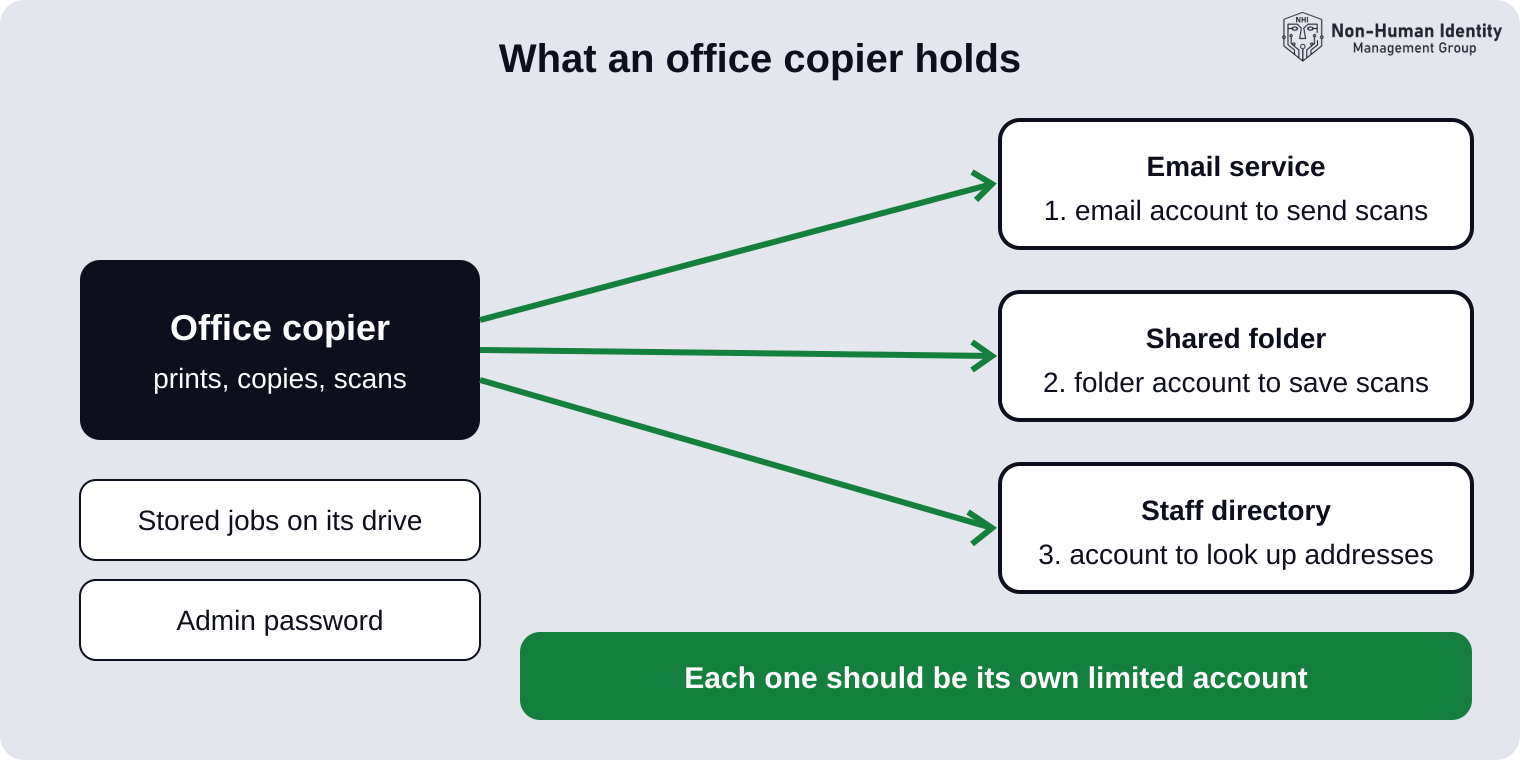
An office copier is similar. To send a scan by email, it logs in to your email system. To save a scan into a shared folder, it logs in to that folder. Some copiers also log in to the staff directory to look up email addresses.
Each of those stored accounts is a service account. It belongs to the device, not a person. That makes it a kind of non-human identity (NHI): an identity that belongs to software or a machine.
The device may also keep copies of recent jobs on its own storage. Printer and office device security means looking after those stored passwords, that storage and the settings page that controls both.
Where the comparison stops working: a cleaner is a person you can ask questions. A copier keeps its keys silently for years, and nobody may remember what it holds.
Why does it matter?
Devices often get set up once and left alone. A strong password for the copier's email account can end up typed in by a supplier, shared across devices and never changed.
Storage matters too. The UK's national cyber security agency notes cases where several gigabytes of sensitive documents were recovered from old photocopiers and printers.[2]
If you run a small business
What could happen: the copier signs in to email with your own mailbox password, so anyone who reads it gets your inbox.
Check this: ask your supplier which account the copier uses to send scans.
If you manage the office
What could happen: a leased copier goes back with months of scanned payslips still on its drive.
Check this: ask how the drive will be wiped, and get it in writing.
If you are new to IT work
What could happen: the settings page still uses the factory password, so anyone on the network can read the stored passwords.
Check this: list every printer and scanner, and who knows each admin password.
What does it look like?
Here is a made-up page of settings from an office copier.
Example only. All values are made up.
Copier settings  (admin panel)
Admin password:     FAKE-default-0000           (1)
Scan to email:
  Server:           smtp.example.com
  Login:            [email protected]           (2)
  Password:         ********  (saved)           (3)
Scan to folder:
  Folder:           \\files.example.invalid\Scans
  Login:            EXAMPLE\administrator       (4)
Job storage:        keep last 500 jobs          (5)
- In a real file, this line would contain the admin password, never changed from the factory one.
- The copier sends scans as the owner's own mailbox, not a separate account.
- The password is hidden on screen, but the device stores it so it can use it.
- Scans are saved using an administrator account, which can open far more than one folder.
- Copies of recent jobs stay on the device's storage.
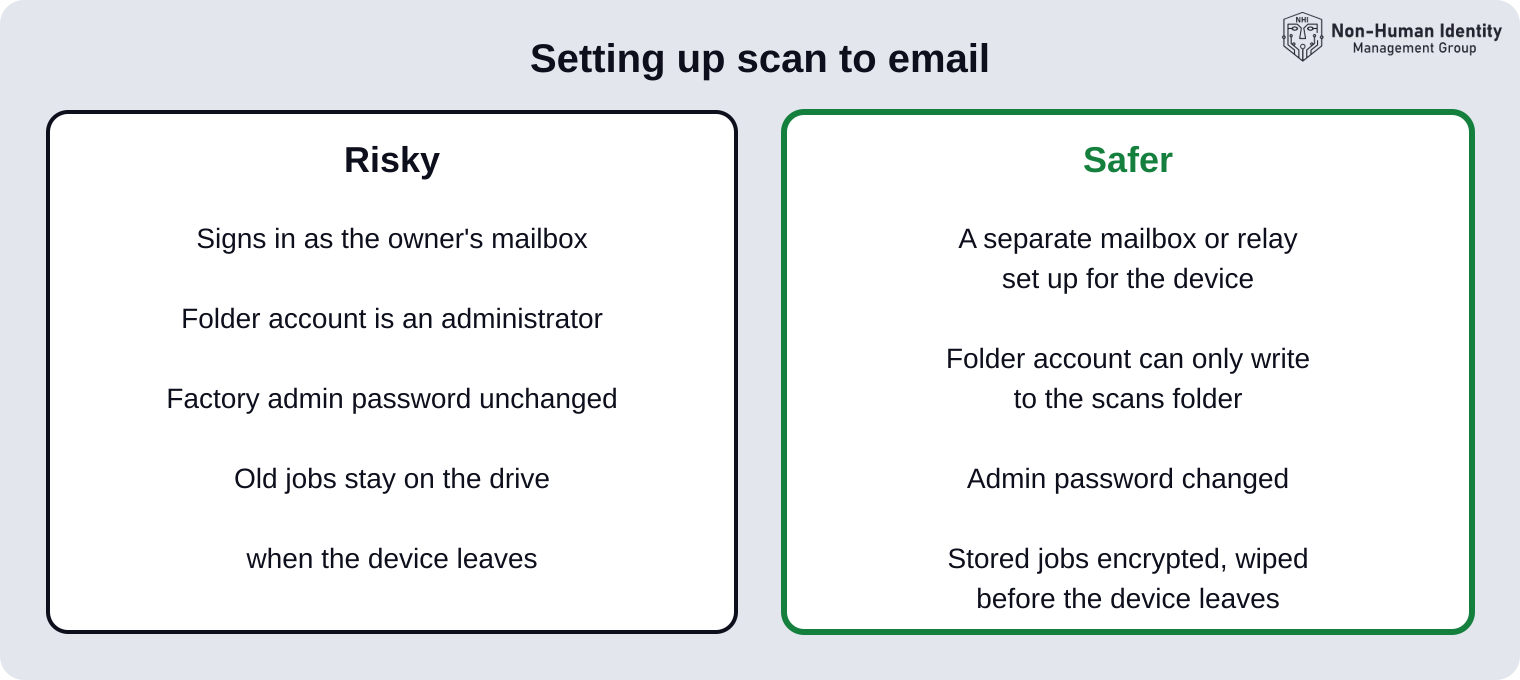
Why this is risky: someone who gets into the settings page may be able to use the owner's inbox. They may also get an admin password. Old jobs on the drive can leave with the device.
The safer way: the admin password is changed. Scans go out through a separate mailbox or relay set up for the device.[1] The folder account can only write to the scans folder, and stored jobs are encrypted or kept briefly.[3]
How does it work?
Here is how a scan to email usually works, and where the stored password comes in.
- Scan. A person scans a document and picks an email address on the screen.
- Log in. The copier signs in to the email service using the account details saved in its settings. Microsoft's guide for Microsoft 365 describes this as using a mailbox set aside for the device.[1]
- Send. The email service sends the scan from that mailbox.[1]
- Keep. Depending on its settings, the copier may keep a copy of the job on its own storage.[3]
Scan to folder works the same way, with an account for the file server. The risk is the same each time. The device holds a password, and that password is only as safe as the device and its settings page.
Email services are also changing. Microsoft says one older way of signing in, with just a saved username and password, is due to be retired. It recommends newer sign-in methods.[1] Older copiers may need a different setup, so ask your supplier.
A worked example
Leila Fairweather runs Cedar Studio, a fictional architecture practice with fourteen staff. Its leased copier is due to be swapped for a new one next month.
She asks Cyrus Quist, the studio's IT supplier, what needs doing. Cyrus starts with the settings page of the old copier.
He finds three problems. The copier sends scans by signing in as Leila's own mailbox. It saves scans using the main administrator account. The admin password is the factory one.
Leila remembers the cleaner with the key ring. The copier has been carrying her inbox key and the master key for two years.
Cyrus changes the administrator password first, then Leila's mailbox password, since both were stored in the copier. He checks the sign-in records and finds no unknown logins in the records available to him.
For the new copier, he sets up a separate account just for scans. It can only write to the scans folder. Scan to email goes through a separate relay set up for devices. He changes the admin password and stores it in the studio's password manager.
Before the old copier goes back, the leasing company wipes its drive and gives Leila a written certificate. She files it with the lease paperwork.
Myths and mistakes
| What people think | What is true |
|---|---|
| A printer is just a printer. | Many are small computers on your network, with storage and saved passwords.[3] |
| The password shows as stars, so it is safe. | The device still stores it so it can use it. Protect the device and its settings page. |
| Using the boss's mailbox for scans is simpler. | It puts the boss's inbox inside the copier. Use a separate account set up for the device.[1] |
| The leasing company will clear it when it goes back. | Ask how the storage will be wiped, and get proof. Old devices have given up sensitive documents.[2] |
| Nobody would bother attacking a copier. | A copier with an admin password stored inside it is a useful step into the rest of the network. |
What can I do this week?
- List every printer, copier and scanner in the office, with who looks after it.
- Ask which account each device uses for scan to email and scan to folder.
- Change any factory admin passwords and keep them in a password manager.
- Turn off features nobody uses, such as fax or old sharing options.
- Check the lease or disposal terms for how the storage is wiped.
Checklist
- Every office device is listed, with an owner.
- No device uses a factory admin password.
- Each device uses its own limited account, not a person's mailbox or an administrator account.
- Device passwords are stored in a password manager and changed when staff or suppliers change.
- Unused features and network services are turned off.
- The device's software is kept up to date.
- Storage is encrypted where supported, and wiped with proof before a device leaves.
Common questions
Do printers really store documents?
Many do. Office copiers often have their own storage and may keep recent jobs, depending on their settings. The NCSC has noted sensitive documents recovered from old copiers and printers. Ask your supplier what your model keeps and for how long.
Which account should my copier use to send scans?
A separate one set up just for the device, never a person's own mailbox. Microsoft describes using a mailbox set aside for the device, or a relay that does not need a mailbox. Your supplier can say which your copier supports.
Does this apply to home printers?
Partly. Home printers rarely hold work passwords, but they may still have a settings page and a factory password. Change that password, keep the software updated and turn off features you do not use. See IoT Security for Beginners.
What should happen when a copier is replaced?
Change any passwords it held, then make sure its storage is wiped before it leaves. Ask the supplier how they wipe it and for written proof. The NCSC advises sanitising any device you think may hold stored data.
Where next?
Ready for the detail? Read the practitioner guide: Printer and MFD Service Accounts. It goes further into directory lookup accounts, email relay design, scan to folder permissions and changing passwords across a fleet of devices.
Also useful:
- Printer and Print Server Security Guide
- Default Passwords for Beginners
- Service Accounts for Beginners
- Firmware and Device Updates for Beginners
- Non-Human Identities for Beginners
Related NHI Mgmt Group resources: Printer and Print Spooler Security Guide · IoT Security for Beginners · Password Managers for Beginners
Key terms
- Service account
- An account a program or device uses to log in, not a person.
- Non-human identity (NHI)
- A digital identity given to software or a machine, such as an app, a device or a service account.
- Default password
- The password a device ships with from the factory, before anyone changes it.
- LDAP bind account
- An account a device uses to look things up in the staff directory, such as email addresses.
- Least privilege
- Giving each person or device only the access it needs, and no more.
- Firmware
- The built-in software that runs a device such as a printer.
Sources and further reading
- How to set up a multifunction device or application to send email using Microsoft 365 or Office 365. Microsoft Learn, Microsoft. https://learn.microsoft.com/en-us/exchange/mail-flow-best-practices/how-to-set-up-a-multifunction-device-or-application-to-send-email-using-microsoft-365-or-office-365, accessed 28 Nov 2026.
- Secure sanitisation of storage media. National Cyber Security Centre (NCSC). https://www.ncsc.gov.uk/guidance/secure-sanitisation-storage-media, accessed 28 Nov 2026.
- Security for printers, scanners, copiers and fax machines. Duke University IT Security Office. https://security.duke.edu/security-guides/security-printers-scanners-copiers-and-fax-machines, accessed 28 Nov 2026.