A password manager is an app that creates, stores and fills in your passwords for you.
This guide is for anyone who has too many passwords to remember and wants a safe way to start. You do not need to be good with computers. If you shop, bank or email online, this is for you.
In short
- A password manager lets every account have its own long password, so you only remember one.
- Reusing one password means a leak at one site can open your other accounts.
- The one password you keep, the master password, must be strong and protected by a second check.
- Start with your email and bank, then move the rest over a few at a time.
What you will learn
- Explain what a password manager does in one sentence.
- Choose between the one in your browser and a separate app.
- Move your passwords over safely, starting with the accounts that matter most.
- Spot the habits that make a password manager less safe.
- Your one remaining password (master password)
- the single password that unlocks your password manager.
- Locked store (vault)
- the part of the app that keeps your saved passwords scrambled until you unlock it.
- Second check (two-step verification)
- an extra step, such as a code from an app, on top of your password.
What is a password manager?
Think of a key cabinet with one strong lock. Inside hangs a different key for every door you use. You carry one key, the one that opens the cabinet.
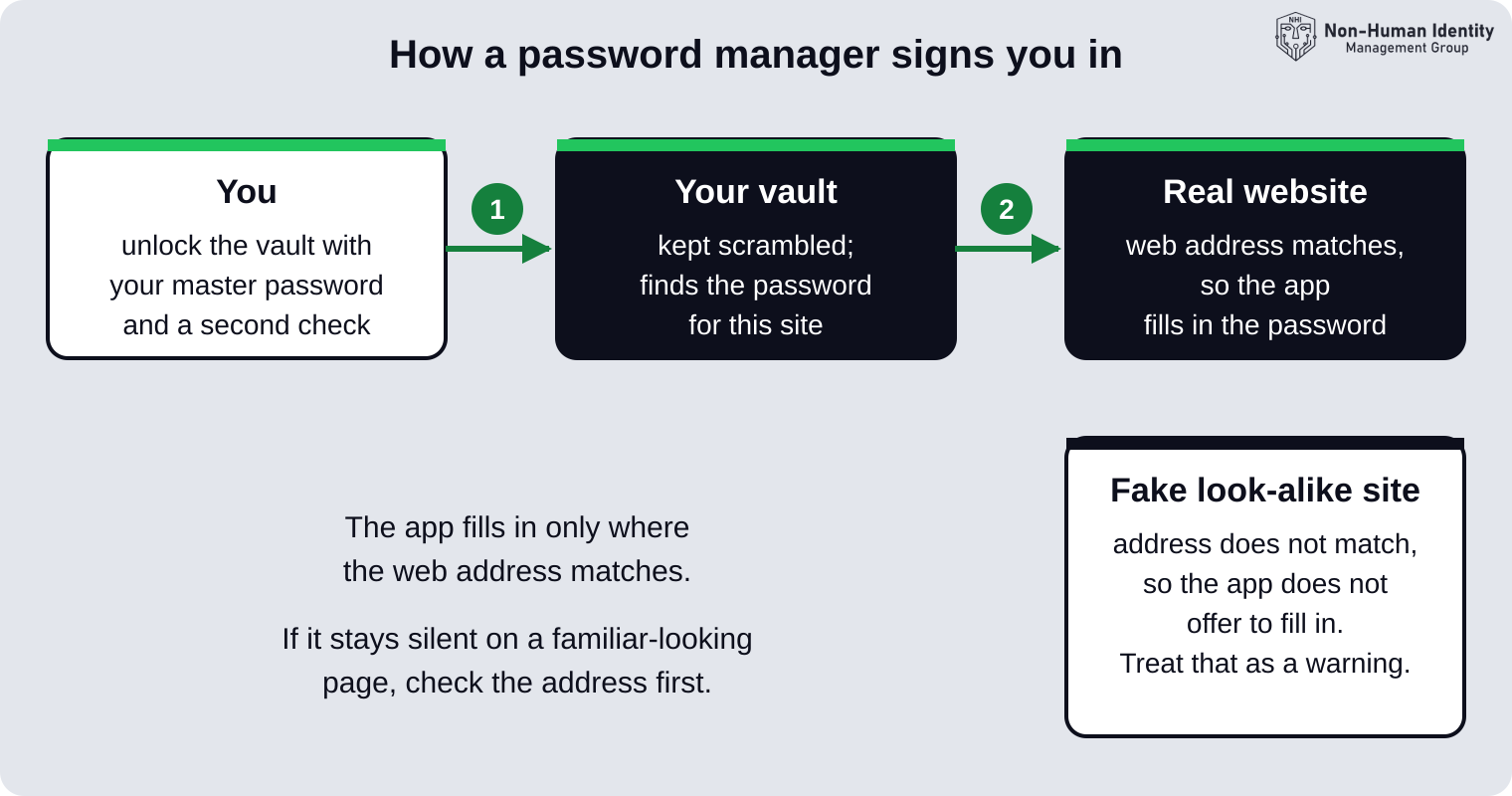
A password manager works the same way. It keeps a different password for each website in a locked store, called a vault. You unlock the vault with one password, called the master password. Then the app fills in the right password for each site.
It can also make new passwords for you. These are long and random, so they are hard to guess.[1] You do not need to remember them, because the app does that.
There are two main kinds. Some are built into your web browser, the app you use to visit websites, such as Chrome, Edge or Safari. Others are separate apps you install, which work across different browsers and devices.[1]
Where the comparison stops working: a key cabinet stays on one wall. A password manager can copy your vault to your phone and laptop, so it is with you wherever you sign in.
Why does it matter?
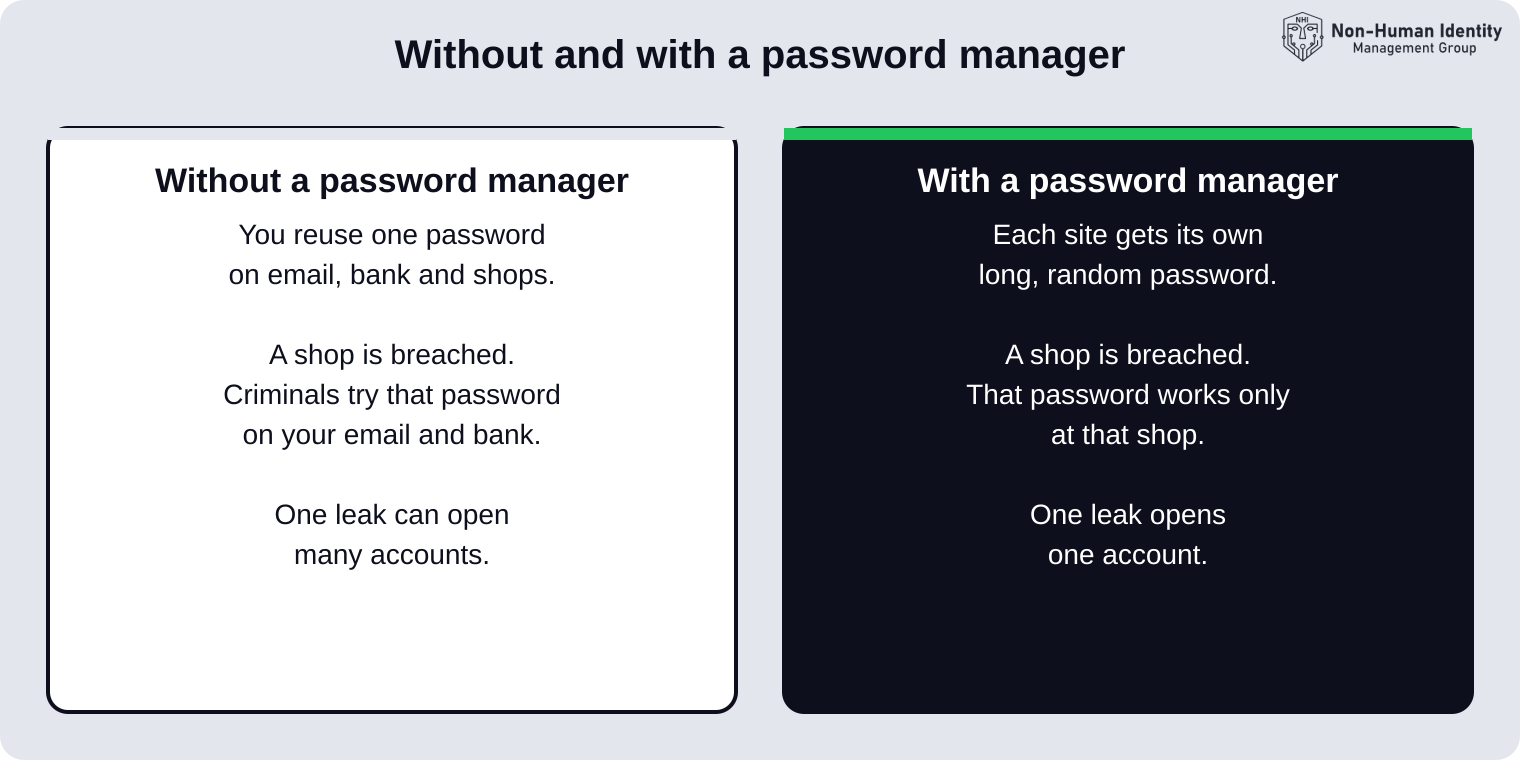
Most people reuse passwords because there are too many to remember. That habit is what criminals count on.
When one website is hacked, criminals often try the stolen email and password on other sites. This is called credential stuffing. If you used the same password elsewhere, those accounts can open too.
If you use the same password in several places
What could happen: a leak at a small shop lets a stranger into your email, and from there reset your other passwords.
Check this: list the accounts that share a password with your email. Change those first.
If you look after a family's accounts
What could happen: passwords on paper or in a shared note get lost, copied or seen by visitors.
Check this: see whether your password manager lets you share chosen passwords with family members safely.
If you run a small business
What could happen: staff share one login by email or text, and nobody knows who still has it after someone leaves.
Check this: ask whether a business password manager would let each person have their own access.
What does it look like?
Here is a made-up view of a vault after someone has started moving their passwords over.
Example only. All values are made up.
My vault (unlocked)                       (1)
  FakeMail      [email protected]   ************  Strong
  FakeBank      [email protected]   ************  Strong
  ShopExample   [email protected]   ************  Reused   (2)
  ForumExample  [email protected]   ************  Weak     (3)
New password: EXAMPLE-k7Rm-Qx2v-FAKE-0000              (4)
Two-step check on this vault: ON                       (5)
- The vault is open because the owner typed the master password.
- A warning that this password is also used on another site.
- A warning that this password is short or easy to guess.
- A long, random password made by the app. In a real screen, this line would show a password nobody could guess.
- The vault itself asks for a second check, not just the master password.
Why this is risky: the shop and forum passwords still match older ones. If either site leaks, those passwords may work elsewhere.
The safer way: let the app make a new password for each flagged site, starting with the ones that share your email password.
How does it work?
- You set one master password. Make it long and memorable, such as several random words joined together. Turn on a second check for the vault too.[1]
- The app locks your vault. Many password managers scramble (encrypt) your vault on your own device before it is stored online. One provider says even its own staff cannot read your saved passwords.[2]
- You save or create passwords. When you sign up or change a password, the app offers to make a strong one and save it.
- It fills in on the right site. When you visit a saved website, the app offers your password. It is designed to fill in only on the correct website, which gives some protection from fake sites.[1]
- It warns you. Many apps flag reused or weak passwords, and some tell you when a password has appeared in a known leak.[1]
A worked example
This story is made up to show how it can happen.
Eilidh MacLeod runs a small florist's van in Inverness. She has about sixty online accounts. For years she used two passwords for all of them, with a number on the end when a site asked for a change.
One morning a delivery firm she once used emails her. It says customer details, including passwords, may have been stolen. Eilidh realises that password is the same one she uses for her email.
First, she changes her email password. She makes it long and new, and she turns on the email's second check using an authenticator app.
That evening she picks a password manager. Her laptop and phone use different makers, so she chooses a separate app that works on both. She sets a master password made of four random words. She writes it on a card and keeps it in a locked drawer at home, as a backup. Then she turns on the vault's second check.
Her browser has already saved many of her passwords. She exports them to a file and imports that file into the new app. The app's help page tells her to delete the export file afterwards, so she does.[3]
The app flags forty reused passwords. Eilidh does not try to fix them all at once. She starts with her bank, email, card reader account and online shop. Over the next two weeks she changes five or six more each evening.
What made the difference: Eilidh fixed her email first, because it can reset everything else, then moved the rest over in small steps.
Myths and mistakes
| What people think | What is true |
|---|---|
| Putting all my passwords in one place is too risky. | Reusing passwords is usually the bigger risk. A strong master password plus a second check protects the vault well.[1] |
| The password manager company can get my master password back if I forget it. | Often it cannot, by design. Set up the recovery options it offers, such as an emergency contact, before you need them.[1][2] |
| I have to change every password on day one. | Start with email, bank and anything that holds payment details. Do the rest a few at a time. |
| The browser's built-in one is not a real password manager. | It is one. It suits people who use the same browser on all their devices. Keep your devices updated and do not save passwords on shared computers.[1] |
| Once everything is in the app, I can delete the export file later. | Delete it straight after importing. One provider advises this in case your computer is ever compromised.[3] |
What can I do this week?
- Pick one kind. Use your browser's if you use one browser on every device. Use a separate app if you mix devices.
- Make a long master password from random words. Turn on the vault's second check.
- Set up the app's way to get back in, such as an emergency contact. Keep any recovery code on paper, somewhere safe.
- Change your email password first, then your bank, letting the app make each new one.
- Pick five more accounts each week until the reused-password warnings are gone.
Checklist
- I use a password manager on my own devices.
- My master password is long, new and not used anywhere else.
- My vault asks for a second check, not just the master password.
- I have set up a recovery option and kept it safe offline.
- My email and bank each have their own password.
- I deleted any export file after moving my passwords.
- I do not save passwords in the browser on shared or public computers.
Common questions
Do I really need a password manager?
For most people, yes. The UK National Cyber Security Centre says a password manager lets you have a unique password for each service without memorising them. If you reuse passwords now, a manager is one of the simplest ways to stop doing that.[1]
Is the one in my browser good enough?
It can be. Browser password managers are the easiest choice if you use the same browser or system on all your devices. If you mix makers, such as one brand of phone and another of laptop, a separate app may suit you better.[1]
What happens if I forget my master password?
You may be locked out. Many providers cannot see or reset your master password, because only you hold it. Before you need it, set up the recovery options your app offers, such as a trusted emergency contact or a recovery code kept offline.[1][2]
What about passkeys?
Use them where a site offers them. A passkey is a way to sign in without a password. The National Cyber Security Centre suggests passkeys as your first choice where offered. Many password managers can store passkeys too, so the two work together.[1]
Should I pay for a password manager?
Not necessarily. Free options exist, including the ones in browsers. Paid apps may add features such as family sharing or leak alerts. The NCSC advice is to pick the one that meets your needs and that you find easiest to use.[1]
Where next?
Ready for the detail? Read the practitioner guide: Password Managers Explained for Everyone Guide. It goes further into choosing between kinds of manager, everyday safe use, and what to do if your manager or vault is affected by a problem.
Also useful:
- Password Manager Setup Guide
- Password Security for Beginners
- Multi-Factor Authentication for Beginners
- Passkeys vs Password Managers
Related NHI Mgmt Group resources: Passkeys for Everyone Guide · Breached password checks · Two-Factor Authentication for Everyone Guide
Key terms
- Password manager
- An app that creates, stores and fills in passwords, so you do not need to remember or reuse them.
- Master password
- The one password that unlocks your whole password vault, so it needs extra care.
- Browser password manager
- A password store built into a web browser that saves and fills in your passwords.
- Password reuse
- Using the same password on more than one account, so one leak can open several.
- Credential stuffing
- When criminals try stolen email and password pairs from one leak on many other sites.
- Multi-factor authentication (MFA)
- Asking for two or more kinds of proof, such as a password and a code, before letting you in.
- Passkey
- A way to sign in without a password, where a secret key stays on your device and the website keeps only a matching public key.
Sources and further reading
- Password managers: how they help you secure passwords (Top tips for staying secure online). National Cyber Security Centre (NCSC). https://www.ncsc.gov.uk/collection/top-tips-for-staying-secure-online/password-managers, accessed 28 Nov 2026.
- Bitwarden Security Whitepaper (one provider's description of how it encrypts vaults on the user's device and why it cannot read or reset a master password). Bitwarden. https://bitwarden.com/help/bitwarden-security-white-paper/, accessed 28 Nov 2026.
- Import data to your vault (advice to delete the exported file after importing). Bitwarden Help Center. https://bitwarden.com/help/import-data/, accessed 28 Nov 2026.