Privileged Identity Management (PIM) is a Microsoft feature that lets admins switch on powerful roles only when needed.
This guide is for anyone who has seen "PIM" in Microsoft 365 or Entra ID and wants to know what it does. If your firm uses Microsoft 365, the people who manage it hold keys to your email, files and settings.
In short
- PIM is part of Microsoft Entra ID, the sign-in service behind Microsoft 365.
- Admins are made "eligible" for a role, then switch it on for a few hours when they need it.
- Switching on can ask for a second sign-in check, a reason and, for the top roles, someone's approval.
- PIM needs a paid licence, and it works best with a few named admins and two emergency accounts.
What you will learn
- Explain the difference between an eligible role and an active role.
- Describe what happens when an admin switches a role on.
- Spot admin roles that are switched on all the time without a good reason.
- Ask the right questions before your firm turns PIM on.
- Admin power (privileged role)
- a set of rights that lets someone change settings for many people.
- Allowed to ask (eligible)
- the person may switch the role on, but does not hold it until they do.
- Switching on (activation)
- the steps an eligible person takes to use the role for a set time.
This is an independent guide from NHI Mgmt Group, based on Microsoft's public documentation as of November 2026. It is not sponsored or reviewed by Microsoft. Product features change, so confirm settings against Microsoft's current documentation.
What is Privileged Identity Management?
Think of a library book. You borrow it when you need it, and you must bring it back by a set date. PIM treats admin power the same way.
Microsoft describes PIM as a service in Entra ID that helps you manage, control and watch access to important resources. These include Entra ID itself, Azure and services such as Microsoft 365.[1]
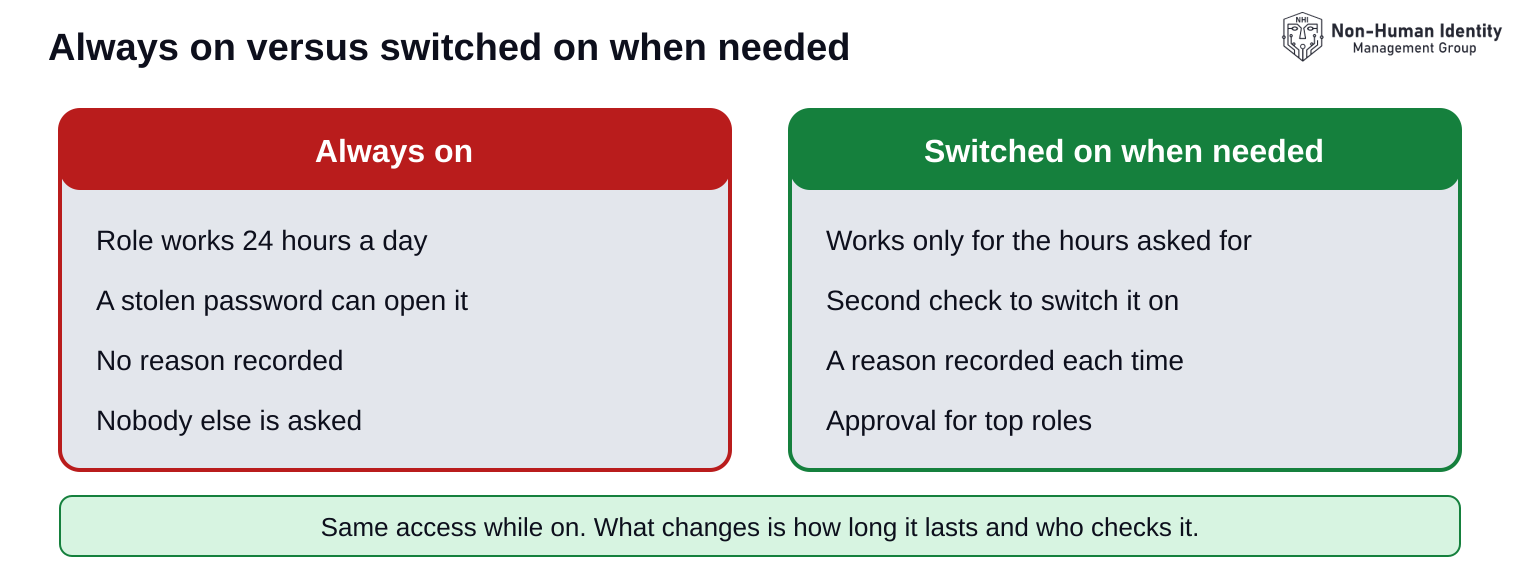
Without PIM, an admin role is usually active. That means the person holds it every hour of every day. With PIM, the person can instead be eligible. They can use the role, but only after they switch it on.[1]
Microsoft notes that an eligible role gives the same access as a permanent one once it is on. The difference is that people only hold it while they need it.[1] This idea of giving access only for the time it is needed is called just-in-time access.
Where the comparison stops working: a library tells you when a book is late. With PIM, the role is taken back by itself when the time runs out, so nothing is late.
Why does it matter?
An admin account that always holds a top role is a prize for an attacker. If they steal it, they get every right it holds at once. The UK's National Cyber Security Centre says limiting how long an admin credential works shrinks an attacker's window.[5]
If you run a small or mid-sized business
What could happen: one stolen admin password lets a stranger change every mailbox and file share.
Check this: ask your IT supplier which admin roles are switched on all the time, and why.
If you are new to IT work
What could happen: you are given a top role "just in case" and keep it for years after the job is done.
Check this: ask to be made eligible instead, and switch the role on only for each task.
If you approve or audit access
What could happen: nobody can say who used a top role last month, or why.
Check this: ask for the PIM history, which records each switch-on and the reason given.
What does it look like?
Here is a made-up note of the kind an admin might fill in when switching on a role. The screen in your tenant may look different.
Example only. All values are made up.
My roles > Eligible
Role:          Exchange Administrator     (1)
Requested by:  [email protected]
Duration:      2 hours                    (2)
Reason:        Fix shared mailbox, ticket EXAMPLE-0000   (3)
Extra check:   Completed                  (4)
Approval:      Not needed for this role   (5)
Status:        Active until 16:00
- The role the person is allowed to ask for. They do not hold it the rest of the time.
- How long they need it. The admin sets a maximum for each role.
- A short reason. In a real screen, this line would contain the task and ticket number.
- A second sign-in check, such as a phone prompt, before the role switches on.
- Top roles can be set so another person must approve first.
Why this is risky: nothing on the note itself is risky. The risk is when the same person holds the role all the time, so a stolen password works at any hour with no extra check.
The safer way: make admins eligible, keep switch-on times short and ask for a reason each time. Require approval for the most powerful roles.
How does it work?
Here is the usual path, step by step:
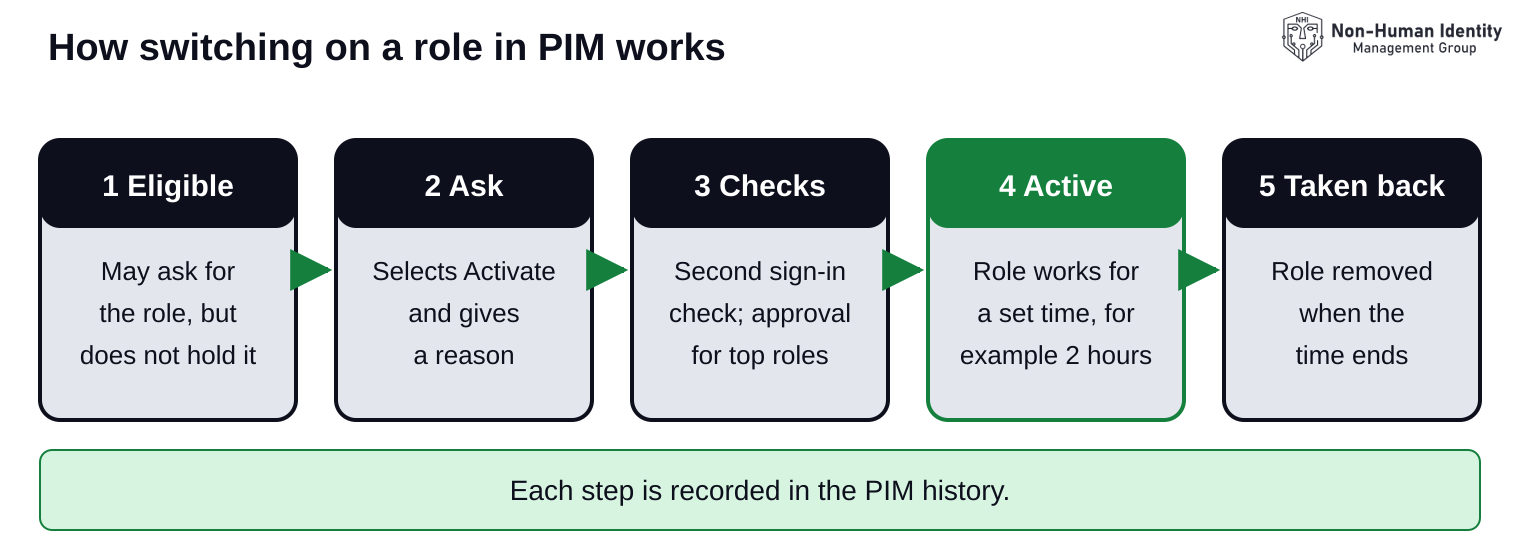
- Make people eligible. An admin with the right role marks a person as eligible for a role, not active. Only Global Administrators or Privileged Role Administrators can do this for Entra roles.[1]
- Set the rules for each role. For each role you choose a maximum time, from one to 24 hours. You can also ask for a second check, a reason, a ticket number or approval.[3]
- Ask for the role. When the person needs it, they open "My roles" in the Microsoft Entra admin center, select Activate, complete the check and type a reason.[2]
- Wait for approval if needed. If the role needs approval, the request waits. Approvers get an email and can approve or deny it.[1]
- Use the role. Microsoft says the role becomes active within seconds. Some apps may need you to sign out and back in before they notice.[2]
- Hand it back. When the time ends, PIM takes the role away. Each step is recorded, so you can download the history for an audit.[1]
PIM can look after three kinds of access. These are Entra roles, such as Exchange Administrator; Azure roles, which control cloud resources; and membership of groups, called PIM for Groups.[1]
PIM is not free. Microsoft says you need Microsoft Entra ID P2 or Microsoft Entra ID Governance licences. Eligible users, approvers and people taking part in access reviews all need one.[4]
A worked example
Wanda Achterberg looks after IT at Linden Row Accountants, a made-up firm with 60 staff on Microsoft 365. Five people hold Global Administrator, the most powerful role, all the time. Two of them only reset passwords now and then.
Wanda reads Microsoft's advice. It recommends PIM and fewer than five Global Administrators. It also suggests two cloud-only emergency accounts that keep the role permanently, for lock-outs.[6]
The firm buys the licences it needs. Wanda then makes a plan with Cyrus Jensen, the finance director, who will approve requests for the top role.
First, she sets up the two emergency accounts and an alert for any sign-in to them. Next, she gives the two password helpers a smaller role, Helpdesk Administrator, as eligible. Then she makes the remaining admins eligible for Global Administrator, with a two-hour limit, a reason and Cyrus's approval.
A week later, Wanda needs to change a company-wide setting. She asks for the role and types the ticket number. Cyrus gets an email and approves it. Wanda makes the change, and the role is taken back two hours later.
One problem comes up. A helper switches on her role, but the admin app still says she has no rights. She signs out and back in, and it works. Wanda adds this tip to the team notes.
Linden Row is not immune to attack. But a stolen admin password no longer gives top rights on its own.
Myths and mistakes
| What people think | What is true |
|---|---|
| Eligible admins get weaker access. | Once switched on, the access is the same. Only the time it lasts changes.[1] |
| PIM comes free with every Microsoft 365 plan. | It needs Entra ID P2 or Entra ID Governance licences.[4] |
| Turning PIM on fixes admin risk by itself. | Roles given outside PIM, or left permanently active, skip its checks. Review who still holds active roles. |
| Requiring approval is always safer. | Only if approvers exist and respond. Microsoft recommends at least two approvers per role.[3] |
| Emergency accounts should go through PIM too. | Microsoft suggests two emergency accounts that keep the top role permanently, watched closely.[6] |
What can I do this week?
- List your admins. In the Entra admin center, look at who holds Global Administrator and the other admin roles today.
- Mark the roles that are always on. For each one, ask whether that person really needs the role every working day.
- Check your licences. Ask your IT supplier whether your plan includes Entra ID P2 or Entra ID Governance.
- Plan for lock-outs first. Make sure two emergency accounts exist, with an alert on each sign-in, before you change anything.
- Start small. Move one lower-risk role to eligible and test it with one person, then move the rest.
Checklist
- I can explain the difference between eligible and active in one sentence.
- We know who holds each admin role and whether it is always on.
- Fewer than five named people can use Global Administrator.
- Two emergency accounts exist, are stored safely and raise an alert when used.
- Top roles need a second check and a reason to switch on.
- The most powerful roles need approval, with at least two approvers.
- Switch-on times are kept as short as the job allows.
- Someone reviews the PIM history and admin roles on a regular schedule.
Common questions
Is PIM the same as PAM?
Not quite. Privileged access management (PAM) is the general practice of controlling powerful access, across many systems. PIM is one Microsoft feature that does part of that job inside Entra ID, Azure and Microsoft 365. Many firms use both: PIM for Microsoft roles and a PAM tool for servers.
How long can an admin keep a role switched on?
Up to the limit set for that role. Microsoft lets you set a maximum between one and 24 hours. Shorter is usually better, as long as people can finish the task. When the time ends, the role is removed and they ask again next time.[3]
What happens if our PIM licence runs out?
You lose the PIM features. Microsoft says permanent role assignments stay in place, but eligible assignments are removed.[4] So admins who relied on switching roles on could lose that path. Keep an eye on renewal dates and emergency accounts.
Can PIM control access for apps, not just people?
Partly. PIM is built mainly for people who switch roles on. Apps and other non-human identities (NHIs), such as service principals, usually hold permissions all the time. Microsoft lists app roles as a preview area in PIM. Check current documentation, and review app permissions separately.[1]
Do I need PIM if I only have two admins?
It still helps, but it is not the first step. Start with a second sign-in check for every admin, separate admin accounts and two emergency accounts. If you have the licence, PIM then adds time limits and a record of who used each role and why.
Where next?
Ready for the detail? Read the practitioner guide: Privileged Identity Management (PIM) Guide. It goes further into role settings for each role, PIM alerts and audit, and a rollout plan that avoids locking yourself out.
Also useful:
- Just-in-Time Access for Beginners
- Microsoft 365 Admin Roles for Beginners
- Zero Standing Privilege for Beginners
- Microsoft Entra ID for Beginners
Related NHI Mgmt Group resources: Entra ID Privileged Roles Guide · How to set up and monitor break-glass accounts in Entra ID · Credential Vaulting vs Just-in-Time Elevation
Key terms
- Privileged Identity Management (PIM)
- A Microsoft Entra ID feature that lets people switch powerful roles on for a limited time, with checks.
- Eligible assignment
- A role a person may switch on when needed, but does not hold the rest of the time.
- Active assignment
- A role a person holds and can use straight away, with no extra steps.
- Just-in-time access
- Giving access only for the time a task needs, then taking it back.
- Standing access
- Powerful access that stays switched on all the time, whether or not it is being used.
- Emergency access account
- A spare top-level account kept for lock-outs, used rarely and watched closely.
- Access review
- A regular check that each person still needs the access they hold.
Sources and further reading
- What is Microsoft Entra Privileged Identity Management? Microsoft Learn, Microsoft. https://learn.microsoft.com/en-us/entra/id-governance/privileged-identity-management/pim-configure, accessed 28 Nov 2026.
- Activate a Microsoft Entra role in PIM. Microsoft Learn, Microsoft. https://learn.microsoft.com/en-us/entra/id-governance/privileged-identity-management/pim-how-to-activate-role, accessed 28 Nov 2026.
- Configure Microsoft Entra role settings in Privileged Identity Management. Microsoft Learn, Microsoft. https://learn.microsoft.com/en-us/entra/id-governance/privileged-identity-management/pim-how-to-change-default-settings, accessed 28 Nov 2026.
- Microsoft Entra ID Governance licensing fundamentals. Microsoft Learn, Microsoft. https://learn.microsoft.com/en-us/entra/id-governance/licensing-fundamentals, accessed 28 Nov 2026.
- Secure system administration: use privileged access management. National Cyber Security Centre (UK). https://www.ncsc.gov.uk/collection/secure-system-administration/use-privileged-access-management, accessed 28 Nov 2026.
- Best practices for Microsoft Entra roles. Microsoft Learn, Microsoft. https://learn.microsoft.com/en-us/entra/identity/role-based-access-control/best-practices, accessed 28 Nov 2026.