A Microsoft 365 admin role is a set of permissions that lets someone manage part of a company's Microsoft 365.
This guide is for small business owners, office managers and people new to IT support who look after Microsoft 365. You do not need to be technical. If someone in your firm can add users or reset passwords, they already hold an admin role.
In short
- Microsoft 365 has many admin roles, each for a set of tasks, such as resetting passwords or managing email.
- Global Administrator is the most powerful role. It can change almost every setting and reach most data.
- Microsoft advises giving Global Administrator to fewer than five people, and giving others smaller roles.
- Protect every admin with an extra sign-in check, and keep two emergency accounts for lock-outs.
What you will learn
- Explain what an admin role is and why Global Administrator is special.
- Spot when someone holds a bigger role than their job needs.
- Check who holds admin roles in your Microsoft 365.
- Ask your IT supplier the right questions about admin access.
This is an independent guide from NHI Mgmt Group, based on Microsoft's public documentation as of November 2026. It is not sponsored or reviewed by Microsoft. Product features change, so confirm settings against Microsoft's current documentation.
- Admin job title (admin role)
- a named bundle of permissions, such as Password Administrator, given to an account.
- Top-level admin (Global Administrator)
- the role that can change almost everything in Microsoft 365.
- Smallest role that works (least privilege)
- giving each person only the access their job needs.
What are Microsoft 365 admin roles?
Think of staff passes in a theatre. The box office pass opens the ticket desk, and the lighting pass opens the lighting box. Only the theatre director's pass opens every door.
Microsoft 365 works the same way. Each admin role matches a common business job. Microsoft says roles let people do specific tasks in the admin centres, which are the web pages where settings are changed.[1] Some common roles are:
- Global Administrator: can change almost every setting. Microsoft calls it a privileged role, meaning a powerful one.
- Global Reader: can look at the same settings, but cannot change them.
- User Administrator: adds and removes users and assigns licences.
- Helpdesk or Password Administrator: resets passwords for people who are not admins.
- Billing Administrator: buys and manages subscriptions.
- Exchange, SharePoint or Teams Administrator: looks after one service, such as email.
Where the comparison stops working: a theatre pass is a card you can see. An admin role is a setting on an account, so nobody notices it unless they check.
Why does it matter?
Admin accounts are a prize for attackers. If the top-level admin's account is taken, the attacker can reach almost everything. Microsoft says to give that role to fewer than five people.[2]
If you own a small business
What could happen: the account that first set up Microsoft 365 still has the top role, and it belongs to someone who left.
Check this: ask for a list of everyone with the top role, and why they need it.
If you are new to IT support
What could happen: you get the top role just to reset passwords, so one fake email could expose the whole company.
Check this: ask for a smaller role that only resets passwords.
If you manage an outside IT supplier
What could happen: the supplier has full admin rights all the time, for every firm they look after.
Check this: ask which roles they hold, and whether they can use smaller ones.
What does it look like?
Here is a made-up summary of who holds which admin role in a small firm. Look for roles that are bigger than the job.
Example only. All values are made up.
Admin roles: example.onmicrosoft.com
[email protected]       Global Administrator          (1)
[email protected]      Global Administrator          (2)
[email protected]   Global Administrator          (3)
[email protected]    Global Administrator          (4)
[email protected]   Exchange Administrator        (5)
Extra sign-in check:    2 of 5 admins                 (6)
- The owner's daily email account is also the top-level admin.
- The office manager only adds new staff, so a user role would do.
- Reception only resets passwords, so a password role would do.
- The supplier may need high access at times, but not every day.
- A role left on the account of someone who has left.
- Three admins sign in with only a password.
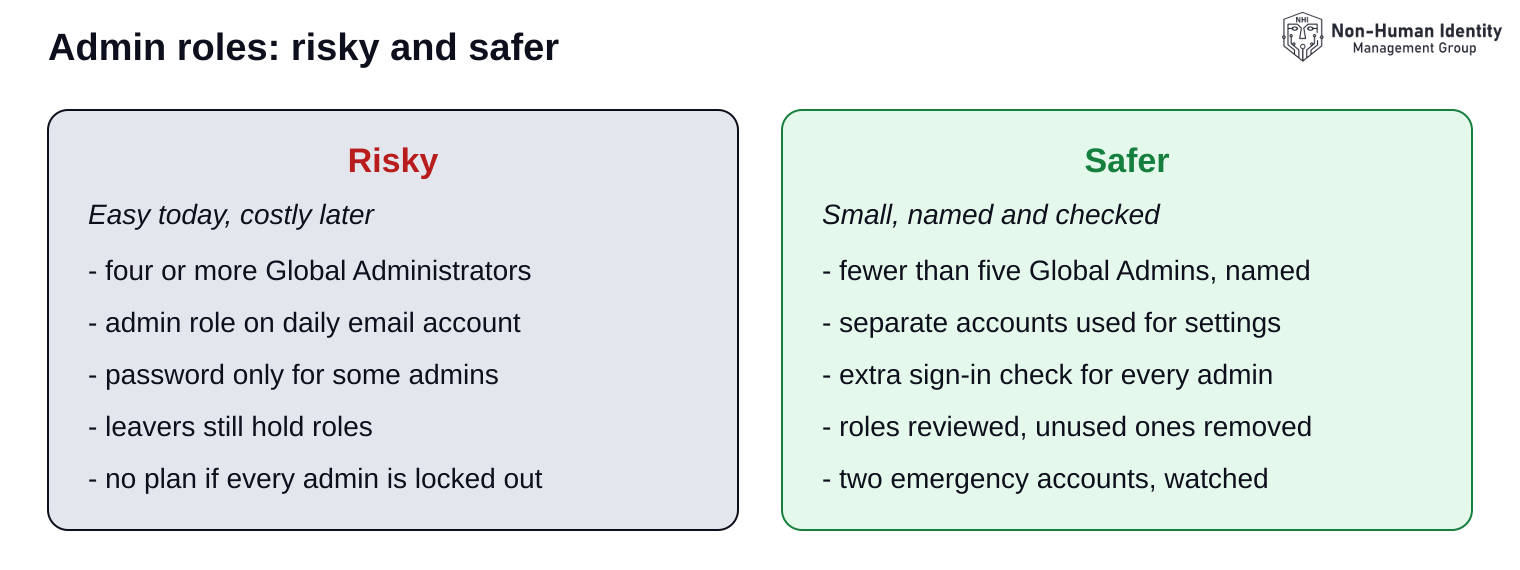
Why this is risky: four accounts can change everything. Three of them use only a password. One stolen password could hand over the whole firm's email and files.
The safer way: keep two named top-level admins, each with a separate admin account. Give everyone else a small role. Take roles away from leavers. Turn on an extra sign-in check for every admin.
How does it work?
Roles are given to accounts in the Microsoft 365 admin centre or the Microsoft Entra admin centre. A well-run setup follows a few steps.
- List the jobs. Write down what each person really needs to do, such as reset passwords or manage email.
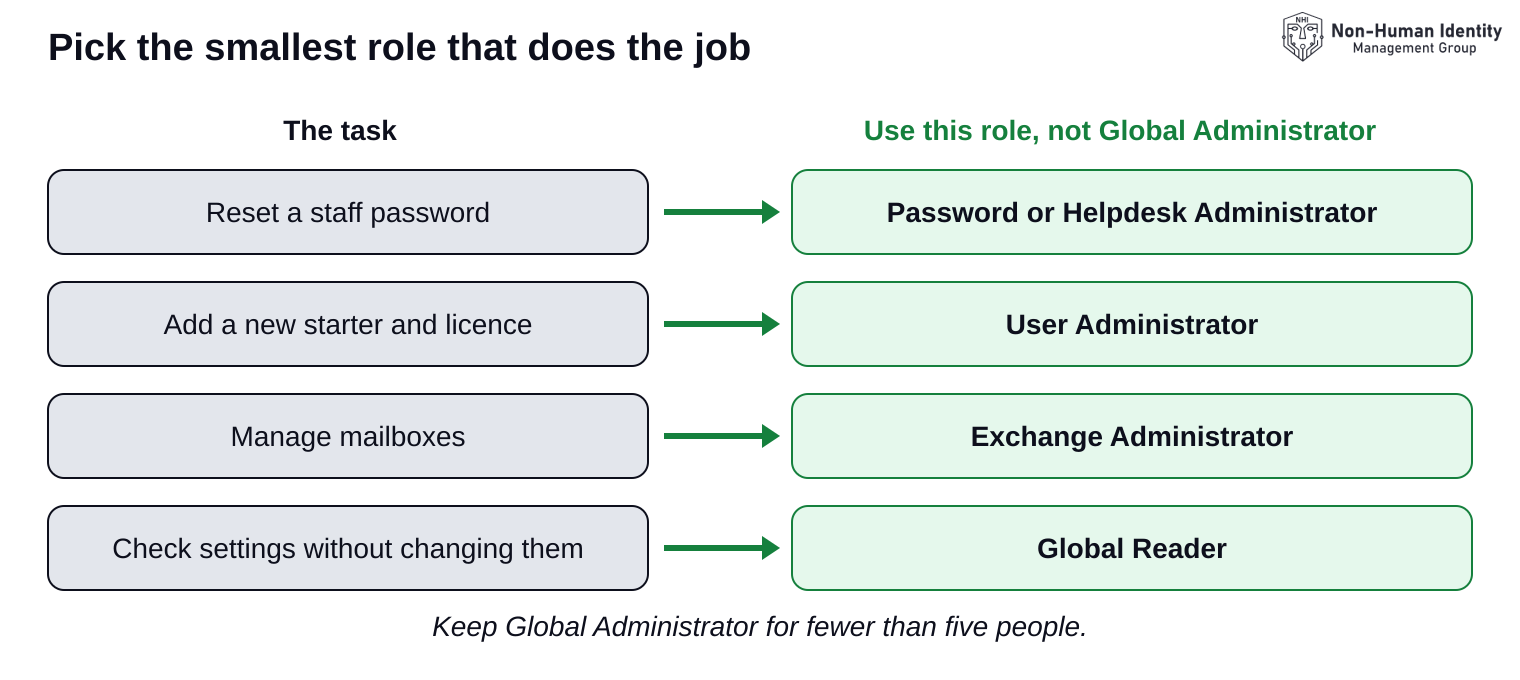
- Pick the smallest role. Microsoft advises using the role with the fewest permissions that does the job. For password resets, that means Password or Helpdesk Administrator, not Global Administrator.[1]
- Keep Global Administrator rare. Give it to fewer than five people.[2] Microsoft also suggests having a Privileged Authentication Administrator, in case a Global Administrator gets locked out.[1]
- Add an extra sign-in check. Microsoft says to require multi-factor authentication (MFA), a second proof such as an app prompt, for all admins.[1]
- Borrow power, do not keep it. A licensed feature called Privileged Identity Management (PIM) lets a person switch a role on only when needed. The role is removed when the time ends.[2]
- Review and prepare. Check role holders regularly and remove roles nobody needs.[2] Keep two or more emergency accounts for lock-outs, used only when normal admin accounts cannot be.[3]
A worked example
Quinn Achterberg runs Sorrel Studio, a small made-up design firm with eleven staff. Quinn set up Microsoft 365 years ago and has used the same account for everything since.
After reading about a phishing attack on another firm, Quinn asks the studio's IT supplier, Jonah Wojcik, to check who holds admin roles. Jonah finds four Global Administrators. One is Quinn's daily account. One belongs to a designer who left last year.
Jonah removes the leaver's role first. The office manager only adds new starters, so Jonah gives her User Administrator instead. A team lead who resets passwords gets Password Administrator.
Next, Jonah creates a separate admin account for Quinn. Quinn uses it only for settings, never for email or browsing. Jonah keeps his own Global Administrator role, so the studio has two named top-level admins. Both use an extra sign-in check.
Jonah then sets up two emergency accounts, as Microsoft describes. Their sign-in details are stored securely, and an alert is sent if either is used.[3] He books a test of them every three months.
The studio now has two Global Administrators instead of four. A stolen password for most staff accounts would give an attacker far less reach than before.
Myths and mistakes
| What people think | What is true |
|---|---|
| Anyone who helps with IT needs Global Administrator. | Smaller roles cover most tasks. Microsoft advises using the least permissive role that does the job.[1] |
| Having lots of Global Administrators is safer, in case one is away. | More top-level admins means more accounts worth stealing. Keep it under five and plan for lock-outs with emergency accounts.[2] |
| It is fine to read email on an admin account. | We suggest a separate admin account, used only for settings, so a phishing link in email does not reach admin power. |
| Once roles are set, the job is done. | People change jobs and leave. Microsoft recommends reviews to find and remove roles that are no longer needed.[2] |
| Emergency accounts can sit forgotten until needed. | Microsoft advises watching their sign-ins and testing them at least every 90 days.[3] |
What can I do this week?
- Count your top-level admins. Ask your IT person for everyone who holds Global Administrator.
- Remove leavers. Take admin roles off any account for someone who has left.
- Swap one big role for a small one. Pick one person who only resets passwords and give them a smaller role.
- Check the extra sign-in step. Make sure every admin uses MFA.
Checklist
- We know who holds every admin role, by name.
- Fewer than five people hold Global Administrator.
- Everyone else has the smallest role that does their job.
- Admins use separate admin accounts for settings.
- Every admin account uses an extra sign-in check.
- Leavers lose their roles on their last day.
- We have two emergency accounts, watched and tested.
- We review admin roles at least a few times a year.
Common questions
How many Global Administrators should we have?
Fewer than five, says Microsoft. Many small firms manage with two named people, such as the owner and a trusted IT supplier. Microsoft also suggests two spare emergency accounts that hold the role but do not belong to one person.[2]
Who becomes Global Administrator when we first sign up?
The person who buys it. Microsoft says the buyer gets the top role straight away.[1] So it is worth checking whether that first account is still needed, and who uses it today.
Can a Global Administrator remove their own role?
No. Microsoft blocks this, so a company is never left with no top-level admin at all. Another top-level admin has to remove the role instead. This is one more reason to have a second named admin you trust.[1]
Do we need to pay extra to borrow admin roles for a short time?
Often, yes. Microsoft says the feature that lets people switch a role on for a short time needs extra licences, so check your plan.[4] Smaller firms can still get much of the benefit by keeping roles small and few.
Where next?
Ready for the detail? Read the practitioner guide: Microsoft 365 admin centres and admin roles. It goes further into each admin centre, roles that are more powerful than their names suggest, and moving a tenant to least privilege with PIM, groups and administrative units.
Also useful:
- Microsoft 365 Security for Beginners
- Break-Glass Accounts for Beginners
- Just-in-Time Access for Beginners
- Microsoft Entra ID for Beginners
Related NHI Mgmt Group resources: Privileged Identity Management (PIM) Guide · Microsoft 365 Security Checklist · Admin Account Standard Template
Key terms
- Admin role
- A named set of permissions that lets an account manage part of a system.
- Global Administrator
- The top-level admin role that can change almost every setting, so it should be given to very few people.
- Global Reader
- A role that can view admin settings but cannot change them.
- Least privilege
- Giving each person or program only the access it needs, and no more.
- Privileged Identity Management
- A Microsoft feature that lets people switch a powerful role on for a limited time, with checks.
- Emergency access account
- A spare top-level account kept for lock-outs, used rarely and watched closely.
- Multi-factor authentication
- Signing in with a second proof, such as an app prompt, as well as a password.
Sources and further reading
- About admin roles in the Microsoft 365 admin center. Microsoft Learn. https://learn.microsoft.com/en-us/microsoft-365/admin/add-users/about-admin-roles, accessed 28 Nov 2026.
- Best practices for Microsoft Entra roles. Microsoft Learn. https://learn.microsoft.com/en-us/entra/identity/role-based-access-control/best-practices, accessed 28 Nov 2026.
- Manage emergency access admin accounts. Microsoft Learn. https://learn.microsoft.com/en-us/entra/identity/role-based-access-control/security-emergency-access, accessed 28 Nov 2026.
- Configure Microsoft Entra Privileged Identity Management. Microsoft Learn. https://learn.microsoft.com/en-us/entra/id-governance/privileged-identity-management/pim-configure, accessed 28 Nov 2026.