Social media security means keeping strangers out of your accounts and choosing who sees what you share.
This guide is for anyone who uses social media and wants to lock down their accounts and privacy. You do not need any technical skill: it is mostly a handful of settings and a few sharing habits.
In short
- There are two locks: one on the account itself, and one on who can see your posts.
- For the account, use a unique password and turn on a second check, ideally an app or passkey.
- For privacy, show posts to friends only and hide your birthday, phone number and address.
- If a friend's message seems odd, check with them another way. Their account may have been taken over.
What you will learn
- Explain the two locks every account needs.
- Check the settings that matter most in any app.
- Spot a post that shares more than it should.
- Know what to do if your account is hacked.
- Second check (two-step verification)
- an extra step after your password, such as a code or a tap in an app, to prove it is really you.
- Who sees what (privacy settings)
- the choices in each app that decide who can see your posts and personal details.
What is social media security?
Think of your social media profile as a noticeboard in a busy café. You decide what to pin up, and whether it faces the room or only your table. You also keep the key to the board, so nobody else can pin things in your name.
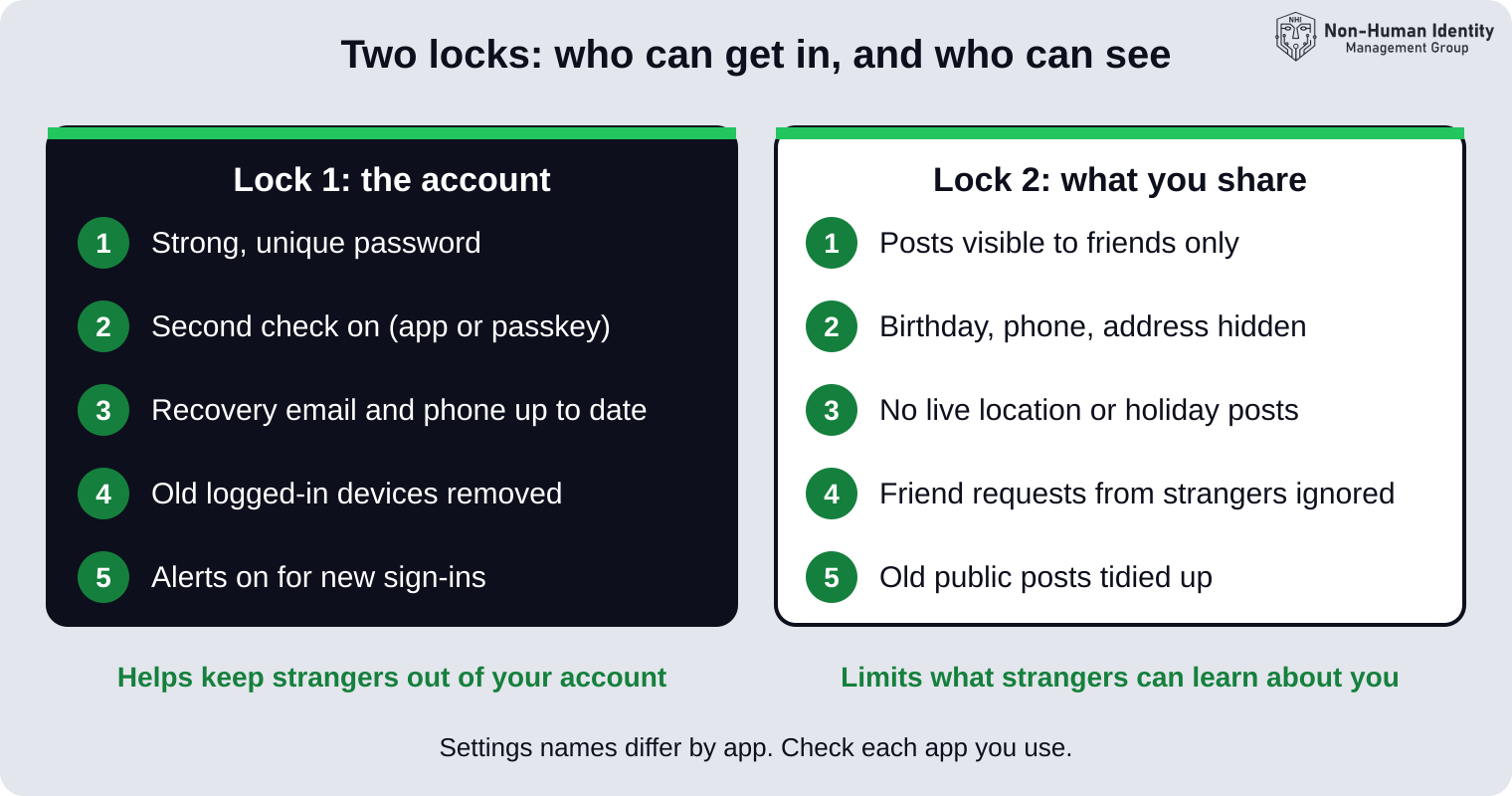
That gives two jobs. The first is keeping control of the account, so nobody else can sign in as you. The second is your privacy settings, which decide who can see your posts, photos and details.
Both matter. A hacked account can be used to scam your friends, who trust messages that seem to come from you. And details you post in public, like your birthday or your pet's name, can help a criminal guess passwords or pretend to be you.
Where the comparison stops working: a café noticeboard is seen by people in the room. Posts online can be copied, saved and shared far beyond your friends, even after you delete them.
Why does it matter?
Social media is a common starting point for scams. In the US, one in four people who reported losing money to fraud since 2021 said it started on social media.[3]
If you post mostly for friends and family
What could happen: a criminal takes over your account and messages your friends asking for money.
Check this: your account has a second check turned on, and your recovery email is one you still use.
If you run a page for a small business
What could happen: someone hijacks your business page, posts scams to your customers and locks you out.
Check this: every person with admin access uses a second check, and ex-staff have been removed.
If you share holiday and daily life posts
What could happen: public posts show strangers where you live, when you are away and the answers to your security questions.
Check this: who can see your posts, and whether your birthday and phone number are public.
What does it look like?
Here is a made-up public post. It looks harmless, but it shares a lot.
Example only. All values are made up.
FAKE-Profile: Sam Example    Visible to: Public   (1)
"Happy birthday to me! 40 today on 01/01!"        (2)
"Off to Spain for 2 weeks, house empty lol"       (3)
"Miss my first dog Biscuit, adopted 0000"         (4)
Posted from: 1 Example Street, example.invalid    (5)
- Anyone at all can see this post, not just friends.
- A full date of birth, often used to check who you are.
- Tells strangers the house is empty, and for how long.
- A first pet's name is a common security question answer.
- A location tag that points to home.
Why this is risky: each detail on its own looks small. Together they help a criminal pretend to be you, guess answers, or know when you are away.
The safer way: set posts to friends only, leave out dates and places, and share holiday photos after you get home.
How does it work?
Most apps use different names for these settings, but the same ideas apply in each one.
- Lock the account. Use a password you do not use anywhere else, and let a password manager remember it for you.
- Add a second check. Turn on two-step verification. The UK cyber security centre says this makes it much harder for a criminal who has your password.[1] An authenticator app or passkey is stronger than a text code.
- Check your way back in. Make sure the recovery email and phone number on the account are yours and still work, because criminals often change these first.
- Choose your audience. Set posts to friends only and hide your birthday, phone number and address. Then look back over old public posts and tidy up any that share too much.
- Tidy up who is connected. Remove logged-in devices and linked apps you do not recognise, which the settings menus usually list.[2]
A worked example
This story is made up to show how it can happen.
Niamh O'Connor is a hairdresser in Belfast. She posts photos of her work, her dog and her days out.
One morning a cousin messages her: "Why are you asking me for money?" Niamh is confused. Then she tries to sign in and her password no longer works.
She uses the app's "forgot password" option. The reset email arrives, because her recovery email had not been changed yet. She sets a new, unique password. Then she follows the app's help pages for hacked accounts, as the UK cyber security centre advises.[2]
In the security settings she finds a phone she does not own, signed in from another country. She logs it out, along with every device except her own. She turns on two-step verification with an authenticator app.
Next she posts a short note to friends: "My account was hacked yesterday. I did not ask anyone for money. Please ignore those messages."
Last, she looks at her privacy settings. Her posts were public, and her birthday and home town were on show. She switches posts to friends only and hides her birthday. She saves her recovery codes somewhere safe, away from her phone.
Her cousin had not sent any money. He checked first, by phoning her.
What made the difference: Niamh's recovery email still worked, and her cousin checked with her another way before paying.
Myths and mistakes
| What people think | What is true |
|---|---|
| My account is too boring to be hacked. | Criminals want your friends' trust, not your photos. Any account can be used to scam the people who know you. |
| Deleting a post removes it. | Others may already have saved, shared or screenshotted it. Post as if it could stay around. |
| A message from a friend's account is from my friend. | Their account may have been taken over. Check with them another way, such as a phone call.[1] |
| Privacy settings are set once and done. | Apps change their settings and add new features. Check them every few months. |
| A blue tick means the account is genuine. | A badge helps, but look at the account's age, name and followers too. Followers can be bought.[1] |
What can I do this week?
- Change your social media password to one you use nowhere else.
- Turn on two-step verification, using an authenticator app or passkey if the app offers one.
- Check the recovery email and phone number on each account.
- Set your posts to friends only, and hide your birthday, phone number and address.
- Log out devices and remove linked apps you do not recognise.
Checklist
- Each social media account has its own unique password.
- Two-step verification is on for every account.
- My recovery email and phone number are current and mine.
- I have saved my recovery codes somewhere safe.
- My posts are visible to friends only, unless I choose otherwise.
- My birthday, phone number and home address are not public.
- I share holiday photos after I get home.
- I check with friends another way before acting on a strange request.
Common questions
What should I do first if my account is hacked?
Try to reset your password using the app's "forgot password" option, then follow its help pages for hacked accounts.[2] Once back in, log out other devices, turn on two-step verification and warn your friends.
Is a text code good enough as a second check?
A text code is much better than nothing. An authenticator app or passkey is stronger, because it does not depend on your phone number. Criminals can sometimes move a number to their own phone, which sends your codes to them.
Should I accept friend requests from people I do not know?
It is safer not to. Fake and copied accounts are common, and once connected they can see what you share with friends. If a request looks like someone you know, check with them another way first.[1]
Why do quizzes ask for my first pet or street?
Often they are just for fun. But those answers match common security questions, so posting them in public can help someone reset your accounts. Skip quizzes that ask for personal history, or give made-up answers.
Where next?
Ready for the detail? Read the practitioner guide: Social Media Privacy Settings Guide. It goes further into the settings to change, what to stop sharing and how to spot fake accounts.
Also useful:
- Social Media Account Takeover Playbook
- Account Takeover for Beginners
- Social Engineering for Beginners
- Password Security for Beginners
- Data Privacy for Beginners
Related NHI Mgmt Group resources: Two-Factor Authentication for Everyone Guide · Password Managers Explained for Everyone · Impersonation Scam Awareness Guide
Key terms
- Privacy settings
- The choices in each app that decide who can see your posts and personal details.
- Two-step verification
- An extra step after your password, such as a code or an app prompt, to prove it is really you.
- Account takeover
- When someone else gets into your account and uses it as if they were you.
- Oversharing
- Posting personal details that could help a stranger find you, guess your answers or pretend to be you.
- Password manager
- An app that creates, stores and fills in strong passwords for you.
- Recovery code
- A one-off backup code that lets you back into your account if you lose your second check.
Sources and further reading
- Social Media: how to use it safely. National Cyber Security Centre (NCSC), published 24 January 2019, reviewed 5 September 2022. https://www.ncsc.gov.uk/guidance/social-media-how-to-use-it-safely, accessed 28 Nov 2026.
- Recovering a hacked account. National Cyber Security Centre (NCSC), published 17 December 2018, reviewed 24 August 2022. https://www.ncsc.gov.uk/guidance/recovering-a-hacked-account, accessed 28 Nov 2026.
- Social media: a golden goose for scammers (Data Spotlight). US Federal Trade Commission (FTC), 6 October 2023. https://www.ftc.gov/news-events/data-visualizations/data-spotlight/2023/10/social-media-golden-goose-scammers, accessed 28 Nov 2026.