Software end of life is the date when the maker stops sending fixes for a product.
This guide is for anyone with a computer, phone, router or app who wants to know what happens when updates stop. You do not need to be technical: if your home or business uses an old laptop, till or router, this applies to you.
In short
- After the end of life date, the device or app usually keeps working, but new security fixes stop.
- Weak spots found after that date can stay open, so the risk grows over time.
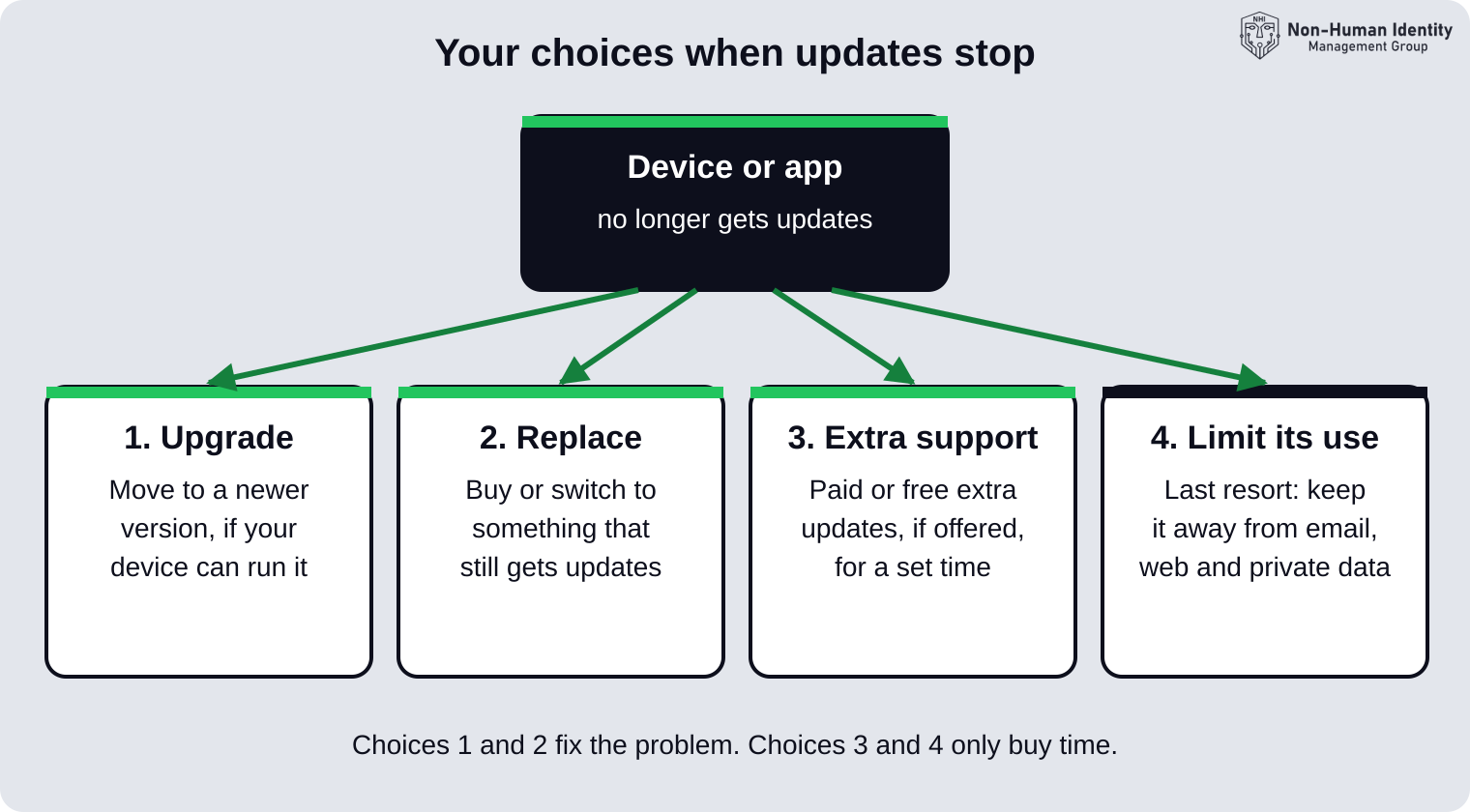
- The best fix is to upgrade or replace. Paid or free extra support, where offered, only buys time.
- Check the support dates of your devices and apps, and plan ahead before they run out.
What you will learn
- Explain what end of life means in one sentence.
- Check whether your devices and apps still get security updates.
- Spot the signs that something has stopped getting updates.
- Choose between upgrading, replacing and extra support.
- Fix from the maker (security update)
- a free download that closes a weak spot the maker has found.
- Last day of fixes (end of support)
- the date after which the maker stops sending those fixes.
- Weak spot (vulnerability)
- a mistake in software that a criminal may be able to use to get in.
What is software end of life?
Think of a car whose maker has stopped making spare parts. The car still drives. But when a part wears out, there is nothing official to fix it with. End of life is the same idea for software.
All software has mistakes. Some of them are weak spots that a criminal could use. While a product is supported, the maker looks for these weak spots and sends free fixes, called security updates. You install them, and the weak spot is closed.
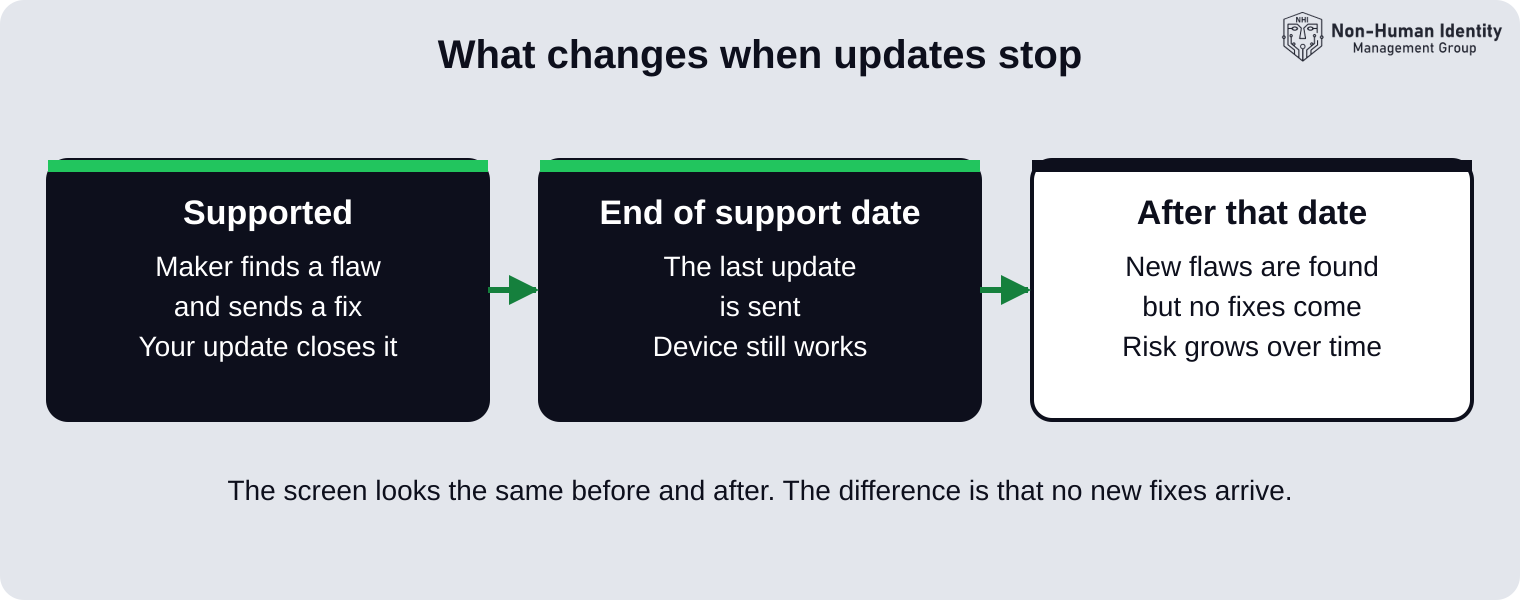
Every product has a last day of fixes. Makers often call it end of support or end of life. After that day, the product still turns on and works. But when someone finds a new weak spot, no fix arrives.
This applies to the main software that runs a device, called the operating system, such as Windows, macOS, Android or iOS. It also applies to apps, routers, smart TVs and the hardware itself.
Where the comparison stops working: a worn car part usually shows signs, such as a noise or a warning light. An unsupported computer looks exactly as it did the day before, so you need to check the date yourself.
Why does it matter?
The UK's National Cyber Security Centre warns that new weak spots in old products can be used by criminals with fairly low skills.[1] Here is what that can mean for you.
If you use a computer at home
What could happen: harmful software can get onto an old laptop more easily. That puts your banking and email at risk.
Check this: look up your laptop's operating system version and its support end date.
If you run a small business
What could happen: one forgotten PC in the back office, still used for invoices, becomes the easiest way into your business.
Check this: make a simple list of every device and its support end date.
If you are buying a device
What could happen: a cheap phone or router may stop getting updates soon after you buy it.
Check this: look for the maker's stated update period before you pay.
What does it look like?
Most of the time there is no alarm. Here is the kind of notice you might see, if you see one at all.
Example only. All values are made up.
ExampleOS Settings > Update
Version: ExampleOS 10                         (1)
Status: Support for this version ended        (2)
        on 01 Jan 2000
Last security update: Dec 1999                (3)
Your device is no longer receiving
security updates.  [ Learn more ]             (4)
Device: FakeBook 0000 (made 1990)             (5)
- The version of the main software on the device.
- The end of support date has passed.
- The last fix arrived some time ago, and none have arrived since.
- Some makers show a notice like this. Many do not.
- Older hardware may not be able to run a newer, supported version.
Why this is risky: the device still works, so it is easy to carry on. Each month, more weak spots stay open.
The safer way: note the date, and plan to upgrade or replace the device before or soon after it.
How does it work?
- The maker sets a support period. Many makers publish the date when fixes will stop. In the UK, makers of many internet-connected products must now publish a minimum update period with an end date.[2]
- Fixes arrive while it is supported. When a weak spot is found, the maker sends a fix. Turning on automatic updates means you get it without having to remember.[3]
- The last fix is sent. On the end date, routine fixes stop. The product usually keeps working.
- New weak spots stay open. People keep finding flaws in old software. Without fixes, those flaws are not closed.[1]
- You choose what to do. You can upgrade, replace, use extra support if the maker offers it, or limit what the device is used for.
Some makers offer extra fixes for a while after the end date. For example, Windows 10 reached end of support on 14 October 2025.[4] Microsoft offers home users a scheme called Extended Security Updates (ESU), which sends important security fixes for a set time. In November 2026 its page says these fixes run until 12 October 2027.[5] Extra support like this is a bridge, not a long-term answer.
A worked example
This story is made up to show how it can happen.
Eilidh MacLeod runs a small flower shop in Inverness. She has a laptop on the shop counter. She uses it for orders, email and the shop's bank account.
One evening a friend asks which version of Windows the laptop runs. Eilidh opens Settings and checks. It is Windows 10. She had no idea that support for it had ended.
She reads Microsoft's page on the subject. The laptop still works, but routine security fixes have stopped. Her laptop is too old to run Windows 11, so a free upgrade is not an option.
Eilidh makes a short plan. First, she signs the laptop up for the extended updates Microsoft offers home users, to cover the gap. Then she adds a new laptop to next month's budget.
While she waits, she stops using the old laptop for the bank account. She uses her phone's banking app instead, which is up to date.
When the new laptop arrives, she copies her files across and wipes the old one before recycling it. She also writes down the new laptop's expected support date, so she can plan earlier next time.
What made the difference: Eilidh checked the date and used extra support only as a bridge. Then she replaced the laptop before it became a bigger problem.
Myths and mistakes
| What people think | What is true |
|---|---|
| If it still works, it is fine. | Working and being safe are different things. An unsupported device works, but new weak spots stay open. |
| My antivirus covers me. | Antivirus helps, but it does not fix weak spots in the operating system. Updates do that. |
| I will get a big warning when support ends. | Some makers show a notice. Many products give no warning, so check the date yourself. |
| Extra support means I can keep it for years. | Extra support runs for a set time and may cover only the most important fixes.[5] Use it to plan a move. |
| Only computers have an end of life. | Phones, routers, smart TVs, cameras and apps all reach one too.[3] |
What can I do this week?
- List the devices you use most: laptop, phone, tablet and home router.
- For each one, find its software version in Settings and look up its support end date on the maker's website.
- Turn on automatic updates on every device that still gets them.
- For anything past its date, decide: upgrade, replace or, for a short time, extra support.
- Before buying a new device, check how long the maker promises to send updates.
Checklist
- I know which operating system each of my main devices runs.
- I know the support end date for each one.
- Automatic updates are on wherever they are available.
- Nothing I use for banking or email is past its end of support date.
- I have a plan and a rough date for replacing anything near its end date.
- If I use extra support, I know when it ends.
- I check the update period before I buy a new device.
Common questions
Will my computer stop working when support ends?
No, it usually keeps working. Microsoft says Windows 10 computers continue to function after the end date.[5] What stops is the flow of regular security fixes. That is why the risk grows slowly and quietly, rather than all at once.
How do I find out when support ends for my device?
Look on the maker's website. Search for the product name with "end of support" or "lifecycle". For phones and many connected products sold in the UK, the maker has to publish a minimum update period with an end date.[2]
Is it safe to keep an old device for things that do not need the internet?
It is safer than using it online. If an unsupported device must stay in use, the UK's National Cyber Security Centre suggests keeping it away from email and web browsing. Keep it away from USB sticks and private data too.[1] Treat this as a short-term step, not a plan.
What should I do with an old device I replace?
Back up anything you need, then wipe it before you sell, give away or recycle it. A reset clears your accounts and files, so the next owner does not get them. Our guide to selling or recycling old devices covers the steps.
Does end of life apply to apps as well as devices?
Yes. Apps, web browsers and programs all have support periods too. An old version of an app may stop getting fixes even on a new device. Keep apps updated, and replace any that the maker has stopped supporting.
Where next?
Ready for the detail? Read the practitioner guide: Operating System End of Life and Extended Support Guide. It goes further into lifecycle policies, paid extended support for organisations and how to manage unsupported systems you cannot replace yet.
Also useful:
- What to Do When Your Phone, Laptop or Router Stops Getting Security Updates
- Windows 10 End of Support for Home Users Guide
- Patch Management for Beginners
- Selling or Recycling an Old Phone or Laptop Safely
- Vulnerability Management for Beginners
Related NHI Mgmt Group resources: End-of-Life Home Routers Guide · Chromebook Auto Update Expiration (AUE) · Android and Pixel Security Update Support
Key terms
- End of life
- The date when a maker stops sending fixes for a product, though the product may keep working.
- End of support
- The date after which the maker stops routine fixes and help for a product or version.
- Security update
- A release from the maker that closes known weak spots in its software.
- Vulnerability
- A flaw in software or settings that a criminal may be able to use.
- Operating system
- The main software that runs a device and lets apps work, such as Windows or Android.
- Patch
- Another word for an update that fixes a bug or closes a weak spot.
Sources and further reading
- Obsolete products (Device Security Guidance). National Cyber Security Centre (NCSC). https://www.ncsc.gov.uk/collection/device-security-guidance/managing-deployed-devices/obsolete-products, accessed 28 Nov 2026.
- The UK Product Security and Telecommunications Infrastructure (Product Security) regime (in effect from 29 April 2024; minimum security update periods must be published). Department for Science, Innovation and Technology, GOV.UK. https://www.gov.uk/government/publications/the-uk-product-security-and-telecommunications-infrastructure-product-security-regime, accessed 28 Nov 2026.
- Install the latest software and app updates (Top tips for staying secure online). National Cyber Security Centre (NCSC). https://www.ncsc.gov.uk/collection/top-tips-for-staying-secure-online/install-the-latest-software-and-app-updates, accessed 28 Nov 2026.
- Windows 10 Home and Pro (Lifecycle). Microsoft Learn. https://learn.microsoft.com/en-us/lifecycle/products/windows-10-home-and-pro, accessed 28 Nov 2026.
- Windows 10 support has ended (end of support and Extended Security Updates for consumers). Microsoft. https://www.microsoft.com/en-us/windows/end-of-support, accessed 28 Nov 2026.