OpenID Connect (OIDC) is an open standard that lets a website or app trust another service, such as Apple, Google or Microsoft, to confirm who you are, so you can sign in without creating a new password.
It is what happens when you press a "Sign in with..." button, and it also powers single sign-on at many workplaces. It is built on top of OAuth 2.0. This guide explains OIDC in plain English, walks through one everyday sign-in, and gives you simple steps to sign in safely. It is for anyone new to security: students, career changers, small business owners and managers. You do not need any technical background.
By the end of this guide you will be able to:
- Explain what OpenID Connect does and how it differs from OAuth 2.0.
- Understand what an ID token is and why a website checks it.
- Describe the main steps of a "Sign in with..." sign-in.
- Identify simple steps to protect the accounts behind your sign-in buttons.
Key takeaways
- OIDC answers "who is this person?". A trusted service vouches for you, so the website does not need to store a password for you.
- The proof is an ID token. A digitally signed note saying who you are, which site it is for and when it expires.
- It sits on top of OAuth 2.0. OAuth handles "what may this app access?"; OIDC adds "who signed in?".
- Your main account becomes a master key. If it is taken over, every site you reach through it is at risk, so protect it well.
- Removing the button is not deleting the account. Stopping "Sign in with..." does not erase the data the other site holds about you.
What it is, in plain English
OpenID Connect is a standard from the OpenID Foundation. Its main document, OpenID Connect Core 1.0, describes it as an identity layer on top of the OAuth 2.0 protocol.[1] OAuth 2.0 itself is a framework for giving apps limited access to resources, published by the Internet Engineering Task Force (IETF).[3] The current OIDC Core text is the Final version incorporating errata set 2, dated 15 December 2023.[1]
Think of a festival wristband. At the gate, staff check your ticket and photo ID once. They give you a wristband with today's date and the festival's hologram. Inside, each bar and stage trusts the wristband because it trusts the gate. Nobody asks for your passport again.
In OIDC, the gate is the identity provider: the service that checks who you are, such as Google or your employer's sign-in page. The bars and stages are websites, called relying parties because they rely on the provider's word.[2] The wristband is the ID token. This pattern of signing in to one service with an account held by another is called federation; NIST describes it as a way for a relying party to accept a person's sign-in at an identity provider without checking their sign-in methods directly.[4]
Where the analogy breaks down: anyone can wear a wristband they take from you. An ID token is checked for which site it was made for and when it expires, and only that site should accept it.
Why it matters to you
The site you sign into does not hold a password for you, so there is no password there to leak. The OpenID Foundation notes that OIDC spares developers from storing and managing people's passwords.[2] And if your identity provider uses passkeys or two-step verification, every site that relies on it benefits.
The trade-off is that risk is concentrated. If your main account is taken over, an attacker can sign in to every site that trusts it.
- For a small business: letting staff sign in to work apps with one company account means one place to protect, and one switch to turn off when someone leaves.
- If you are new to a security job: you will meet OIDC in single sign-on (SSO), cloud apps and customer logins. Knowing the basic flow helps you read logs and spot bad setups.
- For a manager: single sign-on makes joining and leaving simpler, but the company sign-in account becomes very valuable. Ask that it is protected with strong sign-in.
How it works, step by step
| Term | Plain English | Festival analogy |
|---|---|---|
| End-user | You, the person signing in | The festival-goer |
| Relying party | The website or app you want to use | A bar or stage inside |
| Identity provider (also called OpenID Provider) | The service that checks who you are and issues the ID token | The entrance gate |
| ID token | A signed note: who you are, for which site, valid until when | The wristband with hologram |
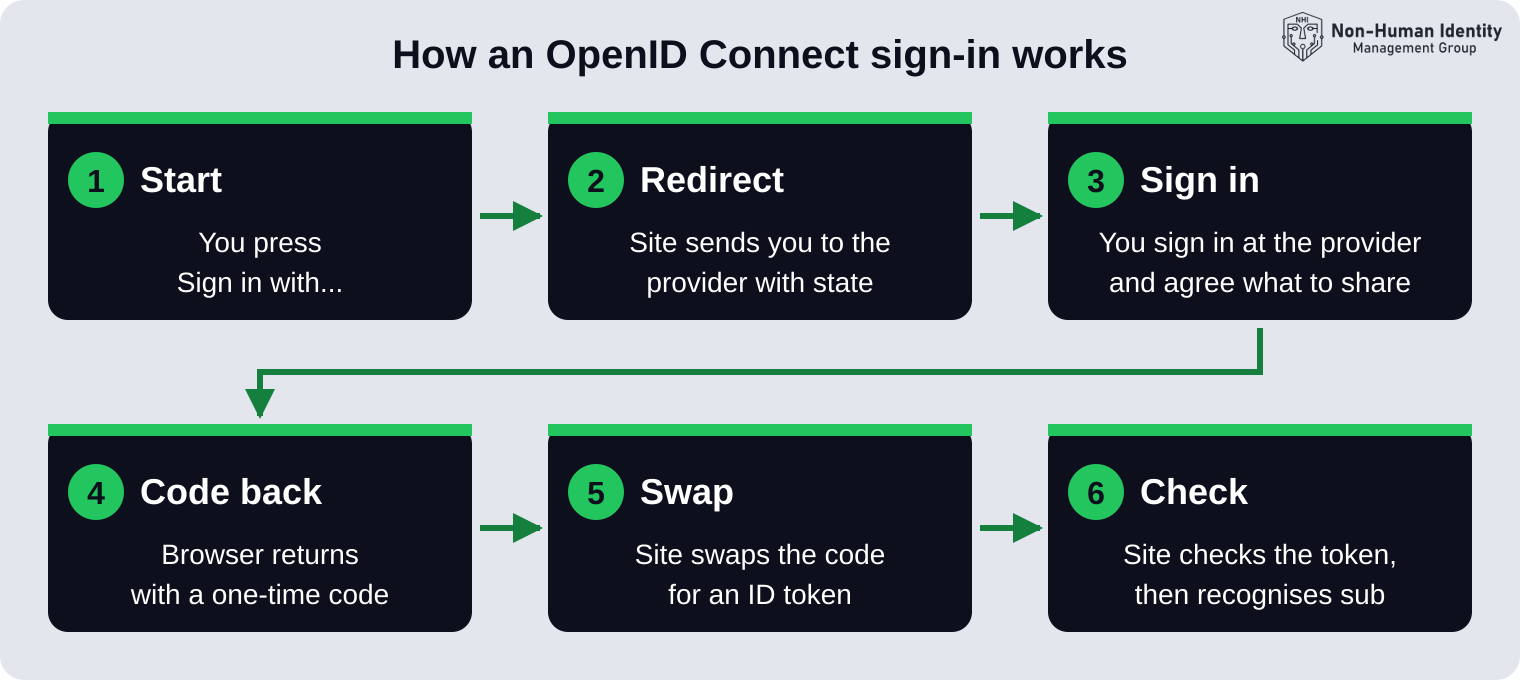
Here is a typical sign-in, simplified from Google's published steps:[5]
- You press "Sign in with...". The site sends your browser to the identity provider and asks for a sign-in. Every OIDC request must include the word
openidin its list of requested permissions, called scopes; that is what makes it a sign-in request.[1] - The site adds a safety tag. It sends a random value called
state(and often anonce), so it can check later that the reply belongs to this sign-in and was not faked or replayed.[5] - You sign in at the provider. You use your password, passkey or second step on the provider's own page. The site never sees them.
- You agree what to share. The first time, you may see "This site wants your name, email address and profile picture."
- The site gets a code and swaps it. Your browser returns with a one-time code. The site trades it with the provider for an ID token.[5]
- The site checks the ID token. It confirms who issued it (
iss), that it is meant for this site (aud), that it has not expired (exp), that the signature is valid and, if a nonce was sent, that it matches.[1] - You are signed in. The site recognises you by the token's
subvalue, a permanent ID for your account at that provider.[1]
The ID token is a JSON Web Token (JWT): a short, signed block of text. Each fact inside it is called a claim.[1]
| Claim | What it means | Why the site checks it |
|---|---|---|
iss | Who issued the token | To be sure it came from the expected provider |
sub | A unique, never reused ID for you at that provider | To recognise you on every visit |
aud | Which site the token is for | To reject tokens made for another site |
exp | When the token expires | To reject old tokens |
nonce | A random value the site sent at the start | To make it harder to reuse a captured token |
A worked example
Tom is a student who wants to join StudyShelf (a made-up note-sharing site). He can create a new account with a password, or press "Sign in with Google".
- Tom presses "Sign in with Google". His browser moves to Google's sign-in page. He checks the address bar, then signs in with the passkey on his phone.
- Google shows that StudyShelf wants his name, email address and profile picture. Nothing about his files or emails, so he continues.
- StudyShelf swaps its code for an ID token, checks it came from Google, is addressed to StudyShelf and has not expired, and reads his
subID. - StudyShelf links his account to that ID. Google's developer guidance says sites should use
sub, not the email address, as the user's identifier, becausesubstays the same even if the email changes.[5] - Next term, Tom stops using StudyShelf. In his Google Account he chooses "Stop using Sign in with Google". Google explains this does not delete his data on the app,[6] so he also deletes his StudyShelf account from inside StudyShelf.
Tom created no new password, and StudyShelf stored none. His main risk now sits in one place, his Google account, which is why he protects it with a passkey. StudyShelf still holds his name and email until he deletes his account there, so it still matters how well StudyShelf looks after its own data.
Myths and misunderstandings
| What people think | What is true |
|---|---|
| The site now has my Google password. | It does not. You type it only on the provider's page, and the site receives a signed token. |
| Sign in with Google gives the site my email contents. | Sign-in shares basic profile details you agree to. Access to email, files or calendar is a separate permission shown on screen. |
| OIDC and OAuth are the same thing. | OIDC is built on OAuth. OAuth is about access; OIDC adds proof of who signed in. |
| Social login is always less safe than a password. | It moves the risk. With strong sign-in on your provider account, many sites benefit. See Social Login vs Native Accounts. |
| OIDC is only for consumer websites. | Workplace single sign-on often uses OIDC too, alongside the older SAML standard. |
| Disconnecting the button deletes my account. | It usually only stops future sign-ins. Delete the account on the site itself if you want your data gone. |
Key terms
- OpenID Connect (OIDC)
- An identity layer on top of OAuth 2.0 that lets a site confirm who signed in.
- Identity provider
- The service that checks who you are and issues the ID token.
- Relying party
- The website or app that accepts the provider's word about who you are.
- ID token
- A signed JSON Web Token with facts about your sign-in.
- JSON Web Token (JWT)
- A compact, signed text format used to carry claims.
- Claim
- One fact inside a token, such as your ID or the expiry time.
- Federation
- Signing in to one service with an account held by another, without that service checking your sign-in methods directly.
- Single sign-on (SSO)
- Signing in once and reaching several apps without signing in again.
- Scope
- A named permission asked for during sign-in, such as
openid,profileoremail.
Common questions
Is it safe to use Sign in with Google?
It can be a sensible choice if your Google account itself is well protected. Use a passkey or two-step verification, because that account now unlocks other sites.
What is the difference between OpenID Connect and OAuth?
OAuth gives an app access to your data. OpenID Connect proves who signed in. See OAuth 2.0 vs OIDC.
What information does the site get about me?
Your permanent account ID, plus what you agree to share, often your name, email address and picture. The consent screen tells you.
How do I stop using Sign in with Google for a site?
Open your Google Account's connected apps page, choose the site and select "Stop using Sign in with Google".[6] Then delete your account on the site if you want your data removed.
Is OIDC the same as SAML?
No. Both let you sign in through another service, but SAML is an older standard mostly used at work. See the SAML vs OIDC Guide.
First steps
- Protect the accounts behind your "Sign in with..." buttons. Turn on passkeys or two-step verification there first. See the Passkeys for Everyone Guide.
- See where you have used them. Open the connected apps page in each provider account and stop sign-in for sites you have left.
- Check the address bar every time. A real sign-in takes you to the provider's own web address. A box asking for your Google or Microsoft password on another site's address is a warning sign.
Checklist
- I can explain the difference between OAuth (access) and OpenID Connect (identity) in one sentence each.
- The accounts I use for "Sign in with..." are protected by passkeys or two-step verification.
- I review the sites linked to my provider accounts at least every three months.
- When I leave a service, I stop sign-in and also delete my account on that service.
- For any site we build, we use a well-maintained OIDC library and the authorization code flow.
- For any site we build, ID tokens are checked for issuer, audience, expiry, signature and nonce, as OpenID Connect Core 1.0 requires.[1]
- For any site we build, users are matched on issuer and
sub, and an email address is trusted only when the provider marks it verified.[5]
Check your understanding
1. When you use "Sign in with Google", does the website see your Google password?
Answer: no. You type it only on Google's page. The website receives a signed ID token instead.
2. Why should the account behind your "Sign in with..." buttons have your strongest protection?
Answer: because it unlocks every site that trusts it. If it is taken over, all of them are at risk.
3. Does stopping "Sign in with Google" for a site delete your account there?
Answer: no. It stops future sign-ins. Delete the account on the site itself to remove your data.
4. Why does a site check the aud claim in an ID token?
Answer: to make sure the token was made for that site, so a token issued for another site is rejected.
Suggested learning pathway
- Identity Federation for Beginners: a related beginner guide to read next.
- FIDO2 and WebAuthn for Beginners: a related beginner guide to read next.
- For the access standard OIDC is built on, start with OAuth 2.0 for Beginners.
- For the token format inside an ID token, read JSON Web Tokens for Beginners.
- For the older workplace sign-in standard, see SAML for Beginners.
- For protecting the account behind your sign-in buttons, see Multi-Factor Authentication for Beginners.
- For why login and access are separate problems, see OAuth 2.0 vs OIDC.
- For the full practitioner view of flows and tokens, see the OAuth 2.0 and OpenID Connect Guide.
- For every standard claim and scope, see the OIDC Standard Claims and Scopes Reference.
- For safely linking a social identity to an existing account, see the Social Login and Account Linking Security Guide.
Standards and references
- OpenID Connect Core 1.0 incorporating errata set 2. OpenID Foundation, 15 December 2023. https://openid.net/specs/openid-connect-core-1_0.html.
- How OpenID Connect Works. OpenID Foundation. https://openid.net/developers/how-connect-works/, accessed 27 Nov 2026.
- RFC 6749, The OAuth 2.0 Authorization Framework. Internet Engineering Task Force (IETF), October 2012. https://datatracker.ietf.org/doc/html/rfc6749.
- SP 800-63C-4, Digital Identity Guidelines: Federation and Assertions. National Institute of Standards and Technology (NIST). https://pages.nist.gov/800-63-4/sp800-63c.html, accessed 27 Nov 2026.
- OpenID Connect. Google Identity, Google for Developers, Google. https://developers.google.com/identity/openid-connect/openid-connect, accessed 27 Nov 2026.
- Third-party apps connected to your Google Account. Google Account Help, Google. https://support.google.com/accounts/answer/13533235, accessed 27 Nov 2026.
Related NHI Mgmt Group resources: Social Login vs Native Accounts · Passkeys for Everyone Guide · Two-Factor Authentication for Everyone Guide · SAML vs OIDC Guide