Networking fundamentals are the basic rules that let computers find each other, send data in small pieces and get it to the right program on the right device.
Every email, video call and web page depends on the same few ideas: addresses, names, routes and ports. This guide explains them in plain English for newcomers, students, career changers and managers who have never studied networks. It walks through what happens when you open a website, gives a worked example from a small office, clears up common myths and suggests first steps. It also shows why these basics matter for security, because you cannot protect traffic you do not understand.
By the end of this guide you will be able to:
- Explain what IP addresses, ports and domain names do.
- Describe how a request travels from your laptop to a website and back.
- Understand the difference between TCP and UDP.
- Identify simple networking facts that help with everyday security work.
Key takeaways
- Every device needs an address. An IP address tells the network where to deliver data, much like a postal address on an envelope.
- Names are turned into addresses. The Domain Name System (DNS) looks up the address behind a name such as a website, so people do not have to remember numbers.
- Data travels in small pieces. Information is split into packets, and routers pass each packet towards its destination one hop at a time.
- Ports pick the right program. A port number tells the receiving device which service, such as a web server, should get the data.
- Security builds on these basics. Firewalls, logs and alerts all talk in addresses, ports and protocols, so learning them makes the rest of security easier to follow.
What it is, in plain English
A network is two or more devices connected so they can share data. The internet is a huge network made of many smaller networks joined together. A protocol is an agreed set of rules for how devices talk, in the same way that two people need a shared language.
The most important protocol is the Internet Protocol (IP). Its job is to move pieces of data, called datagrams or packets, across connected networks from a source to a destination.[1] Each device has an IP address. The older version, IPv4, uses addresses that are 32 bits long, usually written as four numbers such as 192.168.1.20.[1] The newer version, IPv6, uses 128-bit addresses, which allows vastly more devices to have their own address.[2]
Think of the network as a postal service. The IP address is the street address of a building. The port number is the flat number inside the building, so the letter reaches the right person. DNS is the address book that turns a name into a street address. Routers are the sorting offices that pass each letter closer to its destination.
Where the analogy breaks down: the post does not open your letters, but on a network, devices along the way can see some details of every packet, such as where it came from and where it is going. That is why encryption, such as HTTPS, matters so much.
People often describe networks in layers, each with its own job. The best-known description is the OSI model, a reference model published by ISO as ISO/IEC 7498-1. ISO says it gives a common basis for coordinating standards and is not meant to be an implementation specification.[10] It describes seven layers, from the physical cable or radio signal at the bottom to the application, such as your browser, at the top. You do not need to memorise every layer to start, but it helps to know that addressing, delivery and applications are handled at different levels.
| Layer (simple view) | What it does | Examples |
|---|---|---|
| Application | The program and the language it speaks | Web (HTTP and HTTPS), email, DNS |
| Transport | Gets data to the right program, reliably or quickly | TCP, UDP, port numbers |
| Network | Addresses and routes packets between networks | IP (IPv4 and IPv6), routers |
| Link and physical | Moves data across one local connection | Ethernet cables, Wi-Fi, MAC addresses, switches |
Why it matters to you
- If you run a small business: knowing what your router, Wi-Fi and internet connection do helps you ask the right questions about who can reach your systems from outside.
- If you are new to a security job: almost every alert, firewall rule and log line names an address, a port and a protocol. These basics let you read them with confidence.
- If you are a manager: you will hear terms such as "open port", "private network" and "DNS outage". Understanding them helps you judge risk and priorities.
Attackers rely on the same rules as everyone else. They look for services listening on ports that should not be reachable, use DNS to find targets and hide among normal traffic. Defenders use the same facts in reverse: they close what is not needed, watch DNS and record who talked to whom. A firewall, for example, is essentially a set of rules about which addresses and ports may talk. See Firewalls for Beginners for how those rules work.
How it works, step by step
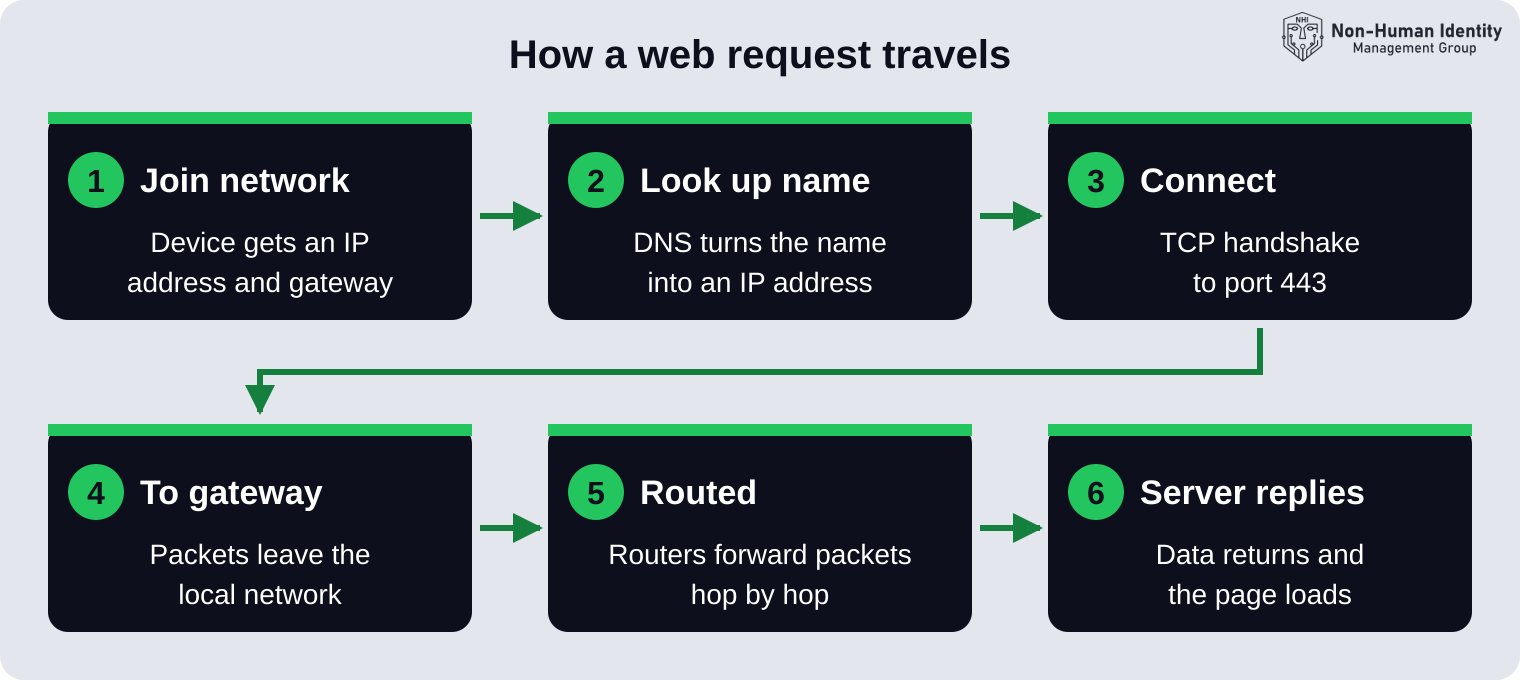
Here is what happens, in simplified form, when you type a website name into your browser on a home or office network.
- Your device joins the network. When your laptop connects to Wi-Fi, it is usually given an IP address automatically, along with the address of the default gateway (the router that leads out of the local network). Home and office networks normally use private addresses, which RFC 1918 reserves in three ranges: 10.0.0.0 to 10.255.255.255, 172.16.0.0 to 172.31.255.255 and 192.168.0.0 to 192.168.255.255.[3] These ranges are meant for use inside organisations, and routing information about them should not be passed on to the wider internet.[3]
- The name is looked up. Your device asks a DNS resolver for the address behind the website name. DNS names form a tree, from the root down to names like www.example.com. Name servers hold the records, and resolvers ask them and remember (cache) the answers to save time.[6]
- A connection is opened. Your browser contacts the server's IP address on a port. Web traffic over HTTPS uses TCP port 443 by default, and plain HTTP uses TCP port 80.[8] With TCP (Transmission Control Protocol), the two sides first exchange three short messages, known as the three-way handshake (SYN, SYN-ACK, ACK), before any data flows.[4]
- Packets leave the local network. On the local network, your device finds the hardware (MAC) address of the gateway using the Address Resolution Protocol (ARP), which maps an IP address to a 48-bit Ethernet hardware address.[9] The gateway then sends the packets out to your internet provider.
- Routers pass packets along. Each router looks at the destination address and forwards the packet one hop closer. Each packet carries a counter (Time to Live in IPv4, Hop Limit in IPv6) that drops at each hop, so a lost packet is thrown away rather than circling for ever.[1][2]
- The server replies. The web server receives the data on port 443, prepares the page and sends packets back the same way. TCP numbers the data, checks it and resends anything lost, so the page arrives complete and in order.[4] HTTPS also encrypts it on the way; see TLS and HTTPS for Beginners.
TCP and UDP: two ways to send
Most traffic uses one of two transport protocols. Both use port numbers.
| Feature | TCP | UDP |
|---|---|---|
| Set-up | Opens a connection first with a three-way handshake[4] | Just sends messages, no handshake[5] |
| Delivery | Reliable and in order; lost data is resent[4] | Delivery and duplicate protection are not part of the protocol[5] |
| Typical use | Web pages, email, file transfers, remote admin | Quick lookups and live audio or video, where speed matters more than resending |
Ports at a glance
The Internet Assigned Numbers Authority (IANA) keeps the official list of port numbers. It splits them into System Ports (0 to 1023), User Ports (1024 to 49151) and Dynamic or Private Ports (49152 to 65535), which are not assigned to services.[7] A few you will see often: SSH, for secure remote admin, on port 22,[7] HTTP on 80 and HTTPS on 443.[8] A port number is a convention, not proof of what is really running, so security tools look at the traffic itself too.
A worked example
Greenway Dental is a fictional practice with 12 staff. Ola, the practice manager, looks after IT with help from an outside support company.
One morning, staff say the booking website "will not load", but email still works. Ola works through the basics with the support technician, Ben:
- Is the laptop on the network? Ben asks Ola to check the laptop's IP address. It shows 192.168.1.34, a private address, and the gateway 192.168.1.1. So the laptop has joined the office network.
- Does the name resolve? Ben checks whether the booking site's name turns into an address. It does not. Other websites work, so the problem looks like a DNS record for that one site, not the whole connection.
- The cause: the booking company had moved its site and a DNS record had not been updated yet. After the provider fixed the record and the cached answers expired, the site loaded again.
While reviewing the router afterwards, Ben spots something else. A rule on the router forwarded a port from the internet to an old reception PC for remote support, set up years ago and forgotten. Ola agrees to remove it and to use the support company's approved remote access tool instead, with sign-in checks and a record of each session. The outage was not an attack, but understanding addresses, names and ports helped them find both the fault and an unnecessary opening.
Myths and misunderstandings
| What people think | What is true |
|---|---|
| A private IP address means a device is safe. | Private addresses are not reachable directly from the internet in the normal way, but a forwarded port, a remote access tool or malware on another device can still expose it. They reduce exposure; they are not a security control on their own. |
| An IP address identifies a person. | It identifies a network interface at a moment in time. Many people can share one public address, and addresses are often reassigned. |
| A closed browser tab means no traffic. | Devices talk on the network all the time: updates, background apps, DNS lookups and cloud sync. |
| Port 443 traffic is always a normal website. | Port numbers are conventions. Any program can use port 443, which is why defenders look beyond the port number. |
| Networking is only for network engineers. | Cloud, identity and application security all rely on these basics, so most security roles use them every day. |
Key terms
- IP address
- The network identifier that tells the network where traffic comes from and where it should be delivered.
- Private IP address
- An address reserved for use inside local networks and not routable on the public internet; it reduces exposure but is not security on its own.
- Default gateway
- The device, usually a router, that forwards traffic to destinations outside the local network.
- Subnet
- A smaller section of an IP network used to group addresses and control how traffic flows.
- Network Address Translation (NAT)
- A technique that lets many private devices share one public IP address by rewriting packet headers at the network edge.
- Domain Name System (DNS)
- The naming service that translates human-readable names into network addresses.
- Port number
- A number that directs traffic to the right service on a device; with the IP address it identifies a specific program.
- TCP
- The Transmission Control Protocol, a connection-based protocol that delivers data reliably and in order.
- UDP
- A connectionless protocol that sends messages without setting up a session or confirming delivery.
- MAC address
- A network interface's hardware identifier, used on the local network segment.
- OSI model
- A reference model that describes network communication in seven layers, from physical transmission up to the application.
Common questions
What is the difference between a router and a switch?
A switch connects devices within one local network. A router connects different networks together, such as your office network and the internet, and decides where to send each packet.
Why do I have one address at home but websites see another?
Your devices use private addresses inside your home. Your router usually uses network address translation (NAT) to share one public address for all of them, so websites see the router's public address.
Do I need to learn IPv6?
Yes, at least the basics. IPv6 uses much longer, 128-bit addresses,[2] and many networks run IPv4 and IPv6 side by side. Security rules and monitoring need to cover both.
Is the OSI model how networks really work?
It is a teaching and reference model rather than a blueprint; ISO itself says it is not an implementation specification.[10] It is still useful for describing where a problem or a control sits.
What does an "open port" mean?
It means a program on a device is listening for connections on that port number. Every open port is a possible way in, so a sensible habit is to keep only the ones you need reachable.
What should I learn after this?
Firewalls, network security basics and HTTPS are good next steps. The learning pathway below lists them in order.
First steps
- Find your own addresses. Look up your laptop's IP address and default gateway in its network settings, and note whether the address is private.
- Look at your router. With permission, log in to your home or office router and list any port forwarding rules. Ask what each one is for, and remove any nobody can explain, with the owner's approval.
- Map your main services. Write down the few services your organisation depends on (website, email, booking system) and who looks after their DNS records.
Checklist
- I can explain what an IP address, a port and DNS each do.
- I know the three private IPv4 address ranges.
- I know which device is our default gateway and who manages it.
- Our router or firewall has no port forwarding rules that nobody can explain.
- We know who controls our domain names and DNS records.
- Remote access uses an approved tool with sign-in checks, not a forgotten open port.
- Our network equipment gets security updates.
- I know whether our network uses IPv6 as well as IPv4.
Check your understanding
1. What does DNS do?
It turns a name, such as a website name, into the IP address a device needs to connect to it.
2. Why does a web browser connect to port 443?
Port 443 is the default port for HTTPS, so the server knows to hand the traffic to its secure web service.
3. When would an application choose UDP instead of TCP?
When speed matters more than resending lost data, such as live audio or quick lookups.
4. Does a private IP address make a device secure?
No. It reduces direct exposure from the internet, but forwarded ports, remote access tools and other compromised devices can still reach it.
Suggested learning pathway
- Start with the big picture in What Is Cyber Security? A Beginner's Guide to Protecting People, Data and Systems.
- Learn how networks are protected in Network Security for Beginners.
- See how traffic rules work in Firewalls for Beginners.
- Understand encrypted web traffic in TLS and HTTPS for Beginners.
- Learn how networks are split into zones in Network Segmentation for Beginners.
- Learn how names can be attacked and protected in DNS Security for Beginners.
- For subnets, NAT, logging and baselining in depth, see the Networking Fundamentals for Defenders Guide.
Standards and references
- RFC 791: Internet Protocol. IETF, J. Postel, September 1981. https://www.rfc-editor.org/rfc/rfc791.
- RFC 8200: Internet Protocol, Version 6 (IPv6) Specification. IETF, July 2017. https://www.rfc-editor.org/rfc/rfc8200.
- RFC 1918: Address Allocation for Private Internets. IETF, February 1996. https://www.rfc-editor.org/rfc/rfc1918.
- RFC 9293: Transmission Control Protocol (TCP). IETF, August 2022. https://www.rfc-editor.org/rfc/rfc9293.
- RFC 768: User Datagram Protocol. IETF, J. Postel, August 1980. https://www.rfc-editor.org/rfc/rfc768.
- RFC 1034: Domain Names, Concepts and Facilities. IETF, P. Mockapetris, November 1987. https://www.rfc-editor.org/rfc/rfc1034.
- Service Name and Transport Protocol Port Number Registry. Internet Assigned Numbers Authority (IANA). https://www.iana.org/assignments/service-names-port-numbers/service-names-port-numbers.xhtml, accessed 27 Nov 2026.
- RFC 9110: HTTP Semantics. IETF, June 2022. https://www.rfc-editor.org/rfc/rfc9110.
- RFC 826: An Ethernet Address Resolution Protocol. IETF, D. Plummer, November 1982. https://www.rfc-editor.org/rfc/rfc826.
- ISO/IEC 7498-1:1994, Information technology, Open Systems Interconnection, Basic Reference Model: The Basic Model. ISO. https://www.iso.org/standard/20269.html, accessed 27 Nov 2026.
Related NHI Mgmt Group resources: Networking Fundamentals for Defenders Guide · VPNs for Beginners · Network Detection and Response for Beginners