Admin rights let an account make big changes to a computer, such as installing software or changing security settings.
This guide is for anyone who uses a work or home computer and wants to know why IT teams take admin rights away. You do not need to be technical to be affected: if your everyday login is an admin, anything you open by mistake gets the same power.
In short
- An admin account can change almost anything on a computer. A standard account can do daily work but not system-wide changes.
- Harmful software usually runs with the rights of the person who opened it, so an admin login gives it more power.
- Use a standard account for email, browsing and documents, and ask for admin approval only when a task needs it.
- Keep the number of admins small, give each admin password its own value, and check the list often.
What you will learn
- Explain the difference between an admin account and a standard account.
- Spot whether your own login has admin rights.
- Explain why a standard account limits the harm from a bad download.
- Ask your IT team or supplier how admin rights are handed out.
- Full-control login (administrator account)
- an account that can install software and change settings for the whole computer.
- Everyday login (standard user)
- an account that can run apps and change its own settings, but not the whole computer.
- Asking for more power (elevation)
- getting admin rights for one task, after approval.
What are admin rights?
Think of a block of flats. Each resident can use their own flat. Only the caretaker can open the plant room, where the boiler and the fuse boxes are.
A computer works the same way. A standard user can open apps, write documents and change their own desktop. An administrator, or admin, can change things that affect everyone who uses the computer. They can install programs, turn security tools on or off, and add new accounts.
On Windows, members of the Administrators group have full control of the device.[1] Microsoft suggests signing in with a standard account for everyday work, like browsing, email and word processing.[1] When a task needs more rights, Windows can ask for approval first. This check is called User Account Control. It pauses big changes until someone says yes.[2]
Where the comparison stops working: a caretaker is one trusted person. On many computers, the everyday user is also the admin, so the plant room door is open all day, for anything that user opens.
Why does it matter?
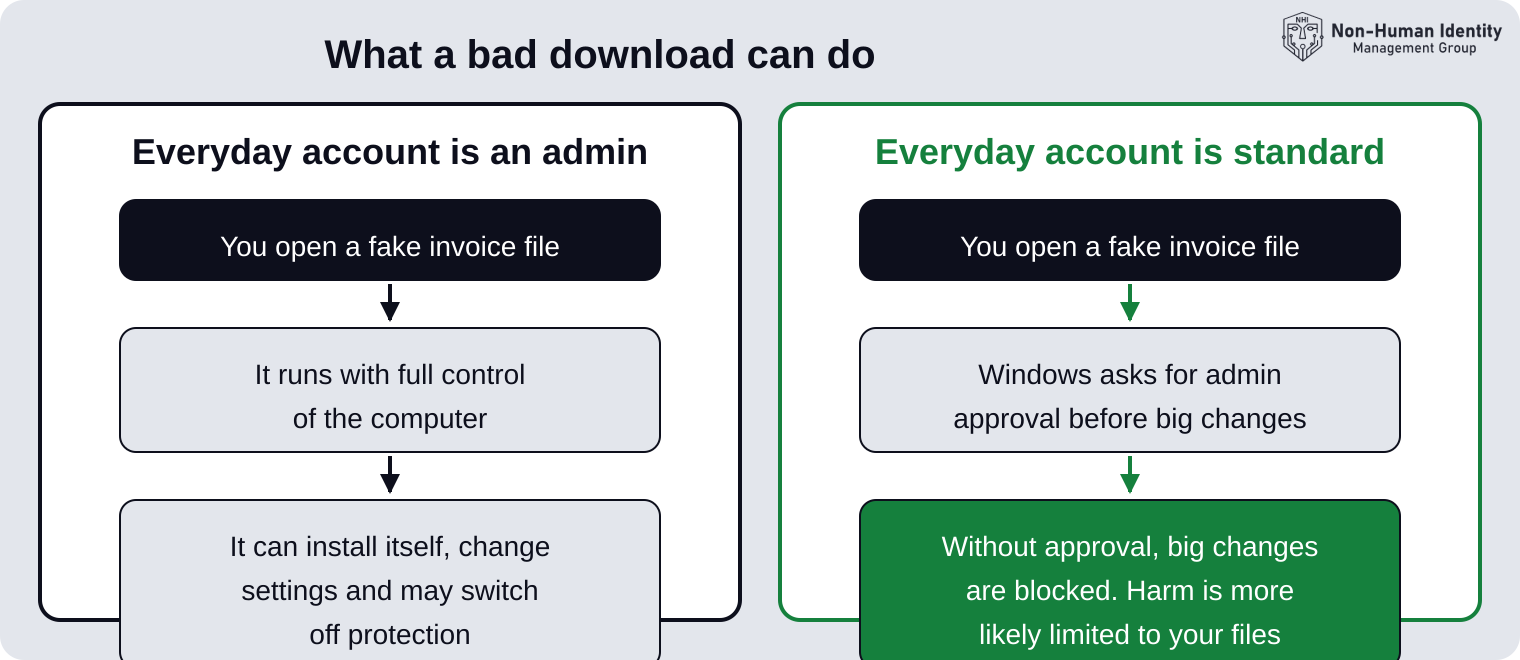
Harmful software, called malware, usually runs with the rights of the person who opened it. Microsoft says User Account Control helps keep harmful code from using admin rights.[2] So a standard login can turn a big problem into a smaller one.
If you use a work laptop
What could happen: you open a fake invoice, and it installs itself because your login is an admin.
Check this: ask IT whether your everyday login has admin rights, and how to ask for help with installs.
Next: Malware for Beginners
If you run a small business
What could happen: every laptop shares one admin password, so one stolen copy opens them all.
Check this: ask your IT supplier whether each computer has its own admin password.
If you are new to IT support
What could happen: you give someone admin rights "just for today" and nobody takes them back.
Check this: record every admin grant with a reason and an end date.
If you set up a family computer
What could happen: a child downloads a game that changes settings for everyone.
Check this: keep one admin account for yourself and give everyone a standard account.
Next: Antivirus for Beginners
What does it look like?
Here is a made-up list of who can do what on a small office's laptops. It is the kind of list an IT supplier might share.
Example only. All values are made up.
Laptop   Everyday login       Account type
LAP-0001 [email protected]  Administrator   (1)
LAP-0002 [email protected]    Administrator   (2)
LAP-0003 [email protected]      Standard user
All laptops: local admin password FAKE-Admin-0000 (3)
- The reception login is an admin, though reception work needs only email and a booking system.
- The manager is an admin "in case something needs installing".
- In a real file, this line would contain one shared admin password used on every laptop.
Why this is risky: two everyday logins can change anything on their laptops. A bad download on either one runs with full control. The shared password means that anyone who learns it once can use it on every laptop.
The safer way: every everyday login is a standard user. Installs go through the IT supplier, or through a tool that approves one named program at a time. Each laptop has its own admin password. A Windows feature called Windows LAPS can manage and back up a separate local admin password on each computer.[3]
How does it work?
Here is what usually happens when someone with a standard account needs to do an admin task.
- Daily work. You sign in with your standard account and do your normal work, like email and documents.[1]
- A bigger task. You try to install a new program or change a setting that affects the whole computer.
- The pause. Windows stops and asks for approval from someone who has admin rights on that computer.[2]
- The decision. If the change is approved, it goes ahead. If not, the change does not happen.[2]
- Back to normal. You carry on with your standard rights, and the extra power was used for that one task only.
Bigger organisations often use a tool called endpoint privilege management. It lets IT approve named programs to run with admin rights, so staff do not need a full admin login. Apple Mac computers also have standard and admin account types, and the same idea applies.
A worked example
Harvey Collins manages Larkspur Dental, a fictional practice with eight staff. Aiko Eriksen is the practice's IT supplier.
One Monday, the reception laptop starts showing pop-up adverts. Someone had installed a free calendar tool from a website the week before. The reception login was an admin, so the tool installed without anyone being asked.
Aiko removes the tool and checks the laptop's security software. She finds nothing else on it in the checks she runs. Then she sits down with Harvey.
"Think of the plant room in a block of flats," she says. "Right now, every resident has the key." Harvey laughs, but he sees the point.
They agree a plan. Every everyday login becomes a standard account. Aiko keeps a separate admin account for herself, which she uses only for IT work. She sets up Windows LAPS, so each laptop has its own admin password, and the old shared one is retired.
Harvey worries that staff will be stuck when they need a new program. So they agree a simple route: staff send Aiko a request, she checks the program, and she installs it if the request makes sense. Most requests take less than a day.
Three months later, a nurse opens a fake parcel notice. A window appears asking for admin approval. She does not have it, so she calls Aiko. The change does not go ahead, and nothing gets installed.
Myths and mistakes
| What people think | What is true |
|---|---|
| I am careful, so it is fine for me to be an admin. | Careful people still click on convincing fakes. A standard login limits the damage when that happens. |
| Antivirus makes admin rights safe. | Antivirus helps, but harmful software with admin rights may be able to switch it off. Use both. |
| Staff will not be able to work without admin rights. | Most daily work needs only standard rights.[1] Agree a quick way to request installs instead. |
| One admin password for every computer is easier to manage. | It is also easier to misuse. Give each computer its own admin password.[3] |
| Temporary admin rights are harmless. | They are often forgotten. Give an end date and check that they were removed. |
What can I do this week?
- Check whether your own login is an admin. On Windows, look at your account type in Settings, under Accounts.
- If you are an admin at home, create a standard account for daily use and keep the admin one for changes.
- Ask your IT team or supplier who has admin rights at work, and why.
- Ask whether every computer has its own admin password.
Checklist
- Everyday logins are standard user accounts.
- People who need admin rights have a separate admin account for admin work.
- The list of admins is short, written down and checked regularly.
- Each computer has its own local admin password, managed by a tool.
- There is a clear, quick way for staff to request a software install.
- Temporary admin rights have an owner, a reason and an end date.
- User Account Control is switched on and left on.
Common questions
Why does IT not give me admin rights on my laptop?
To limit the harm if something goes wrong. With a standard login, a bad download usually cannot install itself or change security settings without approval. IT can still install the programs you need. Ask them how to request one, and explain what you need it for.
Should I use an admin account at home?
Not for everyday use. We suggest one admin account kept for installs and settings, and a standard account for browsing, email and games. When something needs admin rights, Windows asks you to approve it, which gives you a moment to think.
Is clicking Yes on the approval window enough protection?
Only if you stop and think first. The window is a pause, not a check of whether the program is safe. If you did not start an install, or you do not know the program, say no and ask someone you trust.
What is the difference between admin rights and least privilege?
Admin rights are one kind of access. Least privilege is the wider idea that every person and program should have only the access their job needs. Taking everyday admin rights away is one of the most common ways to put least privilege into practice.
Do Mac computers have admin rights too?
Yes. Mac computers have administrator and standard account types, like Windows. The same advice applies: use a standard account for daily work and keep an admin account for changes. Your IT team may also manage Macs with their own tools.
Where next?
Ready for the detail? Read the practitioner guide: Endpoint Privilege Management Guide. It goes further into elevation rules, application control and how to roll out admin removal in phases.
Also useful:
- Least Privilege for Beginners
- Privilege Escalation for Beginners
- Malware for Beginners
- LAPS vs PAM Vaulting
Related NHI Mgmt Group resources: Privileged Access Management Guide · Endpoint Privilege Management vs PAM · Built-in Local Administrator Remote Restrictions
Key terms
- Administrator account
- A login that can install software and change settings for the whole system.
- Standard user
- An account that can run apps and change its own settings, but not install system-wide software.
- Least privilege
- Giving each person and program only the access it needs, and no more.
- Malware
- Software designed to cause harm, such as stealing data or locking files.
- Endpoint privilege management
- Tools that remove everyday admin rights and approve named programs or tasks to run with more power.
- Windows LAPS
- A Windows feature that gives each computer its own managed local admin password.
Sources and further reading
- Local accounts. Microsoft Learn, Microsoft, updated 15 April 2026. https://learn.microsoft.com/en-us/windows/security/identity-protection/access-control/local-accounts, accessed 28 Nov 2026.
- User Account Control overview. Microsoft Learn, Microsoft, updated 27 May 2026. https://learn.microsoft.com/en-us/windows/security/application-security/application-control/user-account-control/, accessed 28 Nov 2026.
- What is Windows LAPS? Microsoft Learn, Microsoft, updated 16 September 2026. https://learn.microsoft.com/en-us/windows-server/identity/laps/laps-overview, accessed 28 Nov 2026.