Antivirus is software that looks for harmful programs on a device and tries to block or remove them.
This guide is for anyone with a laptop, desktop or phone who wonders whether they need to buy antivirus. If you run a small business, the same questions apply to every work device your staff use.
In short
- Antivirus checks files and programs for signs of harmful software, then blocks or isolates what it finds.
- Windows and Mac computers already come with built-in antivirus, which is normally switched on.[1]
- For many people, the built-in tool is enough, as long as it stays on and up to date.
- Antivirus is one layer. Updates, backups and care with links and downloads still matter.
What you will learn
- Explain what antivirus does and what it does not do.
- Check that the antivirus on your computer is switched on.
- Spot a fake virus warning that wants you to call or pay.
- Decide whether you need to buy extra security software.
- Harmful software (malware)
- any program made to damage a device, spy on you or steal from you.
- Holding area (quarantine)
- a locked space where antivirus moves a suspect file so it cannot run.
- Known pattern (signature)
- a fingerprint of harmful software that antivirus already knows.
What is antivirus?
Think of a security guard in a shop. The guard has a book of photos of known shoplifters, and also watches for anyone acting oddly. Antivirus does the same job for the files and programs on your device.
Antivirus looks out for malware, which means harmful software. First it compares files with a list of known malware fingerprints, called signatures. Newer tools also watch what programs do. That way they can catch some new threats that are not on the list yet.
When it finds something, it can block the file, delete it or move it to quarantine, a locked holding area where it cannot run.
Where the comparison stops working: a shop guard sees every person who walks in. Antivirus can miss brand new malware, and it cannot stop you from typing your password into a fake website.
Why does it matter?
Malware can steal passwords, spy on you or lock your files. Antivirus is one of the layers that helps catch it.
If you use a computer at home
What could happen: your built-in antivirus has been switched off, and nobody noticed.
Check this: open your computer's security settings and look for a green tick or "on".
Next: Malware for Beginners
If you run a small business
What could happen: one staff laptop with no working protection lets malware reach shared files.
Check this: ask whoever looks after your IT how they confirm every device is protected.
If you get a scary pop-up
What could happen: a fake warning tricks you into calling a scammer or paying for useless "repairs".
Check this: real security warnings do not ask you to call a phone number.
What does it look like?
Example only. All values are made up.
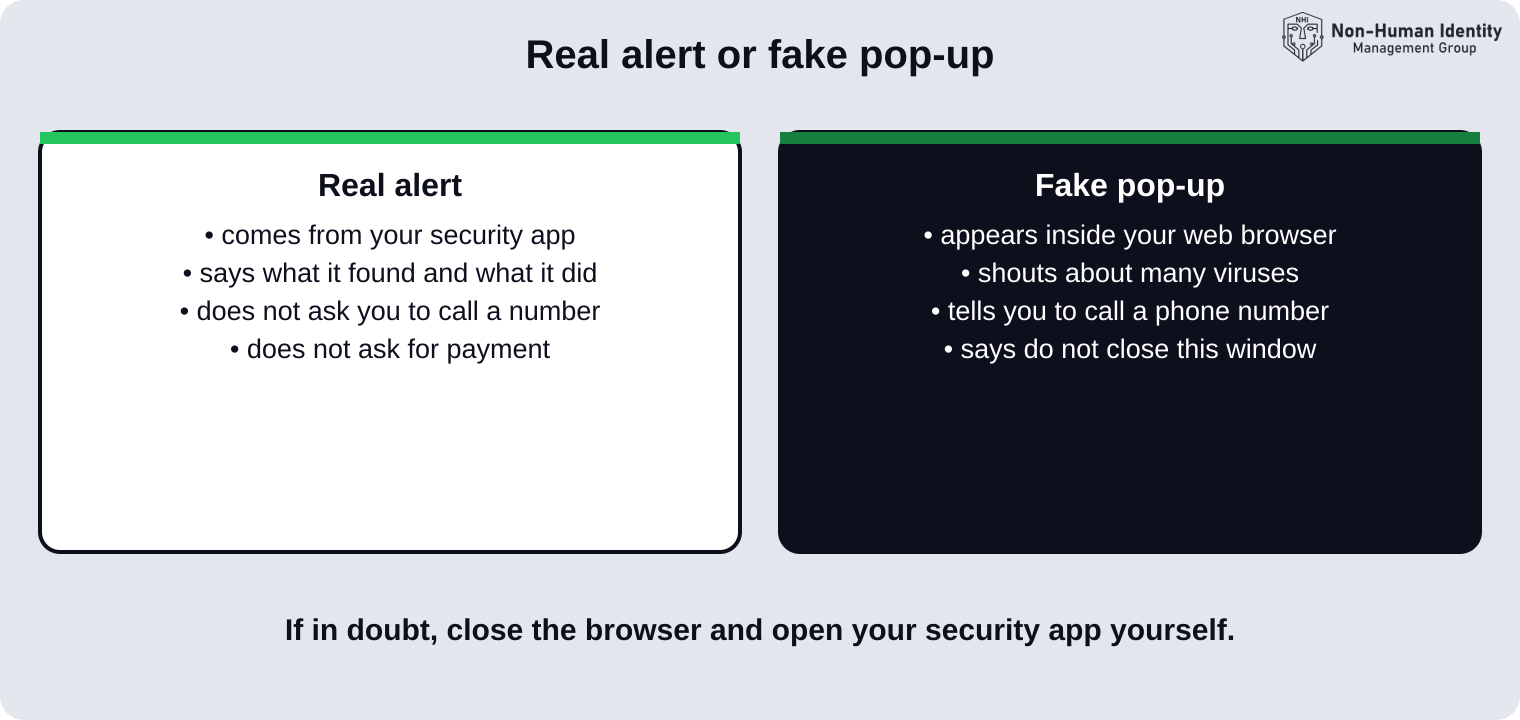
ALERT A - from the security app on your computer
  Threat found: FAKE-Trojan-0000            (1)
  Action taken: moved to quarantine         (2)
  No action needed from you.

ALERT B - pop-up in your web browser
  !! YOUR PC IS INFECTED - 5 VIRUSES !!     (3)
  Call support now on 0000 000 0000         (4)
  Do not close this window                  (5)
- A named threat. In a real message, this line would contain the name the antivirus uses for that malware.
- The tool has already acted. The file is held where it cannot run.
- Shouting, a count of "viruses" and alarm are signs of a fake.
- Asking you to call a number is a clear warning sign.
- Pressure not to close the window is meant to stop you thinking.
Why this is risky: alert B is a scam made to look like antivirus. Calling the number can lead to a stranger taking control of your computer or asking you to pay.[5]
The safer way: close the browser. Then open your own security app from the Start menu or System Settings and run a scan from there.
How does it work?
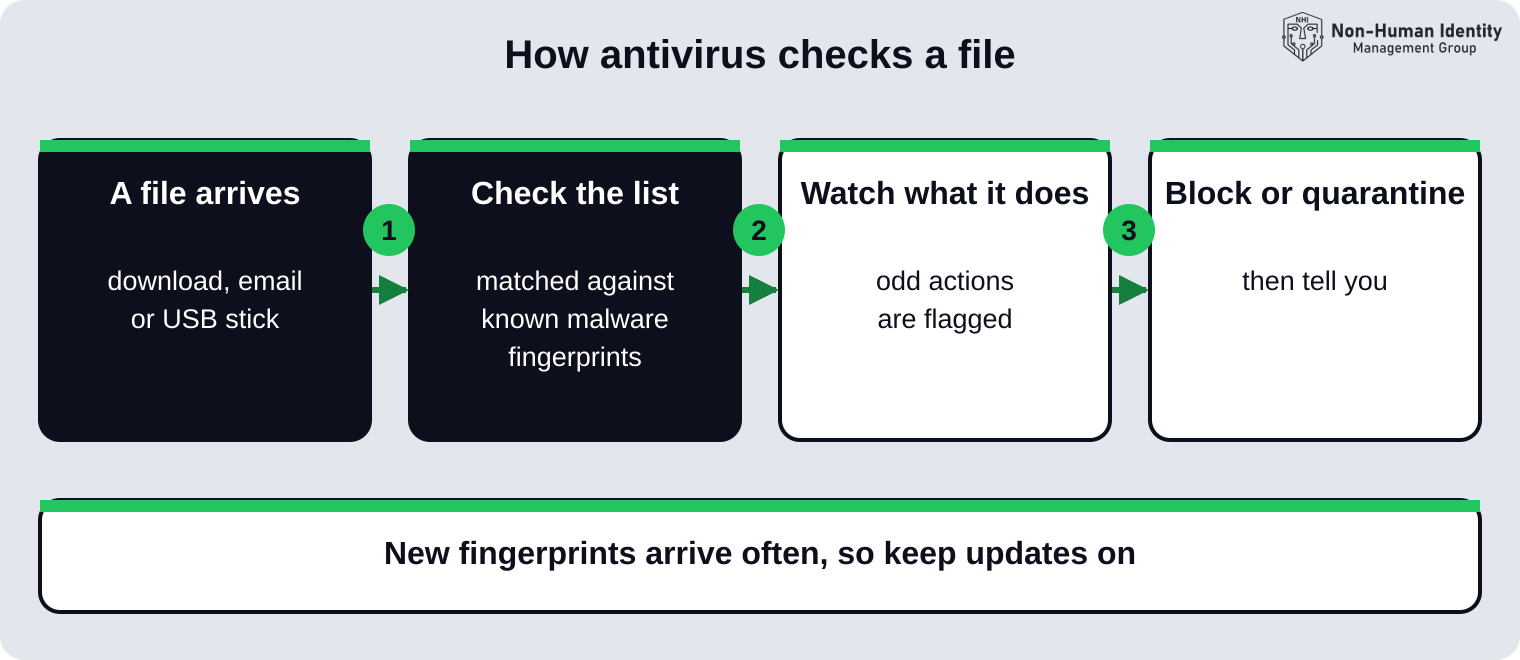
- A file arrives. You download a file, open an email attachment or plug in a USB stick.
- Antivirus checks it. It compares the file with its list of known malware fingerprints.
- It watches what runs. Many tools also look at what a program does, and flag odd actions.
- It acts. If something looks harmful, it blocks it, deletes it or moves it to quarantine, then tells you.
- It updates itself. New fingerprints arrive often, so the tool can spot new threats. On a Mac, these updates arrive on their own and are checked for daily by default.[3]
You may already have antivirus without buying any. Windows includes Microsoft Defender Antivirus, which scans your device all the time.[2] Macs include a built-in tool called XProtect, which checks apps when they first open or change.[3]
The UK's National Cyber Security Centre says the antivirus built into Windows, macOS and Android meets the needs of many organisations. It also advises against running two antivirus products on one device, because they can clash.[1] If you install another antivirus on Windows, the built-in one usually switches itself off.[4]
A worked example
This story is made up to show how it can happen.
Rhys Morgan is a delivery driver in Cardiff. He buys a new Windows laptop for his family. At the till, the shop offers him a three-year antivirus plan.
Rhys is not sure he needs it. He asks the shop assistant whether the laptop has any protection already. She tells him Windows comes with its own antivirus, turned on from the start.
At home, Rhys opens the Windows Security app. He sees green ticks next to virus protection. He also turns on automatic updates, so new fingerprints arrive without him thinking about it.
A month later, his son is looking for a free game online. A pop-up fills the screen. It says the laptop has five viruses and gives a number to call. It says not to close the window.
His son calls Rhys over. Rhys remembers that real warnings come from the security app, not from a website. He closes the browser, ignoring the message on the screen.
Then he opens Windows Security himself and runs a full scan. It finds nothing harmful in the files it checked. Rhys talks with his son about only getting games from the official app store.
What made the difference: Rhys knew where his real antivirus lived, so a fake warning in the browser did not fool him.
Myths and mistakes
| What people think | What is true |
|---|---|
| A new computer has no protection until I buy antivirus. | Windows and Mac computers come with built-in antivirus that is on by default.[1][2] |
| Two antivirus programs are safer than one. | They can clash and slow the device. Use one, kept on and up to date.[1] |
| With antivirus, I am safe from every attack. | It can miss brand new malware and does not stop scam websites or messages. It is one layer of several.[1] |
| A pop-up saying my computer is infected must be true. | Real warnings do not ask you to call a phone number. Close the browser.[5] |
| Macs never get malware. | Apple builds malware protection into macOS, including a tool that blocks and removes known malware.[3] |
What can I do this week?
- Open your security settings and check that virus protection is on.
- Turn on automatic updates for your computer.
- Remove any extra antivirus app, so only one is on.
- Show your family what a fake virus pop-up looks like.
- Back up your key files to a spare drive or the cloud.
Checklist
- Virus protection is switched on on each of my computers.
- My system and security app update on their own.
- I run only one antivirus on each device.
- I know where my real security app is, and how to open it.
- I close pop-ups that ask me to call a number or pay.
- I get apps from official stores or trusted makers.
- My important files are backed up.
Common questions
Do I need to buy antivirus for Windows?
Often not. Windows comes with Microsoft Defender Antivirus, which scans your device all the time. The UK cyber security agency says built-in antivirus meets many organisations' needs. Paid products can add extras, but keep the one you use switched on and updated.[1][2]
Do Macs need antivirus?
Macs already have it built in. Apple's XProtect looks for known malware when apps open or change, and its fingerprints update on their own. Keep macOS updated, and install apps from the App Store or from makers you trust.[3]
Do I need antivirus on my phone?
Usually less than on a computer. The UK cyber security agency says the malware risk on iPhones is small, because apps are kept apart. Android has Google Play Protect, which scans apps. On both, install apps from the official store and keep the phone updated.[1]
What should I do if antivirus finds something?
Let it deal with the file first. Most tools quarantine it for you. Then run a full scan, update your system and change any passwords you typed on that device recently. If the warning keeps coming back, ask an IT helper you trust.
Is free antivirus good enough?
It can be. The built-in tools on Windows and Mac are free and turned on by default. What matters most is that one antivirus is on and kept up to date, alongside updates, backups and care with links.[1]
Where next?
Ready for the detail? Read the practitioner guide: M1049 Antivirus/Antimalware. It goes further into rolling antivirus out across a business, the settings that keep it working, and the scan exclusions that most often weaken it.
Also useful:
- Microsoft Defender Antivirus for Home Users Guide
- Next-Generation Antivirus (NGAV) Guide
- Malware for Beginners
- Ransomware for Beginners
Related NHI Mgmt Group resources: Endpoint Security for Beginners · EDR Guide · Remote Access Scams for Beginners
Key terms
- Antivirus
- Software that looks for harmful programs on a device and blocks, removes or isolates them.
- Malware
- Software made to harm a device or its user, for example by spying, stealing or locking files.
- Signature-based detection
- Finding malware by matching files against fingerprints of known threats.
- Quarantine
- A locked holding area where a suspect file is kept so it cannot run.
- EDR
- Business security software that records what happens on devices so a team can spot and respond to attacks.
- Tech support scam
- A scam where someone pretends to fix a computer problem to get money or control of your device.
Sources and further reading
- Antivirus and other security software (Device Security Guidance). National Cyber Security Centre (NCSC). https://www.ncsc.gov.uk/collection/device-security-guidance/policies-and-settings/antivirus-and-other-security-software, accessed 28 Nov 2026.
- Stay protected with the Windows Security app. Microsoft Support. https://support.microsoft.com/en-us/windows/stay-protected-with-windows-security-2ae0363d-0ada-c064-8b56-6a39afb6a963, accessed 28 Nov 2026.
- Protecting against malware in macOS (Apple Platform Security). Apple. https://support.apple.com/guide/security/protecting-against-malware-sec469d47bd8/web, accessed 28 Nov 2026.
- Microsoft Defender Antivirus compatibility with other security products. Microsoft Learn. https://learn.microsoft.com/en-us/defender-endpoint/microsoft-defender-antivirus-compatibility, accessed 28 Nov 2026.
- How To Spot, Avoid, and Report Tech Support Scams. US Federal Trade Commission (FTC), Consumer Advice. https://consumer.ftc.gov/articles/how-spot-avoid-and-report-tech-support-scams, accessed 28 Nov 2026.