Malware, short for malicious software, is any program or piece of code written on purpose to harm a device, steal or damage data, or give an attacker control without the owner's permission.
This guide is for newcomers, students, career changers and managers who want a clear picture of what malware is without any technical background. It explains the main types in plain English, how a typical infection unfolds, a worked example from a small business, common myths, and practical first steps. If you want the deeper detail on detection engineering and specific families, the practitioner pages in the learning pathway at the end go further.
By the end of this guide you will be able to:
- Explain what malware is and why the word covers many different tools.
- Describe the main types of malware and the harm each one causes.
- Understand the usual stages of an infection, from arrival to damage.
- Identify simple steps that make an infection less likely and less damaging.
Key takeaways
- Malware is an umbrella word. Viruses, worms, Trojans, ransomware, spyware and infostealers are all types of malware, and each causes harm in a different way.
- How it spreads and what it does are separate questions. A Trojan describes how malware tricks you into running it; ransomware describes what it does once it is running. One piece of malware can be both.
- Most infections need a way in. Common routes are email attachments and links, unsafe downloads, removable media and internet-facing services that are not patched or protected.
- Layers reduce the risk. Updates, approved software only, anti-malware tools, multi-factor authentication and tested offline backups each make an infection harder or less damaging.
- Speed matters after an infection. Isolating affected devices quickly and following a prepared plan limits how far malware spreads.
What it is, in plain English
Malware is software that works against the person or organisation running it. NIST, the US standards body, describes it as a program inserted into a system, usually covertly, to compromise the confidentiality, integrity or availability of the victim's data, applications or operating system.[1] In plainer words, malware can do three broad kinds of damage: it can let someone see things they should not (confidentiality), change or corrupt things (integrity), or stop things working (availability).
The UK National Cyber Security Centre (NCSC) gives a practical list of what malware can do: lock devices, steal, delete or encrypt data, take control of systems, harvest login details, or run up costs by mining cryptocurrency on your machines.[3]
A helpful comparison is unwanted guests in a building. Some sneak in by hiding inside a delivery (a Trojan). Some copy keys and let themselves into every room (a worm). Some quietly read your post (spyware). Some change the locks and demand money for new keys (ransomware). Where the analogy breaks down: a burglar can only be in one place at a time, while malware can copy itself to thousands of devices in minutes and act on all of them at once.
The main types of malware
Security people group malware in two ways: by how it spreads and by what it does. The table below covers the types a beginner is most likely to hear about.
| Type | How it works | The harm it causes |
|---|---|---|
| Virus | Copies itself into other programs or files and usually spreads when a person opens or runs them.[2] | Corrupts files and spreads to other devices through shared files. |
| Worm | A self-contained program that copies itself across networks, usually without anyone clicking anything.[2] | Spreads very fast and often carries another harmful payload, such as ransomware. |
| Trojan (Trojan horse) | Looks harmless or useful but has a hidden malicious purpose; it does not copy itself.[2] | Opens the door for other attacker tools once someone runs it. |
| Ransomware | Blocks access to a computer or its data, usually by encrypting files, then demands payment.[3][7] | Stops the business working; many groups also steal data and threaten to publish it. |
| Wiper | Sometimes disguised as ransomware but built to destroy data; files are not restored even after payment.[3] | Permanent data loss; recovery depends on backups. |
| Spyware and keyloggers | Secretly watch what you do; a keystroke logger records what you type and sends it to the attacker.[2] | Stolen passwords, messages and business secrets. |
| Infostealer | Collects saved passwords, browser session cookies and other credentials from a device in one sweep. | Account takeover, often without the attacker needing the password at all. |
| Rootkit and backdoor | A rootkit hides itself and other malicious activity; a backdoor waits for the attacker's commands.[2] | Long-term hidden access that is hard to find and remove. |
| Coin miner | Uses your computers' processing power to mine cryptocurrency for the attacker.[3] | Slow devices and higher energy or cloud bills. |
Real malware often mixes several of these. NIST calls this a blended attack: one program that uses more than one way to infect or spread, for example acting as both a virus and a worm.[2] This is why it helps to ask two questions about any malware: how did it get in, and what is it trying to do?
Why it matters to you
- If you run a small business: one infected laptop can lead to locked files, stolen customer data or an emptied bank account. Small firms are often hit as collateral damage, not because they were chosen.[3]
- If you are new to a security job: malware alerts are some of the first you will see. Knowing the types helps you judge how urgent an alert is and who to call.
- If you are a manager: malware is a business risk, not only an IT one. Decisions about backups, updates and older systems shape how badly an infection hurts.
A well-known example shows how much damage one malware outbreak can cause. On 12 May 2017 the WannaCry ransomware spread across the world. The UK National Audit Office found that at least 81 of the 236 NHS trusts in England were affected, along with 595 GP practices, and estimated that more than 19,000 appointments were cancelled. The infected organisations had unpatched or unsupported Windows systems.[5] WannaCry could spread across networks by itself, which is why the NCSC uses it as an example of ransomware that behaves like a worm.[3]
Malware also matters for identity. Infostealers and keyloggers exist to take passwords, session cookies and access keys, so a single infected device can hand an attacker the keys to email, cloud services and business systems. That is why cleaning up an infection usually includes resetting passwords and revoking sessions, not only removing the malware.
How it works, step by step
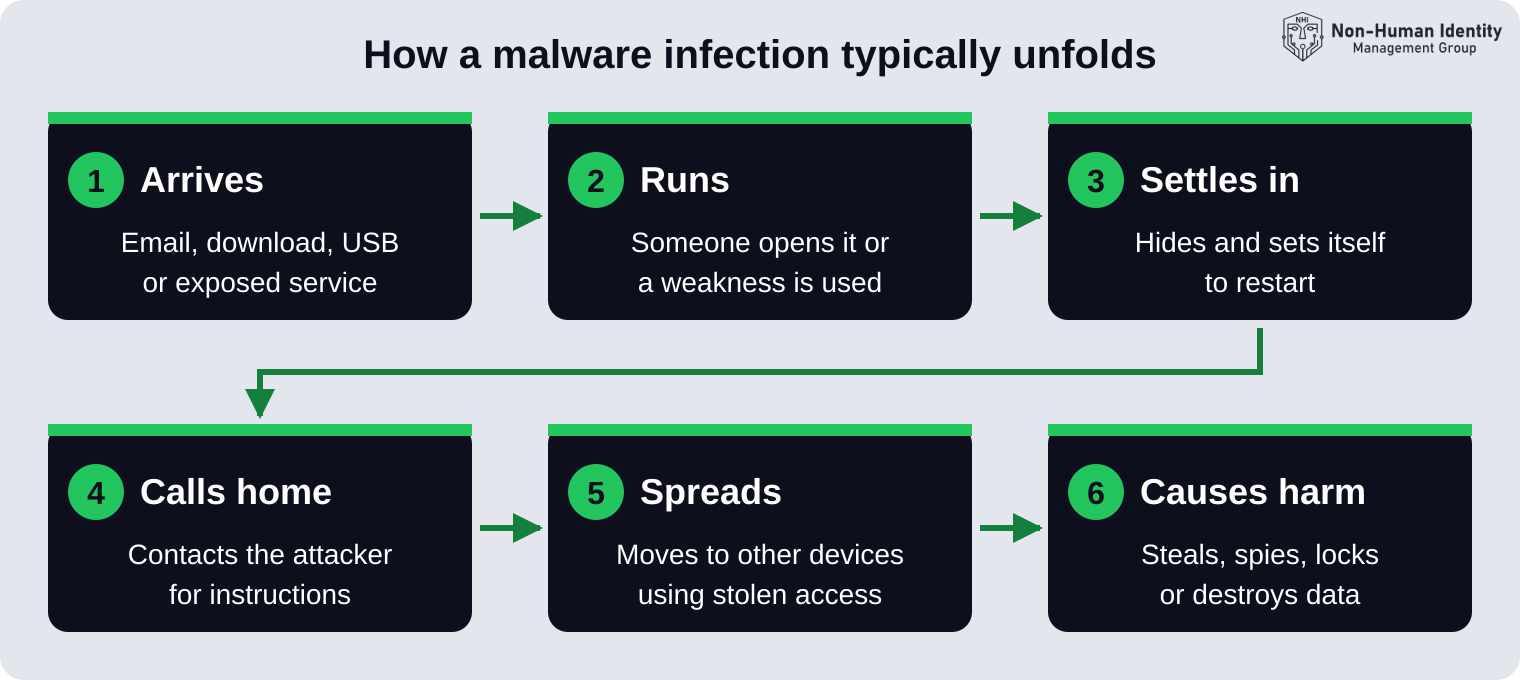
Each infection is different, but most follow a similar path. MITRE ATT&CK, a public knowledge base of attacker behaviour, describes these stages in much more detail for practitioners.[8]
- Arrives. The malware reaches a device. The NCSC lists common routes: malicious email attachments or links, unsafe websites, and remote access services such as Remote Desktop Protocol (RDP) or remote access devices that are exposed to the internet or not patched.[3] Phishing emails are one of the most common ways in.[8]
- Runs. The code starts running. Sometimes a person opens the file or enables a macro; sometimes the attacker uses a vulnerability, a weakness in software, so that nobody has to click anything.
- Settles in. The malware tries to survive a restart and avoid being noticed, for example by hiding as a normal-looking program. Security teams call this persistence.
- Calls home. Many types contact a server the attacker controls, to receive instructions or download extra tools. This is called command and control.
- Spreads. Worms spread by themselves. Other malware, or the attacker behind it, uses stolen passwords to reach more devices on the network.[3]
- Causes harm. The malware does what it was built for: steals data, spies, encrypts files for ransom, destroys data or mines cryptocurrency.
Where defences fit
Because infections move through stages, defences can be placed at each one. The table pairs each stage with controls the NCSC and CISA recommend.[3][6]
| Stage | Controls that help |
|---|---|
| Arrives | Email filtering, blocking known malicious websites, switching off RDP where it is not needed, and multi-factor authentication on remote access. |
| Runs | Allowing only approved applications, turning off Office macros in files from the internet, keeping software updated, and up-to-date anti-malware tools. |
| Settles in and calls home | Endpoint detection tools that watch for unusual behaviour, and firewalls that block unexpected connections. |
| Spreads | Least privilege (people and systems only have the access they need), separating older systems, and strong authentication. |
| Causes harm | Offline or separate backups that are tested regularly, and a practised incident response plan. |
NIST includes malicious code protection as control SI-3 in its SP 800-53 security control catalogue, which is one of the places auditors look for evidence of anti-malware measures.[9]
A worked example
Harbour Print is a fictional printing firm with 25 staff. One Monday, Leah in accounts receives an email that looks like an invoice from a regular supplier. The attachment is a document that asks her to "enable content" to view it. She clicks the button.
Behind the scenes, the document runs a small Trojan. It installs an infostealer that collects the passwords and session cookies saved in Leah's browser, then downloads more tools from the attacker's server. Over the next day the attacker uses Leah's saved password for the shared file server to look around the network.
On Tuesday morning, the firm's anti-malware tool flags unusual activity on Leah's laptop and the IT contractor, Marcus, is alerted. He follows the firm's short incident plan:
- Isolate: he disconnects Leah's laptop from the network, which is one of the first steps CISA recommends.[6]
- Reset: he resets the passwords saved in the browser, signs Leah out of email and cloud services everywhere, and checks the file server's logs for access from her account.
- Rebuild: the laptop is wiped and rebuilt from a clean image rather than "cleaned", because it is hard to be sure every part of the malware has gone.
- Learn: the firm turns off macros in documents from the internet and adds MFA to the file server.
The outcome is mixed. Marcus finds no sign that files were encrypted or deleted, but he cannot rule out that some documents on the file server were copied, so the firm reviews what was stored there and takes advice on whether anyone needs to be told. The quick alert and the prepared plan limited the damage; they did not undo the first infection.
Myths and misunderstandings
| What people think | What is true |
|---|---|
| "Virus" and "malware" mean the same thing. | A virus is one type of malware. Many common threats today, such as ransomware and infostealers, are not viruses in the strict sense. |
| Antivirus means we are safe. | Anti-malware tools help, but new or disguised malware can slip past them. They work best alongside updates, approved software, MFA and backups. |
| Macs, phones and Linux servers do not get malware. | Every common platform can be targeted. Attackers go where the valuable data and access are. |
| We are too small to be a target. | Much malware spreads automatically or through mass emails, and the NCSC notes organisations can be infected even when they were not the intended target.[3] |
| Paying a ransom gets the files back. | The NCSC says paying gives no promise of recovery, and wiper malware disguised as ransomware cannot restore files at all.[3] |
| Once the malware is deleted, the problem is over. | Stolen passwords, sessions and copied data stay useful to the attacker. Clean-up includes resets and checking what was accessed. |
Key terms
- Malware
- Software intentionally designed to compromise the confidentiality, integrity or availability of devices and data.
- Virus
- Malware that attaches itself to legitimate files or programs and spreads when they are run or shared.
- Worm
- Malware that spreads itself from one system to another without user action.
- Trojan
- Malicious software that appears legitimate to trick a user into running it; it relies on deception rather than copying itself.
- Ransomware
- Malware or an attack campaign that blocks access to systems or data and then pressures the victim for payment.
- Wiper malware
- Malicious code designed to destroy data or make systems unrecoverable rather than encrypt them for ransom.
- Spyware
- Malicious software that secretly monitors a device and collects data without the owner's consent.
- Keylogger
- Malware or monitoring software that records keystrokes entered on a device, often to steal passwords.
- Infostealer
- Malware built to collect saved passwords, browser session cookies, autofill data and credential files from a device.
- Rootkit
- Malware that hides itself and other malicious activity by changing how the operating system reports files, processes or connections.
- Endpoint detection and response (EDR)
- Security software that monitors devices for suspicious activity, helps investigate threats and supports containment.
Common questions
What is the difference between a virus and malware?
Malware is the general term for any harmful software. A virus is one specific type that copies itself into other files or programs and usually spreads when people open them.[2]
What is the difference between a virus and a worm?
A virus needs a host file and usually a person to run it. A worm is self-contained and spreads across networks by itself, usually without anyone clicking anything.[2]
How do I know if a device has malware?
Possible signs include a device suddenly running slowly, programs you did not install, security tools switched off, files you cannot open, or unexpected password reset emails. Many infections show no obvious signs, which is why security tools and logs matter. If you are unsure, report it rather than investigating yourself.
Can I just delete the malware?
For a single nuisance program, a security tool may remove it. For anything serious, we suggest rebuilding the device from a known clean state, and resetting any passwords used on it, because malware can hide extra components.
Is all unwanted software malware?
Not always. Some programs show unwanted adverts or change settings without being clearly malicious; Microsoft groups these as "unwanted software" separately from malware.[4] They are still worth removing.
Who should I tell if I think I clicked something bad?
Tell your IT or security contact straight away, even if nothing seems to have happened. Reporting quickly is far more useful than staying quiet. In the UK, organisations can also report incidents to the NCSC.[3]
First steps
Three things you can do this week:
- Turn on automatic updates for operating systems, browsers and common applications on every work device, and list any devices that can no longer receive updates.
- Check your backups. Make sure important data is copied somewhere that is not permanently connected to your network, and try restoring one file to prove it works.[3]
- Agree how to report a suspicious click. Tell everyone who to contact, and make it clear they will not be blamed for reporting.
Checklist
- All work devices receive automatic security updates, and unsupported systems are listed and separated.
- Anti-malware or endpoint protection is switched on and up to date on every device.
- Only approved software can be installed, and staff do not use admin accounts for everyday work.
- Macros in Office files from the internet are switched off.
- Email, remote access and cloud accounts use multi-factor authentication.
- Remote Desktop is switched off where it is not needed, and never exposed directly to the internet.
- Backups are kept offline or separate, and a restore has been tested in the last three months.
- A short incident plan says who to call, how to isolate a device and when passwords must be reset.
Simple measures that show progress: the share of devices fully updated, the number of devices without working endpoint protection, the date of the last successful restore test, and how quickly reported suspicious emails are dealt with.
Check your understanding
1. Is ransomware a type of malware?
Answer: yes. Ransomware is malware that blocks access to systems or data and demands payment.
2. What is the main difference between a Trojan and a worm?
Answer: a Trojan tricks a person into running it and does not copy itself; a worm copies itself across networks without anyone clicking anything.
3. Why should passwords be reset after an infostealer infection, even once the malware is removed?
Answer: because the attacker may already have copied the passwords and session cookies, and these keep working until they are changed or revoked.
4. Why do backups need to be kept offline or separate?
Answer: because some ransomware looks for connected backups and encrypts or deletes them too.[6]
Suggested learning pathway
- Start with the big picture in What Is Cyber Security? A Beginner's Guide.
- For the most common way malware arrives, read Phishing for Beginners.
- For the type that causes the most disruption, read Ransomware for Beginners.
- For the tools that spot malware on devices, read EDR, XDR and MDR for Beginners.
- For how analysts work out what a suspicious file does, read Malware Analysis for Beginners.
- For the full practitioner view of malware types, delivery and defences, see the Malware Guide.
- For malware that hides in memory and built-in tools, see the Fileless Malware Guide.
- For malware built to destroy data, see the Wiper Malware Guide.
- For remote control malware, see the Remote Access Trojans (RATs) Guide.
Standards and references
- Glossary: malware. NIST Computer Security Resource Center, National Institute of Standards and Technology (NIST). https://csrc.nist.gov/glossary/term/malware, accessed 27 Nov 2026.
- SP 800-83 Rev. 1, Guide to Malware Incident Prevention and Handling for Desktops and Laptops. National Institute of Standards and Technology (NIST), July 2013. https://csrc.nist.gov/pubs/sp/800/83/r1/final.
- Mitigating malware and ransomware attacks. National Cyber Security Centre (NCSC), reviewed 9 September 2021. https://www.ncsc.gov.uk/guidance/mitigating-malware-and-ransomware-attacks, accessed 27 Nov 2026.
- Understanding malware and other threats. Microsoft Defender for Endpoint documentation, Microsoft Learn, Microsoft, last updated 24 July 2024. https://learn.microsoft.com/en-us/defender-endpoint/malware/understanding-malware, accessed 27 Nov 2026.
- Investigation: WannaCry cyber attack and the NHS. National Audit Office (NAO), 27 October 2017. https://www.nao.org.uk/reports/investigation-wannacry-cyber-attack-and-the-nhs/.
- #StopRansomware Guide. Cybersecurity and Infrastructure Security Agency (CISA) and partners, September 2023. https://www.cisa.gov/stopransomware/ransomware-guide, accessed 27 Nov 2026.
- Data Encrypted for Impact (T1486). MITRE ATT&CK v20, The MITRE Corporation. https://attack.mitre.org/techniques/T1486/.
- Phishing (T1566). MITRE ATT&CK v20, The MITRE Corporation. https://attack.mitre.org/techniques/T1566/.
- SP 800-53 Rev. 5, Security and Privacy Controls for Information Systems and Organizations (control SI-3 Malicious Code Protection). National Institute of Standards and Technology (NIST). https://csrc.nist.gov/pubs/sp/800/53/r5/upd1/final.
Related NHI Mgmt Group resources: CIS Control 10 Malware Defenses Guide · Infostealer Threat Guide · Incident Response for Beginners