Azure permissions decide who can see or change things in an organisation's Microsoft Azure cloud.
This guide is for anyone who has been given an Azure account, or who pays for a team that uses Azure. You do not need to be an engineer to be affected: if your business keeps files, apps or data in Azure, these settings decide who can reach them.
In short
- Every Azure permission answers three questions: who, what they can do, and where.
- Access set high up passes down to everything below it, so a broad grant reaches a lot.
- Permissions add up. Two small grants can together give more than you meant.
- Give the smallest role at the narrowest level, give it to groups and keep the number of owners small.
What you will learn
- Explain the three parts of an Azure permission in plain words.
- Spot a permission that reaches far more than it needs to.
- Check who holds the most powerful role in your Azure account.
- Ask your team or supplier how access is given and taken away.
- Job title (role)
- a named set of things someone is allowed to do, such as read or change.
- Where it applies (scope)
- the part of the Azure account that a permission covers.
- Handing out a job (role assignment)
- linking a role to a person, group or program, at one scope.
This is an independent guide from NHI Mgmt Group, based on Microsoft's public documentation as of November 2026. It is not sponsored or reviewed by Microsoft. Product features change, so confirm settings against Microsoft's current documentation.
What are Azure permissions?
Think of a staff rota pinned up in a chain of shops. Each line says three things: who is working, what job they do, and which shop they are in. A cashier at the high street shop cannot run the till at the station shop.
Azure works the same way. Microsoft calls its system Azure role-based access control, or Azure RBAC. It decides who can reach things in Azure, what they can do with them and which parts they can reach.[1]
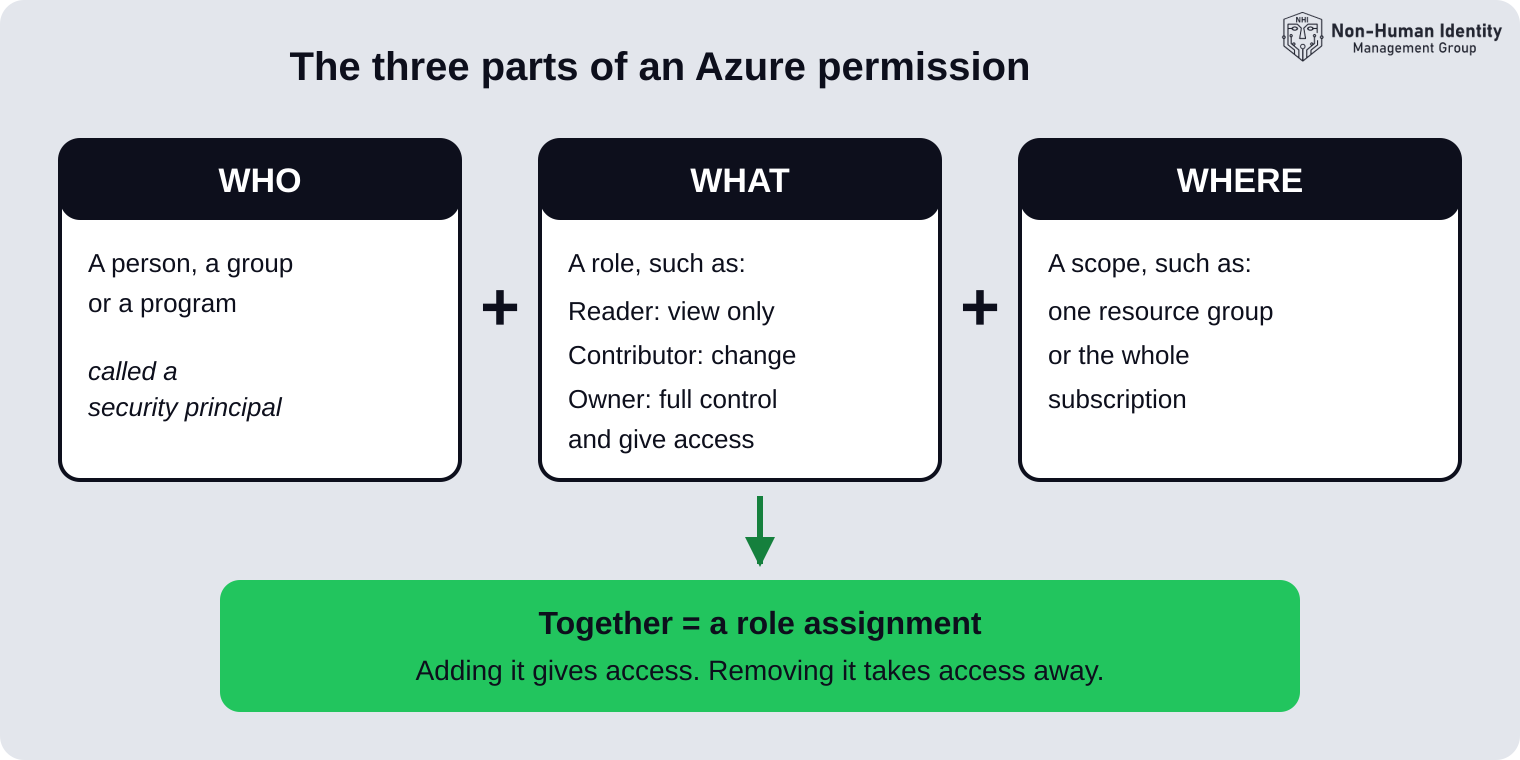
The "who" is called a security principal (anything that can be given access). It can be a person, a group of people, or a program with its own identity.[1] The "what" is a role, a named list of allowed actions, such as read, write or delete. The "where" is the scope, the part of the account the role covers.
Linking all three together is called a role assignment. Adding one gives access. Removing it takes access away.[1]
Where the comparison stops working: a rota names one shop per shift. In Azure, a role given at a high level passes down to everything underneath, and a person can hold many roles at once.
Why does it matter?
If someone has more access than they need, a mistake or a stolen password can reach much further. Microsoft suggests having no more than three owners on each subscription, to limit the harm if one owner's account is misused.[3]
If you own or fund a business that uses Azure
What could happen: a supplier keeps full control of your account long after the project ends.
Check this: ask for a list of everyone with the Owner role, and why each one needs it.
If you have just been given an Azure login
What could happen: you are given a powerful role "to save time", and one wrong click deletes something important.
Check this: ask which role you have and where it applies. Ask for less if it is more than your job needs.
If you manage a team
What could happen: people who change jobs or leave keep access they no longer need.
Check this: make sure leavers and movers have their roles removed as part of the process.
What does it look like?
Here is a made-up list of role assignments, like one you might see on an Azure access screen.
Example only. All values are made up.
Access list: subscription "EXAMPLE-Clinic-Prod"
WHO                    ROLE         WHERE
Clinic IT group        Reader       whole subscription
Booking app (program)  Contributor  resource group "bookings"
[email protected]  Owner     whole subscription      (1)
Intern FAKE-0000       Contributor  whole subscription      (2)
Finance group          Reader       resource group "billing"
- In a real screen, this line would show an outside supplier who still has full control, including the power to give access to others.
- In a real screen, this line would show a new starter who can change almost everything, not just the one area they work on.
Why this is risky: the supplier's project is over, but their account can still change anything. The intern only needs one area but can reach the whole subscription.
The safer way: remove the supplier's role. Give the intern a role only on the one resource group they work on. Give roles to groups, not single people, so access follows the job.[3]
How does it work?
Here is what happens when someone tries to do something in Azure.
- Someone asks. A person or a program tries to read, change or delete something.
- Azure looks up the rules. It finds every role assignment for that person, and for the groups they belong to.[1]
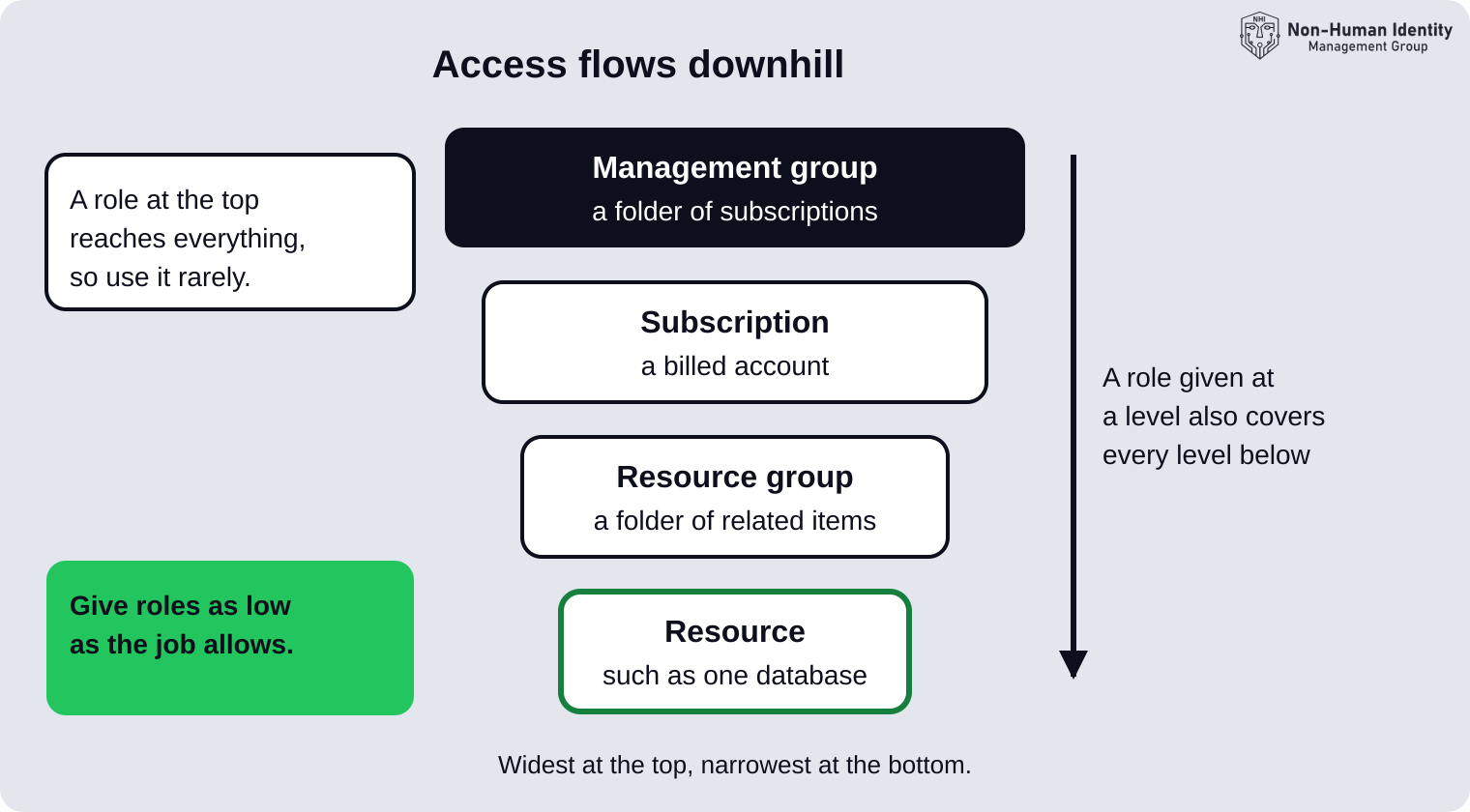
- It checks the level. A role given at a higher level also covers everything below it.[2]
- It adds them up. Your access is the total of all your roles, so the biggest one usually wins.[1]
- It checks for a block. A special block, called a deny assignment, can stop the action even if a role allows it.[1]
- It decides. If an allowed action is found and nothing blocks it, the request goes ahead.
Azure has four levels where a role can be given. From the widest, they are a management group (a folder of subscriptions) and a subscription (an account that is billed). Below those sit a resource group (a folder of related items) and a single resource, such as one database. Lower levels take on the roles given at higher levels.[2]
Microsoft offers ready-made roles. Three you will hear about a lot are:
- Reader: can view everything in scope, but change nothing.[4]
- Contributor: can manage everything in scope, but cannot give access to others.[4]
- Owner: full control, including the power to give roles to others.[4]
A worked example
Hugo Lefebvre runs IT at Lumière Médical, a fictional chain of clinics. The clinics use Azure for their booking system. Katarina Horvat, a new data analyst, needs to look at booking reports.
A colleague offers to make her an Owner of the whole subscription. "Then she will never get stuck," he says.
Hugo thinks of the shop rota. Katarina has one job in one place. She needs to read reports, not run every shop.
So he checks three things. Who: Katarina, but through the "Reporting analysts" group, so the access follows the job and not the person. What: the Reader role, because she only needs to look. Where: the resource group that holds the reports, not the whole subscription.
While he is on the access screen, Hugo spots something else. A web agency that built the booking site two years ago still has the Owner role. He checks with the agency, confirms the work is finished and removes the assignment.
He then counts the remaining Owners. There are five. Following Microsoft's advice, he brings it down to three named people.[3]
A month later, Katarina moves to a new team. Hugo takes her out of the reporting group, and that one step removes her report access. Nothing else needs changing.
Myths and mistakes
| What people think | What is true |
|---|---|
| Giving someone Reader at a low level limits them. | Permissions add up. If they also have Contributor higher up, they can still change things. |
| Owner is just a bigger Contributor. | Owner can also give access to other people. Treat it as the keys to the whole account. |
| It is quicker to give roles to each person. | Giving roles to groups is easier to manage. When someone moves, you change one group membership. |
| Once the project is over, the supplier's access stops. | Access stays until someone removes the role assignment. |
| Only people need permissions. | Programs have identities too, and they need roles. Give them only what they need. |
What can I do this week?
- Ask who holds the Owner role on each of your subscriptions.
- Remove access for suppliers and staff who no longer need it.
- Check your own role and where it applies.
- Move single-person roles onto groups where you can.
- Ask your team whether powerful roles are given only when needed and for a short time.
Checklist
- No more than three people hold the Owner role on each subscription.
- Roles are given to groups, not to single people, where possible.
- Each role is given at the narrowest level that does the job.
- Reader is used when someone only needs to look.
- Suppliers lose their roles when their work ends.
- Leavers and movers have roles removed as part of the process.
- Programs have only the roles they need, with a named owner.
- Someone reviews the access list on a regular schedule.
Common questions
What is the difference between Owner and Contributor?
Owner can give access to other people. Contributor can manage everything in its scope but cannot hand out roles. That extra power makes Owner the most sensitive role, so Microsoft suggests keeping the number of subscription owners to three or fewer.
Is Azure RBAC the same as Microsoft Entra ID?
No, but they work together. Entra ID holds the accounts and groups, and checks who you are when you sign in. Azure RBAC then decides what those accounts can do with Azure resources. See Microsoft Entra ID for Beginners.
Can I make my own role?
Yes. If none of the ready-made roles fits, Azure lets you create a custom role with just the actions you choose.[1] We suggest starting with a ready-made role. Custom roles need care, because a broad custom role can give more access than intended.
How do I take someone's access away?
Remove their role assignment, or take them out of the group that holds it. In Azure, removing the assignment is how access is taken away.[1] Check all levels, because they may hold roles in more than one place.
Do apps and programs need Azure roles too?
Yes. A program that reads a database or stores files needs a role, just like a person. Azure can give programs their own identity, called a managed identity, so they do not need a stored password. Give each one only the access it needs. See Azure Managed Identities Security Guide.
Where next?
Ready for the detail? Read the practitioner guide: Microsoft Azure Security Guide. It goes further into Azure security settings, logging and the wider controls that sit around permissions.
Also useful:
- Azure RBAC and Service Principals Guide
- Azure Policy and Management Groups Guide
- Just-in-Time Access for Beginners
- Cloud Permissions and CIEM for Beginners
Related NHI Mgmt Group resources: How to find over-privileged Azure managed identities · Access Reviews for Beginners · Privileged Access Management for Beginners
Key terms
- Role-based access control
- A way of giving access by placing people or programs into roles that carry set permissions.
- Security principal
- Anything that can be given access, such as a person, a group or a program.
- Role assignment
- The link that gives a role to a person, group or program, so they get its permissions.
- Scope
- The set of resources a permission applies to.
- Management group
- A folder that holds several Azure subscriptions, so rules can be set once for all of them.
- Subscription
- A billed Azure account that holds resources and sets a boundary for access.
- Least privilege
- Giving each person or program only the access it needs for its job.
- Managed identity
- An identity the cloud gives to a program, so it can sign in without a stored password.
Sources and further reading
- What is Azure role-based access control (Azure RBAC)? Microsoft Learn, Microsoft. https://learn.microsoft.com/en-us/azure/role-based-access-control/overview, accessed 27 Nov 2026.
- Understand scope for Azure RBAC. Microsoft Learn, Microsoft. https://learn.microsoft.com/en-us/azure/role-based-access-control/scope-overview, accessed 27 Nov 2026.
- Best practices for Azure RBAC. Microsoft Learn, Microsoft. https://learn.microsoft.com/en-us/azure/role-based-access-control/best-practices, accessed 27 Nov 2026.
- Azure built-in roles. Microsoft Learn, Microsoft. https://learn.microsoft.com/en-us/azure/role-based-access-control/built-in-roles, accessed 27 Nov 2026.