Every Chromebook model has a set month after which Google stops sending it updates.
This guide is for anyone who owns, buys or looks after a Chromebook, at home, at school or at work. You do not need to be technical: the date is shown in the settings, and checking it takes a few clicks.
In short
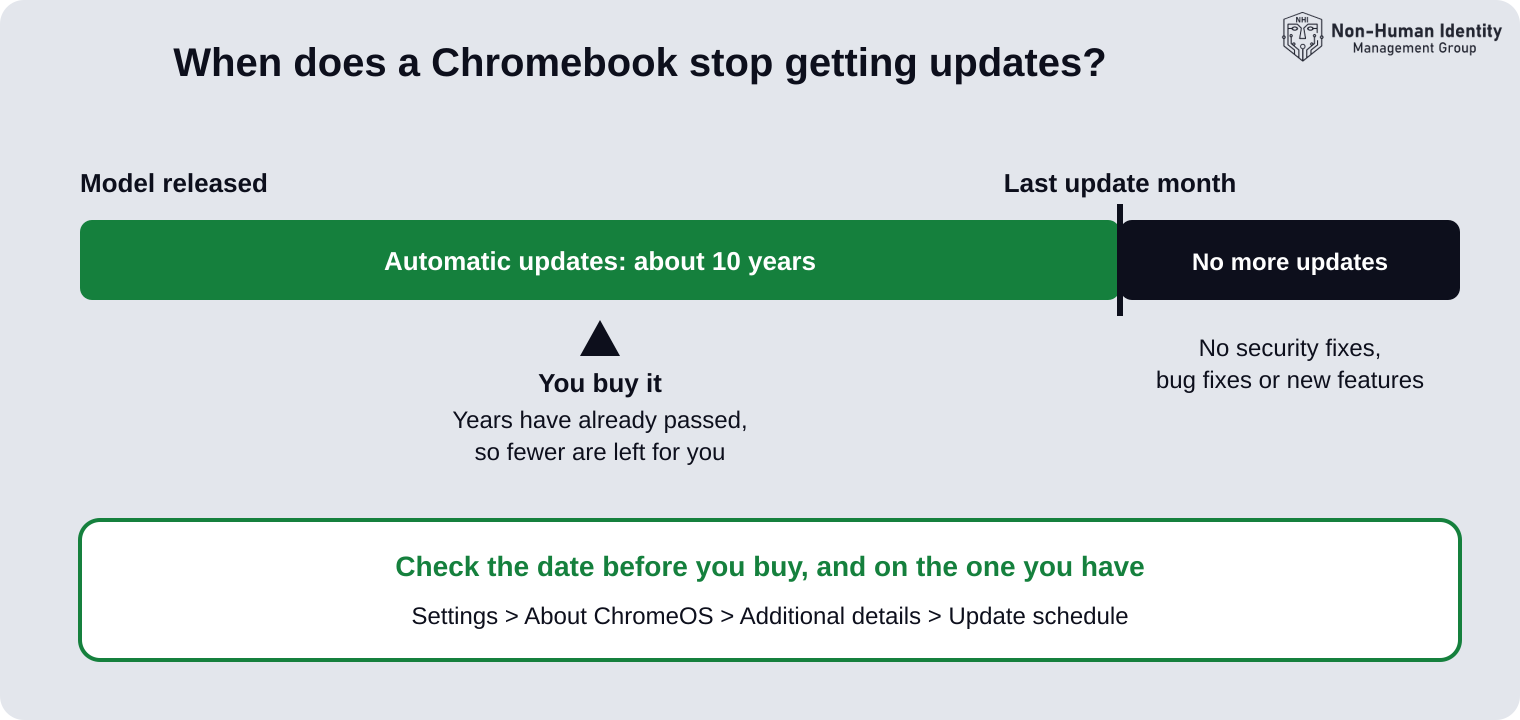
- Google says Chromebooks get 10 years of automatic updates, counted from when the model was released, not from when you bought it.
- After the last update, the device gets no more security fixes, bug fixes or new features.
- You can see the date under Settings, About ChromeOS, Additional details, Update schedule.
- Check the date before you buy, and plan to replace a Chromebook before its updates end.
What you will learn
- Explain what the update end date means for a Chromebook.
- Check the date on your own device in under a minute.
- Spot why a "new" Chromebook may have fewer years left than you think.
- Decide what to do with a device whose updates have ended.
- Last update date (Auto Update Expiration)
- the month a Chromebook model gets its final automatic update from Google.
- Device software (ChromeOS)
- the main software that runs a Chromebook, made by Google.
- Safety fix (security update)
- an update that closes a weak spot criminals could use.
What is Chromebook Auto Update Expiration?
Think of a car whose maker has stopped making spare parts. The car still drives, but when a part wears out, there is nothing official to fix it with.
A Chromebook runs on Google's software, called ChromeOS. Google sends free updates to it automatically, including security updates that close weak spots. But each model has a last month for those updates.
That month is often called Auto Update Expiration, or AUE. Google's own pages now label it "Automatic updates until".[2] After it, you get a "Final software update" message and the updates stop.[1]
Where the comparison stops working: a car's age is printed on its papers. A Chromebook's clock starts when the model first came out, which may be years before you bought yours.
Why does it matter?
A Chromebook past its date still turns on. But new weak spots found after that date are not fixed on it.
Google says ChromeOS devices receive 10 years of updates, counted from the date the model's design was released.[2]
If you are buying a Chromebook
What could happen: a cheap "new" model was released years ago and has only a short time left.
Check this: look up the model's "Automatic updates until" date before you pay.
If your child uses one for school
What could happen: a hand-me-down Chromebook stops getting fixes, and some apps or school sites may no longer work on it.
Check this: open Settings and read the update schedule today.
If you look after Chromebooks at work or school
What could happen: a whole batch bought at the same time reaches its date together, with no budget to replace it.
Check this: list each model's date and add replacement to the budget plan.
What does it look like?
Here is a made-up version of what you might see on the settings screen.
Example only. All values are made up.
Settings > About ChromeOS > Additional details
Channel: Stable
Update schedule                                   (1)
  This device will get automatic software and
  security updates until June 2027.               (2)
Model name: EXAMPLE-BOOK-0000 (FAKE)              (3)
- The section to look for on your own Chromebook.
- In a real screen, this line would contain your model's last update month.
- The model name, which you need if you look the date up on Google's list.
Why this is risky: many people never open this screen. They find out only when the "Final software update" message appears.
The safer way: check the date once now, write it down, and set a reminder a year before it.
How does it work?
Here is how the update life of a Chromebook plays out.
- The model is released. The 10 year clock starts when the model's design is released, not when you buy it.[2]
- Updates arrive by themselves. While the device is supported, ChromeOS and the Chrome browser update automatically.[1]
- Older models may get extra time. Some models released before 2021 can get extended updates. Some of these need an administrator to switch them on, and some features may not be supported.[2]
- The final update arrives. A "Final software update" message appears. After that, no more security fixes, bug fixes or new features are sent.[1]
- Life after the date. The device still checks itself at start-up and can repair itself if it finds tampering, a feature called verified boot. But that does not fix new weak spots, and some apps may no longer work.[1]
A worked example
Imani Vance's son is starting secondary school. Her brother offers his old Chromebook, which still looks almost new.
Imani is grateful, but she wants to check one thing first. She remembers the car with no spare parts. It can look fine on the drive and still be hard to keep safe.
She opens Settings and selects About ChromeOS, then Additional details. Under Update schedule, it says updates end in a few months.
She asks a friend, Umar Zeller, who looks after the laptops at a local primary school. He explains that the clock started when the model came out, not when her brother bought it. After the date, the Chromebook will still work, but new security weak spots will not be fixed.
Imani makes a plan. Her son can use the old Chromebook until the end of term. She keeps his schoolwork saved in his school account, not only on the device.
Meanwhile, she shops for a replacement. Before buying, she looks up each model on Google's list of update dates. She picks one with many years left, even though it costs a little more than the cheapest option.
When the new one arrives, she signs her brother's account out of the old Chromebook and resets it. She then takes it to an electronics recycling point.
The whole check took five minutes. It saved her son from relying on a laptop that would soon stop getting fixes.
Myths and mistakes
| What people think | What is true |
|---|---|
| Ten years counts from the day I bought it. | It counts from when the model was released.[2] A model on sale for years has less time left. |
| A new Chromebook in the box has the full ten years. | Not always. Check the model's date before you buy. |
| When updates stop, the laptop stops working. | It still turns on, but security fixes stop and some apps may no longer work.[1] |
| The shop's "end of sale" date is the same thing. | Google says the maker's end of sale date does not decide update support.[1] |
| Verified boot keeps an old Chromebook safe. | It repairs tampering at start-up, but it does not fix new weak spots.[1] |
What can I do this week?
- Check the update date on every Chromebook in your home or office.
- Write the date down and set a reminder a year before it.
- Before buying, look up the model on Google's list of update dates.
- Make sure files are saved to an account, not only on the device.
Checklist
- You know the update end date for each Chromebook you own or manage.
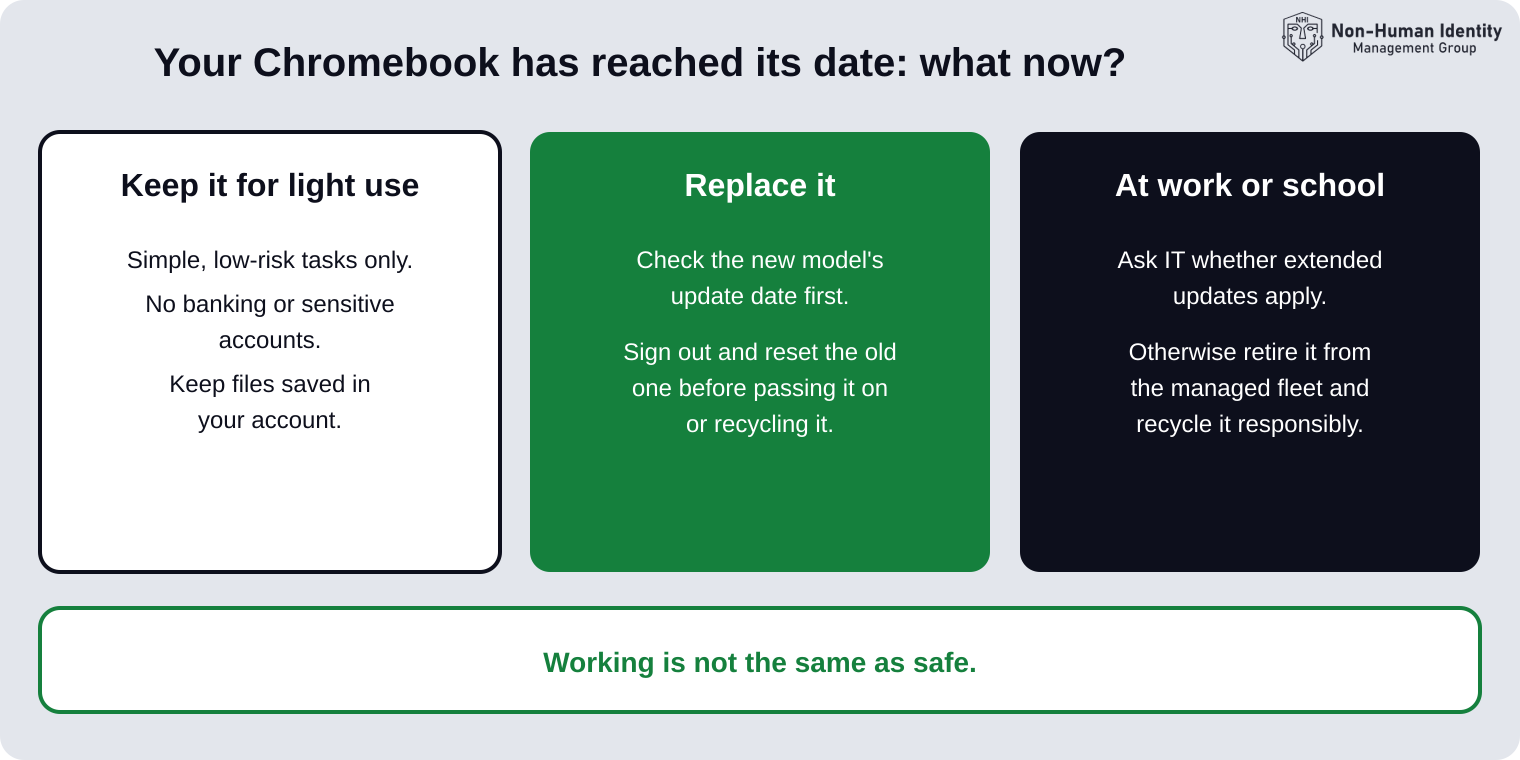
- Devices past their date are not used for banking or other sensitive accounts.
- Replacements are planned before the date, not after.
- New devices are checked for years of updates left before purchase.
- Older managed devices that can get extended updates have been reviewed by the administrator.
- Old devices are signed out, reset and recycled when retired.
Common questions
How do I check when my Chromebook stops getting updates?
Open Settings, select About ChromeOS, then Additional details. Under Update schedule you will see the month of the last update. You can also look up your model name in Google's published list, which shows an "Automatic updates until" date for each approved device.
Can I still use my Chromebook after updates end?
Yes, it will still turn on and work. But it gets no more security fixes, and some apps and features may no longer work. We suggest you avoid using it for banking or other sensitive accounts, and plan to replace it.
Why does my new Chromebook have only a few years left?
The update clock starts when the model was released, not when you bought it. Some models stay on sale for years, so a boxed laptop can already have used part of its ten years. Always check the date for the exact model before you buy.
Can I get extra updates for an older model?
Sometimes. Google offers extended updates for some models released before 2021. Some need an administrator to switch them on, and some features may not be supported. For school or work devices, ask your IT team. See the Chromebook Auto Update Expiration (AUE) tracker.
Where next?
Ready for the detail? Read the practitioner guide: Chromebook Auto Update Expiration (AUE). It goes further into checking dates in the Admin console, opting older models in to extended updates, and planning replacements for a fleet.
Also useful:
- Software End of Life for Beginners
- Software Updates at Home for Beginners
- Chrome and Browser Management for Beginners
Related NHI Mgmt Group resources: ChromeOS and Chromebook Security Guide · Operating System End of Life and Extended Support Guide · Patch Management Guide
Key terms
- ChromeOS
- The main software that runs a Chromebook, made by Google.
- Security update
- An update that closes a weak spot criminals could use.
- End of life
- The point when a maker stops sending fixes for a product.
- Unsupported software
- Software that no longer gets fixes from its maker.
- Verified boot
- A start-up check that looks for tampering and repairs the system if it finds any.
- Auto Update Expiration (AUE)
- The month a Chromebook model gets its last automatic update. Google now labels it "Automatic updates until".
Sources and further reading
- Understand when your Chromebook will get updates. Chromebook Help, Google. https://support.google.com/chromebook/answer/9367166?hl=en, accessed 28 Nov 2026.
- Auto Update policy. ChromeOS Enterprise and Education Help, Google. https://support.google.com/chrome/a/answer/6220366?hl=en, accessed 28 Nov 2026.