A container image is a sealed package holding an app and everything it needs to run.
This guide is for students, newcomers to IT and anyone who keeps hearing "just pull the image". You do not need to build images to be affected: if your business runs apps in containers, what is packed inside those images decides what can go wrong.
In short
- An image is a package of files built in stacked layers. A running container is a copy of that package in use.
- Something added in one layer can stay inside the image, even if a later layer deletes it.
- A name like "latest" is a label that can move to a new image. A digest is a fingerprint that points to one exact image.
- Start from a trusted base, keep passwords out, scan images often and rebuild them when fixes come out.
What you will learn
- Explain what an image, a layer and a registry are.
- Spot a password or key that has been baked into an image.
- Explain the difference between a tag and a digest.
- Ask who builds, scans and updates the images your team runs.
- Sealed package (container image)
- a bundle of an app, its tools and its settings, ready to start anywhere.
- Image library (registry)
- an online store where images are kept and downloaded from.
- Fingerprint (digest)
- a long code worked out from an image's contents that points to one exact version.
What is a container image?
Think of a stack of clear plastic sheets on an old classroom projector. Each sheet adds a bit of the picture. Look down through the stack and you see one finished picture.
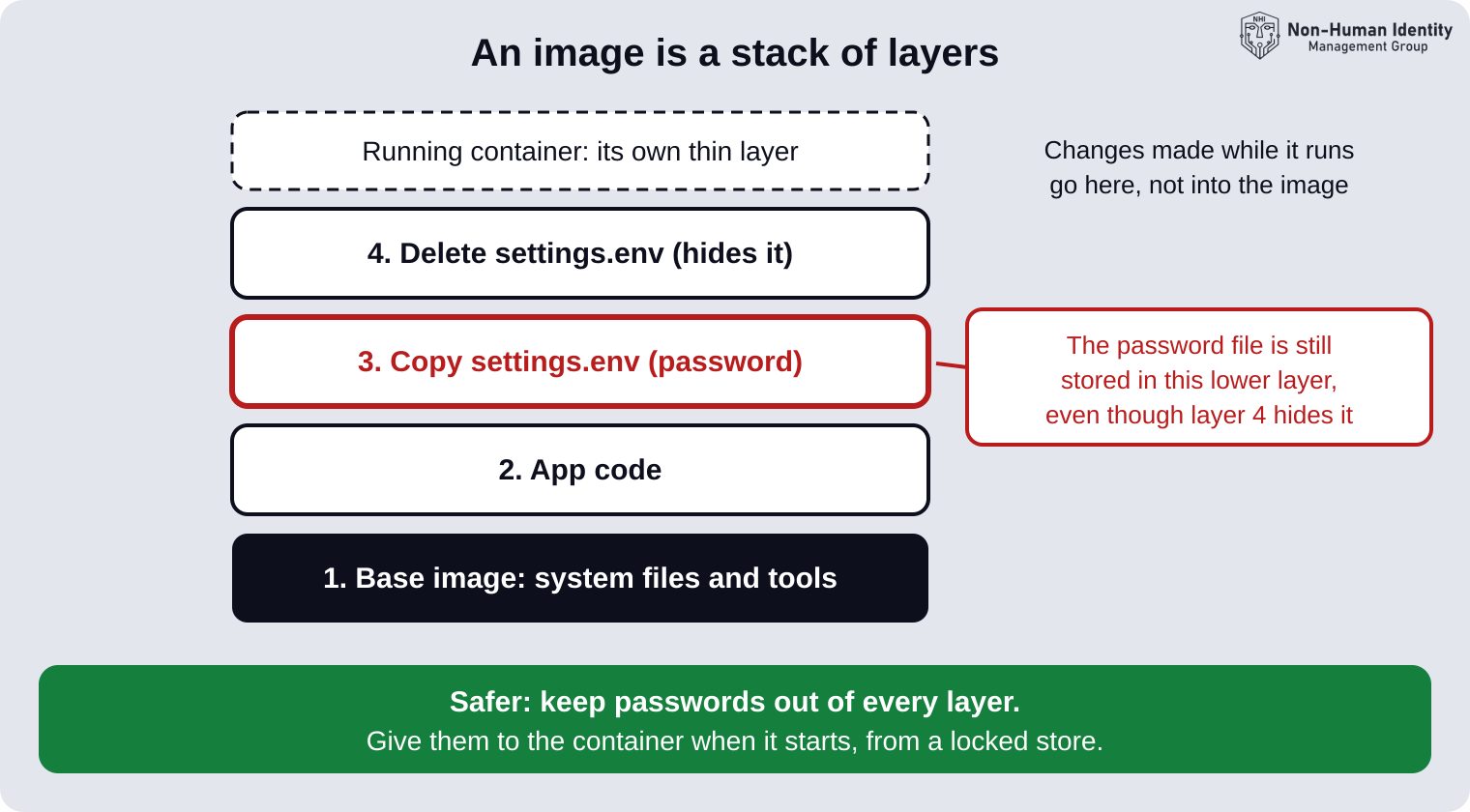
A container image works the same way. It is built from layers, and each layer is a set of file changes: files added, changed or deleted.[2] The bottom layers usually come from a base image, a ready-made starting point such as a small operating system. Your app's own files sit on top.
An image holds the system files, the tools, the app code and the command that starts it.[1] Once built, an image does not change. To change anything, you build a new one.[1] When you start an image, you get a container. It is a running copy with its own thin layer on top for any changes it makes.[1]
Where the comparison stops working: on a projector, you can pull out a sheet you regret. In an image, a lower layer stays in the package. A later layer can only hide a file from view. So anything put in early can travel with every copy.
Why does it matter?
One image can be copied to hundreds of computers. A flaw or a password inside it is copied too.
If you are learning containers
What could happen: you add a key to an image to test it, share the image, and the key goes with it.
Check this: keep passwords and keys out of the image. Give them to the container when it starts.
Next: Docker for Beginners
If you run a small business
What could happen: your supplier's app runs on an old image with known flaws that nobody has updated.
Check this: ask how often your supplier rebuilds and scans the images they run for you.
If you manage a tech team
What could happen: someone pulls a look-alike image from a stranger on a public registry.
Check this: agree which registries and publishers your team may use.
What does it look like?
An image is usually built from a short recipe file called a Dockerfile. Each line that changes files makes a new layer.[2] Here is a made-up recipe for a bakery's ordering app.
Example only. All values are made up.
# Dockerfile for the Crumb and Co ordering app
FROM example.invalid/someone/webbase:latest     (1)
COPY app/ /app/
COPY settings.env /app/settings.env             (2)
ENV PAYMENT_KEY=EXAMPLE-KEY-0000-FAKE           (3)
RUN rm /app/settings.env                        (4)
CMD ["/app/start"]
- A base image from an unknown publisher, picked by the moving label "latest".
- In a real file, this would copy a settings file with the database password into a layer.
- In a real file, this line would contain the payment key, stored in the image itself.
- This deletes the settings file in a new layer. The layer from step 2 still holds it.
Why this is risky: anyone who can download the image can look through its layers and find both values. Docker's own guide warns that settings like line 3 stay in the final image.[4] The base image could also change without warning, because "latest" can point to something new.
The safer way: start from a trusted base image, pinned to its fingerprint. Copy in only the app. Hand passwords and keys to the container when it runs, from a locked store. If the build itself needs a secret, use the build tool's secret feature, which is designed to keep it out of the final image.[4]
How does it work?
A US government guide on container security describes containers as a way to package and run apps that is easy to move, reuse and automate.[6] Here is the usual life of an image, from recipe to running app.
- Build. A tool reads the recipe and makes the image, one layer at a time. Identical layers are stored once and shared between images.[2]
- Label. The image gets a name and a tag, a label such as
shop:2.1. It also has a digest, a fingerprint worked out from its contents. - Scan. A scanner lists the software packages inside, called a software bill of materials, and checks them against a list of known flaws.[5]
- Store. The image is uploaded to a registry. Docker Hub is the public registry Docker uses by default.[1]
- Pull and run. A server downloads the image and starts containers from it. If no tag is given, Docker uses the tag "latest".[3]
- Rebuild. When the base image or a package gets a fix, the team builds a new image. Old images keep their old flaws, because images do not change.
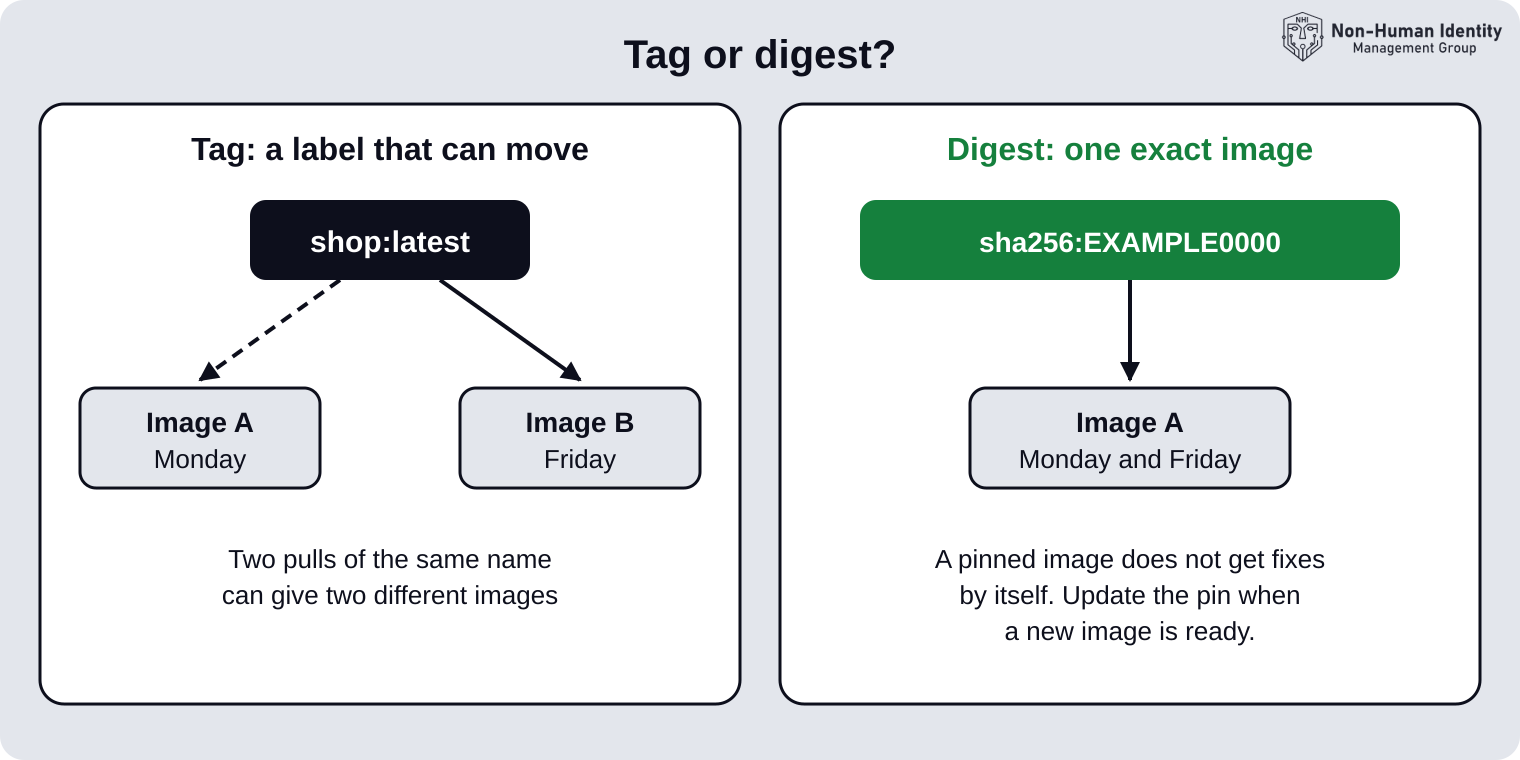
Tags are handy names, but they can move. A team can push a new image under the same tag, so pulling shop:latest on Friday may give you a different image from Monday. A digest points to one exact image, so pulling by digest gets the same image each time.[3] The catch is that a pinned image does not pick up security fixes by itself. Someone has to update the pin.[3]
Not all public images are equal. Docker Hub marks a set of curated Official Images and images from Verified Publishers whose identity Docker has checked. Everything else is community content, so check who publishes it and how recently it was updated.[1]
A worked example
Uma Lomax runs Crumb and Co, a fictional bakery with an online ordering app. A contractor, Marek Falk, looks after the app, which runs in containers on a rented server.
Uma's new IT helper asks a simple question. "What is inside the image we run?" Marek is not sure, so he runs a scanner over it.
The report has two surprises. The base image is over a year old and has several known flaws with fixes available. And the scanner flags a payment key, set as a setting in one of the layers.
Uma remembers the projector sheets. The key is in a lower layer, so deleting it on top would not help. Marek asks the payment provider to cancel the key and issue a new one first. Once the change has taken effect, the old key should no longer work for anyone who copied it.
Next, he changes the recipe. He switches to an official base image and pins it to its digest. The new key now lives in the hosting service's secret settings and is handed to the container when it starts. Nothing secret is copied into any layer.
He rebuilds, scans again and checks the report before he pushes the new image to the team's private registry. The old image is deleted from the registry so nobody runs it by mistake.
Last, they agree a habit. Marek will rebuild the image every month, and sooner when a serious fix comes out for the base image. Uma adds "rebuild and scan" to her monthly supplier check.
Myths and mistakes
| What people think | What is true |
|---|---|
| I deleted the file in my Dockerfile, so it is gone. | A later layer hides it. The earlier layer can still hold it, so keep secrets out from the start. |
| "latest" means the newest, safest version. | It is just the default label. It points wherever the publisher last put it.[3] |
| An image that was clean last year is clean now. | New flaws are found in old software all the time. Scan again and rebuild. |
| Any popular image on a public registry is safe. | Popular is not the same as checked. Prefer official or verified publishers.[1] |
| Fixing the running container fixes the image. | Changes in a running container go in its own top layer. The image stays as it was.[2] |
What can I do this week?
- List the images your team or supplier runs, and who builds each one.
- Scan one image and read the list of known flaws.
- Check that no recipe copies settings files or keys into the image.
- Agree which registries and publishers your team may pull from.
- Set a date to rebuild images when base images get fixes.
Checklist
- Every image starts from a trusted base image with a known publisher.
- Production uses a fixed tag or a digest, not "latest".
- No passwords, keys or tokens are copied or set inside any layer.
- Images are scanned before they are pushed and again on a schedule.
- Images are rebuilt when the base image or a package gets a security fix.
- The private registry needs a sign-in, and only the build system can push to it.
- Old and unused images are removed from the registry.
Common questions
What is the difference between an image and a container?
An image is the sealed package, and a container is a running copy of it. You can start many containers from one image. Each container gets its own thin top layer for changes, and removing the container removes that layer while the image stays the same.
Should I use the "latest" tag?
Not for anything that matters. "latest" is only the default label and can point to a different image tomorrow. Use a version tag or a digest so you know exactly what runs. Update it on purpose when a new image with fixes is ready.
How do I know what is inside an image?
Use an image scanner. It lists the packages inside, often as a software bill of materials, and matches them against known flaws. Many registries and build tools include one. See Container Image Security Guide for more on scanning.
I found a key inside an image. What now?
Cancel or change the key at the service that issued it first, because copies of the image may already exist. Then rebuild the image without the key and remove the old one from the registry. See How to find hard-coded secrets in container images.
What makes a good base image?
A good base image comes from a publisher you can check, is updated often and holds only what your app needs. Smaller bases contain fewer packages, so there is usually less to patch. Official and verified images on Docker Hub are a sensible start.
Where next?
Ready for the detail? Read the practitioner guide: Container Registry Security Guide. It goes further into registry access for people and build systems, signing and verifying images, and pruning stale images.
Also useful:
- Container Image Security Guide
- Docker for Beginners
- Container Security for Beginners
- Secrets in Code for Beginners
Related NHI Mgmt Group resources: Secrets in Container Images and Build Artefacts Guide · How to sign and verify container images with cosign · SBOM Guide
Key terms
- Container image
- A sealed package of an app and everything it needs, used to start containers.
- Container
- A running copy of an image, with its own thin layer for changes.
- Layer
- One set of file changes in an image, stacked on the layers below it.
- Base image
- The ready-made starting point an image is built on, such as a small operating system.
- Registry
- An online store where container images are kept and downloaded from.
- Digest
- A code worked out from an image's contents that identifies one exact image.
- Software bill of materials
- A list of the software parts inside a package, used to check for known flaws.
Sources and further reading
- What is an image? Docker Docs, Docker Inc. https://docs.docker.com/get-started/docker-concepts/the-basics/what-is-an-image/, accessed 28 Nov 2026.
- Understanding the image layers. Docker Docs, Docker Inc. https://docs.docker.com/get-started/docker-concepts/building-images/understanding-image-layers/, accessed 28 Nov 2026.
- docker image pull (CLI reference: pull by tag and by digest). Docker Docs, Docker Inc. https://docs.docker.com/reference/cli/docker/image/pull/, accessed 28 Nov 2026.
- Build secrets. Docker Docs, Docker Inc. https://docs.docker.com/build/building/secrets/, accessed 28 Nov 2026.
- Docker Scout. Docker Docs, Docker Inc. https://docs.docker.com/scout/, accessed 28 Nov 2026.
- Application Container Security Guide (SP 800-190). Souppaya, Morello and Scarfone, NIST, September 2017. https://csrc.nist.gov/pubs/sp/800/190/final, accessed 28 Nov 2026.