Docker is a tool that packs an app into a box, called a container, so it runs the same anywhere.
This guide is for students, home lab builders and anyone trying Docker for the first time. You do not need to be a developer to be affected: many home servers, media apps and small business tools now ship as Docker containers, and a few default settings decide who else can reach them.
In short
- A Docker image is a sealed package of an app. A container is that package running on your computer.
- By default, an app you open to the network with Docker can be reached from other devices, not only your own computer.
- Anyone who can control Docker on a computer has close to full control of that computer.
- Pick trusted images, keep passwords out of them, run apps without admin rights and open only the network doors you need.
What you will learn
- Explain the difference between an image and a container.
- Spot three risky settings in a made-up Docker setup.
- Check which of your containers can be reached from other devices.
- Choose images from publishers you can trust.
- Sealed app package (image)
- a read-only bundle of an app and everything it needs to start.
- Running box (container)
- an app started from an image, kept apart from other apps on the same computer.
- Network door (port)
- a numbered opening that lets other devices talk to an app.
What is Docker?
Think of a shipping container. Goods are packed once into a standard box, then moved by ship, train or lorry without unpacking.
Docker does the same for software. An app is packed with its files and settings into a container image (a sealed package that never changes once built).[6] When you start an image, you get a container: the app running in its own space, with its own files and network.[5]
Images are kept in a registry, an online library of images. Docker Hub is Docker's public registry and the one it uses by default.[6] A text file called a Dockerfile holds the packing list used to build an image.
On the computer, a background program called the Docker daemon (a helper that runs out of sight) does the real work. You type commands, and the daemon starts and stops containers.
Where the comparison stops working: shipping containers sit apart on a ship. Containers on one computer all share its core, the part of the system that controls the hardware, called the kernel. A full virtual machine has its own core, so it is kept apart more strongly than a container is.[5]
Why does it matter?
Docker makes it easy to run an app in one line. It also makes it easy to open that app to more people than you meant to.
If you run a home server or home lab
What could happen: a media app or dashboard you opened "just for the laptop" can be reached from other devices on your network, or beyond.
Check this: list which containers open a port, and to whom.
If you are a student or learning to code
What could happen: you copy an image from a stranger's page and it carries old, faulty or harmful software.
Check this: start from images with an official or verified badge.
If you run a small business
What could happen: a supplier sets up your booking or stock app in Docker with an admin password baked into the image.
Check this: ask where the app's passwords are kept and who can control Docker on the server.
What does it look like?
Many people describe their containers in a short settings file. Here is a made-up one for a home photo app.
Example only. All values are made up.
# settings for a home photo app (made up)
image: randomuser0000/photos-EXAMPLE:latest   (1)
ports:
  - "8080:80"                                  (2)
privileged: true                               (3)
environment:
  ADMIN_PASSWORD: FAKE-pass-0000               (4)
- An image from an unknown publisher, with no fixed version. In a real file, this line would name the image the app is built from.
- Opens the app on port 8080. With no address in front, Docker opens it on every network the computer is on.
- Gives the container extra power over the computer it runs on.
- In a real file, this line would contain the app's admin password, typed straight in.
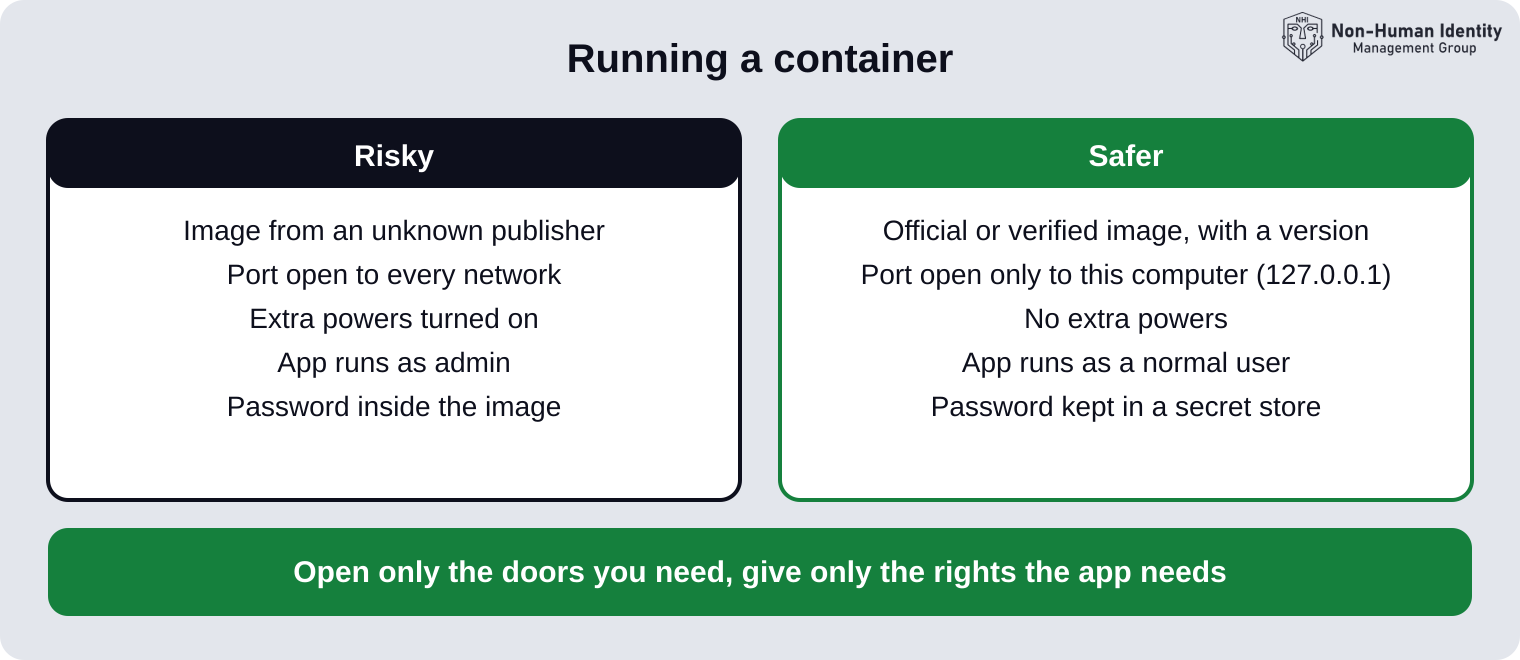
Why this is risky: Docker's own documentation says publishing ports is insecure by default, because a published port can be reached from outside the computer.[2] On Linux, Docker's network rules can also sit in front of a common firewall tool called ufw, so the firewall may not block the port.[3] Anyone who can read the file can copy the password.
The safer way: use an official or verified image with a version number.[4] Open the port only to your own computer by putting 127.0.0.1 in front of it.[2] Leave out extra powers the app does not need. Keep the password in a separate secret store, not in the file or the image.
How does it work?
Here is the journey of an app from packing list to running box.
- Write the packing list. Someone writes a Dockerfile that says which base image to start from and which files to add.
- Build the image. Docker follows the list and makes a sealed image in layers. Each layer is a set of file changes.[6]
- Share the image. The image is uploaded to a registry such as Docker Hub, where others can download it.
- Start a container. On your computer, the daemon downloads the image and starts it. The app gets its own view of files, other programs and the network.[1]
- Open a door if needed. If you publish a port, other devices can talk to the app. Without an address, Docker opens it on every network the computer uses.[2]
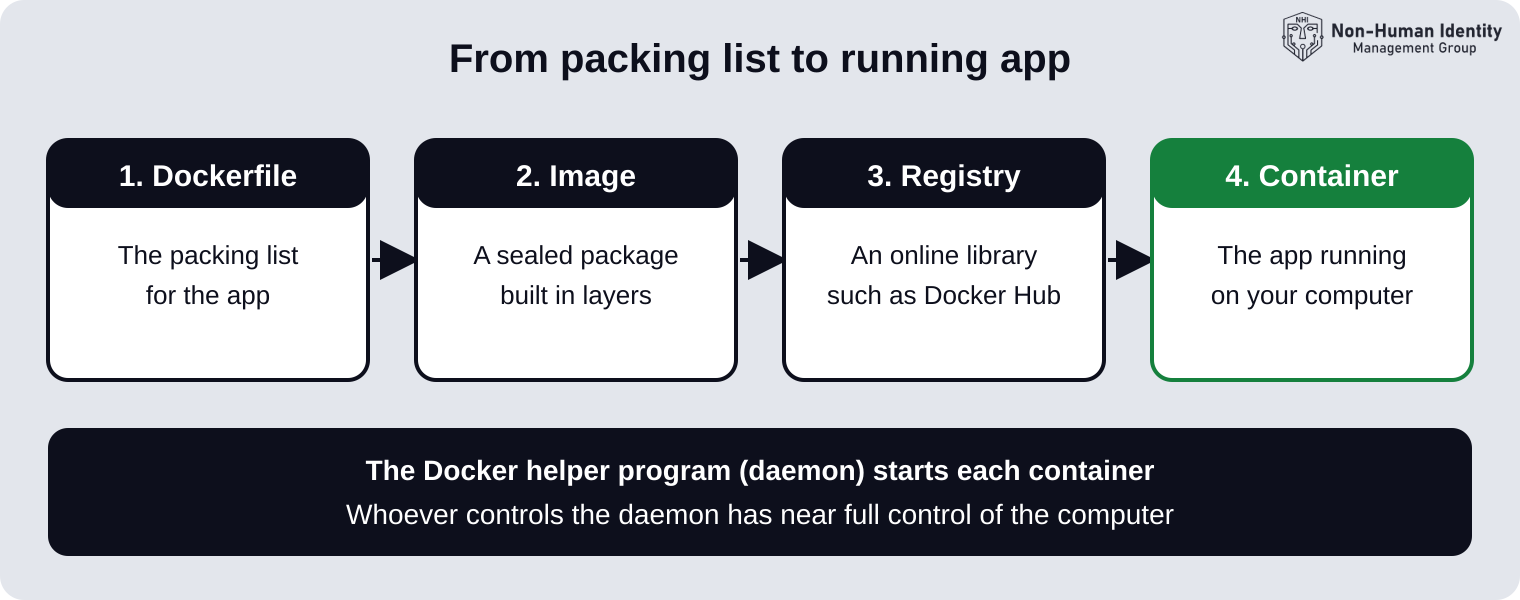
Two points matter most for safety. First, the daemon usually runs with full admin rights, which on Linux are called root. Docker says only trusted users should control it.[1] Adding a user to the docker group on Linux gives that user root-level rights.[8] Docker also offers a rootless mode, which runs the daemon and its containers as a normal user.[9]
Second, anything baked into an image travels with it. Docker warns that passwords passed in while building an image can stay in the finished image, where anyone with the image can read them.[7]
A worked example
Umar Tanaka is a student who helps out at Heron Kitchens, a fictional café with two branches. The owner asks him to set up a simple stock app on the office computer.
Umar finds the app online and copies a settings file from a forum post. It starts in one line. The app works, and the staff can open it on their tablets.
A week later, Umar reads that Docker opens published ports on every network by default. He remembers the shipping container. The box is sealed, but he left the doors wide open.
So he checks three things. First, the image. It came from an unknown account, so he swaps it for the version the app's makers publish, with a fixed version number.
Next, the port. The tablets need the app, so he cannot close it to everything. He asks the café's IT supplier to make sure the router does not pass that port in from the internet. He also notes that Docker's network rules may bypass the office computer's firewall, so he does not rely on it alone.
Then, the password. The admin password sits in the settings file in plain text. He changes it, moves it into a separate secrets file that only the app reads and removes the old line.
Last, he checks who can run Docker on the office computer. Two staff accounts are in the docker group, but they only need the app, so he takes them out.
The owner asks him to write the steps down, so the next person to update the app follows them too.
Myths and mistakes
| What people think | What is true |
|---|---|
| A container is fully sealed off from my computer. | Containers share the computer's core. Settings such as extra powers or shared folders can weaken the walls.[1] |
| My firewall will block any port Docker opens. | On Linux, Docker's network rules can bypass the ufw firewall tool.[3] Choose where the port opens instead. |
| Any image on Docker Hub is safe. | Only some images carry a trusted badge. Others are community uploads, so check the publisher first.[6] |
| Being in the docker group is just a convenience. | On Linux it gives root-level rights over the computer.[8] |
| A password set while building the image is hidden. | It can stay in the image for anyone who has a copy.[7] |
What can I do this week?
- List your running containers and note which ones open a port.
- Put
127.0.0.1in front of any port only your own computer needs. - Swap community images for official or verified ones where they exist.
- Check who is in the docker group on each Linux computer you look after.
- Move any password out of your settings files and images.
Checklist
- Images come from official, verified or known publishers.
- Each image has a fixed version, not just "latest".
- Ports open only to the networks that need them.
- The router does not pass container ports in from the internet unless you mean it to.
- Containers do not use extra powers (privileged mode) unless there is a clear need.
- Apps inside containers run as a normal user where the image allows it.
- No passwords or keys sit in images, Dockerfiles or settings files.
- Only trusted people can control Docker on each computer.
Common questions
What is the difference between Docker and a container?
Docker is the tool, and a container is what it runs. Docker builds images, fetches them and starts them as boxes called containers. Other tools can run containers too. Docker is the best-known name, so people often mix up the two words.
Is Docker the same as a virtual machine?
No. A virtual machine acts like a whole computer and runs its own core. A container is a normal program kept apart from others. It shares the computer's core. So containers are smaller and start faster. Virtual machines keep things apart more strongly.
Is Docker safe to use at home?
Yes, with sensible settings. Docker says containers are fairly secure by default, especially when apps inside run as normal users.[1] Most home problems come from open ports, untrusted images and passwords in files, which you can fix with the checklist on this page.
What is Docker Desktop?
Docker Desktop is an app that runs Docker on Windows and Mac laptops. It sets up the hidden parts for you. The same safety habits apply: trusted images, closed ports and no passwords in files. See Docker Desktop Security for the settings.
Do I need Kubernetes to use Docker?
No. Docker on its own is enough for one computer and a handful of apps. Kubernetes is a separate tool for running many containers across many computers. See Container Security for Beginners if your organisation uses it.
Where next?
Ready for the detail? Read the practitioner guide: Docker and Docker Compose Security Guide. It goes further into daemon hardening, Compose file settings and how to limit what each container can do.
Also useful:
- Container Security for Beginners
- Dockerfile Security for Beginners
- Docker Security Checklist
- Cyber Security Home Labs for Beginners
Related NHI Mgmt Group resources: Docker Socket and Remote API Exposure · How to use build secrets in Docker and BuildKit · Docker Hub Tokens Security Guide
Key terms
- Docker
- A tool for building, sharing and running apps as containers.
- Container
- An app started from an image, running apart from other apps on the same computer.
- Container image
- A read-only package holding an app, the files it needs and the command that starts it.
- Container registry
- An online library that stores images so people can download them.
- Dockerfile
- A text file that lists the steps for building an image.
- Published port
- A numbered network door that lets other devices reach an app inside a container.
- Least privilege
- Giving each app or person only the access it needs, and no more.
Sources and further reading
- Docker Engine security. Docker Docs, Docker Inc. https://docs.docker.com/engine/security/, accessed 28 Nov 2026.
- Port publishing and mapping. Docker Docs, Docker Inc. https://docs.docker.com/engine/network/port-publishing/, accessed 28 Nov 2026.
- Packet filtering and firewalls. Docker Docs, Docker Inc. https://docs.docker.com/engine/network/packet-filtering-firewalls/, accessed 28 Nov 2026.
- Trusted content. Docker Docs, Docker Inc. https://docs.docker.com/docker-hub/image-library/trusted-content/, accessed 28 Nov 2026.
- What is a container? Docker Docs, Docker Inc. https://docs.docker.com/get-started/docker-concepts/the-basics/what-is-a-container/, accessed 28 Nov 2026.
- What is an image? Docker Docs, Docker Inc. https://docs.docker.com/get-started/docker-concepts/the-basics/what-is-an-image/, accessed 28 Nov 2026.
- Build secrets. Docker Docs, Docker Inc. https://docs.docker.com/build/building/secrets/, accessed 28 Nov 2026.
- Linux post-installation steps for Docker Engine. Docker Docs, Docker Inc. https://docs.docker.com/engine/install/linux-postinstall/, accessed 28 Nov 2026.
- Rootless mode. Docker Docs, Docker Inc. https://docs.docker.com/engine/security/rootless/, accessed 28 Nov 2026.