Container security is the work of keeping software packaged in containers safe at every stage: when the package is built, stored, started and run, and when a system such as Kubernetes manages many containers at once.
Containers have become a standard way to run modern applications, from small web shops to large cloud platforms. This guide is for newcomers, students, career changers and managers who are not security specialists. It explains what containers and Kubernetes are, where the main risks sit, how a container is protected from build to run, a worked example and simple first steps. It does not go into configuration detail; for that, follow the practitioner guides linked at the end.
By the end of this guide you will be able to:
- Explain what a container, a container image and Kubernetes are.
- Understand the five main places where container risk sits.
- Describe how a container is protected from build to run.
- Identify three practical first steps for a small team.
Key takeaways
- Security starts when the image is built. A small base image, no passwords or keys inside and a regular rebuild remove many problems before anything runs.
- Containers share the host's core. All containers on a machine share its operating system kernel, so one badly set up container can put the others and the host at risk.
- Kubernetes adds power and new risks. Its admin access, permissions and stored secrets need the same care as any other system that controls production.
- Least privilege applies to software too. Containers should run as a normal user, with only the permissions and network access they need.
- Containers are non-human identities. Each workload that calls an API or the cluster has an identity and credentials that need an owner, a narrow scope and monitoring.
What it is, in plain English
A container is an application packaged with everything it needs to run, such as code, libraries and settings, running as an isolated process on a computer. The package it starts from is called a container image: a read-only template that can be copied and started anywhere a container tool is installed. Images are kept in a container registry, a library that stores and hands out images. NIST, the US standards body, describes containers as a portable, reusable and automatable way to package and run applications.[1]
When an organisation runs hundreds of containers, it needs something to start them, restart them when they fail and connect them together. This is called container orchestration, and Kubernetes is the most widely used orchestrator. In Kubernetes, one or more containers that run together form a pod, groups of machines form a cluster, and a namespace is a labelled area of the cluster used to keep teams or applications apart.
A helpful comparison is shipping containers on a cargo ship. Each box is packed at the factory, sealed, labelled and loaded alongside others, and the crane operator (the orchestrator) decides where each box goes. Container security means checking what goes into each box, keeping track of where the boxes come from, making sure one leaking box cannot spoil the others, and watching the ship's controls. Where the analogy breaks down: shipping containers are separated by steel walls, while software containers on one machine share the same operating system core, called the kernel. The walls between them are made of software settings, and settings can be loosened by mistake.
Why it matters to you
- If you run a small business: your website or app may run in containers on a cloud service, even if you never see them. A few default settings and an out-of-date image can leave customer data exposed.
- If you are new to a security job: containers and Kubernetes appear in most modern cloud environments, and terms such as image scanning, pod security and RBAC come up quickly.
- If you are a manager: containers let teams release software faster. Security checks built into that process keep speed from turning into risk.
NIST's container security guide, SP 800-190, groups the risks into five areas.[1] The table below puts them in plain words.
| Where the risk sits | Examples NIST gives | What helps |
|---|---|---|
| Images | Known vulnerabilities, bad settings, hidden malware, passwords stored in plain text, images from untrusted sources. | Scan images, keep secrets out, use only trusted and signed images. |
| Registries | Unencrypted connections, stale images, weak sign-in and permission rules. | Encrypted connections, sign-in for every pull and push, remove old images. |
| Orchestrator (for example Kubernetes) | Unlimited admin access, unauthorised access, poorly separated network traffic, mixing sensitive and ordinary workloads. | Least privilege for admins and workloads, strong sign-in, separate by sensitivity. |
| Containers | Flaws in the container runtime, unlimited network access, insecure settings, flaws in the application, rogue containers. | Patch the runtime, limit network traffic, use safe default settings. |
| Host operating system | Large attack surface, shared kernel, flaws in host components, wrong user rights. | A small, container-specific host operating system, kept patched. |
Attackers know these routes. MITRE ATT&CK, a public catalogue of attacker techniques, lists deploying a container to run malicious code (T1610) and escaping from a container to the host (T1611) as techniques seen in real attacks.[8]
How it works, step by step
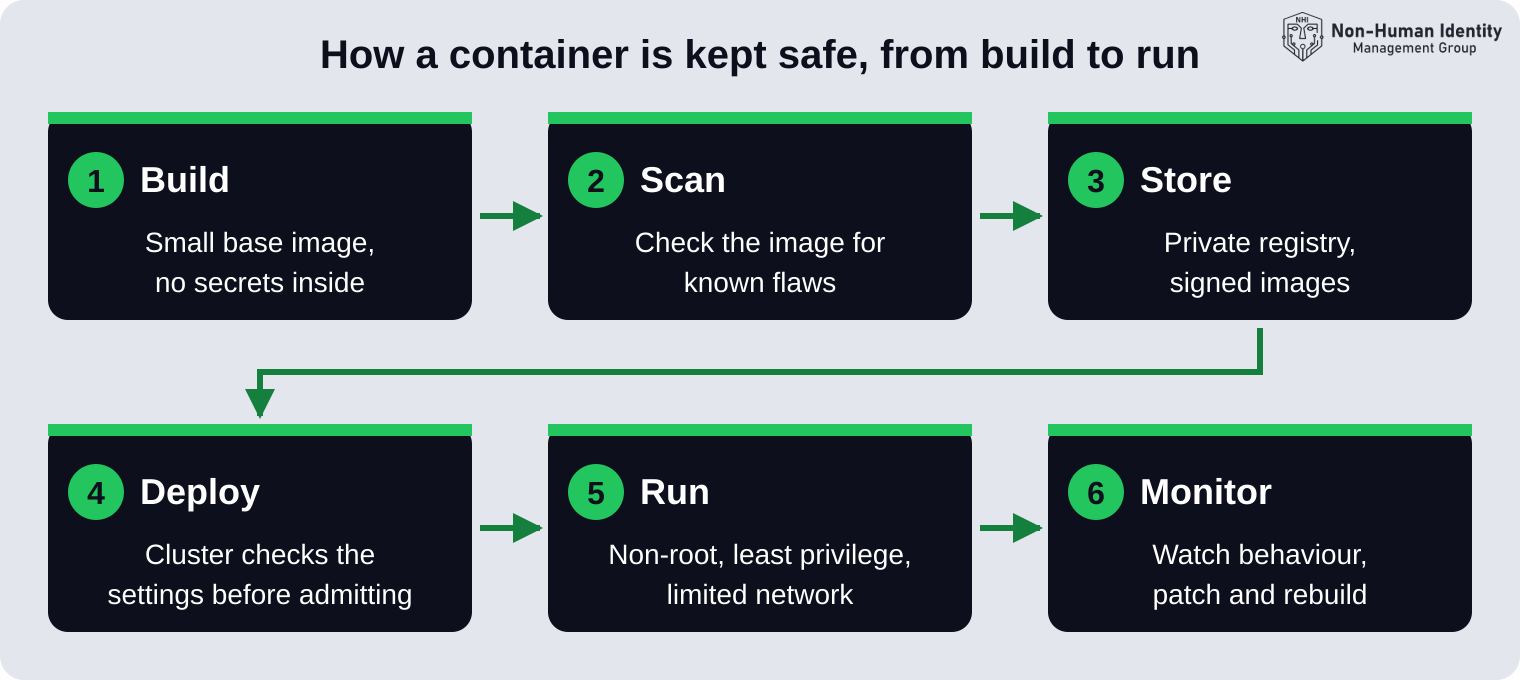
Most teams protect containers along the same path an image travels, from a developer's build to a running workload.
- Build a clean image. Start from a small, trusted base image so there is less software to go wrong, set the container to run as an ordinary user rather than the all-powerful root user, and never put passwords or keys inside the image.[7] NIST lists clear text secrets in images as a specific image risk.[1]
- Scan before release. Image scanning checks the image for known vulnerabilities and risky settings, ideally as an automatic step in the build pipeline so problems are caught before deployment.[7]
- Store and sign. Push the image to a private registry that requires sign-in. NIST recommends allowing only trusted, signed images to run, removing stale images and using fixed version labels rather than relying on a moving label such as "latest".[1]
- Check at the door. When a container is about to start in Kubernetes, an admission controller can check its settings first. Kubernetes has three built-in Pod Security Standards: Privileged (unrestricted), Baseline (blocks known ways to gain extra privileges) and Restricted (follows current hardening good practice).[2] The built-in Pod Security Admission feature applies them per namespace in one of three modes: enforce (reject pods that break the rules), audit (record the breach in the audit log) or warn (show the user a warning).[3]
- Run with least privilege. Give each container only the permissions, capabilities and network access it needs. OWASP warns that giving a container access to the Docker management socket is equivalent to giving unrestricted root access to the host.[7] In Kubernetes, RBAC (role-based access control) decides what people and workloads can do; its guidance is to grant rights per namespace where possible, avoid wildcard permissions and avoid using the all-powerful cluster-admin role except where specifically needed.[5]
- Monitor, patch and rebuild. Watch running containers for unusual behaviour, keep the host and container software up to date, and rebuild images regularly so fixes in the base image reach production.[7]
Where identity fits
A container that calls a database, a cloud service or the Kubernetes API needs an identity and credentials, just like a person signing in. That makes it a non-human identity (NHI): an identity with an account and credentials used by software rather than a person. Containers belong to the software workload family of NHIs. See Non-Human Identities for Beginners for the wider picture.
- Service accounts: in Kubernetes, each pod runs as a Kubernetes service account. By default, Kubernetes now gives pods a short-lived token that rotates automatically, and a pod that does not need to call the Kubernetes API can opt out of receiving one. Older-style service account token Secrets do not expire or rotate.[6] Short-lived tokens are controlled mainly by who can obtain them and what they allow, so keep each service account's permissions narrow.[5] See Kubernetes Service Accounts for Beginners.
- Secrets: Kubernetes warns that its Secrets are stored unencrypted in its data store (etcd) by default, and that anyone allowed to create a pod in a namespace can use that to read any Secret in it. It advises turning on encryption at rest, least-privilege access to Secrets and considering an external secret store.[4]
A worked example
Pebble Learning is a fictional online tutoring company with 25 staff. Its booking website runs as containers on a managed Kubernetes service from a cloud provider. Leo, the only developer with operations experience, set it up two years ago.
A new security-minded hire, Ama, reviews the set-up and finds three things. The website image was built two years ago and never rebuilt, so it contains old software with known flaws. The website container runs as root. And the database password is written into the image itself, so anyone who can download the image can read it.
Ama and Leo agree a plan:
- Rebuild and scan: they switch to a smaller base image, set the container to run as an ordinary user and add an image scan to the build pipeline, with a monthly rebuild even when the code has not changed.
- Move the secret out: they change the database password, since the old one must be treated as exposed, and supply the new one at runtime from the cloud provider's secret store rather than baking it into the image.
- Check at the door: they label the website's namespace to warn and audit against the Restricted standard first. After two weeks with no unexpected warnings, they switch it to enforce. They agree that if enforcement blocks an urgent release, any exception is approved by Ama, written down and removed within a week.
This does not make Pebble Learning safe from every attack. The website code itself could still have a flaw, and the cloud provider still looks after its own part of the platform. But the most common and easily avoided problems are now closed, and the team has a routine to keep them closed.
Myths and misunderstandings
| What people think | What is true |
|---|---|
| Containers are isolated, so they are secure by design. | Containers share the host's kernel, and isolation depends on settings. NIST lists the shared kernel and insecure runtime settings as risks.[1] |
| Kubernetes Secrets are encrypted. | By default they are stored unencrypted in etcd. Encryption at rest must be turned on, or managed by your cloud provider.[4] |
| An official image from a public registry is always safe. | It is a better start than an unknown one, but it can still contain vulnerabilities. Scan it, use a fixed version and rebuild regularly.[1] |
| Our cloud provider secures our Kubernetes for us. | A managed service looks after parts of the platform, but your images, permissions, secrets and pod settings remain your job. See Shared Responsibility for Beginners. |
| A scan at build time is enough. | New vulnerabilities are found in old software every week, so an image that passed last month may fail today. Rescan and rebuild on a schedule. |
Key terms
- Container
- A process running with enforced limits on CPU, memory, network and file access, packaged with the code, dependencies and settings it needs.
- Container image
- A read-only package containing an application, its dependencies and the files needed to run it.
- Container registry
- A repository that stores and distributes container images for build and deployment.
- Kubernetes
- A container orchestration platform used to deploy, scale and manage containerised workloads.
- Pod
- The smallest deployable unit in Kubernetes: one or more containers scheduled together and sharing a network.
- Namespace
- A logical boundary inside a cluster that separates resources for different teams, applications or environments.
- Image scanning
- Inspecting container images before deployment for known vulnerabilities, malware, misconfigurations and risky dependencies.
- Pod Security Standards
- Built-in Kubernetes rule sets (Privileged, Baseline, Restricted) that govern how pods may run.
- Kubernetes RBAC
- The permission system that decides what users, groups and service accounts can do inside a cluster.
- Kubernetes service account
- The identity a workload uses to call the cluster API and other resources; a non-human identity.
- Container escape
- Code inside a container reaching beyond the container boundary to control the host or other workloads.
- etcd
- The key-value store Kubernetes uses to hold cluster data, including Secrets.
Common questions
What is the difference between a container and a virtual machine?
A virtual machine includes its own full operating system, including its own kernel. Containers on the same machine share the host's kernel, which makes them lighter and faster to start but means the separation between them depends more on settings.[1]
Do I need Kubernetes to use containers?
No. Many small teams run a handful of containers with a simple container tool or a cloud service that runs containers for them. Kubernetes becomes useful when you have many containers to manage, and it brings its own security tasks.
Why should a container not run as root?
Root is the all-powerful user. If an attacker breaks into a container running as root, they start with more power to change files or attempt an escape. OWASP describes setting an unprivileged user as the best way to block privilege escalation inside a container.[7]
Where should passwords and keys go, if not in the image?
Supply them when the container starts, from a secret store, and limit who can read them. Better still, use short-lived credentials where the platform supports them. See Secrets Management for Beginners.
What is a Pod Security Standard?
It is one of three built-in Kubernetes rule sets, Privileged, Baseline and Restricted, that decide which risky pod settings are allowed.[2] Many teams test with warn or audit before switching to enforce.[3]
Is container security the same as cloud security?
They overlap. Containers often run in the cloud, but container security focuses on images, registries, orchestrators and runtime settings, while cloud security also covers accounts, storage and networks. See Cloud Security for Beginners.
First steps
Three things you can do this week:
- List your images. Find out which images you run in production, where they come from and when each was last rebuilt. Anything older than a few months is a sensible first target.
- Scan one image and look for secrets. Run an image scanner on your most important image, and check whether any passwords, keys or tokens are stored inside it. If they are, change them and move them to a secret store.
- Turn on a Pod Security Standard in warn mode. In a Kubernetes cluster, label one namespace to warn and audit against the Baseline or Restricted standard, and review what it reports before you enforce anything.[3]
Checklist
- We know which images run in production and who owns each one.
- Images start from a small, trusted base and are rebuilt on a schedule.
- Every image is scanned in the build pipeline and again on a schedule.
- No passwords, keys or tokens are stored inside images.
- Containers run as an ordinary user, not root, and none run in privileged mode without an approved, recorded and time-limited exception.
- Images come from a private registry that requires sign-in, using fixed versions.
- Kubernetes namespaces enforce at least the Baseline Pod Security Standard.
- Kubernetes admin rights are limited, and nobody uses cluster-admin for daily work.
- Encryption at rest is turned on for Kubernetes Secrets, or confirmed with the cloud provider.
- Each workload has its own service account with only the permissions it needs.
Simple measures that show progress: the share of production images rebuilt in the last 30 days, the number of critical vulnerabilities in running images, the number of containers running as root or privileged, and the share of namespaces enforcing a Pod Security Standard.
Check your understanding
1. What is the difference between a container image and a container?
Answer: the image is the read-only package; a container is a running copy started from that image.
2. Why is a password stored inside an image a problem?
Answer: anyone who can download or inspect the image can read it, and it stays in every copy of the image. It should be supplied at runtime from a secret store instead.
3. What do the enforce, audit and warn modes do in Pod Security Admission?
Answer: enforce rejects pods that break the standard, audit records the breach in the audit log, and warn shows the user a warning while still allowing the pod.
4. Why does a container count as a non-human identity?
Answer: when it calls other systems it uses its own identity and credentials, such as a Kubernetes service account token, without a person involved.
Suggested learning pathway
- For the wider context, start with Cloud Security for Beginners.
- For the identities containers use, read Non-Human Identities for Beginners.
- For pod identities in detail, read Kubernetes Service Accounts for Beginners.
- For keeping passwords and keys out of images, read Secrets Management for Beginners.
- For the pipeline that builds images, read CI/CD Pipeline Security for Beginners.
- For the full practitioner view of images, runtimes and escape routes, see the Container Security Guide.
- For cluster hardening, see the Kubernetes Security Guide.
- For cluster permissions, see the Kubernetes RBAC Guide.
Standards and references
- SP 800-190, Application Container Security Guide. National Institute of Standards and Technology (NIST), September 2017. https://csrc.nist.gov/pubs/sp/800/190/final.
- Pod Security Standards. Kubernetes documentation, The Kubernetes Authors. https://kubernetes.io/docs/concepts/security/pod-security-standards/, accessed 27 Nov 2026.
- Pod Security Admission. Kubernetes documentation, The Kubernetes Authors. https://kubernetes.io/docs/concepts/security/pod-security-admission/, accessed 27 Nov 2026.
- Secrets. Kubernetes documentation, The Kubernetes Authors. https://kubernetes.io/docs/concepts/configuration/secret/, accessed 27 Nov 2026.
- Role Based Access Control Good Practices. Kubernetes documentation, The Kubernetes Authors. https://kubernetes.io/docs/concepts/security/rbac-good-practices/, accessed 27 Nov 2026.
- Service Accounts. Kubernetes documentation, The Kubernetes Authors. https://kubernetes.io/docs/concepts/security/service-accounts/, accessed 27 Nov 2026.
- Docker Security Cheat Sheet. OWASP Cheat Sheet Series, OWASP Foundation. https://cheatsheetseries.owasp.org/cheatsheets/Docker_Security_Cheat_Sheet.html, accessed 27 Nov 2026.
- T1611 Escape to Host and T1610 Deploy Container. MITRE ATT&CK, Enterprise, version 20. https://attack.mitre.org/techniques/T1611/ and https://attack.mitre.org/techniques/T1610/, accessed 27 Nov 2026.
Related NHI Mgmt Group resources: Container Image Security Guide · Kubernetes Secrets Security Guide · PodSecurityPolicy to Pod Security Admission