Google Cloud IAM is the system that decides who can do what in a Google Cloud account.
This guide is for anyone who has been asked to "give someone access" in Google Cloud, or who wants to know why access matters. You do not need to be a cloud engineer to be affected: if your business runs a website or app on Google Cloud, these settings decide who can change or delete it.
In short
- Google Cloud gives access by handing out roles, which are bundles of permissions, to people, groups and programs.
- Access given at a high level, such as a folder, also applies to everything inside it.
- The broad Owner, Editor and Viewer roles carry a very large number of permissions. Google advises against them for live systems.
- Give each person or program the narrowest role that does the job, give it to groups, and check it again later.
What you will learn
- Explain who, what and where in a Google Cloud access grant.
- Spot a role that gives far more access than the job needs.
- Check who has access to a project and where that access comes from.
- Ask the right questions before you grant access to someone.
- Someone or something with access (principal)
- a person, a group, or a program that can be given access.
- Bundle of permissions (role)
- a named set of allowed actions, such as "read files" or "start servers".
- Account for a program (service account)
- an account that software uses, not a person.
What is Google Cloud IAM?
Think of an office building with a pass system. Your pass can open the whole building, one floor, or one room. A pass for a floor also opens every room on that floor.
Google Cloud works the same way. IAM, short for identity and access management, is Google's tool for deciding who may take which action on which part of your cloud.[1] Every grant answers three questions: who, what and where.
- Who is the principal. It can be a person's Google account, a Google group, or a service account used by a program.
- What is the role. You cannot hand out single permissions directly. You hand out roles that contain them.[1]
- Where is the resource. That might be the whole organisation, a folder, a project, or one storage bucket (a folder for files in the cloud).
Before Google Cloud carries out any action, IAM checks that the person or program has the right permission.[1]
Where the comparison stops working: in a building you can see who walks in. In the cloud, a program can use its access at any hour, and nobody sees it happen unless someone reads the logs.
Why does it matter?
Too much access turns one small mistake, or one stolen password, into a big problem. Too little access stops work. IAM is where you find the balance.
If you run a small business on Google Cloud
What could happen: a contractor given the Owner role can delete your whole project, by accident or on purpose.
Check this: ask who holds the Owner role on your projects, and why.
If you are new to cloud work
What could happen: you grant a role on a folder, not a project, and it quietly applies to every project in that folder.
Check this: before you click save, read which level you are granting at.
If you build apps
What could happen: your app's service account has a key file that gets copied, and someone else uses the app's access.
Check this: ask whether your app can run without a downloaded key file.
What does it look like?
Example only. All values are made up.
Project: shop-website-EXAMPLE                          (1)
Who                                  Role
group: [email protected]          Storage Object Viewer   (2)
user:  [email protected]        Owner                   (3)
serviceAccount: shop-app@EXAMPLE     Editor                  (4)
Inherited from folder "Production":
group: [email protected]         Viewer                  (5)
- The place the access applies to. Here it is one project.
- A narrow role given to a group. The team can read stored files and little else.
- One outside person holds the most powerful role on the project.
- The app's own account can change almost anything in the project.
- Access set higher up, on a folder, flows down into this project.
Why this is risky: lines 3 and 4 give broad roles to a single person and a single program. If either is misused or taken over, the whole project is exposed. Line 5 is easy to miss because it is not set on the project itself.
The safer way: give the contractor a narrow role for the task, with an end date. Give the app only the permissions it uses. Review folder-level grants as carefully as project ones.
How does it work?
Here is what happens, in plain steps, when someone tries to do something in Google Cloud.
- Someone asks to act. A person or program tries an action, such as reading a file or deleting a server.
- Google checks who it is. The request comes from a known principal, such as a user or a service account.
- Google looks up the rules. Each resource has an allow policy, a list that links roles to principals.[1] Google reads the list on the resource and on every level above it.
- Inherited access adds up. A role granted on the organisation or a folder also applies to everything inside it.[1]
- Deny rules can block it. A separate deny policy can stop certain actions, even when a role would allow them.[1]
- Yes or no. If a role allows the action and no deny rule blocks it, the action goes ahead.
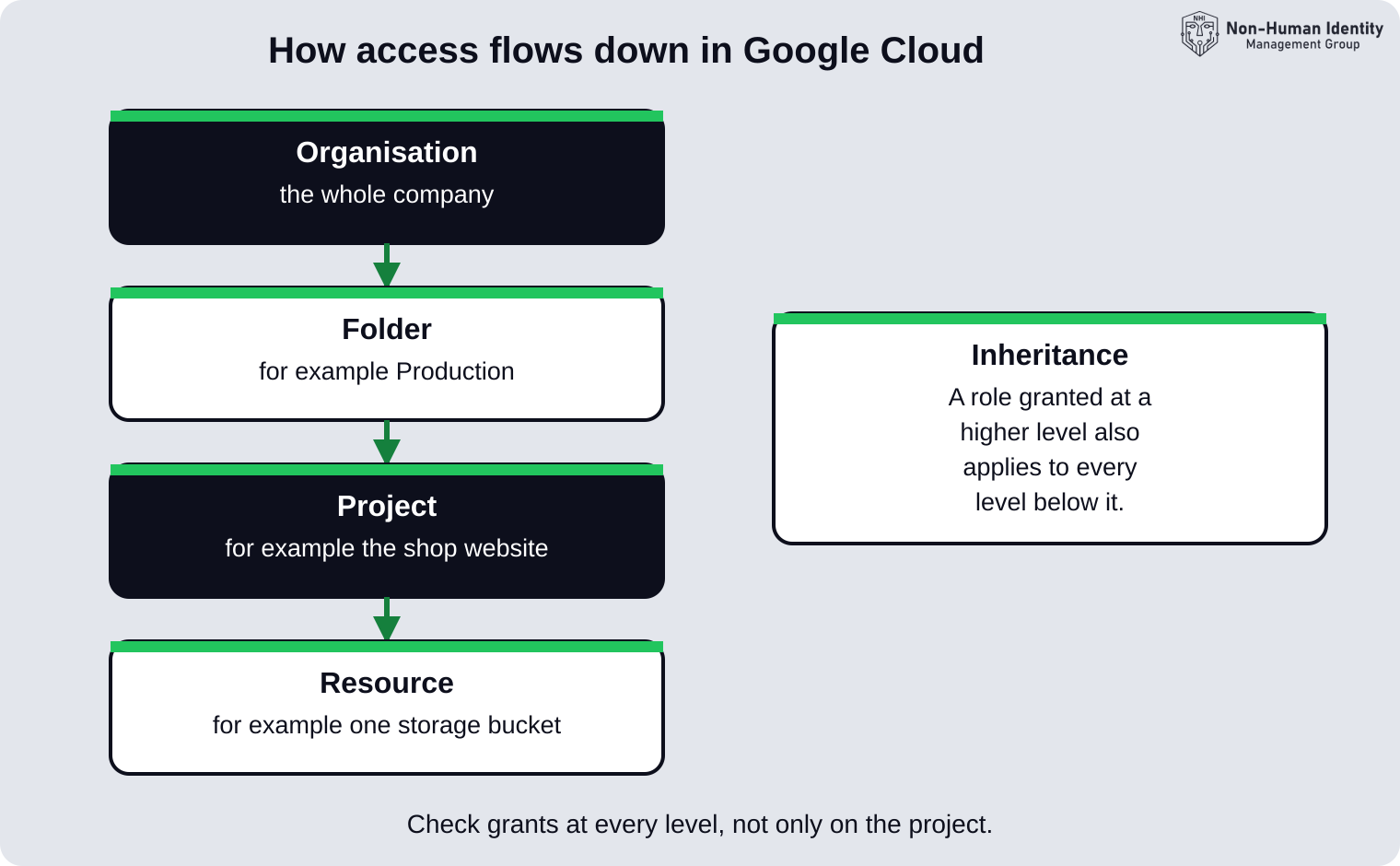
There are three kinds of role.[2]
- Basic roles are Owner, Editor and Viewer. Each covers a very wide range of services. Google says not to grant them on live systems unless there is no alternative.[2]
- Predefined roles are made and kept up to date by Google for a single job, such as reading stored files.
- Custom roles are ones you build yourself, holding only the permissions you pick. They take more work to maintain.[1]
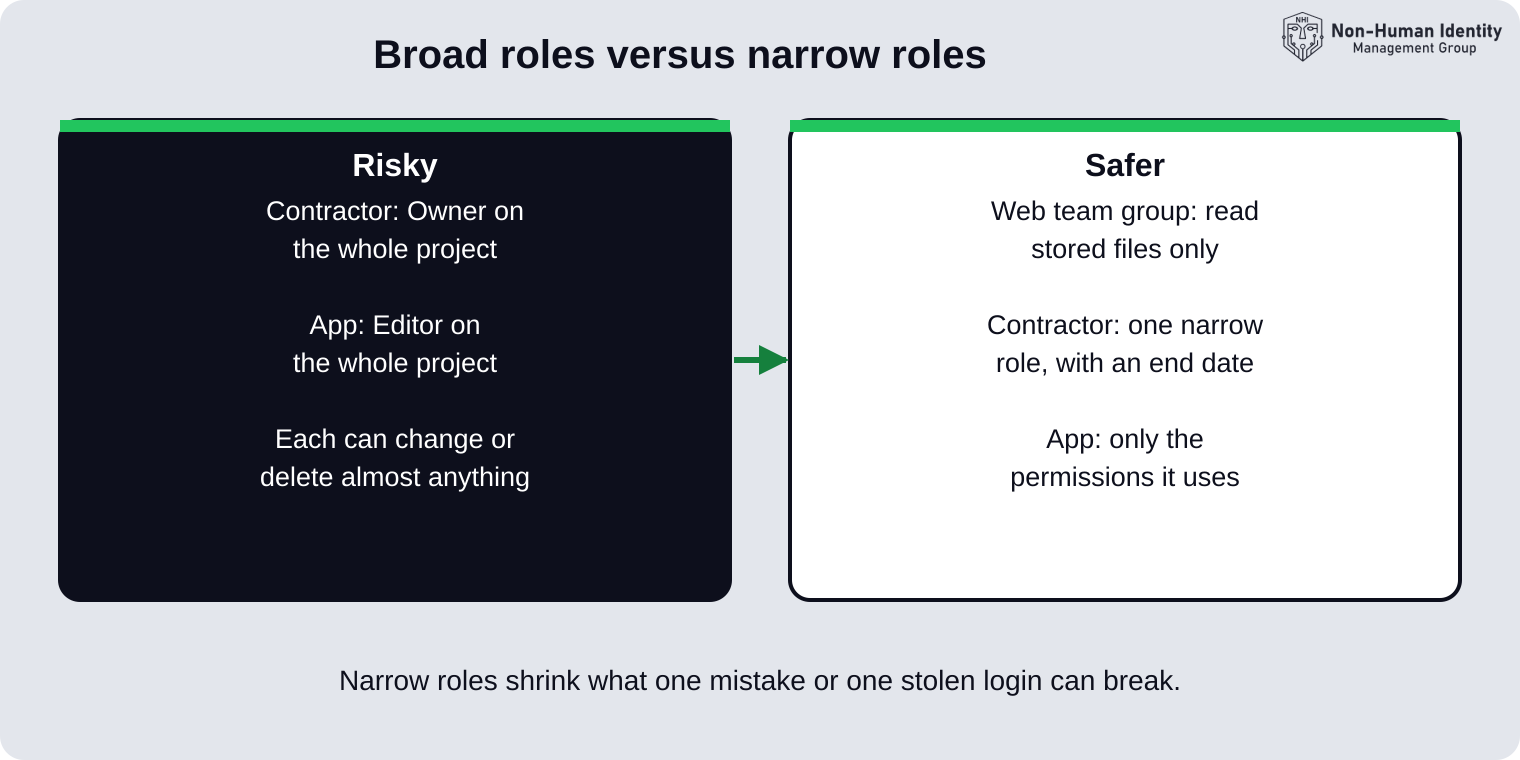
A worked example
This story is made up to show how it can happen.
Zelená Cloud is a small software firm in Bratislava. It runs its customer portal on Google Cloud. Chidi Nwosu joins as a developer and is asked to tidy up who has access.
He opens the portal's project and lists every grant. Three things stand out.
First, a freelance designer who left last spring still holds the Owner role. Nobody removed it when the work ended. Second, the portal's own service account holds Editor. That means the app could change almost anything in the project, not just the database it needs. Third, a group called all-staff can view the project. That grant is not on the project at all. It comes from the Production folder above it.
Chidi does not change everything at once. He talks to the team lead first. Together they remove the designer's access. They give the service account two predefined roles that cover what the app really uses. Google's role recommendations help here: they compare the permissions a principal holds with the ones it used over up to the last 90 days.[3] The recommendations do not apply themselves, so Chidi reviews each one.[3]
For the all-staff grant, they agree it should sit on one test folder, not Production. They also note that the app uses a downloaded key file. Chidi adds a task to move it to a method without a key file.
A week later, he checks the portal still works and reads the logs for any "permission denied" errors. There are two, and a small role fix sorts them.
What made the difference: Chidi looked at every level, not just the project, and he made small changes he could test.
Myths and mistakes
| What people think | What is true |
|---|---|
| Editor is a safe middle option. | Editor can change most things in a project. Google advises a narrow predefined or custom role instead.[2] |
| If the project looks right, access is right. | Grants on folders and the organisation flow down. Check the levels above too.[1] |
| Granting roles to each person is the simplest way. | Google suggests granting to groups where you can. Then you change group membership, not every policy.[4] |
| A service account key file is fine if the code is private. | Google calls keys a security risk if not managed well and suggests other options where they exist.[5] |
| Once access is set up, it can be left alone. | People change jobs and projects end. Review access regularly and remove what is no longer used. |
What can I do this week?
- Open one project you care about and list who holds Owner and Editor.
- Remove access for anyone who has left or no longer needs it.
- Check the levels above the project for grants that flow down.
- Ask your team which apps use a downloaded key file.
- Read the role tips Google gives for the project, and act on one.
Checklist
- I know which Google Cloud projects my team owns.
- Only a small number of named people hold Owner on each project.
- Basic roles are not used on live systems unless there is a recorded reason.
- Roles are given to groups, not single people, where possible.
- Each service account has a clear owner and only the roles it uses.
- I have checked folder and organisation grants, not just project ones.
- Access for leavers and finished contracts is removed promptly.
Common questions
What is the difference between a role and a permission?
A permission is one allowed action, such as reading a file. A role is a named bundle of permissions. In Google Cloud you cannot grant a single permission to someone directly. You grant a role, and the person or program gets every permission in it.
Should I ever use the Owner role?
Sometimes, but sparingly. Google Cloud gives the person who creates a project the Owner role, and some setup tasks need it. For daily work and on live systems, Google advises narrower roles. Keep Owner for a few named people and check it often.
What is a service account used for?
A service account is an account for software, not a person. An app or server uses it to reach other Google Cloud services, such as a database. It needs its own narrow roles and an owner, just like a person's account does.
How do I see who has access to a project?
Open the IAM page for the project in the Google Cloud console. It lists principals and their roles, including some inherited from above. Remember to check the folder and organisation too, because access set there also applies to the project.
Is Google Cloud IAM the same as AWS IAM?
No. The idea is the same: decide who can do what, on which resource. But the names, role types and how access is inherited differ between cloud providers. Learn the words each provider uses before you change settings.
Where next?
Ready for the detail? Read the practitioner guide: Google Cloud IAM and Service Accounts Guide. It goes further into IAM conditions and deny policies, service account impersonation and short-lived credentials, and proving least privilege with Google's analysis tools.
Also useful:
- Google Cloud Service Account Keys Security Guide
- Least Privilege for Beginners
- Cloud Permissions and CIEM for Beginners
- AWS IAM for Beginners
Related NHI Mgmt Group resources: Google Cloud Security Guide · Google Cloud Security Checklist · Non-Human Identities for Beginners
Key terms
- Identity and access management (IAM)
- The rules and tools that decide who can get into systems and what they can do there.
- Principal
- A person, group or program that can be given access.
- IAM policy
- A list of rules that says which principals hold which roles on a resource.
- Basic role
- One of the broad Owner, Editor or Viewer roles in Google Cloud, which cover many services at once.
- Predefined role
- A role made and kept up to date by Google for one kind of job.
- Custom role
- A role you build yourself, holding only the permissions you choose.
- Service account
- An account used by software rather than a person.
- Least privilege
- Giving each person or program only the access it needs to do its job.
Sources and further reading
- IAM overview. Google Cloud documentation. https://docs.cloud.google.com/iam/docs/overview, accessed 28 Nov 2026.
- Roles and permissions (roles overview). Google Cloud documentation. https://docs.cloud.google.com/iam/docs/roles-overview, accessed 28 Nov 2026.
- Role recommendations overview. Google Cloud Policy Intelligence documentation. https://docs.cloud.google.com/policy-intelligence/docs/role-recommendations-overview, accessed 28 Nov 2026.
- Use IAM securely. Google Cloud documentation. https://docs.cloud.google.com/iam/docs/using-iam-securely, accessed 28 Nov 2026.
- Service accounts overview. Google Cloud documentation. https://docs.cloud.google.com/iam/docs/service-account-overview, accessed 28 Nov 2026.