KQL is a language for asking questions of large sets of records, used across many Microsoft tools.
This guide is for students, new analysts and anyone who has seen a KQL query and wondered what it says. You do not need to be a programmer: if your organisation uses Microsoft security tools, the people protecting it are likely to use KQL every day.
In short
- KQL stands for Kusto Query Language. It reads data and returns answers, and a query does not change the data.
- A query starts with a table of records, then passes it through steps joined by the | symbol.
- Each step does one job, such as keeping some rows, choosing columns or counting.
- Start small: look at a few rows, add a time filter, then build the question one step at a time.
What you will learn
- Explain what KQL is and where it is used.
- Read a short query line by line.
- Spot the common mistakes that give wrong answers.
- Practise for free on sample data.
- Question for data (query)
- a written request that asks a set of records for an answer.
- Grid of records (table)
- rows of events, with one column for each detail, such as time or user name.
- Pass-it-on symbol (pipe)
- the | character, which sends the result of one step to the next.
What is KQL?
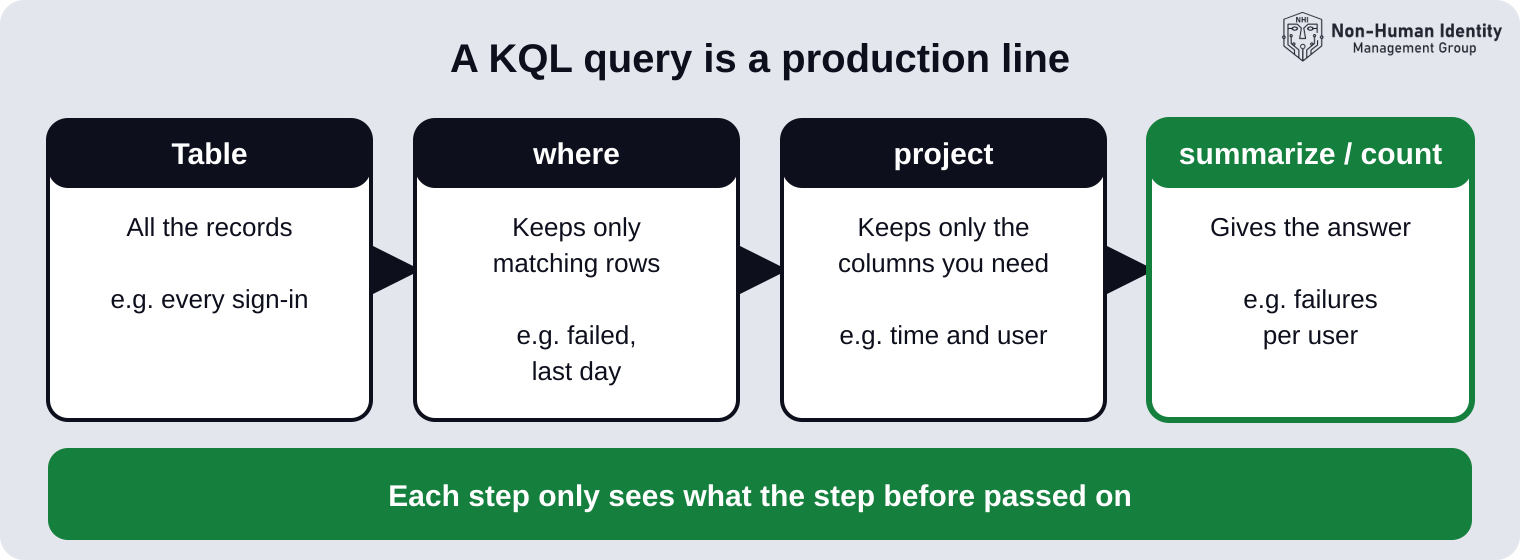
Think of a sandwich shop production line. Bread goes in at one end. Each station does one job, and the next station only sees what the last one passed on.
KQL works the same way. You name a table of records first. Then each step does one job and passes what is left to the next step. The | symbol, called a pipe, joins the steps. The order of the steps matters, because each step only sees what came before it.[1]
Microsoft built KQL for exploring logs, which are records that computers write about what happens, such as who signed in and when. It is used in Microsoft Sentinel, Microsoft Defender, Azure Monitor and Azure Data Explorer, among others.[1]
A KQL query only reads data. Commands that change data use a separate form that starts with a dot, so a normal query cannot delete your records.[1]
Where the comparison stops working: a production line makes something new. A KQL query makes nothing new and changes nothing. It only gives you a smaller, clearer view of records that already exist.
Why does it matter?
Security tools collect huge numbers of records. KQL is how people in Microsoft tools turn those records into answers, such as "who signed in from a new country last night?"
If you are a student or job seeker
What could happen: job adverts for analyst roles ask for KQL, and you have never seen it.
Check this: try the free sample data below and write five simple queries.
If you are new to a security team
What could happen: you copy a query from a colleague and misread what its answer means.
Check this: read each line out loud and say what it keeps or drops.
If you manage a team
What could happen: only one person can answer questions from the logs, and nobody else can check their work.
Check this: keep shared queries in one place, each with a plain note on what it answers.
Next: KQL for Threat Hunting
What does it look like?
Here is a made-up query a new analyst might write. It uses an invented table of sign-in records.
Example only. All values are made up.
ExampleSignIns                                  (1)
| where TimeGenerated > ago(1d)                (2)
| where Result == "Failed"                      (3)
| summarize Attempts = count() by UserName      (4)
| sort by Attempts desc                         (5)
| take 10                                       (6)
- The table to start from. In a real file, this line would contain the name of a table of sign-in records.
- Keep only records from the last day.
- Keep only the failed sign-ins.
- Count the failures for each user name.
- Put the highest counts first.
- Show only the top ten rows.
Read from top to bottom, it says: "Of yesterday's failed sign-ins, which ten user names failed most often?"
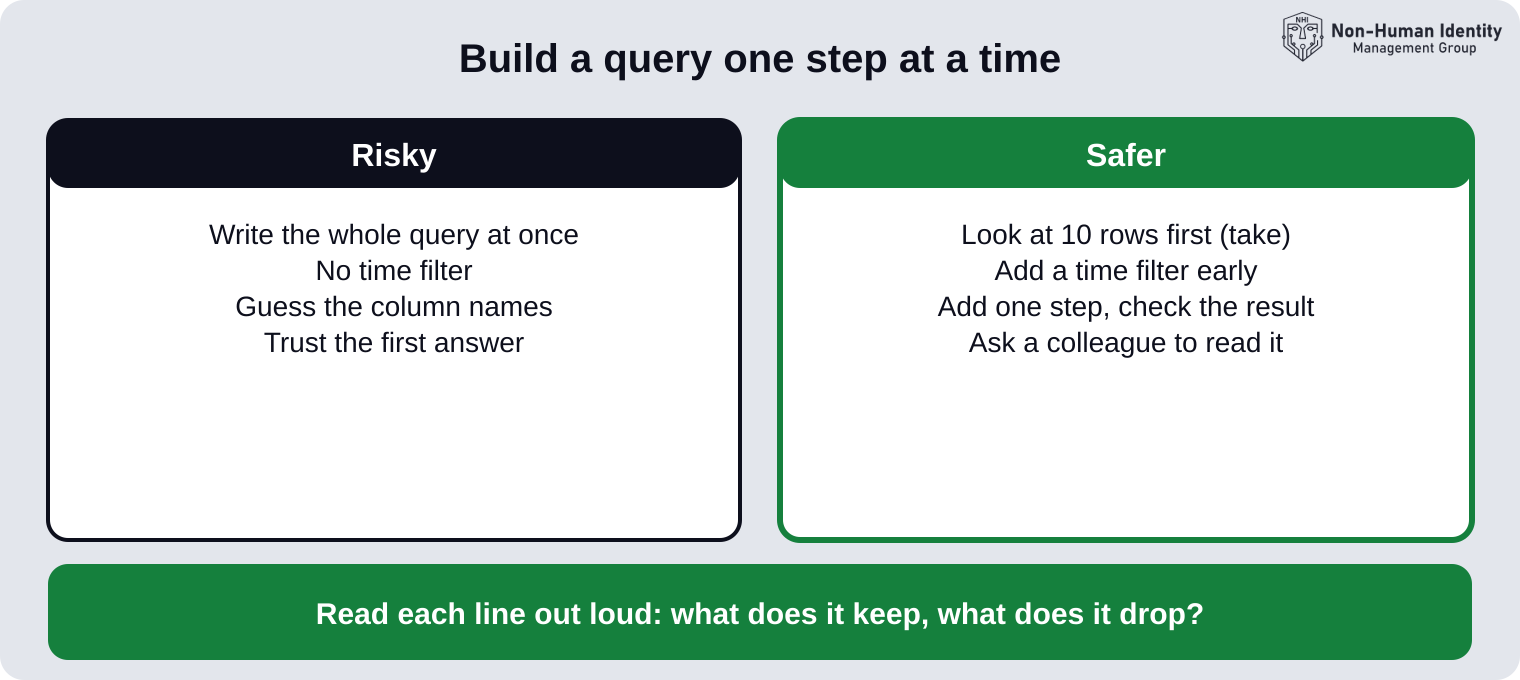
Why this is risky: small slips change the answer without any warning. Leave out line 2 and the query may search far more data, run slowly or stop early. Write "failed" instead of "Failed" and you may get no rows at all. The == test matches text exactly, and KQL is case-sensitive for table and column names too.[1]
The safer way: look at a few rows first with take, so you see the real column names and values. Then add a time filter early, and add one step at a time, checking the result after each.[2]
How does it work?
Most beginner queries follow the same pattern.
- Pick a table. Name the set of records you want to ask about.
- Narrow it down. Use
whereto keep only the rows that match, such as a time range or one user.[2] - Choose what to show. Use
projectto keep only the columns you need.[2] - Get the answer. Use
countfor a total, orsummarizeto count by group, such as failures per user.[3] - Tidy it up. Use
sortortopto order the rows, andrenderto draw a chart.[3]
In Microsoft Defender, the place to run these queries is called advanced hunting. It has a guided mode that builds a query for people who do not yet know KQL, and an advanced mode for writing your own. By default it searches up to 30 days of data, and it shows times in UTC, the world standard time.[4]
A worked example
Mira Erikson has just joined the small IT team at Larch Printers, a fictional print company. Her manager, Otto Thorne, asks a simple question. "Has anyone been trying to guess staff passwords this week?"
Mira remembers the production line. First she names the sign-in table and adds take 10. Now she can see the real column names, and she notices the result column says "Failure", not "Failed".
Next she adds a time filter for the last seven days. Then she keeps only the failed sign-ins. She checks the result after each step, and the row count drops each time, as it should.
Then she adds summarize to count failures by user name, and sorts the highest first. One shared account stands out, with far more failures than anyone else.
Mira does not jump to a conclusion. A high count can mean an attack, but it can also mean an old app with a saved password that has since changed. She adds the source location to her summary and sees most failures come from the office printer server.
She takes the finding to Otto, with the query and a plain note on what each line does. Otto reads it, agrees it looks like a stale saved password, and asks the printer supplier to update it. They agree to run the same query again next week.
The question took Mira about half an hour. Most of that time went on checking each step, which is what made the answer worth trusting.
Myths and mistakes
| What people think | What is true |
|---|---|
| Running a query might break something. | A query only reads data. Changes need separate management commands that start with a dot.[1] |
| Upper and lower case do not matter. | KQL is case-sensitive for table names, column names and operators.[1] |
| The order of the steps does not matter. | It does. Filtering then taking the top five gives a different answer from the other way round.[2] |
| No results means nothing happened. | It can also mean a typo, the wrong time range or data the tool does not keep. Check the query before the conclusion. |
| You must be a programmer to learn KQL. | Simple queries use a handful of plain words, such as where, project, count and sort. |
What can I do this week?
- Open the free sample data on the Azure Data Explorer help cluster and run
StormEvents | take 5.[3] - Write one query each with where, project, count and sort.
- Read a colleague's query aloud, one line at a time, and say what each line does.
- If you want your own space, set up a free practice cluster with a Microsoft account. Use made-up data there, not personal data.[5]
Checklist
- I start each new query with take to see the real columns.
- Every query has a time filter near the top.
- I add one step at a time and check the result.
- I match the exact case of table and column names.
- I treat "no results" as something to check, not proof of safety.
- Shared queries have a plain note on what they answer.
- Someone else reads a query before its answer is used for a decision.
Common questions
What does KQL stand for?
Kusto Query Language. Microsoft first developed it as part of Azure Data Explorer, a service for exploring large amounts of data. Today the same language is used in several Microsoft tools, including Sentinel and Defender, so learning it once helps across all of them.[1]
Is KQL the same as SQL?
No, but they are related ideas. Both ask questions of tables of data. SQL is widely used for databases and is often used to change data too. A KQL query reads data step by step, top to bottom, which many beginners find easier to follow.
Can I practise KQL without a work account?
Yes. Microsoft runs a public help cluster with sample tables, and you can sign in with a free Microsoft account. You can also create one free practice cluster without an Azure subscription or a payment card.[3][5]
Can a KQL query change or delete data?
No, a query only reads data and returns results. Changing data or settings needs a separate kind of instruction, called a management command, which starts with a dot. Who may run those is controlled by permissions in each tool.[1]
How long does it take to learn KQL?
You can read and write simple queries after a few short practice sessions. The handful of steps on this page covers many everyday questions. Learning which tables hold which records in your own tools takes longer, and that is where most of the real skill lies.
Where next?
Ready for the detail? Read the practitioner guide: KQL for Threat Hunting. It goes further into the identity tables that matter, ready-made hunts and how to turn a hunt into a tested detection rule.
Also useful:
- KQL Threat Hunting Cheat Sheet
- Microsoft Sentinel for Beginners
- How to detect password spraying in Entra ID sign-in logs with KQL
Related NHI Mgmt Group resources: KQL for Threat Hunting · KQL Threat Hunting Cheat Sheet · Non-Human Identities for Beginners
Key terms
- KQL
- Kusto Query Language, a read-only language for asking questions of large sets of records.
- Query
- A written request that asks a set of records for an answer.
- Table
- Rows of records, with one column for each detail, such as time or user name.
- Pipe
- The | character, which passes the result of one step to the next.
- Operator
- A single step in a query, such as where, project, count or sort.
- Log
- A record a computer writes about something that happened, such as a sign-in.
- Advanced hunting
- The place in Microsoft Defender where people run KQL queries to look for threats.
Sources and further reading
- Kusto Query Language overview. Microsoft Learn, Microsoft. https://learn.microsoft.com/en-us/kusto/query/, accessed 28 Nov 2026.
- Tutorial: Learn common operators. Microsoft Learn, Microsoft. https://learn.microsoft.com/en-us/kusto/query/tutorials/learn-common-operators, accessed 28 Nov 2026.
- Tutorial: Use aggregation functions. Microsoft Learn, Microsoft. https://learn.microsoft.com/en-us/kusto/query/tutorials/use-aggregation-functions, accessed 28 Nov 2026.
- Proactively hunt for threats with advanced hunting in Microsoft Defender. Microsoft Learn, Microsoft. https://learn.microsoft.com/en-us/defender-xdr/advanced-hunting-overview, accessed 28 Nov 2026.
- What is a free Azure Data Explorer cluster? Microsoft Learn, Microsoft. https://learn.microsoft.com/en-us/azure/data-explorer/start-for-free, accessed 28 Nov 2026.