Group Policy is a Windows feature that sends agreed settings to many computers and users from one place.
This guide is for new IT staff, students and anyone who wonders why their work PC locks itself or blocks some settings. You do not need to run a server to be affected: if your work laptop joins a company network, Group Policy may be deciding how it behaves.
In short
- Group Policy lets an IT team set one rule and have it reach hundreds of Windows PCs.
- Rules are kept in bundles called Group Policy Objects, which are linked to groups of computers or users.
- PCs pick up rules when they start, when people sign in and in the background, by default about every 90 minutes.
- Because one change reaches every PC, the people who can change policy need tight control and careful testing.
What you will learn
- Explain what Group Policy does in one sentence.
- Spot a setting on your PC that is probably controlled by policy.
- Explain why the rule closest to the computer usually wins.
- Check who in your team can change policy, and how changes are tested.
- Rule bundle (Group Policy Object, or GPO)
- a named set of settings that can be pointed at chosen computers or users.
- Folder for computers and people (organisational unit, or OU)
- a container in the company directory used to group computers or user accounts.
- Company directory (Active Directory)
- Microsoft's central list of the people, computers and groups in an organisation.
What is Group Policy?
Think of a school that sends one set of house rules to every classroom. The head writes the rules once. Each room then follows them, and one class can get an extra rule of its own.
Group Policy works the same way for Windows computers in a business. It is a feature of Windows for managing computer, app and user settings from one central place.[1] An IT person writes a rule once, for example "lock the screen after ten minutes". Windows then applies it to every PC the rule is pointed at.
Rules live in bundles called Group Policy Objects (GPOs). Each GPO is stored in Active Directory. This is the company directory that lists people and computers. A GPO can be linked to a whole office site or to the whole company domain. The domain is the shared network name that all the company's PCs join. A GPO can also be linked to a folder of computers or users, called an organisational unit.[1]
Some settings are for the computer, like firewall rules (the PC's traffic filter). Others are for the person signed in, like where their documents folder points.[1]
Where the comparison stops working: a classroom sees a new rule only when someone reads it out. A PC checks for new rules by itself, again and again, so a mistake can spread without anyone pressing send.
Why does it matter?
Group Policy is one of the main ways many companies keep Windows PCs set up safely and the same. Because one change can reach every PC, a good change helps everyone fast, and a bad one can hurt everyone fast.
If you are new to IT work
What could happen: you edit a policy linked at the top of the directory and it reaches far more PCs than you meant.
Check this: before any change, ask where the GPO is linked and who it affects.
If you are a student or learning Windows
What could happen: you assume a setting is broken when a policy is simply holding it in place.
Check this: look for the words "managed by your organisation" next to a greyed-out setting.
If you manage an IT team
What could happen: too many people can edit policy, so one stolen admin account could change every PC.
Check this: ask for a list of who can create, edit and link GPOs.
What does it look like?
IT teams usually see policy in a management tool. Here is a made-up summary of one GPO, written out as plain text.
Example only. All values are made up.
GPO name:   EXAMPLE-Staff-Laptops-Baseline
Linked to:  OU=Laptops, example.invalid           (1)
Applies to: group "EXAMPLE-All-Staff"             (2)
Computer settings:
  Lock screen after 10 minutes of no use          (3)
  Firewall turned on for all networks
User settings:
  Documents folder points to \\files.example.invalid\home  (4)
Last changed by: EXAMPLE\it-admin-0000            (5)
- In a real file, this line would contain the folder of computers the GPO is linked to.
- A filter that narrows the GPO to members of one group.
- A computer setting. It applies to the PC, whoever signs in.
- A user setting. It follows the person to whichever PC they use.
- In a real file, this line would contain the admin account that made the last change.
- Domain or Tenant Policy Modification: Group Policy Modification (T1484.001). MITRE ATT&CK, The MITRE Corporation. https://attack.mitre.org/techniques/T1484/001/, accessed 28 Nov 2026.
Why this is risky: anyone who can edit this GPO can change every laptop in that folder at once. If that account is stolen, an attacker gets the same reach.[3]
The safer way: only a small, named group can edit or link GPOs. Changes are tested on a few PCs first, written down, and can be rolled back.
How does it work?
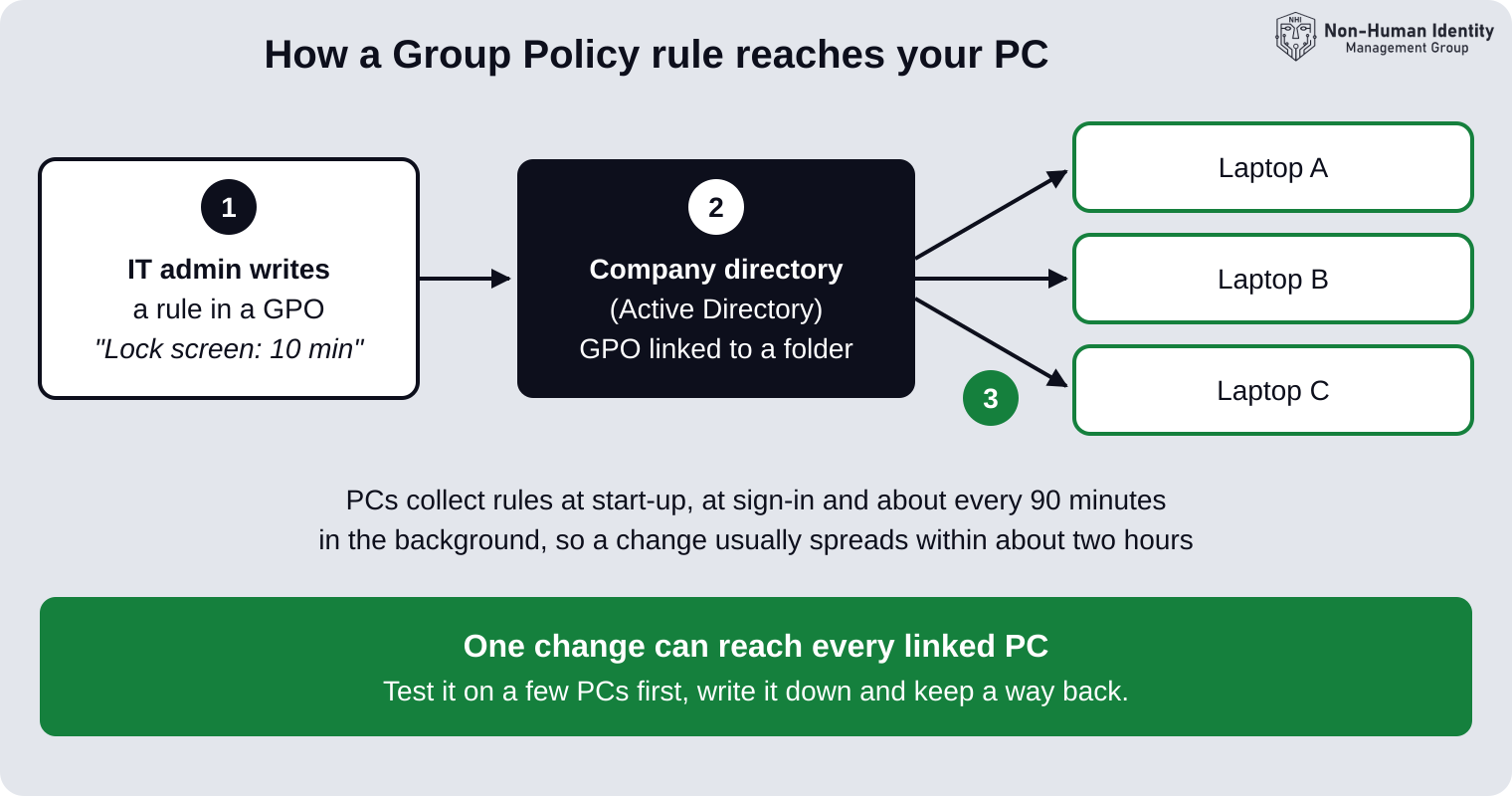
Here is what happens between an IT person writing a rule and your PC following it.
- Write. An admin puts the setting into a GPO, using Microsoft's management tools.
- Link. The admin links the GPO to a site, the domain or a folder of computers or users. Folders lower down inherit links from the folders above them.[1]
- Collect. When a PC starts, it asks the directory which GPOs apply to it. When a person signs in, the same happens for their user settings.[1]
- Apply in order. Windows applies the PC's own local policy first, then site, then domain, then folder GPOs. Later ones can override earlier ones, so the folder closest to the PC usually wins.[2]
- Refresh. By default, PCs check again about every 90 minutes, plus a random delay of up to 30 minutes. A person can ask for a check straight away with the
gpupdatecommand.[2] - Domain or Tenant Policy Modification: Group Policy Modification (T1484.001). MITRE ATT&CK, The MITRE Corporation. https://attack.mitre.org/techniques/T1484/001/, accessed 28 Nov 2026.
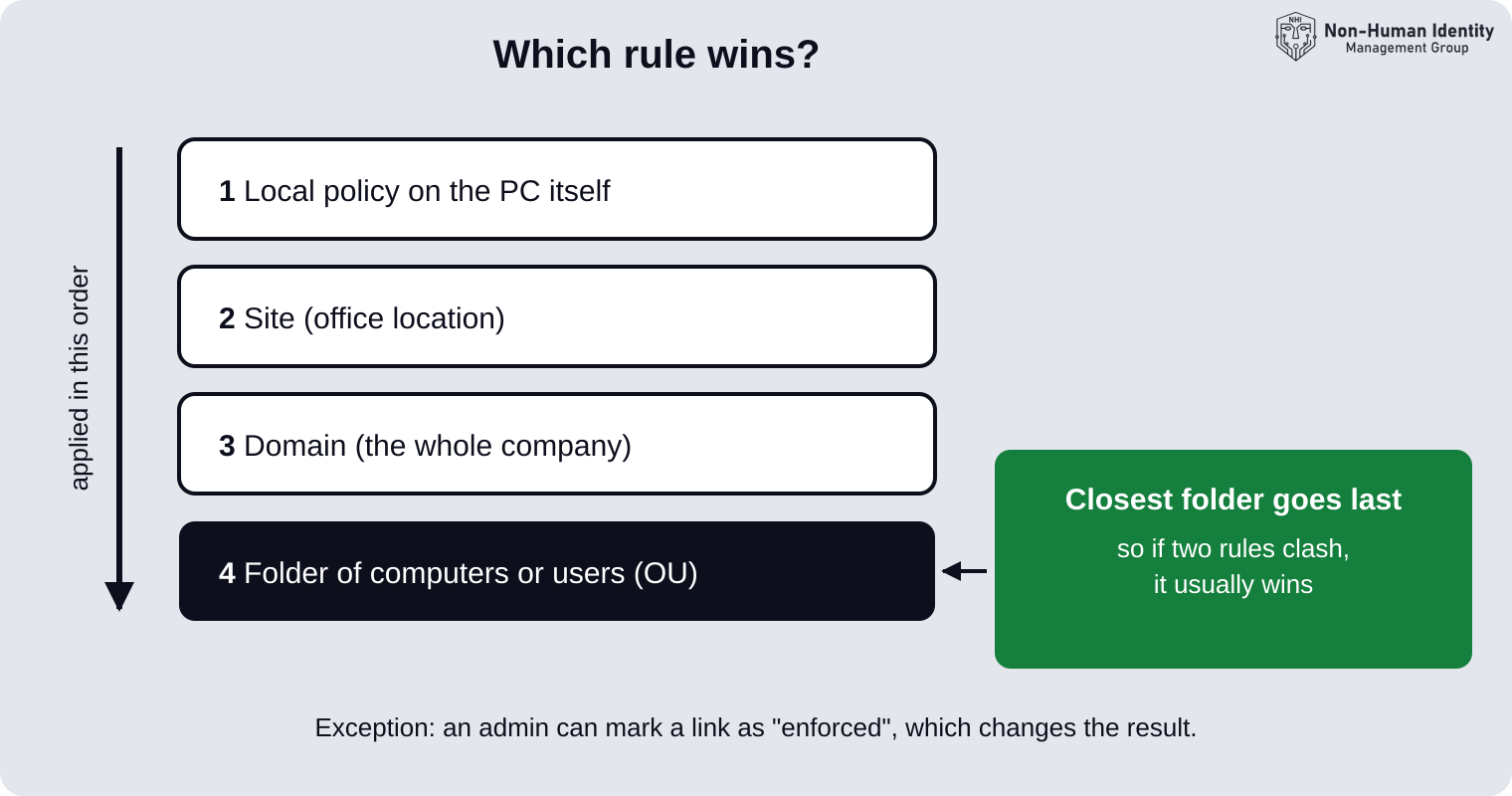
There are exceptions. An admin can mark a link as enforced, or block rules from above, which changes who wins.[2] GPOs can also be narrowed to certain groups, so a rule linked to a folder may still skip some PCs.[2] This is why "where is it linked?" and "who does it apply to?" are always the first two questions.
Many companies now also manage PCs through cloud tools. Group Policy is still common where PCs join an on-site Active Directory, and the same ideas of rules, scope and testing carry over.
A worked example
Jonah Pereira has just started on the IT help desk at Sorrel Opticians, a fictional chain of eight shops. His manager, Wanda Haddad, looks after the company's Windows PCs.
On Monday, staff in two shops say their screens lock after one minute. Eye tests keep being interrupted. Jonah's first thought is a fault on the PCs.
Wanda suggests a different first question: "What changed in policy?" Like the school's house rules, a new rule can reach every room at once.
They open the management tool. Last Friday, someone edited a GPO called the screen lock baseline. The lock time was meant to change from ten minutes to five. It had been typed as one minute.
The GPO was linked to the folder holding every shop PC. So all eight shops had it, though only two had noticed so far.
Wanda fixes the value to five minutes and adds a note to the change record. Jonah runs gpupdate on one test PC to check the new value. He then waits for the normal refresh to reach the others, which can take up to about two hours.
After that, Wanda makes two changes to how the team works. A test folder with three PCs now gets every policy change first, for a day. And only two named people can edit the screen lock GPO.
Jonah writes "Which GPO, linked where, applies to whom?" on a sticky note. He keeps it on his screen.
Myths and mistakes
| What people think | What is true |
|---|---|
| A new policy reaches every PC instantly. | PCs pick up changes at start-up, sign-in or the next background refresh, about every 90 minutes plus a random delay by default.[2] |
| The rule set at the top of the company always wins. | By default the folder closest to the PC is applied last and usually wins, unless a link is enforced.[2] |
| Editing policy is a small admin job. | One edit can change every linked PC. Treat it like any other change: test it, record it and have a way back. |
| Running gpupdate on every PC is the fix for everything. | It only asks one PC to check now. If the GPO itself is wrong, every PC will keep getting the wrong rule.[2] |
| Only Windows experts need to know about it. | Anyone who manages or approves IT changes should know who can edit policy, because it is a powerful way to change many PCs. |
What can I do this week?
- Find one greyed-out setting on your work PC and note that policy probably controls it.
- Ask your team who can create, edit and link GPOs, and whether that list is reviewed.
- Check whether there is a small test group of PCs that gets policy changes first.
- Ask how a bad policy change would be rolled back, and how long that would take.
Checklist
- Every GPO has a clear name, a stated purpose and an owner.
- Only a small, named group can edit or link GPOs.
- Policy changes go to a test group of PCs before everyone else.
- Each change is written down, with who made it and why.
- GPOs are backed up, so a bad change can be undone.
- Unused or empty GPOs are tidied away.
- No passwords or keys are placed inside policy settings or the scripts they run.
Common questions
Why can I not change some settings on my work PC?
Most likely, your IT team has set them with policy. Group Policy and similar tools can lock settings such as the screen lock or firewall so they stay the same on every PC. Windows often shows "managed by your organisation" next to them. Ask your IT team if a setting gets in the way of your work.
How long does a Group Policy change take to reach a PC?
Usually under two hours. By default, PCs check for changes every 90 minutes, plus a random delay of up to 30 minutes. They also check when they start and when someone signs in. Running gpupdate asks one PC to check straight away.
Is Group Policy the same as Active Directory?
No, but they work together. Active Directory is the company directory of people and computers. Group Policy is the feature that sends settings to them. GPOs are stored in Active Directory and linked to its sites, domains and folders, which is how Windows knows which rules apply to which PC.
Why do attackers care about Group Policy?
Because it can change many PCs at once. If an attacker gets an account that can edit policy, they may be able to push harmful settings or programs to every linked PC. That is why the list of people who can edit policy should be short and watched closely.
Does Group Policy work on home PCs?
Not in the usual way. Group Policy as described here needs PCs that have joined a company domain. Some editions of Windows have a local policy editor for one PC. Even so, home computers are normally managed one by one, not from a central directory.
Where next?
Ready for the detail? Read the practitioner guide: Group Policy Security Guide. It goes further into who can change policy, how the files behind policy are protected, and how to spot and roll back harmful changes.
Also useful:
- Active Directory for Beginners
- Windows Security for Beginners
- Active Directory Fundamentals
- CIS Benchmarks Guide
Related NHI Mgmt Group resources: Active Directory Security Checklist · Admin Rights for Beginners · Endpoint Security for Beginners
Key terms
- Group Policy
- A Windows feature for sending agreed settings to many computers and users from one place.
- Group Policy Object (GPO)
- A named bundle of policy settings that can be linked to chosen computers or users.
- Active Directory
- Microsoft's directory for managing the people, computers and permissions in an organisation.
- Organisational unit (OU)
- A folder in Active Directory used to group computers or users so rules can be pointed at them.
- Domain controller
- The server that checks sign-ins and holds the directory, including the policy files PCs collect.
- gpupdate
- A Windows command that asks a PC to check for policy changes straight away.
- Security baseline
- An agreed set of safe settings used as the starting point for every computer.
Sources and further reading
- Group Policy overview for Windows Server. Microsoft Learn, Microsoft. https://learn.microsoft.com/en-us/windows-server/identity/ad-ds/manage/group-policy/group-policy-overview, accessed 28 Nov 2026.
- Group Policy processing. Microsoft Learn, Microsoft. https://learn.microsoft.com/en-us/windows-server/identity/ad-ds/manage/group-policy/group-policy-processing, accessed 28 Nov 2026.
- Domain or Tenant Policy Modification: Group Policy Modification (T1484.001). MITRE ATT&CK, The MITRE Corporation. https://attack.mitre.org/techniques/T1484/001/, accessed 28 Nov 2026.