Windows security means the built-in settings that help keep your Windows computer and files safe.
This guide is for anyone who uses a Windows laptop or desktop and wants to know which settings matter. You do not need to be technical: most of these checks take a few minutes in the Settings app.
In short
- Windows comes with protection built in, including virus scanning, a firewall and the Windows Security app.
- Let updates install automatically. They close weak spots that criminals look for.
- Sign in with a Windows Hello PIN, face or fingerprint, and use a standard account for everyday work.
- Turn on device encryption, save the recovery key, and back up your files.
What you will learn
- Explain what the Windows Security app does.
- Check that updates, virus protection and encryption are switched on.
- Spot a risky set-up, such as paused updates or everyone using an admin account.
- Ask the right questions when someone else sets up your PC.
- Security dashboard (Windows Security app)
- the app in Windows that shows whether the main protections are on.
- Scrambled drive (device encryption)
- a setting that makes your files unreadable to anyone without the right sign-in.
- Everyday account (standard user)
- an account that can use apps but cannot change system-wide settings.
This is an independent guide from NHI Mgmt Group, based on Microsoft's public documentation as of November 2026. It is not sponsored or reviewed by Microsoft. Product features change, so confirm settings against Microsoft's current documentation.
What is Windows security?
Think of moving into a new home. It comes with locks, an alarm and a safe. But you still check that the alarm is set, and you decide who gets a key. Windows works the same way.
Windows includes protection from the start. Microsoft describes the Windows Security app as built into Windows, so your device is protected from the moment you start it.[1] It brings together virus scanning, a firewall (a filter that blocks unwanted network connections) and checks on apps.
Some of the most useful settings sit elsewhere. These include updates, how you sign in, which kind of account you use and whether your drive is encrypted. Encrypted means scrambled, so it cannot be read without the right sign-in.
Windows security is mostly about checking that these settings are on, and keeping them on.
Where the comparison stops working: a house alarm stays set until you change it. On a computer, settings can be changed by apps, by other people who use the PC, or by a tech helper. So it is worth checking them now and then.
Why does it matter?
Your computer may hold your email, banking, photos and work files. A few settings make it much harder for a criminal to reach them.
If you use a PC at home
What could happen: paused updates leave known weak spots open, and harmful software uses them to get in.
Check this: open Settings, then Windows Update, and make sure updates are not paused.
If you carry a laptop around
What could happen: a laptop left on a train is opened, and the finder reads your files.
Check this: turn on device encryption and save the recovery key somewhere safe.
If you share a PC with family
What could happen: someone installs a fake app while signed in as an administrator, and it can change the whole system.
Check this: give each person their own standard account and keep one admin account for changes.
If you run a small business
What could happen: one staff laptop with old settings becomes the way into your shared files.
Check this: use the checklist below on every work laptop, and repeat it every few months.
What does it look like?
Here is a made-up summary of the kind of status you might see when you check your settings.
Example only. All values are made up.
EXAMPLE-PC  (user: example-user)
Windows Update:      Paused for 5 weeks         (1)
Virus and threat:    No action needed
Firewall:            On
Account type:        Administrator              (2)
Sign-in:             Password only              (3)
Device encryption:   Off                        (4)
Backup:              Not set up                 (5)
- Updates are paused, so fixes are waiting and not installed.
- The everyday account has full control of the whole PC.
- No Windows Hello PIN, face or fingerprint is set up.
- If the laptop is lost, someone could read the drive.
- If the drive fails or files are locked by harmful software, there is no copy.
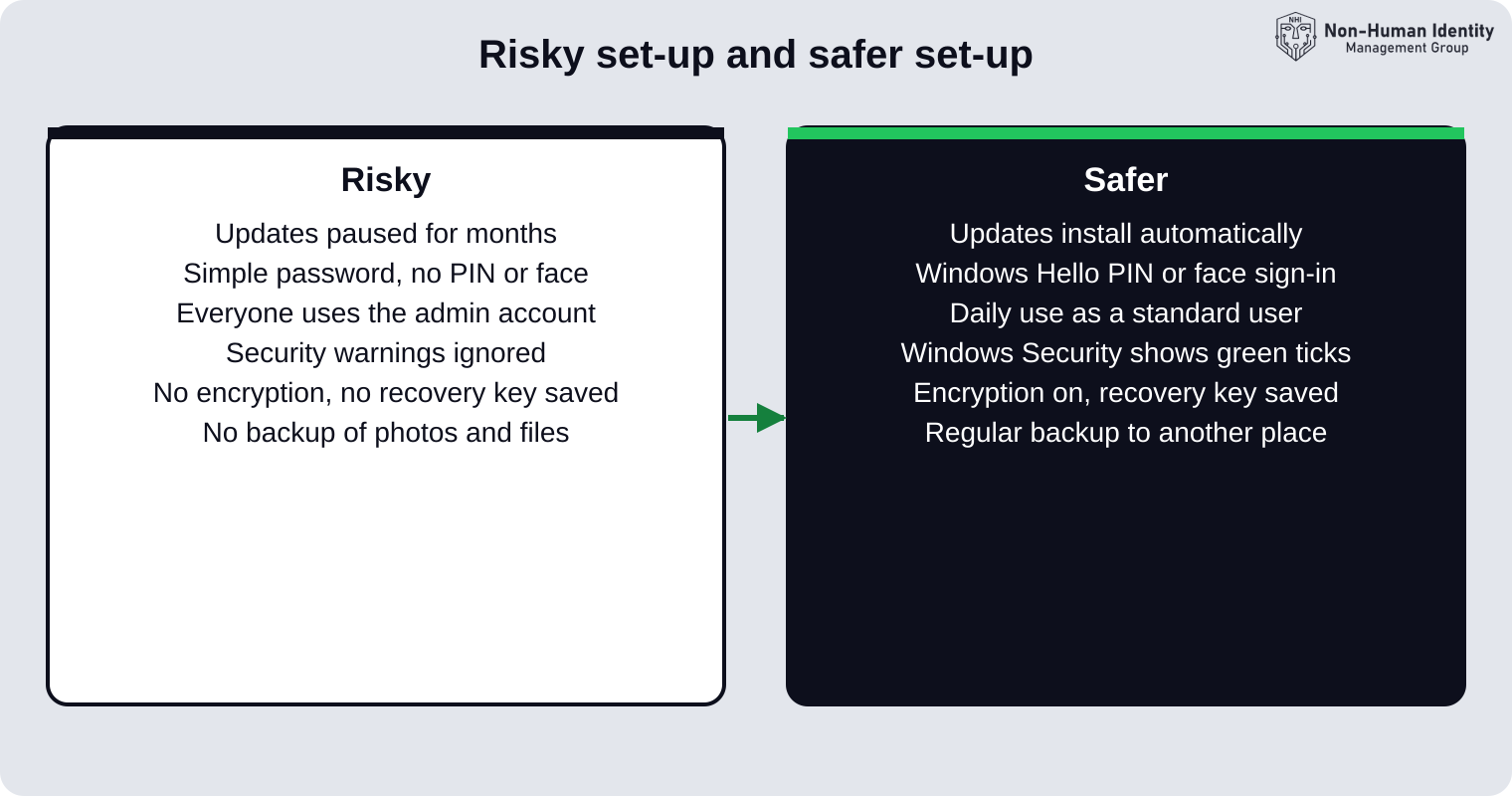
Why this is risky: virus scanning and the firewall look fine, so the PC seems safe. But five other gaps are open.
The safer way: resume updates, use a standard account day to day, set up Windows Hello, turn on encryption and set up a backup.
How does it work?
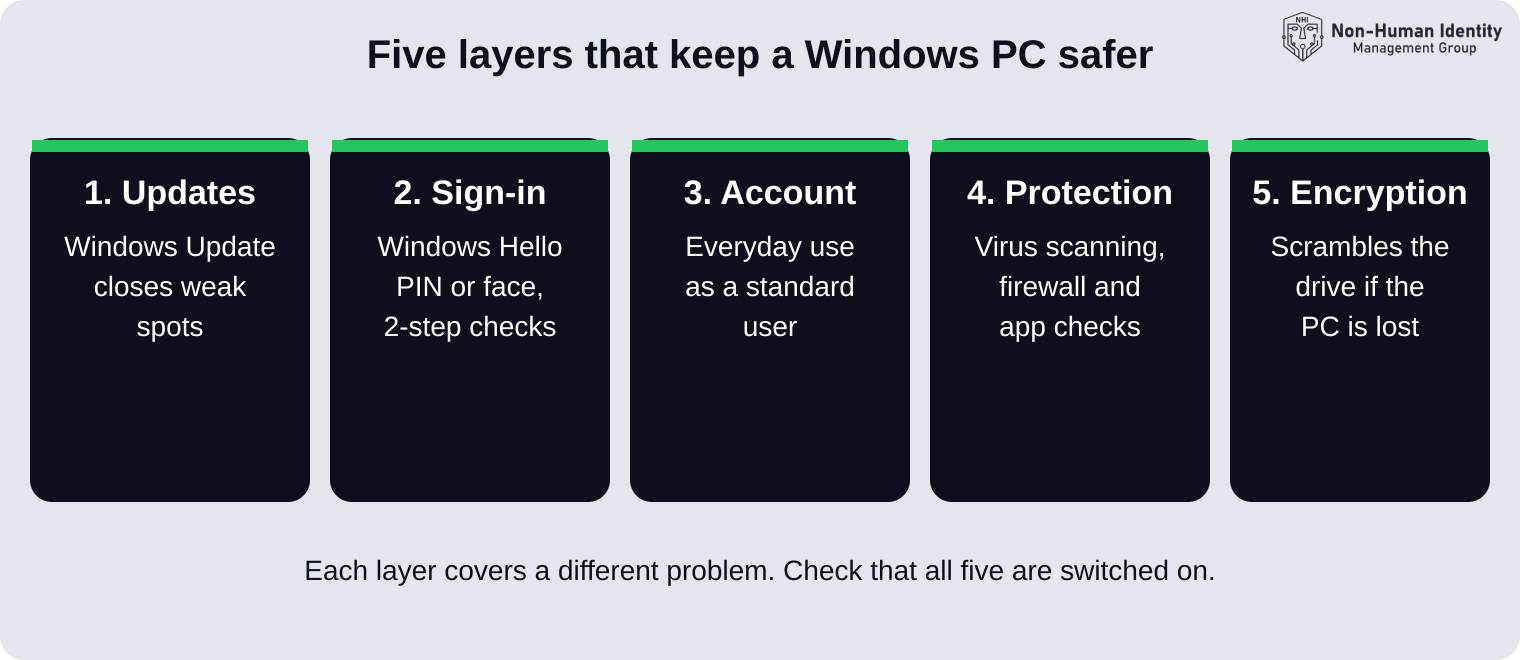
These are the main layers, in the order we suggest you check them. Menu names are from Windows 11 and may differ slightly on your PC.
- Updates. Windows 11 downloads and installs updates by itself. You can pause them for a while, but when the pause ends you need to install them before pausing again.[2] Check under Settings, then Windows Update.
- Sign-in. Windows Hello lets you sign in with a PIN, your face or a fingerprint. Microsoft says the PIN is linked to one device only, so a stolen PIN on its own is less useful elsewhere.[3] Set it up under Accounts, then Sign-in options.
- Account type. An administrator can change settings and install software for the whole PC. Microsoft suggests having few administrators and using standard accounts for everyday work.[4]
- Protection. The Windows Security app covers virus and threat protection, the firewall, app and browser control and device security.[1] One feature, Smart App Control, checks new apps and blocks ones that are believed to be harmful.[5]
- Encryption. Device encryption turns on drive encryption for you, including on Windows Home where the device supports it. Check under Privacy and security, then Device encryption. Make sure you can find your recovery key, a long code that unlocks the drive if sign-in fails.[6]
Some advice goes beyond Windows itself. The UK's National Cyber Security Centre suggests 2-step verification for your online accounts. It also suggests a password manager and regular backups.[7] 2-step verification means a second check, such as a code from an app, as well as your password.
A worked example
This story is made up to show how it can happen.
Carmen Ortiz is a teacher in Phoenix. She bought a new Windows laptop last year. Her nephew set it up for her in an afternoon.
One weekend she reads a short article about laptop theft and decides to check her own settings. She opens the Windows Security app first. Most items show a green tick, which is reassuring.
Then she opens Windows Update. Updates have been paused for weeks. Her nephew had paused them during set-up and forgot. She selects Resume, lets the updates install and restarts the laptop.
Next she looks at Accounts. She has one account, and it is an administrator. She creates a new standard account for everyday use. She keeps the admin account only for installing apps and changing settings.
She signs in with a password she has used for years. So she sets up a Windows Hello PIN on the laptop. She also turns on 2-step verification for her email.
Last, she checks Device encryption. It is on, because she signed in with a Microsoft account. She finds where her recovery key is saved and writes down how to reach it.
What made the difference: Carmen did not stop at the green ticks. She checked the settings that the dashboard does not show, and fixed three gaps in under an hour.
Myths and mistakes
| What people think | What is true |
|---|---|
| I need to buy antivirus for Windows to be protected. | Windows includes Microsoft Defender Antivirus in the Windows Security app.[1] Keep it switched on and up to date. |
| Green ticks in Windows Security mean everything is set. | The app covers protection, but not everything. Check updates, account type, sign-in and backups too. |
| Pausing updates is safer because updates can break things. | Pausing for a short time is fine. Pausing for long leaves weak spots open. Resume and install as soon as you can. |
| Using an administrator account all the time is normal. | It is common, but Microsoft suggests a standard account for everyday work.[4] |
| Encryption means I do not need the recovery key. | You may need the key if the laptop asks for it after a repair or change. Save it where you can reach it without the laptop.[6] |
What can I do this week?
- Open Settings, then Windows Update, and make sure updates are not paused.
- Open the Windows Security app and act on any item without a green tick.
- Set up a Windows Hello PIN, face or fingerprint under Sign-in options.
- Check device encryption is on, and find where your recovery key is saved.
- Create a standard account for everyday use if you use an administrator account now.
Checklist
- Windows updates install automatically and are not paused.
- The Windows Security app shows no items that need action.
- I sign in with Windows Hello, not a password alone.
- I use a standard account for everyday work.
- Device encryption is on, and I know where the recovery key is saved.
- My important files are backed up to another place.
- My email and Microsoft account use 2-step verification.
- My version of Windows still gets security updates.
Common questions
Do I need extra antivirus on Windows?
Many home users do not. Windows includes Microsoft Defender Antivirus as part of the Windows Security app.[1] What matters most is that it stays switched on and up to date. If you choose another product, check that something is still scanning your PC.
Is a Windows Hello PIN safer than a password?
Often, yes. Microsoft says the PIN is linked to one device only.[3] So someone who learns it would also need your PC to use it. A password can be typed in from anywhere it works. Choose a PIN that is not easy to guess.
How do I know if my drive is encrypted?
Open Settings, then Privacy and security, then Device encryption, and see whether it is on.[6] If you cannot see it, your device may not support it, or you may be signed in with a standard account. Ask the PC's administrator to check.
Can I stop Windows updates altogether?
Not on a normal home PC. Microsoft says updates cannot be turned off completely, because they keep the device safe.[2] You can pause them for a limited time and set active hours, so restarts happen when you are not using the PC.
What if my PC runs an older version of Windows?
Check that it still gets security updates. Windows 10 reached end of support in October 2025, so routine fixes stopped then.[8] Our beginner guide to software end of life explains your options, from upgrading to replacing the PC.
Where next?
Ready for the detail? Read the practitioner guide: Windows 11 Security Settings Guide. It goes further into each security setting, how to manage them across many PCs, and the extra protections in business editions.
Also useful:
- Software End of Life for Beginners
- Microsoft Defender Antivirus for Home Users Guide
- Endpoint Security for Beginners
- BitLocker
- Backup Security for Beginners
Related NHI Mgmt Group resources: Windows 10 End of Support for Home Users Guide · Two-Factor Authentication for Everyone Guide · Password Managers Explained for Everyone Guide
Key terms
- Windows Security app
- The app in Windows that shows whether virus protection, the firewall and other protections are on.
- Microsoft Defender Antivirus
- The virus scanner built into Windows that looks for harmful software.
- Firewall
- A filter that blocks unwanted network connections to or from your computer.
- Windows Hello
- A way to sign in to Windows with a PIN, your face or your fingerprint instead of a password.
- Standard user
- An account that can run apps and change its own settings, but not install system-wide software.
- Device encryption
- A Windows setting that scrambles the drive so files cannot be read without the right sign-in or recovery key.
- Smart App Control
- A Windows feature that checks new apps and blocks ones believed to be harmful.
Sources and further reading
- Stay protected with the Windows Security app. Microsoft Support. https://support.microsoft.com/en-us/windows/stay-protected-with-the-windows-security-app-2ae0363d-0ada-c064-8b56-6a39afb6a963, accessed 28 Nov 2026.
- Windows Update: FAQ. Microsoft Support. https://support.microsoft.com/en-us/windows/windows-update-faq-8a903416-6f45-0718-f5c7-375e92dddeb2, accessed 28 Nov 2026.
- Configure Windows Hello. Microsoft Support. https://support.microsoft.com/en-us/windows/configure-windows-hello-dae28983-8242-bb2a-d3d1-87c9d265a5f0, accessed 28 Nov 2026.
- Create a local user or administrator account in Windows. Microsoft Support. https://support.microsoft.com/en-us/windows/create-a-local-user-or-administrator-account-in-windows-20de74e0-ac7f-3502-a866-32915af2a34d, accessed 28 Nov 2026.
- Smart App Control: frequently asked questions. Microsoft Support. https://support.microsoft.com/en-us/windows/smart-app-control-frequently-asked-questions-285ea03d-fa88-4d56-882e-6698afdb7003, accessed 28 Nov 2026.
- Device encryption in Windows. Microsoft Support. https://support.microsoft.com/en-us/windows/device-encryption-in-windows-cf7e2b6f-3e70-4882-9532-18633605b7df, accessed 28 Nov 2026.
- Top tips for staying secure online. National Cyber Security Centre (NCSC). https://www.ncsc.gov.uk/collection/top-tips-for-staying-secure-online, accessed 28 Nov 2026.
- Windows 10 Home and Pro (Lifecycle). Microsoft Learn. https://learn.microsoft.com/en-us/lifecycle/products/windows-10-home-and-pro, accessed 28 Nov 2026.