An operating system is the main program that runs a computer and shares it out between your apps.
This guide is for students, career changers and anyone curious about what happens under the screen. You do not need to be technical to be affected: most security advice, from updates to admin accounts, is really advice about the operating system.
In short
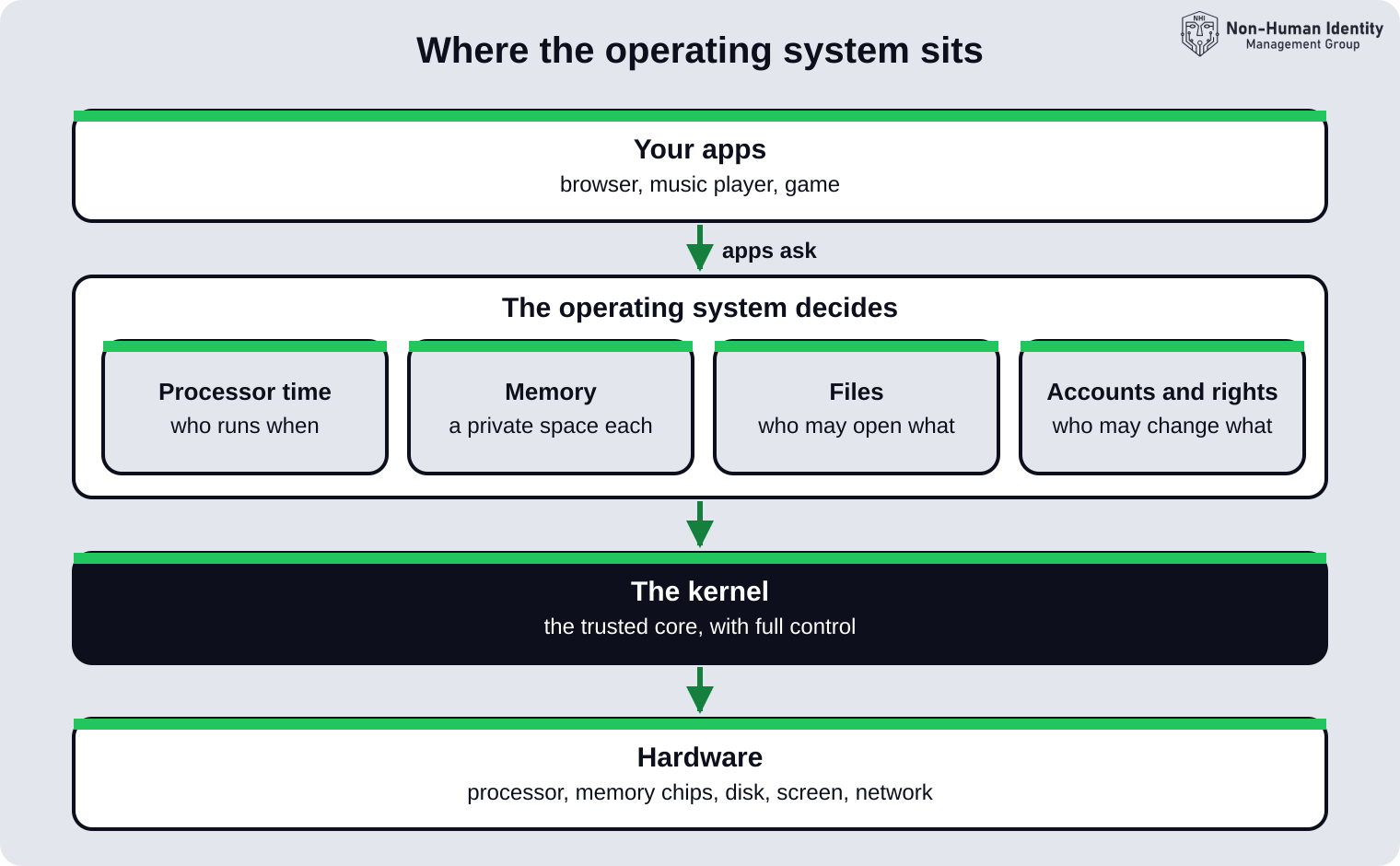
- The operating system, such as Windows, macOS, Linux, Android or iOS, sits between your apps and the hardware.
- It shares out four things: processor time, memory, files and permission to do things.
- Apps run in a fenced area. The core, called the kernel, has full control, so a fault there can stop the whole machine.
- Updates, everyday accounts without admin rights and trusted software are the main ways to keep it safe.
What you will learn
- Explain what an operating system does in one sentence.
- Spot the difference between an app, a process and the kernel.
- Explain why an admin account carries more risk than an everyday one.
- Check that your own device gets updates and uses a standard account.
- Main program (operating system)
- the software that starts first and manages the computer for every other program.
- Running program (process)
- an app or task that is running right now, with its own share of memory.
- Core (kernel)
- the most trusted part of the operating system, which talks directly to the hardware.
What is an operating system?
Think of the manager of a busy restaurant kitchen. Each cook needs time at the stove, space on the counter and things from the stores. The manager shares these out, keeps each cook to their own station and decides who may open the locked cupboard.
An operating system does the same job for a computer. Your apps are the cooks. The processor, which does the actual work, is the stove. Memory is the counter space, where work in progress is kept. The disk is the stores, where files are kept for later.
Common operating systems include Windows, macOS and Linux on computers, and Android and iOS on phones. Under the screen, they all do the same basic jobs.
Where the comparison stops working: a kitchen manager can be seen and questioned. An operating system makes millions of small choices each second, out of sight. You only notice it when something goes wrong.
Why does it matter?
Most attacks on a computer try to get the operating system to do something it should not. That could be running a bad program, reading other people's files or getting admin rights.
The core of the system is trusted with everything. In July 2024, a faulty update to a security tool that ran close to the core of Windows made many computers stop. The firm said the update caused a memory fault that crashed Windows.[4] Microsoft estimated about 8.5 million Windows devices were affected.[5]
If you are a student or career changer
What could happen: security lessons on malware, logs and admin rights feel confusing without the basics.
Check this: can you name the operating system on each device you use, and its version?
If you use a computer at home
What could happen: an old system that no longer gets updates stays open to known problems.
Check this: automatic updates are on, and the maker still supports your device.
If you look after computers at a small firm
What could happen: staff who work as admins all day give harmful programs the same power.
Check this: daily work uses standard accounts, and admin rights are kept for set tasks.
What does it look like?
You can see the operating system at work in a task list. Windows calls it Task Manager, macOS calls it Activity Monitor and Linux has similar tools. Here is a made-up, simplified view.
Example only. All values are made up.
Process name          User           Memory    Rights
web-browser           orla           410 MB    standard     (1)
music-player          orla           95 MB     standard
update-helper         SYSTEM         30 MB     full         (2)
free-game-FAKE.exe    orla           260 MB    asked admin  (3)
kernel                (core)         n/a       full         (4)
- Each app you open becomes a process with its own share of memory.
- Some processes belong to the system, not to a person, and run with full rights.
- In a real screen, this line would show a downloaded program that has asked for admin rights.
- The kernel is the core. It is not an app, and it sits under everything else.
Why this is risky: a program that gets admin rights can change settings for the whole computer, not just for one person. If it is harmful, the damage can spread further.
The safer way: work in a standard account and say no to admin requests you did not expect. On Windows, a feature called User Account Control shows a prompt before a program can use admin rights.[3]
How does it work?
Here is what happens, in plain steps, when you open an app.
- Start. You click an icon. The operating system loads the program and starts a process, which is simply a program that is running.[2]
- Share time. The processor can only do so much at once, so the operating system switches between processes very quickly and they all seem to run together.[2]
- Share memory. Each app gets its own private area of memory. One app should not be able to change another app's data.[1]
- Ask for files. When the app wants to open or save a file, it asks the operating system. The system checks whether that user account is allowed.
- Ask for more power. If the app wants to change the whole computer, it needs admin rights, and the system may ask you to approve.[3]
- Keep faults small. If an app crashes, it normally takes only itself down, but if code in the kernel crashes, the whole system can stop.[1]
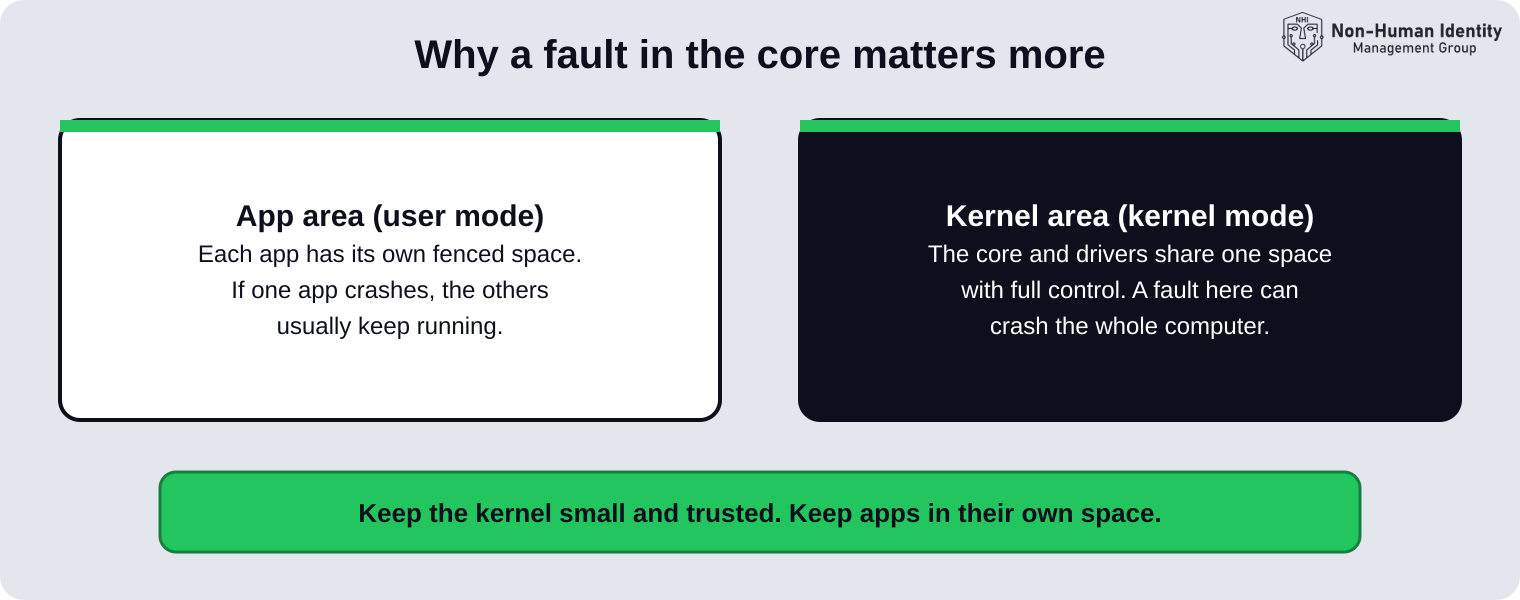
The split between the two areas has names. Apps run in user mode, a limited mode with fences around each app. The kernel and some drivers (small programs that let the system use hardware such as a printer) run in kernel mode, which has full control. Code in kernel mode is not fenced off from the rest of the system.[1]
A worked example
Orla Sorensen is studying for a first job in IT. On Saturdays she helps out at Fern Nursery, a fictional garden shop with one shared office laptop.
One morning the laptop is very slow. Orla remembers the kitchen manager. If one cook is hogging the stove, everyone else waits. So she opens Task Manager to see which process is using the most time and memory.
She finds a program she does not recognise. Its name looks like a free game, and it is using a lot of memory. The manager, Gideon Vance, says a visitor downloaded it on the laptop last week.
Orla also notices that everyone signs in with the same admin account. That means any program they run can change the whole laptop. She explains this to Gideon in plain words: "It is like giving every cook the key to the locked cupboard."
Gideon agrees to three changes. Orla uninstalls the unknown program and runs a full scan with the built-in security tool. She sets up a standard account for daily use and keeps the admin account for Gideon alone, with a strong password. Last, she checks that automatic updates are turned on and that the laptop's version is still supported.[6]
The scan finds nothing else in the records available to her. The laptop runs at normal speed again. Gideon now sees an approval prompt whenever a program asks for admin rights, so nothing new gets full control without someone saying yes.
Myths and mistakes
| What people think | What is true |
|---|---|
| The operating system is just the desktop and icons. | The desktop is only the visible part. Most of the work happens underneath, sharing out time, memory and files. |
| Using an admin account all day is fine if I am careful. | Programs you run get the same power as your account. A standard account limits the damage a harmful program can do.[3] |
| A crashed app means the computer is broken. | Apps are fenced off, so one crash usually affects only that app. A crash in the core is the serious kind.[1] |
| Updates are only about new features. | Many updates fix security problems. Applying them promptly is one of the quickest ways to stay safer.[6] |
| An old computer is safe if it still works. | Makers eventually stop sending updates. After that, new problems may not be fixed.[6] |
What can I do this week?
- Find the name and version of the system on each of your devices.
- Turn on automatic updates wherever the setting exists.
- Open the list of running programs and see what is there.
- Check if you sign in as an admin, and set up a standard account for daily use.
Checklist
- I can explain what an operating system does in one sentence.
- Each device runs a version that still gets security updates.
- Automatic updates are turned on.
- Daily work uses a standard account, not an admin one.
- Admin prompts are read, not clicked through.
- Software comes from the maker or the official app store.
- I know how to open the list of running processes.
Common questions
Is Linux safer than Windows or macOS?
Not automatically. Every operating system has security features and every one has flaws that get fixed by updates. How it is set up and kept up to date usually matters more than which one you choose. A supported, updated system with standard accounts is the safer starting point.
What is the difference between an app and a process?
An app is the program stored on your disk. A process is that program while it is running. One app can start several processes, and the operating system gives each one its own share of memory and processor time. When you close the app, its processes normally end.
Why does my computer ask me for permission before installing things?
It is checking that you really want a program to change the whole computer. Installing software usually needs admin rights. The prompt gives you a moment to stop a program you did not expect, which helps limit harmful software. Read it before you click yes.
What is a driver?
A driver is a small program that lets the operating system use a piece of hardware, such as a printer, graphics card or network adapter. Many drivers run close to the core with full control. That is why you should get drivers only from the device maker or the operating system's own updates.
Do phones have operating systems too?
Yes. Android and iOS are operating systems. They do the same basic jobs as a computer's system: sharing out time, memory, storage and permissions. Phone systems keep each app in a tight fence by default, and they also need regular updates to stay safer.
Where next?
Ready for the detail? Read the practitioner guide: Operating System Fundamentals for Defenders Guide. It goes further into system calls, how security tools hook into the system and how Windows, Linux and macOS differ.
Also useful:
- Kernel Mode for Beginners
- How a Computer Starts Up for Beginners
- Linux Command Line for Beginners
- Endpoint Security for Beginners
- Least Privilege for Beginners
Related NHI Mgmt Group resources: Linux Fundamentals for Defenders Guide · Endpoint Security Guide · Service Accounts for Beginners
Key terms
- Operating system
- The main program that manages a computer's hardware and shares it between apps.
- Kernel
- The trusted core of the operating system, which has full control of the hardware.
- Process
- A program that is running, with its own share of memory and processor time.
- User mode
- The limited mode where apps run, each fenced off from the others.
- Driver
- A small program that lets the operating system use a piece of hardware.
- Patch
- An update that fixes a problem, often a security flaw.
- Least privilege
- Giving each account only the rights it needs for its job.
Sources and further reading
- User mode and kernel mode. Microsoft Learn, Microsoft. https://learn.microsoft.com/en-us/windows-hardware/drivers/gettingstarted/user-mode-and-kernel-mode, accessed 28 Nov 2026.
- Processes and threads. Microsoft Learn, Microsoft. https://learn.microsoft.com/en-us/windows/win32/procthread/processes-and-threads, accessed 28 Nov 2026.
- User Account Control overview. Microsoft Learn, Microsoft. https://learn.microsoft.com/en-us/windows/security/application-security/application-control/user-account-control/, accessed 28 Nov 2026.
- Falcon content update preliminary post incident report. CrowdStrike, July 2024. https://www.crowdstrike.com/en-us/blog/falcon-content-update-preliminary-post-incident-report/, accessed 28 Nov 2026.
- Helping our customers through the CrowdStrike outage. Microsoft, 20 July 2024. https://blogs.microsoft.com/blog/2024/07/20/helping-our-customers-through-the-crowdstrike-outage/, accessed 28 Nov 2026.
- Install the latest software and app updates. National Cyber Security Centre (UK). https://www.ncsc.gov.uk/collection/top-tips-for-staying-secure-online/install-the-latest-software-and-app-updates, accessed 28 Nov 2026.