The Linux command line is a text window where you type short commands to tell the computer what to do.
This guide is for students and career changers who are starting to learn security and keep meeting a black screen full of text. Many servers, cloud systems and security tools run on Linux, so a few safe commands go a long way.
In short
- The command line lets you look around a Linux computer, read files and search them by typing commands.
- Start with commands that only look, such as whoami, pwd, ls, less and grep, before any that change things.
- The sudo command runs a command with full admin power, so treat it with real care.
- Do not paste or run a command or script you do not understand, even from a helpful website.
What you will learn
- Explain what the command line and the shell are.
- Use a handful of look-only commands to find your way around.
- Spot when a command will change the system or use admin power.
- Check a script before you run it.
- Text window (terminal)
- the window where you type commands and see the replies.
- Command reader (shell)
- the program that reads each command you type and runs it.
- Run as admin (sudo)
- a word put in front of a command to run it with full admin rights.
What is the Linux command line?
Think of a written order slip handed to a very literal clerk. Instead of pointing at pictures, you write exactly what you want. The clerk does exactly what the slip says, even if you made a mistake.
The command line works the same way. You open a terminal, a window that shows text. You type a command and press Enter. A program called the shell reads the command and runs it.[2] On many Linux systems the shell is called Bash.
Ubuntu, a popular kind of Linux, describes the command line as "a text interface to your computer".[1] Security people use it to check who is logged in, read log files (records of what happened on a computer) and search for clues.
Where the comparison stops working: a clerk might question an odd order. The shell usually does not. If you type a command that deletes files, it will often just do it.
Why does it matter?
Many web servers, cloud systems and security tools run on Linux. Training labs, job tasks and many guides assume you can use a few commands. Learning the safe ones first helps you explore without breaking anything.
If you are a student or doing training labs
What could happen: you copy a command from a forum and it changes or deletes things you did not mean to touch.
Check this: look up each command in its manual before you run it.
If you are changing career into IT or security
What could happen: you use admin power for everyday tasks and make a small mistake much bigger.
Check this: use sudo only when a task really needs it.
If you look after a small Linux server
What could happen: an install script from a website runs with full rights and does more than it says.
Check this: download scripts first and read them before running them.
What does it look like?
Here is a made-up terminal screen. Every command on it only looks. None of them changes anything.
Example only. All values are made up.
umar@lab-0000:~$ whoami                   (1)
umar
umar@lab-0000:~$ pwd                      (2)
/home/umar
umar@lab-0000:~$ ls -a                    (3)
.  ..  .bash_history  notes-FAKE.txt
umar@lab-0000:~$ grep "failed" notes-FAKE.txt   (4)
EXAMPLE 00:00 failed login for user test
- whoami shows which account you are using. Check this first.
- pwd shows the folder you are in. Commands act here unless you say otherwise.[1]
- ls lists files. Adding -a also shows hidden files, whose names start with a dot.[1]
- In a real file, this line would contain a record of a failed login. grep finds every line that matches a word.[4]
Why this is risky: the screen looks harmless, but the next command could be one that changes or deletes files. The shell runs whatever you type, as whichever account you are using.
The safer way: learn the look-only commands first. Before running anything that changes files or uses sudo, check which account you are on and which folder you are in.
How does it work?
A simple, safe routine for any new Linux session looks like this.
- Know who you are. Type whoami to see your account, so you know what you are allowed to do.
- Know where you are. Type pwd to see your current folder. The very top folder of a Linux system is written as a single slash.[1]
- Look around. Use ls to list files and cd to move between folders, and use less to read a long file one page at a time.[1]
- Search. Use grep to find lines with a word, such as "failed", in a log file.[4]
- Look it up. Type man followed by a command name to read its manual, so you know what it does first.[1]
- Pause before power. Use sudo only when needed. Ubuntu's guide says to treat any new use of sudo as just as dangerous as logging in as the all-powerful root account.[1]
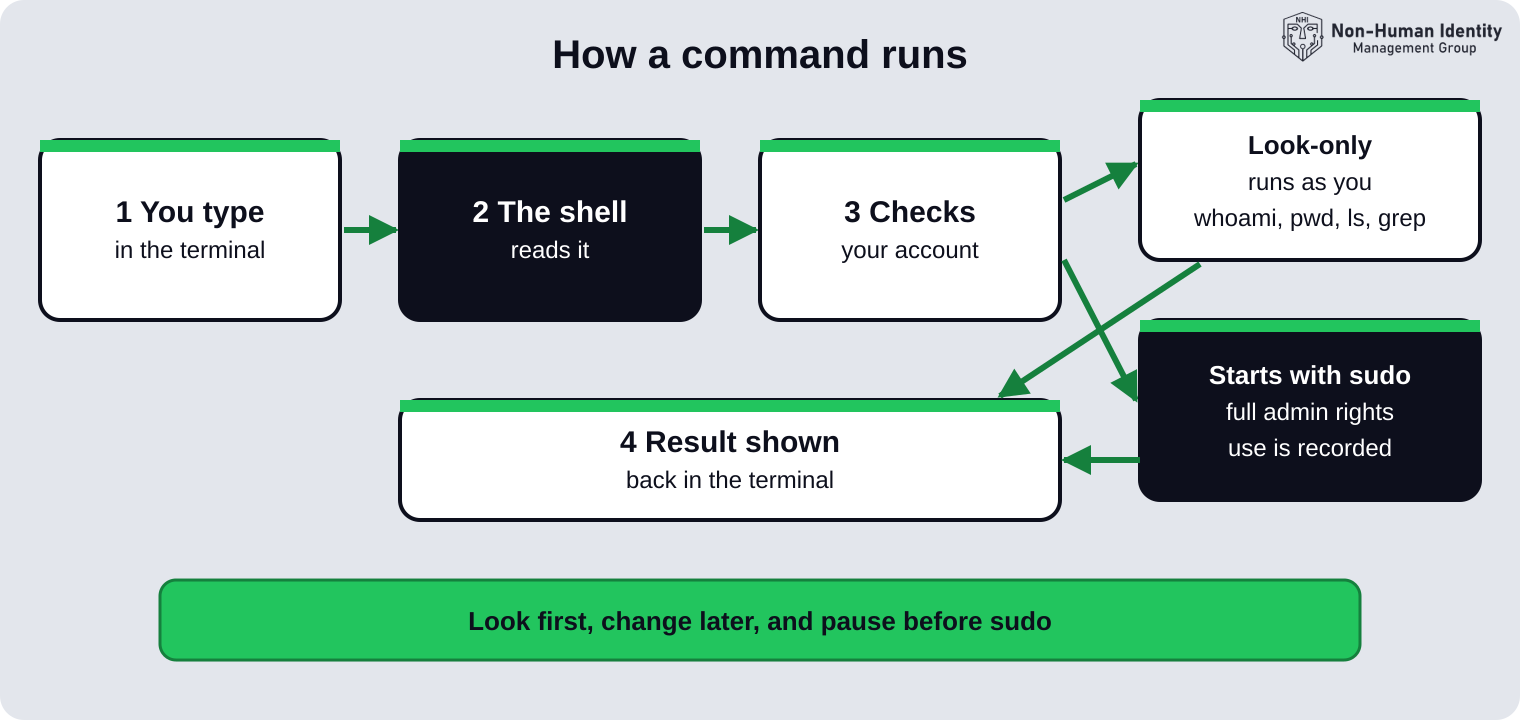
Many administrators use sudo instead of logging in as root. It lets them give named people admin power for chosen tasks, and it keeps a record of each command run.[3] That record helps when someone later asks who changed what.
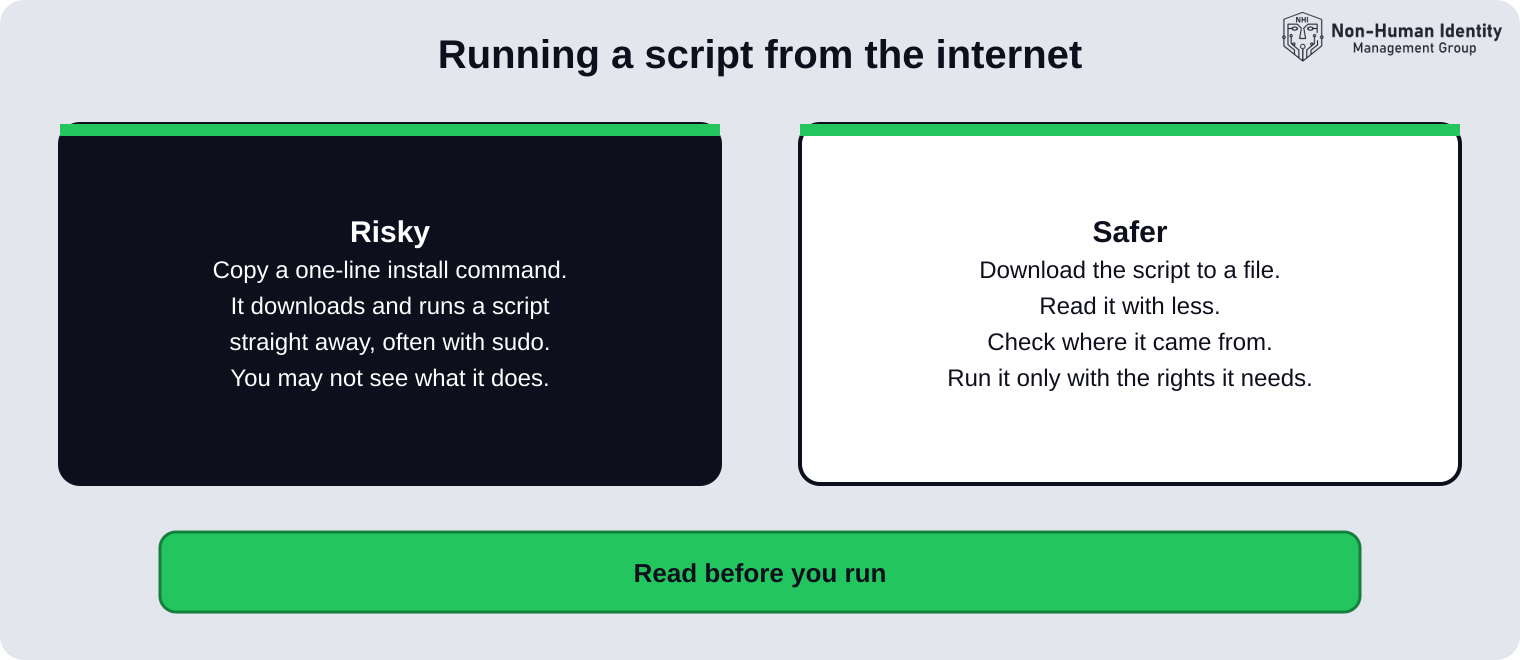
You can also save several commands in a file and run them together. This is called a shell script. Scripts save time, but a script runs every line in it, so check each one first.
A worked example
Umar Rinaldi is training for a first security job. He helps out at Quarry Nursery, a fictional plant nursery that runs a small Linux server for its online orders. Tomas Engel, who set up the server, offers to show him around.
Tomas asks Umar to check whether anyone has been trying to guess passwords. Umar remembers the literal clerk. Every slip will be followed exactly, so he starts with commands that only look.
He types whoami and sees his own everyday account, not an admin one. He types pwd to see where he is. Then he uses ls to find the folder where the server keeps its log files.
The login log is long, so he opens it with less and scrolls a page at a time. Then he uses grep to show only the lines that contain the word "failed". He finds many failed logins for a user name that does not exist, all from the same place.
Umar notes the times and the number of attempts. He does not try to change anything himself. Instead he shows Tomas what he found.
Tomas explains that this is common on servers open to the internet. He decides to check the login settings and the firewall rules, using sudo for those changes. Umar watches and sees that each sudo command is recorded.
Before they finish, Tomas shows Umar a setup script someone suggested online. They read it together with less. One line downloads a second file from a site neither of them knows. They decide not to run it.
Myths and mistakes
| What people think | What is true |
|---|---|
| The command line is only for experts. | A few look-only commands are easy to learn and safe to practise in a lab. |
| It is quicker to just work as root. | It is also riskier. Use sudo for the commands that need it, so mistakes stay small and each use is recorded.[3] |
| A command from a well-known website is safe to paste. | Any command can do damage. Check what it does in the manual before you run it. |
| The shell will warn me before deleting things. | Often it will not. It follows the command as typed. |
| Typing sudo is just a formality. | Sudo gives full admin power. Ubuntu's guide says to treat it as seriously as logging in as root.[1] |
What can I do this week?
- Set up a practice Linux system, such as a virtual machine or a training lab, that you are allowed to use.
- Practise whoami, pwd, ls, cd, less and grep until they feel natural.
- Read the manual page for each new command with man before you use it.
- Pick one script you have been given and read it line by line before running it.
Checklist
- I check which account I am using before running commands.
- I check which folder I am in before changing files.
- I practise on a system I own or have permission to use.
- I use sudo only for commands that need admin rights.
- I look up unfamiliar commands in their manual first.
- I read scripts before running them.
- I do not paste commands I do not understand.
Common questions
What is the difference between the terminal and the shell?
The terminal is the window you type into. The shell is the program inside it that reads your commands and runs them. People often use the words to mean the same thing, which is fine for everyday talk. On many Linux systems the shell is called Bash.
Which commands should I learn first?
Start with commands that only look: whoami, pwd, ls, cd, less and grep, plus man to read manuals. They let you find your way around and search files without changing anything. Learn commands that copy, move or delete files once you are comfortable.
Is it safe to practise on my own computer?
Yes, if you are careful and use your own everyday account. A safer choice is a virtual machine or a training lab, which you can reset if something goes wrong. Do not practise on a work server or someone else's system without clear permission.
What does root mean in Linux?
Root has two meanings. It is the name of the all-powerful admin account, which can change anything. It is also the name of the top folder, written as a single slash. Check which one a guide means before you follow it.
Why should I not paste commands from websites?
You should only paste commands you understand. A pasted command runs straight away with your account's rights, or full rights if it uses sudo. Some pages contain mistakes, and some are written to trick people. Look up each part in the manual first.
Where next?
Ready for the detail? Read the practitioner guide: Linux Fundamentals for Defenders Guide. It goes further into users and groups, services and scheduled jobs, SSH keys and what defenders should monitor.
Also useful:
- Linux Permissions for Beginners
- Linux Security for Beginners
- How Operating Systems Work for Beginners
- Kali Linux for Beginners
Related NHI Mgmt Group resources: How to check a Linux server for signs of compromise · SSH Keys for Beginners · CompTIA Linux+ Certification Guide
Key terms
- Command line
- A text interface where you type commands for the computer to run.
- Terminal
- The window where you type commands and see the results.
- Shell
- The program that reads the commands you type and runs them.
- sudo
- A command that runs another command with admin rights and records that it was used.
- Root account
- The all-powerful admin account on a Linux system.
- Shell script
- A file of commands that the shell runs one after another.
Sources and further reading
- The Linux command line for beginners. Ubuntu tutorials, Canonical. https://ubuntu.com/tutorials/command-line-for-beginners, accessed 28 Nov 2026.
- What is a shell? Bash Reference Manual, GNU Project. https://www.gnu.org/software/bash/manual/html_node/What-is-a-shell_003f.html, accessed 28 Nov 2026.
- Sudo in a nutshell. Sudo project. https://www.sudo.ws/about/intro/, accessed 28 Nov 2026.
- GNU grep manual. GNU Project. https://www.gnu.org/software/grep/manual/grep.html, accessed 28 Nov 2026.