Information rights management (IRM) protects a file so only chosen people can open it, and limits what they can do.
This guide is for office workers, managers and anyone who sends sensitive files. You do not need to be technical to use it: if you share contracts, price lists or staff records, IRM can help you keep some control after the file leaves your hands.
In short
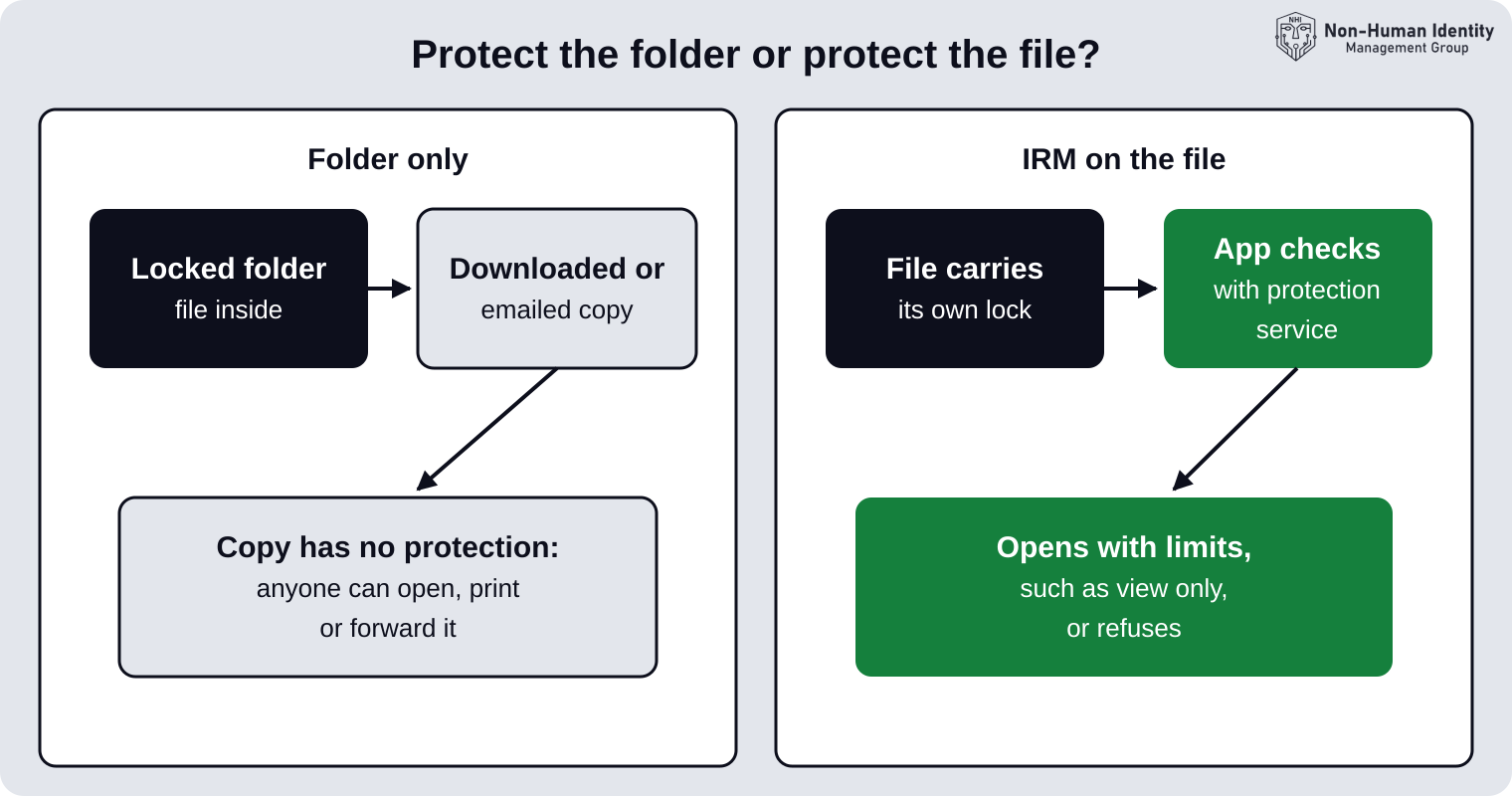
- Normal file sharing controls the folder. IRM puts the protection on the file itself, so it travels with the file.
- You choose who can open the file and what they can do, such as view, edit, print or copy.
- Some tools let you set an end date, or take access back later, with limits.
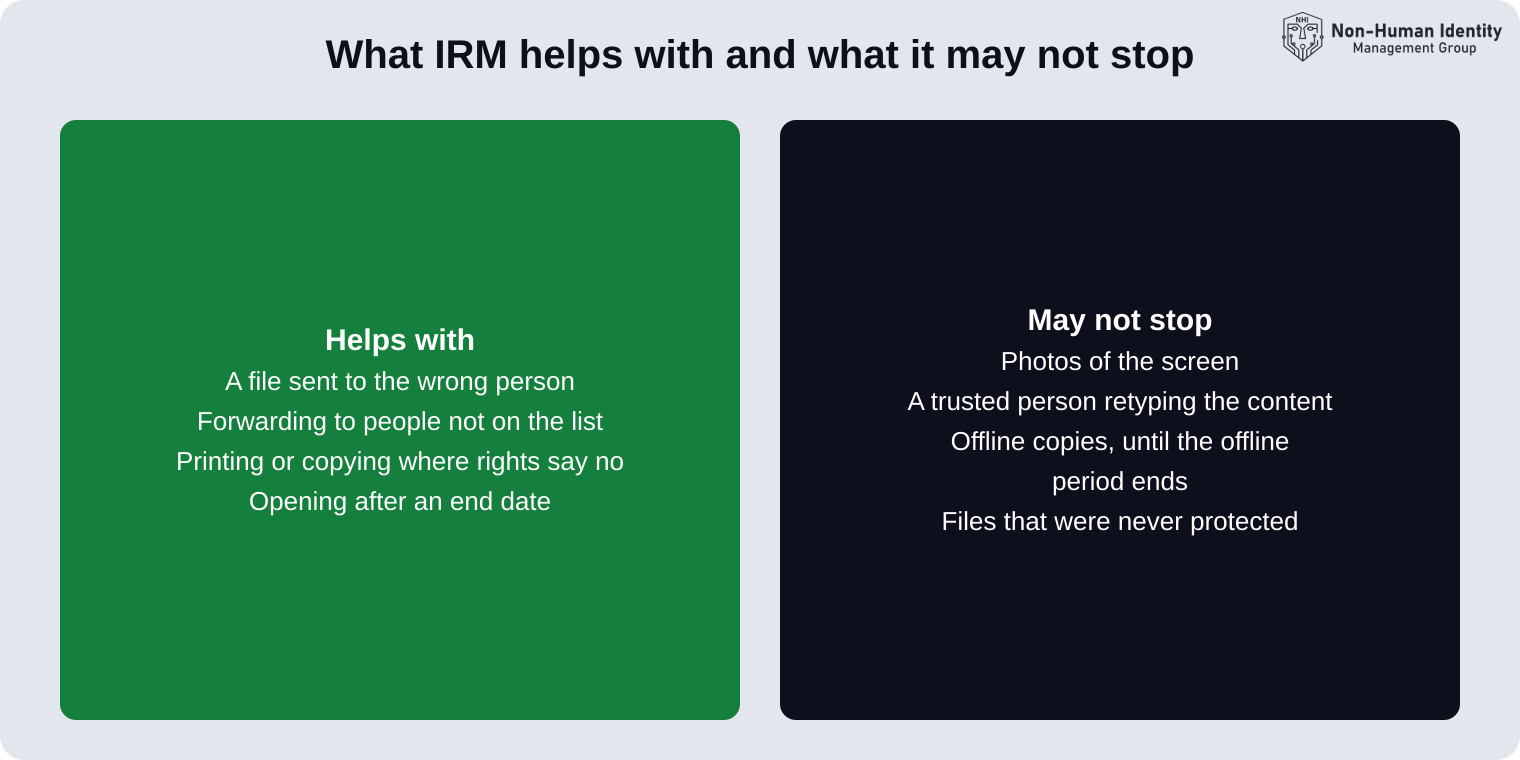
- IRM lowers the risk of a leak, but a person who can see a file can still photograph the screen.
What you will learn
- Explain what IRM is in one sentence.
- Tell the difference between protecting a folder and protecting a file.
- Choose sensible permissions for a file you send.
- Check what IRM can and cannot stop.
- Scrambling (encryption)
- turning a file into unreadable code that only the right key can unlock.
- What you may do (usage rights)
- the actions a person is allowed to take with a file, such as view, edit or print.
- Taking access back (revocation)
- stopping people from opening a file they could open before.
What is information rights management?
Think of a film you rent online. You can watch it on your own account, but you cannot copy it for a friend. When the rental ends, it stops playing. The rules are part of the film, not the room you watch it in.
IRM works in a similar way for business files and emails. The file is scrambled, which is called encryption. When someone tries to open it, their app checks who they are. If they are on the list, the file opens with the rights the sender chose, such as view only or no printing.[1]
The key point is that the protection stays with the file. If it is forwarded, copied or renamed, it is still scrambled. People not on the list should not be able to open it.[1]
Where the comparison stops working: a rented film is the same for everyone. With IRM, each person can get different rights. One colleague can edit while a supplier can only read.
Why does it matter?
Once you send a normal file, you lose control of it. It can be forwarded, printed or saved on a home computer, and you will not know.
If you work in an office
What could happen: you send a salary list to the wrong "Sam", and it is opened by someone outside the company.
Check this: ask whether your email or file tools offer a "do not forward" or "confidential" label.
If you manage a team
What could happen: a staff member leaves for a rival and still has your price list on a personal laptop.
Check this: agree which kinds of file must be protected before they are shared.
If you share files with suppliers
What could happen: a design you sent for a quote is passed on to another firm.
Check this: share view-only copies with an end date where your tools allow it.
Next: Encryption for Beginners
What does it look like?
Here is a made-up summary of the settings someone might choose when protecting a file.
Example only. All values are made up.
File:        Spring-prices-EXAMPLE.xlsx
Label:       Confidential - partners                 (1)
Who can open:
  [email protected]     Edit
  [email protected] View only, no print     (2)
Access ends: 30 days after sharing                   (3)
Offline use: up to 7 days                            (4)
Watermark:   viewer's email shown on each page       (5)
- A label is a set of rules made in advance. Staff pick it, so they do not choose each setting.
- Each person gets their own rights. In a real file, this line would hold the supplier's address.
- After the end date, the file should stop opening for these people.
- How long the file can open without going online to check. Shorter is safer.
- A name on the page puts people off taking photos. It does not block them.
Why this is risky: without IRM, a normal spreadsheet sent by email can be forwarded, printed and kept by anyone who receives it.
The safer way: protect the file before it leaves. Give each person only the rights they need, and set an end date where it fits.
How does it work?
The details differ between products, but the steps are broadly the same.
- Protect. The sender, or an automatic rule, applies a label or chooses permissions. The file is scrambled.[1]
- Share. The file is sent or shared as normal, by email, link or USB stick.
- Check. When someone opens it, their app asks the protection service whether they are allowed in.
- Open with limits. If they are allowed, the file opens, and the app holds back the actions they lack rights for, such as print or copy.[1]
- Change later. The owner or an admin can, in some tools, see who tried to open the file and take access back.[2]
Products are listed alphabetically. Google Drive lets a file owner stop others from downloading, printing or copying a file, and set access to expire for some accounts. Google notes these limits apply inside its own apps and cannot stop people sharing the content in other ways.[3] Microsoft Purview uses sensitivity labels to encrypt files and emails, so that only people the label allows can open them, inside or outside the organisation.[1]
Taking access back has limits too. In Microsoft's tool, someone allowed to use a file offline may keep opening it until their offline period ends.[2] A person who can see a file can also take a photo of the screen. Microsoft describes watermarks that show the viewer's name as a deterrent to screen captures, not a block.[1]
A worked example
Dario Lomax runs Larch Florist, a fictional shop that supplies flowers for weddings and hotels. He is pitching for a large hotel contract and needs to send his price list to the hotel's buyer.
Last year a price list he emailed to one client ended up with a rival florist. He never found out how.
This time he thinks of the rented film. He wants the buyer to watch, not keep a copy.
His office software includes a "Confidential, view only" option that his IT supplier set up. He applies it to the price list. He gives the buyer view-only rights and sets the access to end after 30 days, when the tender closes.
The buyer opens the file and reads it without any trouble. Her name appears faintly across each page. When she tries to forward it to a colleague, the colleague cannot open it, so she asks Dario. He adds the colleague, also view only.
Six weeks later the contract has been awarded. The file no longer opens for the hotel team, because the end date has passed.
Dario knows the protection is not perfect. Someone could still photograph the screen. But he has closed the easy ways for his prices to travel.
Myths and mistakes
| What people think | What is true |
|---|---|
| A password on a file is the same as IRM. | A password can be shared along with the file. IRM checks who each person is and can limit what they do. |
| IRM stops all leaks. | People who can see a file can still photograph or retype it. IRM makes leaks harder.[1] |
| Taking access back works instantly everywhere. | Copies allowed offline may keep opening until the offline period ends.[2] |
| Locking the shared folder is enough. | Folder rules stay behind when a file is downloaded or emailed. IRM rules go with the file. |
| Protect everything, to be safe. | Too much protection blocks normal work, so people find ways round it. Protect the files that matter most. |
What can I do this week?
- Ask your IT team or supplier whether your email and file tools offer IRM or protection labels.
- List the kinds of file you send outside the business that would hurt if they leaked.
- Try sending a "do not forward" or view-only file to a colleague, to see how it works.
- Agree a simple rule on which files must be protected before they leave.
Checklist
- We know whether our tools offer IRM or protection labels.
- We have a short list of file types that must be protected when shared.
- Labels are set up so staff do not need to choose every setting.
- People get only the rights they need, such as view only.
- Files shared outside have an end date where it fits.
- Offline access periods are kept short for the most sensitive files.
- Staff know IRM does not stop photos of the screen.
Common questions
Is IRM the same as DRM?
They are close cousins. Digital rights management (DRM) is the wider idea of controlling how digital content is used, and is best known for films and music. IRM applies the same idea to business documents and emails, usually tied to work accounts.
Can the person I send a file to open it without special software?
Usually they need an app that understands the protection, and an account the service can check. Many common office apps can do this. Sharing with people outside your organisation may need extra setup, so test it first.
Can I take a file back after I have sent it?
Sometimes. Some tools let the owner or an admin stop a protected file from opening. Copies allowed for offline use may keep opening for a while, and a file that was never protected cannot be pulled back.
Does IRM stop screenshots?
Not reliably. A person who can see a file can photograph the screen with a phone. Some tools add a visible watermark showing the viewer's name, which discourages copying and helps trace a leak, but does not block it.
Is IRM worth it for a small business?
It can be, if you share files that would hurt if they leaked, such as prices, designs or staff details. Check what your existing office tools already include before buying anything new, and start with a few file types.
Where next?
Ready for the detail? Read the practitioner guide: Information Rights Management and Persistent File Protection Guide. It goes further into designing protection policies, sharing with partners, customer-held keys and how to roll IRM out without breaking everyday work.
Also useful:
Related NHI Mgmt Group resources: Data Classification Guide · Data Security for Beginners · Data Loss vs Data Breach vs Data Leak
Key terms
- Information rights management
- Protection on a file that controls who can open it and what they can do with it.
- Encryption
- Turning data into unreadable code that only the right key can unlock.
- Usage rights
- The actions a person may take with a file, such as view, edit, print or copy.
- Sensitivity label
- A ready-made tag, such as Confidential, that can apply protection rules to a file.
- Access revocation
- Taking away someone's ability to open something they could open before.
- Dynamic watermarking
- Showing the viewer's name or details on a file, so copies can be traced.
- Digital rights management
- The wider idea of controlling how digital content is used, best known for films and music.
Sources and further reading
- Restrict access to content by using sensitivity labels to apply encryption. Microsoft Learn, Microsoft. https://learn.microsoft.com/en-us/purview/encryption-sensitivity-labels, accessed 28 Nov 2026.
- Track and revoke document access. Microsoft Learn, Microsoft. https://learn.microsoft.com/en-us/purview/track-and-revoke-admin, accessed 28 Nov 2026.
- Stop, limit, or change sharing. Google Drive Help, Google. https://support.google.com/drive/answer/2494893, accessed 28 Nov 2026.