Metadata is hidden information stored inside a file, such as when, where and on what it was made.
This guide is for anyone who shares photos or documents online, by email or in chat. You do not need to be technical to be affected: a single photo or report can say more about you or your business than you meant to share.
In short
- Most photos and documents carry hidden details, such as the date, the device used and the author's name.
- Photos taken on a phone may also hold the place where they were taken, if location saving is on.
- Some apps keep or pass on these details when you share a file, depending on the app and its settings.
- Check a file's details before you share it, turn off location when you do not need it, and remove hidden data from documents first.
What you will learn
- Explain what metadata is in one sentence.
- Spot the hidden details in a photo or document on your own device.
- Check whether a photo will share your location before you send it.
- Remove hidden data from a document before it leaves your business.
- Hidden file details (metadata)
- information stored inside a file that you do not see on the page or in the picture.
- Photo details (EXIF)
- a common way cameras and phones store details such as camera settings inside a photo.
- Removing hidden details (metadata stripping)
- deleting the hidden details from a copy of a file before you share it.
What is metadata?
Think of an old printed photo. On the back, someone has written the date, the place and who is in it. You do not see that writing when you look at the picture, but it travels with it.
Metadata is that writing on the back, for digital files. A US standards body describes it simply as "data about data".[1] It tells your phone or computer what the file is, so it can sort and show it.
A photo can hold the date and time, the phone or camera model and its settings. Many cameras store these using a format called EXIF (a shared standard for photo details).[2] A phone photo can also hold the location where it was taken, if the camera is set to save it.[3]
Documents carry metadata too. A Word file can hold the author's name, who last saved it, comments and tracked changes.[4]
Where the comparison stops working: you can see writing on the back of a print if you turn it over. Digital metadata stays out of sight unless you open the file's details, so it is easy to forget it is there.
Why does it matter?
Metadata is useful. It lets your phone sort photos by date and place. The trouble starts when a file travels further than you meant, carrying details you did not choose to share.
If you post photos online
What could happen: a photo taken at home may carry its location, which can point to where you live.
Check this: look at a photo's details on your phone before you post or send it.
If you run a small business
What could happen: a price quote sent to a customer still holds a comment about another client.
Check this: remove comments, tracked changes and author names before files go out.
If you are new to IT work
What could happen: a screenshot or file you share in a ticket reveals user names or system names.
Check this: open the file's properties before you attach it, and share a clean copy.
Next: OPSEC for Beginners
What does it look like?
Here is a made-up detail panel. You see something like it when you open the information for a photo.
Example only. All values are made up.
File name:   IMG_0000_EXAMPLE.jpg
Taken:       Saturday 00:00 (FAKE date)          (1)
Device:      Example Phone 0                      (2)
Settings:    f/0.0  1/000s  ISO 000
Location:    51.0000 N, 0.0000 W (EXAMPLE)        (3)
Author:      FAKE Name                            (4)
- In a real file, this line would show when the photo was taken.
- In a real file, this line would name the phone or camera model.
- In a real file, this line would hold a map point. It can be close enough to find one house.
- In a real file, this line could hold a name set on the phone or in an app.
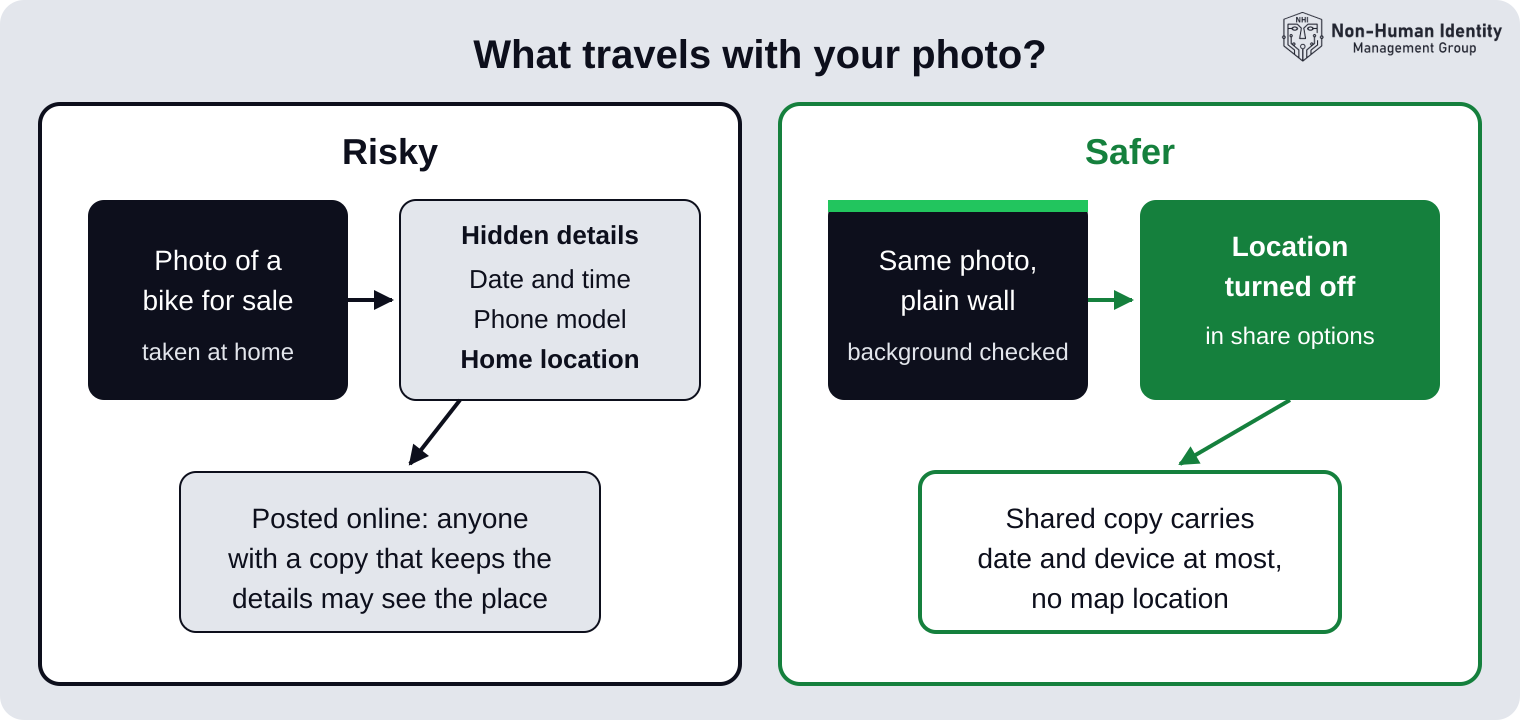
Why this is risky: say this is a photo of a bike for sale, taken at home. The location line may point to your house. Apple says sharing a photo can include its metadata, such as date, time, place and device.[5]
The safer way: before you share, open the share options. Turn off location if your phone offers it. You can also turn off location in the camera settings. Google notes that people may still guess a place from landmarks, so check the background too.[3]
How does it work?
Here is how hidden details get into a file and out into the world.
- The file is made. When you take a photo or save a document, the device or app writes details into the file, such as the time and the device.
- Extra details are added. If location saving is on, a phone may add where the photo was taken. A document app adds the author name and keeps comments and tracked changes.[4]
- The file is shared. You send it by email, chat, a file link or a website. Some routes keep the details and some remove a few of them. It depends on the app and its settings.
- Someone opens the details. Anyone who gets a copy that still holds the metadata can usually read it with the tools built into their computer or phone.
- A clean copy breaks the chain. If you remove the details from a copy before you share it, the person receiving it only gets what you chose to send.
A worked example
Xena Mbeki is moving flats and wants to sell her old bike. She takes three photos of it on her front path and posts them on a local selling site.
A friend, Fen Quist, works in IT. He sees the listing and sends her a message. "Did you check the photo details first?" he asks. Xena has no idea what he means.
Fen explains that her phone may save the place where each photo is taken. If the selling site keeps that detail, a stranger could see roughly where the bike lives, and where she lives too.
Xena opens one of the photos on her phone and taps the information button. There is a small map with a pin on her street. She did not know it was there.
She does not know whether the site removed the location when she uploaded the photos. Different sites handle this differently, and she cannot easily tell from the listing. So she takes the safe route. She deletes the listing and the three photos on the site.
Next, she takes new photos against a plain wall, so the background gives nothing away. When she shares them, she opens the share options on her phone and turns off location. She checks one more time in the details panel. No map this time.
Then she looks at her camera settings. She leaves location on for holiday photos she keeps to herself, but she now checks the details before she posts anything.
The bike sells a week later. The buyer meets her at a nearby car park, which is her choice, not something a hidden detail chose for her.
Myths and mistakes
| What people think | What is true |
|---|---|
| A photo is just the picture. | Most photos also carry hidden details, such as the date, the device and sometimes the location. |
| Every website removes photo details for you. | Some do and some do not. It also depends on how you share. Check before you rely on it. |
| Turning off location hides where a photo was taken. | It removes the map detail, but a street sign or a view in the picture can still give the place away. |
| Deleting a comment in a document always removes it. | Tracked changes, old versions and document properties can stay in the file. Use the document check tool before sharing. |
| Metadata is bad and should always be removed. | It is useful for sorting and finding your own files. Remove it from the copy you share, not from your own original. |
What can I do this week?
- Open three photos on your phone and look at their details. Is there a map or a place name?
- Find the location setting for your camera app and decide when you want it on.
- Next time you share a photo, open the share options and look for a location switch.
- Run the document check in your office app on a copy of one file you send to customers.[4]
- Agree a simple rule at work: files leave the business only after hidden data has been removed.
Checklist
- I know how to open the details of a photo on my phone.
- I know whether my camera saves location, and I chose that on purpose.
- I check the share options for a location switch before I send photos.
- I look at the background of a photo before I post it.
- I remove comments, tracked changes and author names before sending documents outside.
- I run the document check on a copy, because removed data may not come back.
- I keep my own originals and share clean copies.
Common questions
Is metadata the same as the file's content?
No. The content is what you see, such as the picture or the words. Metadata describes the file: when it was made, by what device or person, and sometimes where. It sits inside the same file, so it usually travels with the content unless something removes it.
Does every photo show where it was taken?
No. A photo holds a location only if the camera or phone was set to save one, or if you added a place yourself. Google Photos can also estimate a place from landmarks, and says it does not share estimated locations when you share a photo.[3]
Do social media sites remove photo details?
Some sites remove some details when you upload, but practice varies by site and can change. Treat it as a bonus, not a safety net. Turning off location before you share, and checking the background, puts the choice back in your hands.
Can I remove metadata without special software?
Often, yes. Phones offer share options that can leave out location. Office apps have a built-in check that finds and removes hidden data such as author names and comments. Microsoft advises using a copy, because removed data cannot always be restored.[4]
Is metadata only about privacy?
Mostly, but not only. Investigators use metadata to check when a file was made or edited. Businesses use it to sort and find records. The same details that help you find your own files can reveal more than you meant to share.
Where next?
Ready for the detail? Read the practitioner guide: Location Data Privacy Guide. It goes further into how location data is collected, why it is hard to make anonymous and the controls organisations use to protect it.
Also useful:
- Your Digital Footprint for Beginners
- Data Privacy for Beginners
- Content Provenance for Beginners
- iPhone Security and Privacy Settings Guide
Related NHI Mgmt Group resources: Doxxing Prevention Guide · Image Forensics · Data Loss Prevention (DLP) Guide
Key terms
- Metadata
- Hidden information stored inside a file that describes it, such as when it was made and by whom.
- EXIF metadata
- A common standard cameras and phones use to store photo details such as settings and date.
- Metadata stripping
- Removing hidden details from a copy of a file before it is shared.
- Metadata leakage
- When hidden file details reveal information the sender did not mean to share.
- Personal data
- Any information that relates to an identifiable person, which can include a location or a name in a file.
- Data minimisation
- Sharing or keeping only the information that is needed, and nothing extra.
Sources and further reading
- Glossary: metadata (definition from NIST SP 800-86). Computer Security Resource Center, US National Institute of Standards and Technology (NIST). https://csrc.nist.gov/glossary/term/metadata, accessed 28 Nov 2026.
- Exif Exchangeable Image File Format, Version 2.2 (format description). Sustainability of Digital Formats, Library of Congress. https://www.loc.gov/preservation/digital/formats/fdd/fdd000146.shtml, accessed 28 Nov 2026.
- Edit, remove or hide your photos' locations. Google Photos Help, Google. https://support.google.com/photos/answer/6153599?hl=en-GB, accessed 28 Nov 2026.
- Remove hidden data and personal information by inspecting documents, presentations or workbooks. Microsoft Support, Microsoft. https://support.microsoft.com/en-gb/office/remove-hidden-data-and-personal-information-by-inspecting-documents-presentations-or-workbooks-356b7b5d-77af-44fe-a07f-9aa4d085966f, accessed 28 Nov 2026.
- Share photos and videos on iPhone. iPhone User Guide, Apple Support. https://support.apple.com/en-gb/guide/iphone/iphf28f17237/ios, accessed 28 Nov 2026.