WordPress security means keeping the WordPress software, its add-ons and its admin accounts up to date and locked down.
This guide is for anyone who runs a WordPress site, edits one, or pays someone else to look after one. You do not need to write code to be affected: most WordPress sites are broken into through gaps that the owner can close from the dashboard.
In short
- A WordPress site is made of four parts: the core software, plugins, a theme and the hosting it runs on.
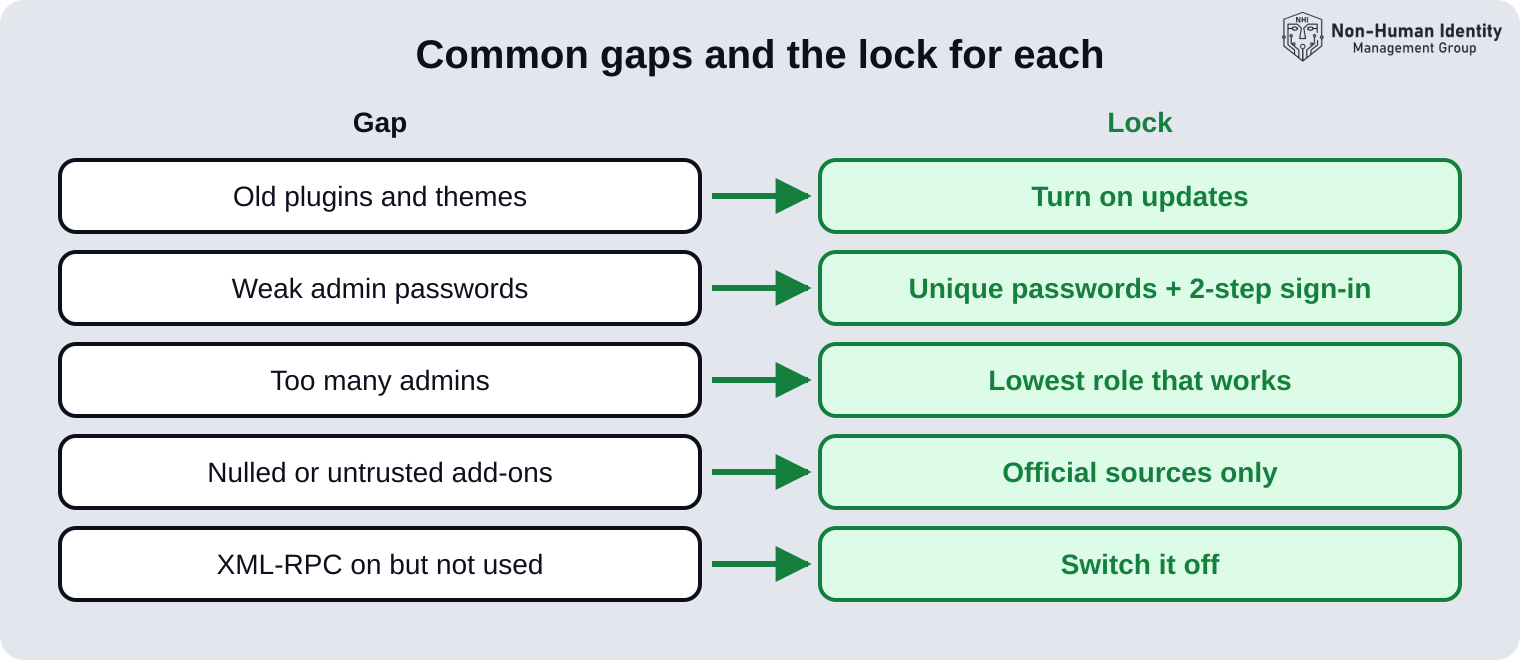
- Many break-ins come through old plugins or themes, weak admin passwords, too many admins, or add-ons from untrusted sources.
- Turn on updates, give each person the lowest role that works, and add two-step sign-in for every admin.
- Keep backups in more than one place. Caching and a web firewall in front of the site help it cope with busy times and bad traffic.
What you will learn
- Explain what WordPress core, plugins, themes and hosting each do.
- Spot the common reasons WordPress sites get hacked.
- Check your updates, user roles, sign-in settings and backups.
- Ask your web host or developer about caching and a web firewall.
- Add-on (plugin)
- a small extra program that adds a feature to WordPress, such as a contact form or a shop.
- Design pack (theme)
- the set of files that controls how your site looks.
- Saved copy of a page (cache)
- a ready-made copy of a page, kept so it can be sent out quickly.
What is WordPress security?
Think of a block of flats. The building itself is WordPress core. Each flat owner can add fittings, like a new lock or a doorbell. Those fittings are the plugins and the theme, and the landlord who owns the land is your web host.
WordPress is open source software, which means anyone can use, study and change it.[1] You install it on a web host, which is a company that rents out the computer, called a server, that your site runs on. Then you add plugins for extra features and a theme for the design.
Each of these parts is software, and software can have weak spots. WordPress security is the routine that keeps those weak spots closed. WordPress itself says that web hosts often look after the server, but not the software you choose to install on it.[2] So core, plugins, themes and admin accounts are usually your job, or your developer's.
Where the comparison stops working: in a block of flats, a stranger has to walk up to the door. A WordPress site can be tried by automated tools from anywhere in the world, at any hour.
Why does it matter?
WordPress powers a very large number of websites, so tools that hunt for weak WordPress sites are common. A hacked site can send visitors to scams, leak customer details or go offline.
If you own the site
What could happen: an old plugin lets a stranger add hidden links or send your visitors to a fake shop.
Check this: who applies updates, how often, and whether auto-updates are on.
If you write or edit posts
What could happen: your password is reused from another site, and someone signs in as you.
Check this: use a unique password and ask for two-step sign-in on your account.
If you build sites for clients
What could happen: you leave your own admin account on a client site, and nobody removes it when the job ends.
Check this: hand over with named accounts, a backup plan and an update schedule.
What does it look like?
Here is a made-up summary of a WordPress dashboard. Each marked line is a common weak spot.
Example only. All values are made up.
Site: www.example-bakery.example     WordPress dashboard
Updates waiting: 1 core, 5 plugins, 2 themes   (1)
Plugin auto-updates: off for all 18 plugins     (2)
Theme "PremiumPro-FREE-download" active         (3)
Users with Administrator role: 5                (4)
  - username "admin", last sign-in 2020         (5)
Two-step sign-in for admins: not set up         (6)
XML-RPC: switched on, not used                  (7)
Last backup: on this server only, 9 months ago  (8)
- Waiting updates often include security fixes.
- You can turn on auto-updates for each plugin and theme.
- A paid theme given away free on another site may hide bad code.
- Five people with full control is more than most small sites need.
- "admin" is the first name an attacker is likely to try.
- WordPress does not come with two-step sign-in. A plugin can add it.
- XML-RPC is an old way for other apps to connect. It is often attacked.
- A backup kept only on the same server can be lost with the site.
Why this is risky: automated tools look for these gaps. They hunt for weak add-ons, easy passwords and features nobody uses.
The safer way: apply updates and turn on auto-updates where safe. Use add-ons from trusted sources only. Keep two or three named admins, each with two-step sign-in. Turn XML-RPC off if you do not need it. Keep recent backups in more than one place.
How does it work?
Here are the main locks on a WordPress site, in the order most owners can set them up.
- Keep every part up to date. WordPress advises keeping core and plugins up to date, and deleting plugins you do not use.[2] Since version 5.5, admins can turn on auto-updates plugin by plugin and theme by theme.[3] The UK's National Cyber Security Centre calls applying updates one of the most important and quickest things you can do.[7]
- Get add-ons only from trusted places. WordPress says not to get plugins or themes from untrusted sources.[2] "Nulled" themes and plugins are paid add-ons copied and shared for free. WooCommerce notes that you cannot know such a copy is the same as the original without checking its code.[8]
- Give each person the right role. WordPress has set roles. An Administrator can use every admin feature. An Editor can publish anyone's posts. An Author can publish their own, and a Contributor can write but not publish.[4] Only Administrators can install plugins or edit users on a single site.[4] Fewer admins means fewer accounts that can do serious harm.
- Protect the sign-in page. A brute force attack is when a tool tries many username and password pairs until one works. WordPress advises not using the username "admin". It also says core does not include two-step sign-in, so you add it with a plugin or another sign-in service, for every admin.[5] It names the XML-RPC file as a frequent target and says to turn it off if you do not need it.[5]
- Back up, and keep copies elsewhere. A WordPress backup has two parts: the database, which holds posts and comments, and the files, which hold core, themes, plugins and uploads. WordPress suggests keeping several recent backups in different places.[6]
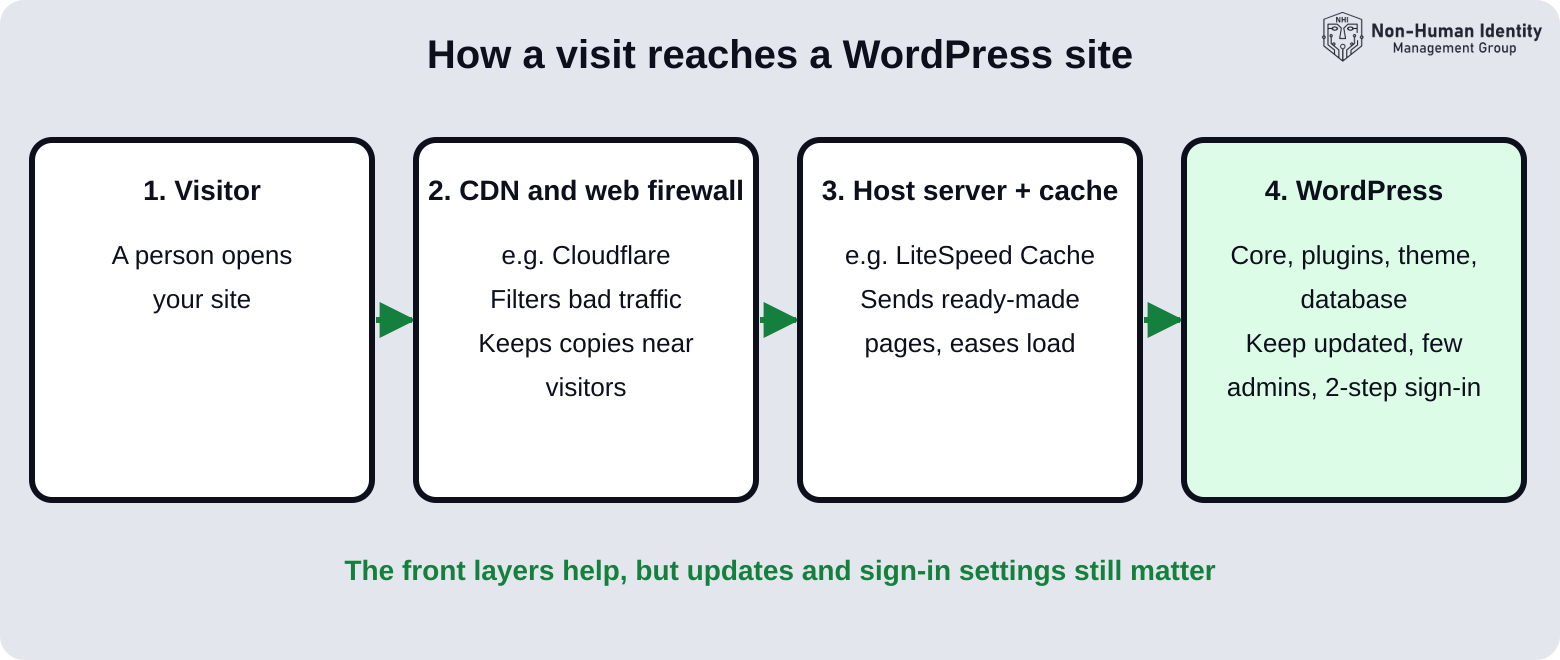
- Put helpers in front of the site. Caching and a web firewall sit between visitors and WordPress. They are explained below.
Security plugins in general. Many plugins bundle several of these locks, such as two-step sign-in, limits on failed sign-ins, file checks and alerts. They can help, but they are software too. Choose one from a trusted source, keep it updated, and check what it does rather than assuming it does everything.
Managed hosting. Some web hosts offer "managed WordPress" plans. On these, the host may apply core updates, take backups or add a firewall for you. What is included varies, so ask your host to list it in writing.
Caching. Each time someone visits a normal WordPress page, the server builds it from the database. A cache keeps a ready-made copy of the page and sends that instead. LiteSpeed explains that serving a stored copy is much faster and uses far fewer resources than building the page each time.[9] LiteSpeed Cache for WordPress is one plugin that does this, and it works with LiteSpeed server software on your host.[10] When many visitors arrive at once, or a flood of bad traffic hits, a cached site is less likely to slow down or fall over.
A CDN and web firewall in front. A content delivery network, or CDN, is a set of servers around the world that keep copies of your pages near your visitors. Cloudflare is one example. It works as a reverse proxy, which means traffic passes through Cloudflare on its way to your server.[11] Its web application firewall checks incoming requests against sets of rules and filters out unwanted traffic.[12] WordPress notes that a managed firewall or CDN can filter known bad addresses and automated sign-in attempts before they reach your server.[5] These layers help, but they do not replace updates and strong sign-in.
A worked example
This story is made up to show how it can happen.
Amara Novak runs a small bakery and sells cakes to order through her WordPress site. A friend set it up three years ago. Since then, Amara has only added posts and photos.
One Friday her site slows to a crawl, then shows an error. She calls Hal Fairweather, a local web developer. Hal looks at the server records and sees thousands of sign-in attempts against the username "admin". He also sees heavy traffic to the XML-RPC file.
Next he checks the dashboard. Four plugins and the theme have updates waiting. The theme came from a free download site, not the maker. There are four Administrator accounts, two of them from people who no longer help out.
Hal takes a fresh backup and stores a copy away from the server. He replaces the theme with the official version and updates everything. Then he turns on auto-updates for most plugins and removes three unused ones. Amara becomes the only Administrator, with a new username and two-step sign-in. Her helper gets an Editor account.
Hal switches off XML-RPC, which the site does not use. He turns on the page cache that her host offers and puts the site behind a CDN with a web firewall. The next week the sign-in attempts mostly stop at the firewall, and the site stays fast on a busy Saturday.
What made the difference: a fresh backup first, then updates, fewer admins and a filter in front of the site.
Myths and mistakes
| What people think | What is true |
|---|---|
| WordPress is insecure, so it cannot be made safe. | Many WordPress problems come from old add-ons and weak sign-in. Updates, roles and two-step sign-in close many of these gaps.[2] |
| My host takes care of security. | Hosts often look after the server, not the software you install. Check what your plan covers.[2] |
| A free copy of a paid theme is the same thing. | You cannot be sure without checking its code. Buy from the maker or the official directory.[8] |
| Deactivating a plugin is enough. | WordPress advises deleting plugins you do not use.[2] |
| A security plugin or Cloudflare means I can skip updates. | They add layers. Updates, roles and backups are still needed. |
| Caching is only about speed. | It also helps the site keep going when many visitors or a flood of bad traffic arrive.[9] |
What can I do this week?
- Go to Dashboard, then Updates. Apply what is waiting, or ask your developer to.
- Turn on auto-updates for plugins and themes you trust, and delete the ones you do not use.
- Open the Users list. Remove old accounts. Move anyone who does not need full control to a lower role.
- Add two-step sign-in for every admin account.
- Ask your host where backups are kept and if a copy is stored off the server. Ask if caching and a firewall are included.
Checklist
- WordPress core, plugins and themes are up to date.
- Auto-updates are on where they are safe to use.
- Unused plugins and themes are deleted.
- All add-ons come from the official directory or the maker.
- Only two or three people have the Administrator role.
- No account uses the username "admin".
- Every admin uses a unique password and two-step sign-in.
- XML-RPC is off if nothing on the site needs it.
- Backups of the database and files are kept in more than one place.
- We know whether our host provides caching, a CDN and a web firewall.
Common questions
Is WordPress safe to use?
Yes, if it is looked after. The core software gets regular security updates. Most trouble comes from parts the owner controls: old plugins and themes, add-ons from untrusted sources, weak passwords and too many admins. Keep those in order and the risk drops a lot.
Should I turn on auto-updates?
For most small sites, yes, for plugins and themes from trusted makers. Updates often fix security weak spots. Now and then an update can clash with another plugin, so keep a recent backup and check the site after updates run.
Do I need a security plugin?
Not always, but one can help. It can add two-step sign-in, limit failed sign-ins and alert you to changed files. Pick one from the official directory, keep it updated and do not treat it as a replacement for updates and backups.
What is XML-RPC, and should I turn it off?
XML-RPC is an older way for apps and other services to connect to WordPress. WordPress names it a frequent target for password guessing. If nothing on your site uses it, turning it off is a sensible step. Ask your developer first if you use outside apps.
Does Cloudflare or caching make my site secure?
Not on its own. A CDN with a web firewall can filter bad traffic before it reaches your server. Caching helps the site cope with busy times. Neither fixes an old plugin or a weak admin password, so keep doing the basics.
What should I do if my WordPress site is hacked?
Stay calm and work through it in order. Contact your host or developer, change admin passwords, and restore a clean backup if you have one. Then update everything and remove unknown accounts and add-ons. Our recovery guide walks through each step.
Where next?
Ready for the detail? Read the practitioner guide: PHP and WordPress Security Guide. It goes further into file permissions, configuration hardening and secure plugin code.
Also useful:
- Website Security for Beginners
- Hacked Website Recovery for Beginners
- Cloudflare for Beginners
- LiteSpeed Cache for Beginners
- WordPress Security Checklist
Related NHI Mgmt Group resources: Web Application Firewalls for Beginners · Multi-Factor Authentication for Beginners · App Passwords for Beginners
Key terms
- Plugin
- An add-on program that gives WordPress an extra feature.
- Theme
- The set of files that controls how a WordPress site looks.
- Brute force attack
- Trying many username and password pairs, often with a tool, until one works.
- Multi-factor authentication
- Signing in with a second check, such as a code, as well as a password.
- Least privilege
- Giving each person or program only the access it needs for its job.
- Reverse proxy
- A service that sits in front of a website and passes traffic to it.
- Web application firewall
- A filter that checks requests to a website and blocks unwanted ones.
- Cache
- A stored, ready-made copy of a page that can be sent out quickly.
Sources and further reading
- WordPress.org. "About WordPress". https://wordpress.org/about/ (accessed 28 Nov 2026).
- WordPress.org. "Hardening WordPress". Advanced Administration Handbook. https://developer.wordpress.org/advanced-administration/security/hardening/ (accessed 28 Nov 2026).
- WordPress.org. "Plugins and Themes Auto-Updates". WordPress Documentation. https://wordpress.org/documentation/article/plugins-themes-auto-updates/ (accessed 28 Nov 2026).
- WordPress.org. "Roles and Capabilities". WordPress Documentation. https://wordpress.org/documentation/article/roles-and-capabilities/ (accessed 28 Nov 2026).
- WordPress.org. "Brute Force Attacks". Advanced Administration Handbook. https://developer.wordpress.org/advanced-administration/security/brute-force/ (accessed 28 Nov 2026).
- WordPress.org. "WordPress Backups". Advanced Administration Handbook. https://developer.wordpress.org/advanced-administration/security/backup/ (accessed 28 Nov 2026).
- National Cyber Security Centre (UK). "Install the latest software and app updates". Top tips for staying secure online. https://www.ncsc.gov.uk/collection/top-tips-for-staying-secure-online/install-the-latest-software-and-app-updates (accessed 28 Nov 2026).
- WooCommerce. "WooCommerce site and data security FAQ". WooCommerce documentation. https://woocommerce.com/document/woocommerce-security/ (accessed 28 Nov 2026).
- LiteSpeed Technologies. "LSCache". LiteSpeed documentation. https://docs.litespeedtech.com/lscache/ (accessed 28 Nov 2026).
- LiteSpeed Technologies. "LiteSpeed Cache for WordPress: Overview". LiteSpeed documentation. https://docs.litespeedtech.com/lscache/lscwp/overview/ (accessed 28 Nov 2026).
- Cloudflare. "How Cloudflare works". Cloudflare Fundamentals documentation. https://developers.cloudflare.com/fundamentals/concepts/how-cloudflare-works/ (accessed 28 Nov 2026).
- Cloudflare. "Web Application Firewall (WAF)". Cloudflare documentation. https://developers.cloudflare.com/waf/ (accessed 28 Nov 2026).