Microsoft 365 security means the settings and habits that keep your work email, files and accounts safe.
This guide is for small business owners, office managers and anyone who has been asked to "look after" Microsoft 365. You do not need to be an IT expert: most of the important settings are a few clicks, once you know what to look for.
This is an independent guide from NHI Mgmt Group, based on Microsoft's public documentation as of November 2026. It is not sponsored or reviewed by Microsoft. Product features change, so confirm settings against Microsoft's current documentation.
In short
- Microsoft runs the service, but your settings decide who can sign in and what they can reach.
- Turning on an extra sign-in check for every account is the most useful first step.
- Keep only a few people as admins, and give them separate admin accounts.
- Check for email rules that quietly send your mail to outside addresses.
What you will learn
- Explain which parts of security Microsoft looks after and which parts are yours.
- Check that every account has an extra sign-in step.
- Spot a mail forwarding rule that could leak your email.
- Ask your IT supplier the right questions.
- Your organisation's space (tenant)
- the private area in Microsoft 365 that holds your company's accounts, email and files.
- Extra sign-in check (multi-factor authentication)
- a second proof, such as an app approval, on top of your password.
- Top-level manager account (admin)
- an account that can change settings and other people's access.
What is Microsoft 365 security?
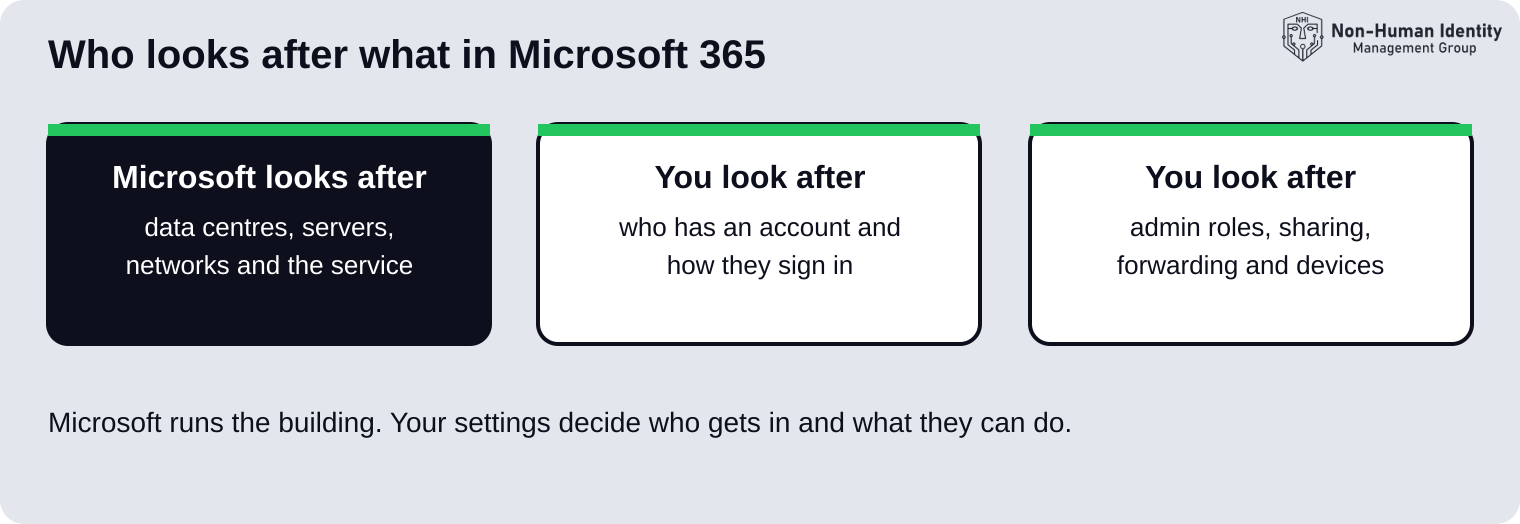
Think of renting a flat. The landlord fixes the roof and the boiler, but you lock the front door. Microsoft 365 works in a similar way.
Microsoft runs the data centres, servers and networks behind the service. You look after your own accounts, who can sign in, and how your settings are chosen.[1] This split is called the shared responsibility model.
So Microsoft 365 security is mostly about your choices. Who has an account? How do they prove it is them? Who can change settings? Where can email and files go?
Where the comparison stops working: a flat has one front door. Your Microsoft 365 space has a door for every person, phone and app that can sign in, so each one needs its own lock.
Why does it matter?
Your email holds invoices, customer details and password reset links. Whoever gets into it can do a lot of harm.
If you own a small business
What could happen: a criminal signs in to your email and sends a fake invoice to your customers.
Check this: ask your IT supplier if every account must use an extra sign-in check.
If you are the office manager
What could happen: you are an admin on the same account you use for daily email, so one bad link puts every setting at risk.
Check this: count how many people are top-level admins.
If you are new to IT support
What could happen: a hidden mail rule sends copies of a manager's email to an outside address for weeks.
Check this: learn where to see mail forwarding settings.
What does it look like?
Here is a made-up summary of the kind of settings an admin might review. It shows the warning signs.
Example only. All values are made up.
Organisation:     example.invalid
Users:            12
Extra sign-in:    8 of 12 users set up         (1)
Top-level admins: 4 (incl. owner, reception)  (2)
Admin accounts:   same as daily email          (3)
Mail rule:        "Copy all" to [email protected] (4)
Secure Score:     FAKE 00%                     (5)
- Four people can sign in with only a password.
- More top-level admins than the job needs.
- Admins read email on the same account they use to change settings.
- A rule like this sends copies of mail to an outside address.
- A score that shows many recommended steps are still to do.
Why this is risky: each line is a gap. Together they make it easier for a criminal to get in and harder to notice.
The safer way: every user has an extra sign-in check, and a few named people have separate admin accounts. Outside forwarding stays off unless there is a clear business need.
How does it work?
Microsoft lists its top ways to protect a business in Microsoft 365. These are some of the main ones, in plain steps.[2]
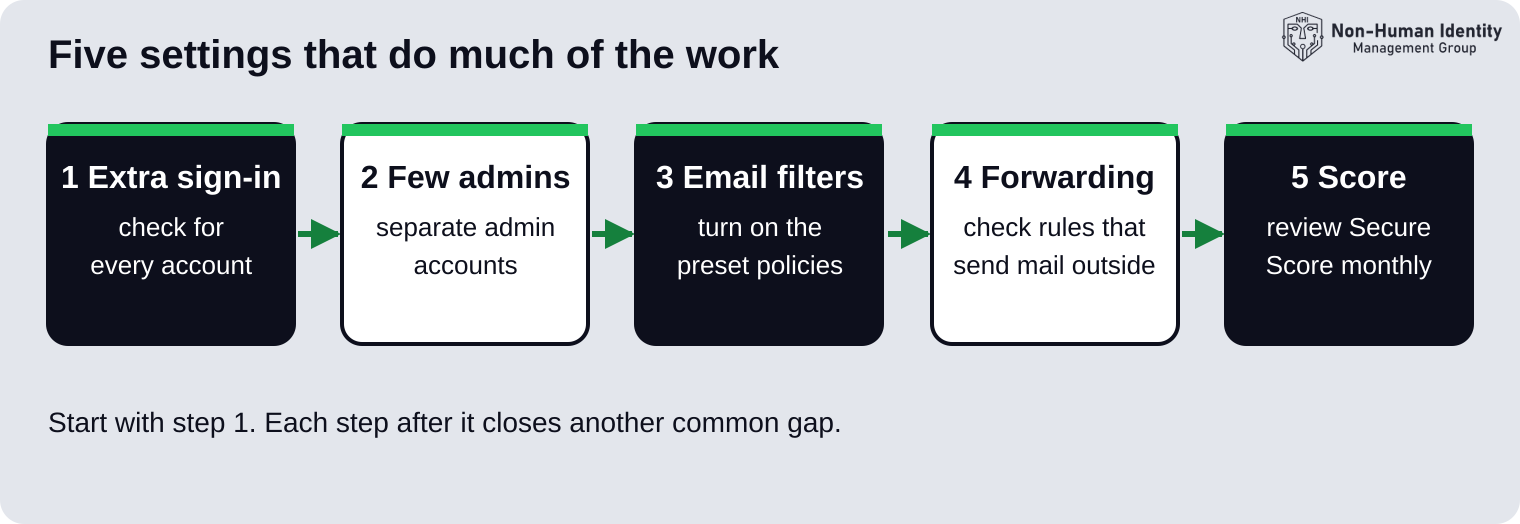
- Turn on an extra sign-in check. Microsoft offers a free set of basic settings, called security defaults. They ask every user to set up multi-factor authentication and block older sign-in methods. Microsoft says this stops more than 99.9% of common identity attacks it sees.[3]
- Keep admins few. Microsoft advises having as few top-level admins as possible. Give people smaller roles, such as password reset, where that is enough.[4] We also suggest a separate admin account that is not used for daily email.
- Turn on email protection. Microsoft offers preset policies that filter junk, scam and harmful email. Turn them on rather than building your own from scratch.[2]
- Control forwarding. Automatic forwarding to outside addresses can leak information. Microsoft suggests admins set it to on or off on purpose, not leave the default.[5]
- Check your score. Microsoft Secure Score shows how many recommended steps you have taken. A higher score means more steps done. It is a guide, not a promise of safety.[6]
A worked example
This story is made up to show how it can happen.
Chloe Pritchard is the practice manager at Copperfield Dental, a small dental surgery with nine staff. She set up Microsoft 365 two years ago. She is also the only admin, and she uses the same account for her daily email.
One Monday, a patient rings. They ask why the surgery has changed its bank details. Chloe has sent no such email.
She asks the surgery's IT supplier for help. They look at the receptionist's mailbox together. They find a mail rule that sends copies of every email to an outside address. The receptionist had typed her password into a fake sign-in page the week before.
The supplier removes the rule and resets the password. They sign the receptionist out of every device. Chloe then tells patients, by phone, to ignore the email.
Next, they make changes. They turn on security defaults, so every user must set up an extra sign-in check.[3] Chloe gets a separate admin account that she uses only for settings. The supplier becomes the second admin. They turn off automatic forwarding to outside addresses.
A month later, Chloe checks Secure Score. It has gone up, and she picks two more steps to work on.
What made the difference: Chloe treated the strange call as a sign of a break-in, not a mix-up. Then she fixed the settings that let it happen.
Myths and mistakes
| What people think | What is true |
|---|---|
| Microsoft handles all the security for us. | Microsoft runs the service. You manage accounts, sign-in and settings.[1] |
| A strong password is enough. | Passwords can be phished or guessed. An extra sign-in check makes a stolen password much less useful.[3] |
| Everyone who helps with IT should be a top-level admin. | Give smaller roles where you can, and keep top-level admins few.[4] |
| If email looks normal, nothing is wrong. | A hidden forwarding rule can copy mail out without any sign in the inbox. Check rules now and then. |
| A high Secure Score means we are safe. | It shows how many recommended steps you have taken. It is not a promise of safety.[6] |
What can I do this week?
- Check that every user has set up an extra sign-in check, or ask your IT supplier to check.
- List everyone who is a top-level admin, and remove anyone who does not need it.
- Ask if outside email forwarding is turned off, unless there is a clear need.
- Look at your Secure Score and pick one recommended step to do.
- Tell staff how to report a strange email or sign-in request.
Checklist
- Every account uses an extra sign-in check.
- We have only a few top-level admins, and each is named.
- Admins use separate accounts for changing settings.
- Automatic forwarding to outside addresses is set on purpose, usually off.
- Email protection policies are turned on.
- Someone checks Secure Score at least once a month.
- Staff know how to report a suspicious email.
Common questions
What are security defaults in Microsoft 365?
They are a free set of basic protections from Microsoft. They ask every user to set up an extra sign-in check, ask admins to use it, and block older sign-in methods. Newer tenants may have them turned on already. Check yours in the Microsoft Entra admin centre.
How many admins should we have?
As few top-level admins as the job needs. Microsoft advises keeping that number small and using smaller roles where you can. For a small firm, we suggest two: an owner or manager and a trusted IT supplier, each with a separate admin account.
How do I know if someone else is reading our email?
Check for mail rules that forward or copy messages to outside addresses, and look at recent sign-in activity. Your IT supplier can do both in the admin centres. If you find something odd, change the password and sign the user out of every device.
Do we need to pay for extra security?
Not to start. Security defaults are free, and they cover the most important first step. Paid plans add more control, such as rules based on device or location. Start with the free basics, then ask your supplier what more you need.
Where next?
Ready for the detail? Read the practitioner guide: Microsoft 365 Security Guide. It goes further into published security baselines, sign-in rules for paid plans and keeping logs for investigations.
Also useful:
- Microsoft 365 Security Checklist
- Microsoft 365 Business Premium
- Microsoft Secure Score Guide
- Phishing for Beginners
Related NHI Mgmt Group resources: Exchange Online Security Guide · Microsoft 365 admin centres and admin roles · Account Takeover for Beginners
Key terms
- Microsoft 365
- Microsoft's online bundle of email, file storage, chat and office apps, with sign-in and security settings.
- Tenant
- Your organisation's own private space in a cloud service, holding its accounts, settings and data.
- Multi-factor authentication
- Asking for two or more kinds of proof, such as a password and an app approval, before letting someone in.
- Security defaults
- A free set of basic Microsoft sign-in protections, such as asking every user to set up an extra sign-in check.
- Global Administrator
- The top-level admin role that can change almost every setting, so it should be given to very few people.
- Email forwarding rule
- A mailbox setting that sends copies of messages to another address automatically.
- The way security duties are split between a cloud provider and its customer.
- Microsoft Secure Score
- A number in the Microsoft Defender portal that shows how many recommended security steps an organisation has taken.
Sources and further reading
- Shared responsibility in the cloud. Microsoft Learn. https://learn.microsoft.com/en-us/azure/security/fundamentals/shared-responsibility, accessed 28 Nov 2026.
- Top 10 ways to secure Microsoft 365 for business plans. Microsoft Learn. https://learn.microsoft.com/en-us/microsoft-365/business-premium/secure-your-business-data, accessed 28 Nov 2026.
- Security defaults in Microsoft Entra ID. Microsoft Learn. https://learn.microsoft.com/en-us/entra/fundamentals/security-defaults, accessed 28 Nov 2026.
- About admin roles in the Microsoft 365 admin center. Microsoft Learn. https://learn.microsoft.com/en-us/microsoft-365/admin/add-users/about-admin-roles, accessed 28 Nov 2026.
- Control automatic external email forwarding. Microsoft Learn. https://learn.microsoft.com/en-us/defender-office-365/outbound-spam-policies-external-email-forwarding, accessed 28 Nov 2026.
- Microsoft Secure Score. Microsoft Learn. https://learn.microsoft.com/en-us/defender-xdr/microsoft-secure-score, accessed 28 Nov 2026.