An orphaned account has no owner, and a dormant account is not used, yet both can still sign in.
This guide is for small business owners, managers and people new to IT work. You do not need to run the systems yourself to be affected: every leaver, finished project and old supplier can leave a working account behind.
In short
- An orphaned account is still switched on, but nobody is responsible for it any more.
- A dormant account has an owner, but nobody has signed in with it for a long time.
- Both are a quiet way in, because few people notice when someone signs in with them.
- Match every account to a current person or owner, switch off what nobody claims, and delete it later.
What you will learn
- Explain the difference between an orphaned and a dormant account.
- Spot the signs of an account nobody owns.
- Check who looks after the accounts left by leavers and old projects.
- Ask for unclaimed accounts to be switched off safely.
- Login with no owner (orphaned account)
- an account that still works, but no current person or team is responsible for it.
- Sleeping login (dormant account)
- an account that has an owner but has not been used for a set time, such as 90 days.
- Switch off (disable)
- stop an account from signing in, while keeping it so it can be switched back on if needed.
What are orphaned and dormant accounts?
Think of a gym membership card for someone who moved away. Nobody uses it, nobody pays attention to it, but the card still opens the door for whoever holds it.
At work, every person and many programs get an account, a username with a password or other proof that lets them sign in. When someone leaves, or a project ends, the account should be switched off. Sometimes that step is missed.
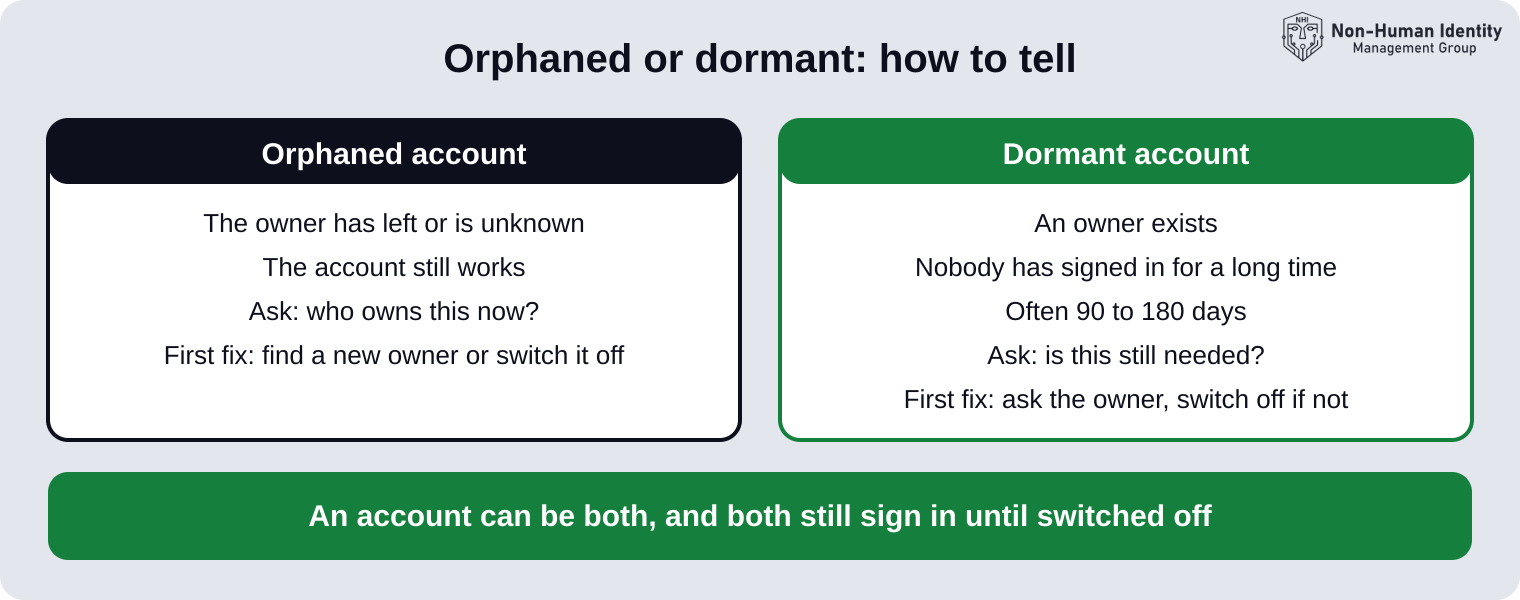
An orphaned account is one where the owner has gone. The leaver has left, or the team that set it up has moved on, but the account still works. A dormant account still has an owner, but it has not been used for a long time. Many organisations treat 90 to 180 days without a sign-in as dormant.[1]
Not every account belongs to a person. Programs also sign in. They use non-human identities (NHIs). An NHI is a digital identity, or the credential behind it, that represents a machine, application, automated process, service or AI agent. A service account, an account a program uses to do its job, can become orphaned when the person who made it leaves.[2]
Where the comparison stops working: a gym might notice a card used at 3am. Many systems do not flag a sign-in to an old account, so its use can go unseen unless someone is looking.
Why does it matter?
An old account is a working key that nobody watches. If its password leaks or is guessed, an attacker can sign in as someone the business forgot.
Colonial Pipeline runs a large US fuel pipeline. In 2021 it told the US Senate it believed the attacker got in through an old remote access (VPN) profile. The company said the profile "was not intended to be in use".[3]
If you run a small business
What could happen: a former worker's email or shop login still works months after they left.
Check this: ask for a list of every account and match it against your current staff.
If you are new to IT work
What could happen: you delete an account that looks unused, and a program that relied on it fails.
Check this: switch it off first, wait, then delete only if nothing breaks.
If you manage a team
What could happen: a contractor's account stays open because nobody told IT the contract ended.
Check this: tell IT on the day anyone leaves, including contractors and temporary staff.
What does it look like?
Here is a made-up list of accounts for a small shop, with notes from a quick review.
Example only. All values are made up.
Account            Owner          Last sign-in   Status
anna.example       Anna (staff)   yesterday      on
j.leaver.example   (left 2024)    14 months ago  on     (1)
temp.xmas.example  nobody listed  11 months ago  on     (2)
backup-svc-0000    Dev (left)     last night     on     (3)
cafe.supplier      Supplier Ltd   8 months ago   on     (4)
- In a real file, this line would contain a leaver whose account was never switched off: an orphaned account.
- A seasonal account with no owner and no recent use. It is both orphaned and dormant.
- A program's account that still runs every night, but the person who set it up has left. Deleting it could break backups.
- A supplier account not used for months. It may be dormant, or the supplier may no longer need it.
Why this is risky: four of five accounts can still sign in, but nobody is checking them. A guessed or leaked password for any of them opens the door.
The safer way: each line has a named current owner. Leavers are switched off on their last day. Accounts nobody claims are switched off, kept for a set time, then deleted. The backup account gets a new owner and a new password.
How does it work?
Here is how an account usually becomes orphaned or dormant, and how a regular review can find it before anyone else does.
- The account is made. A person joins, a contractor starts, or a developer sets up a new account for a program to use.
- Something changes. The person leaves, the project ends, or the program is replaced. The step that should switch off the account is missed.
- The account sits there. It still works. Some systems record the last sign-in, but the record can lag. In Active Directory, the common last sign-in field is only updated now and then, so it can be days behind.[4]
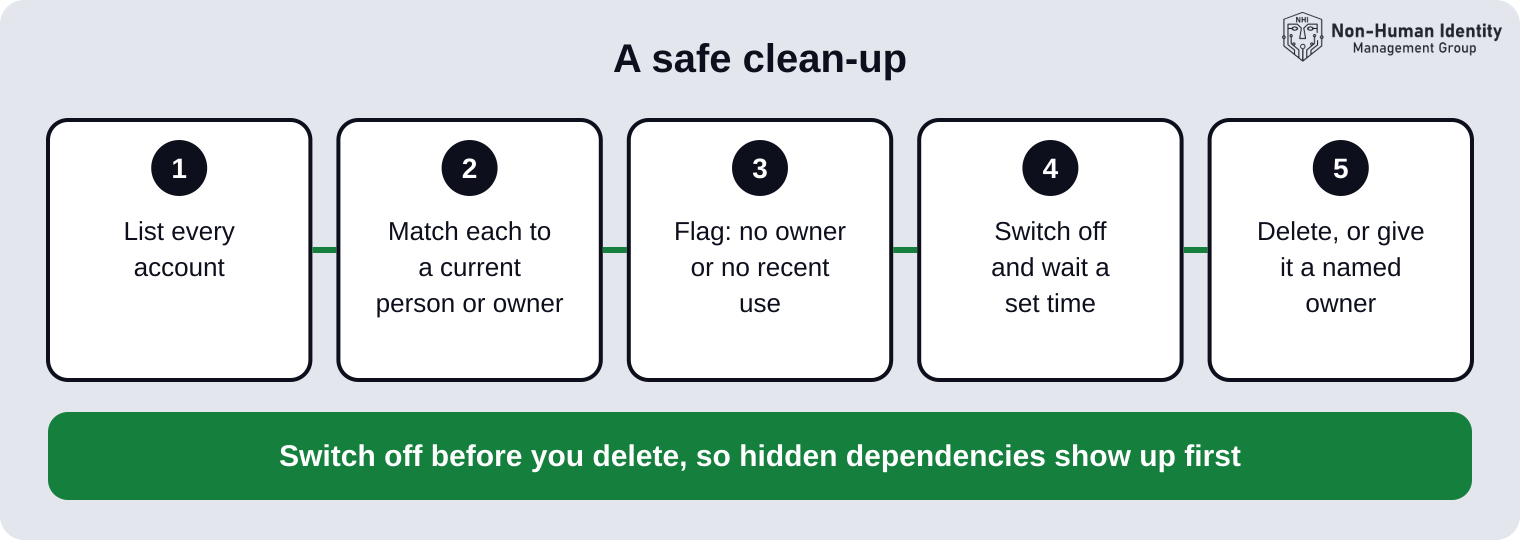
- Someone checks. A review matches each account to a current person or owner, and looks at when it was last used.[1]
- Switch off, then delete. Unclaimed accounts are switched off first. If nothing breaks after a set waiting time, they are deleted. Any account that is still needed gets a named owner who checks it.
A worked example
Petra Jensen runs the shop and the books at Cobble Florist, a small flower shop with six staff. Her nephew set up the shop's email, online store and booking system three years ago. He has since moved abroad.
After reading about old accounts, Petra asks her IT supplier for a list of every account across email, the store and the booking system. It arrives as a short spreadsheet.
She sits down with it and marks each line. Most are current staff. But Noor Zamora, a delivery driver who left last spring, still has a working email account. There are also two "christmas temp" accounts from two years ago, with no owner at all.
Then she spots an account called "store-sync". Her supplier explains that it is a program's account. It copies orders from the website into the booking system each night. Her nephew made it with his own email as the contact.
Petra asks the supplier to switch off Noor's account and the two temp accounts straight away, not delete them. She sets a reminder to delete them in 30 days if nobody needs them.
For store-sync, deleting it would stop orders flowing. Instead, the supplier names Petra as the owner, changes its password and moves it into a password store. The records available to them show no strange sign-ins.
Finally, Petra adds a line to her leavers' checklist. It says: "Tell the IT supplier on the last day." She books the same review for every six months.
Myths and mistakes
| What people think | What is true |
|---|---|
| If nobody uses an account, it is harmless. | An unused account still signs in for anyone who has its password, and fewer people notice. |
| We switched off the leaver in the main system, so we are done. | Leavers often have accounts in other apps too. Check each app, not just the main one. |
| The fastest fix is to delete every old account. | Switch off first. Some old accounts are used by programs, and deleting them can break things. |
| The last sign-in date is always exact. | Some systems update it only now and then, so treat it as a guide, not proof. |
| Only staff accounts matter. | Program accounts, supplier accounts and test accounts can be orphaned too. |
What can I do this week?
- Ask for a list of every account in your main systems, with an owner and a last sign-in date.
- Match the list against your current staff, contractors and suppliers.
- Switch off any account whose owner has left, and note the date.
- Give each program account a named person who looks after it.
- Add "switch off their accounts" to your leavers' checklist.
Checklist
- Every account has a named current owner.
- Leavers' accounts are switched off on their last day.
- Contractor and supplier accounts have an end date.
- Accounts unused for a set time, such as 90 days, are reviewed.
- Unclaimed accounts are switched off before they are deleted.
- Program accounts have an owner and are not tied to one person's email.
- Exceptions, such as staff on long leave, are written down with a review date.
- The review is repeated on a schedule, such as every six months.
Common questions
What is the difference between orphaned and dormant?
Orphaned means nobody owns the account any more. Dormant means it has an owner but has not been used for a long time. An account can be both. Both can still sign in until someone switches them off, which is why both need a review.
How long before an account counts as dormant?
There is no single rule. Microsoft notes that many organisations pick a window of 90 to 180 days without a sign-in. Choose a time that fits your business, and allow for people on holiday or long leave by writing those exceptions down.
Should I delete or disable an old account?
Disable it first. That stops it signing in but keeps it, so it can be switched back on if a program turns out to need it. We suggest waiting a set time, such as 30 days, then deleting it if nothing has broken.
Can a program's account become orphaned?
Yes. When the person who set up a program's account leaves, it can keep running with nobody responsible for it. OWASP, a security community, lists this among the top risks for software accounts. Give each one a named owner and change its password when that person leaves.
Who should do the review?
IT or your IT supplier can produce the list, but managers should confirm who still needs each account. They know who has left and which projects have ended. A formal version of this is called an access review.
Where next?
Ready for the detail? Read the practitioner guide: Orphaned and Dormant Accounts. It goes further into matching accounts against HR records, which last sign-in fields to trust, inactivity limits and safe clean-up stages.
Also useful:
- How to find stale user and computer accounts in Active Directory
- Access Reviews for Beginners
- Orphaned Machine Credentials for Beginners
- Guest Accounts for Beginners
- Non-Human Identities for Beginners
Related NHI Mgmt Group resources: How to assign owners to orphaned service accounts · Employee Offboarding Security Guide · OWASP NHI Top 10 NHI1 Improper Offboarding Guide
Key terms
- Orphaned account
- An account that still works but has no clear owner or business purpose.
- Dormant account
- An account that has not been used for a set time but can still sign in.
- Stale account
- An account that still exists and may still sign in, but no longer has a reason to.
- Offboarding
- The planned removal of access when a person, program or supplier no longer needs it.
- Service account
- An account a program uses to do its job, rather than a person.
- Access review
- A regular check that each account and permission is still needed.
Sources and further reading
- How to detect and investigate inactive user accounts. Microsoft Learn, Microsoft, updated 23 February 2025. https://learn.microsoft.com/en-us/entra/identity/monitoring-health/howto-manage-inactive-user-accounts, accessed 28 Nov 2026.
- NHI1:2025 Improper Offboarding. OWASP Non-Human Identities Top 10, OWASP Foundation, 2025. https://owasp.org/www-project-non-human-identities-top-10/2025/1-improper-offboarding/, accessed 28 Nov 2026.
- Testimony of Joseph Blount, President and CEO, Colonial Pipeline Company. US Senate Committee on Homeland Security and Governmental Affairs, 8 June 2021. https://www.hsgac.senate.gov/wp-content/uploads/imo/media/doc/Testimony-Blount-2021-06-08.pdf, accessed 28 Nov 2026.
- Last-Logon-Timestamp attribute. Microsoft Learn, Microsoft. https://learn.microsoft.com/en-us/windows/win32/adschema/a-lastlogontimestamp, accessed 28 Nov 2026.