A guest account lets someone from outside your organisation into your shared files, chats or apps.
This guide is for newcomers, small business owners and anyone who invites people into their team space. You do not need to be an IT admin to create one: in many workplace tools, a team owner can invite a guest with a few clicks.
In short
- A guest account is a sign-in that lets an outsider, such as an accountant or partner, work with you in your own tools.
- Guests often sign in with their own work or personal email, so you do not hand out a new password.
- The common problem is guests who are never removed, so access stays open long after the work ends.
- Give each guest an owner, only the access they need, a second sign-in check and a regular review.
What you will learn
- Explain what a guest account is and how it differs from a staff account.
- Spot guests who no longer need access.
- Check what a guest can see before you invite them.
- Ask for a simple guest review in your team.
- Outsider sign-in (guest account)
- an account that lets a person from another organisation into your tools.
- Invitation
- the email that asks an outsider to join and creates their guest account.
- Regular check (access review)
- a planned look at who still has access and whether they still need it.
What is a guest account?
Think of a friend staying in your spare room. They can use the kitchen and their own room, but not your study. When the visit ends, they hand back the key.
A guest account works the same way in workplace tools such as Microsoft Teams or shared file storage. Someone outside your organisation, like an accountant or a partner firm, gets an account in your system. They can join the chats and files you share with them. Many tools label them clearly, for example with "(Guest)" next to their name.[2]
Often the guest signs in with an email address they already have, such as their own work account. In Microsoft's system, the guest accepts the invitation with that address. They are then added to your directory (the list of everyone who can sign in) as a guest user.[1]
Where the comparison stops working: a house guest leaves when the visit ends. A guest account does not leave by itself. In Teams, a guest who leaves a team still keeps their account until an admin removes it.[2]
Why does it matter?
Guest accounts are useful, and they are easy to create. That also makes them easy to forget. Old guests can pile up, and each one is a door into your shared work.
If you run a small business
What could happen: a former supplier can still open your shared folders a year after the contract ended.
Check this: ask for a list of every guest and who invited them.
If you own a team or shared space
What could happen: you invite a guest to one project, and they can also see older files in the same space.
Check this: look at what the space holds before you invite anyone.
If you are new to IT work
What could happen: you are asked to "just add" a guest and do not know who owns the access.
Check this: record a named owner and an end date for each guest you add.
What does it look like?
Here is a made-up list of guests, like one an admin screen might show.
Example only. All values are made up.
Guest users: Example Removals Ltd
Name               Email                        Invited by  Last sign-in
Accounts helper    [email protected]   Owner       2 days ago
Old web designer   [email protected]       Owner       14 months ago   (1)
Van hire contact   [email protected]            Manager     Never           (2)
Unknown            [email protected]    Unknown     3 days ago      (3)
- In a real file, this line would show a guest whose work ended long ago but who can still sign in.
- An invitation that was never accepted. It may be a typo or no longer needed.
- Nobody knows who invited this guest, yet they signed in recently.
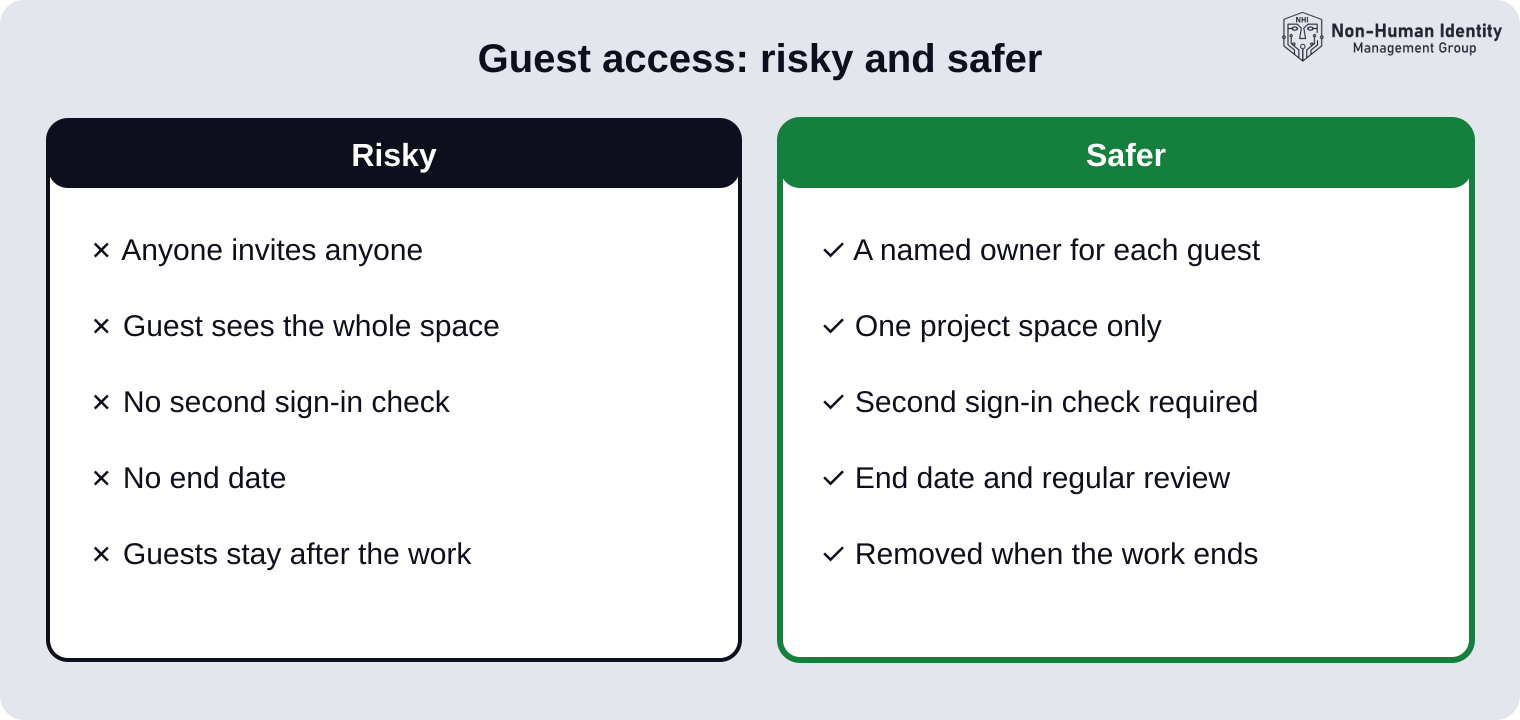
Why this is risky: two of these guests have no clear reason to be there. One is in use, and nobody knows why.
The safer way: every guest has an owner, a reason and an end date. A regular review removes guests who are no longer needed. Microsoft suggests removing guests who say they no longer need access, who do not respond, or who never accepted their invitation.[3]
How does it work?
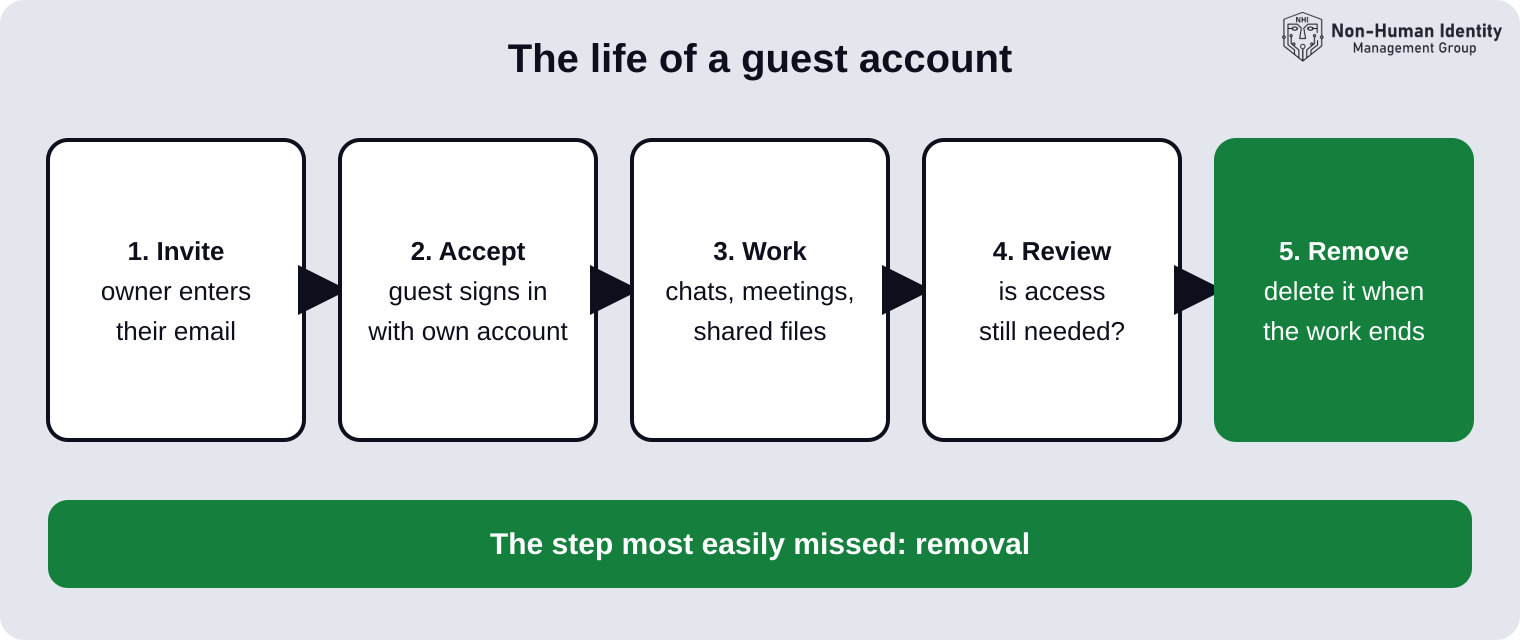
Most workplace tools follow a similar path from invitation to removal.
- The invite. A team owner or admin enters the outsider's email address. In Teams, owners can add guests, and admins can let chosen staff send invitations.[2]
- The acceptance. The outsider gets an email, accepts it and signs in with their own account. A guest account is now in your directory.[1]
- The work. The guest joins chats, meetings and files in the spaces they were added to. Your organisation can ask guests for a second sign-in check.[2]
- The review. At set times, an owner or the guest confirms whether access is still needed.[3]
- The removal. When the work ends, the guest is removed from the space and their account is deleted, not just left idle.
A worked example
Vida Ueda runs Quarry Removals, a fictional moving firm with fifteen staff. Her team uses a shared workspace for chats and files.
In March, Vida hires an outside bookkeeper, Zane Thorne. She needs him to see the invoices folder. A colleague suggests giving Zane a normal staff account. Vida remembers the spare room idea: a guest should get a room, not the whole house.
So she invites Zane as a guest to one project space called "Invoices". He accepts the invitation with his own work email. She does not have to send him a new password. She notes in a simple list that she owns his access, and that it ends when the contract ends in December.
Before inviting him, Vida checks the space. She finds old staff pay slips in it and moves them to a private folder first.
In June, Vida runs her first guest review. She finds eight guests she had forgotten about. Three are from a web designer who finished work last year. One invitation was never accepted. She removes all four, and asks the others' owners to confirm they are still needed.
In December, Zane's contract ends. Vida removes him from the space and deletes his guest account the same week. She adds "guest review" to her calendar every three months.
Myths and mistakes
| What people think | What is true |
|---|---|
| Guests can only see what I share with them. | They may see everything in the space they join, including older files. Check the space first. |
| When a guest leaves the team, they are gone. | The account can remain until an admin removes it.[2] |
| A staff account is simpler for a contractor. | It can give far more access than needed. A guest account limits them to what you choose. |
| Guests use their own sign-in, so security is their problem. | You can still require a second sign-in check, and you still decide what they can reach. |
| Unaccepted invitations do no harm. | They clutter the list and may be typos. Removing them is part of a good review.[3] |
What can I do this week?
- Ask your admin for a list of all guest accounts, with who invited them and their last sign-in.
- Remove guests whose work has ended, and invitations that were never accepted.
- Agree who is allowed to invite guests in your organisation.
- Check that guests must use a second sign-in check.
- Put a guest review in the calendar, for example every three months.
Checklist
- Every guest has a named owner inside the organisation.
- Every guest has a reason and an expected end date.
- Guests are added only to the spaces they need.
- Spaces are checked for sensitive files before a guest joins.
- Guests must use a second sign-in check.
- Only agreed people can invite guests.
- Guest access is reviewed on a schedule.
- Guests are removed and their accounts deleted when the work ends.
Common questions
What is the difference between a guest and a staff account?
A staff account belongs to someone who works for you and usually comes with wide access. A guest account belongs to an outsider and is meant to be limited to the spaces you choose. Guests are often labelled as guests, so others can see who is from outside.
Do guests need a password from us?
Often not. In many tools, guests sign in with an email account they already have, such as their own work account. Some tools send a one-time code by email instead.[2] Either way, you can usually still require a second sign-in check.
How often should we review guests?
There is no single rule, but we suggest at least every three months, and whenever a project or contract ends. Small firms with few guests can do this in minutes. Some tools can run reviews on a schedule and remove guests who are no longer needed.[3]
Is chatting with someone from another company the same as a guest account?
Not always. Some tools let you chat or meet with people in other organisations without adding them as guests. In Teams this is called external access, and it does not create a guest account.[2] A guest account is for working together inside your shared spaces.
Can guest accounts be used by software instead of people?
Guest accounts are usually for people. Software that connects to your tools from outside uses other kinds of access, such as connected apps. These are part of non-human identities (NHIs) and need their own reviews. See OAuth Apps and Integrations for Beginners.
Where next?
Ready for the detail? Read the practitioner guide: Third Party Access Review Guide. It goes further into review schedules, evidence for auditors and how to handle supplier and guest access at scale.
Also useful:
- How to audit guest and external users
- Entra ID Cross-Tenant Access and B2B Guest Governance Guide
- Third-Party Access for Beginners
- Access Reviews for Beginners
- Microsoft 365 Security for Beginners
Related NHI Mgmt Group resources: Vendor Offboarding for Beginners · Least Privilege for Beginners · Non-Human Identities for Beginners
Key terms
- Guest account
- An account that lets a person from another organisation into your shared tools.
- External identity
- An account owned by someone outside your organisation but trusted inside it, such as a partner or contractor.
- Guest identity sprawl
- The pile-up of old guest accounts that were added for a job and then left behind.
- Access review
- A planned check of whether each person still needs the access they have.
- Multi-factor authentication
- A second sign-in check, such as a code or an app prompt, on top of a password.
- Least privilege
- Giving each person or program only the access it needs, and no more.
Sources and further reading
- Quickstart: Add a guest user and send an invitation. Microsoft Learn, Microsoft Entra External ID. https://learn.microsoft.com/en-us/entra/external-id/b2b-quickstart-add-guest-users-portal, accessed 28 Nov 2026.
- Guest access in Microsoft Teams. Microsoft Learn. https://learn.microsoft.com/en-us/microsoftteams/guest-access, accessed 28 Nov 2026.
- Manage guest access with access reviews. Microsoft Learn, Microsoft Entra ID Governance. https://learn.microsoft.com/en-us/entra/id-governance/manage-guest-access-with-access-reviews, accessed 28 Nov 2026.