Private browsing is a browser mode that forgets what you did on this device once you close it.
This guide is for anyone who has used incognito mode and wondered how private it really is. If you share a computer at home, or use a work or school laptop, it matters what this mode does and does not hide.
In short
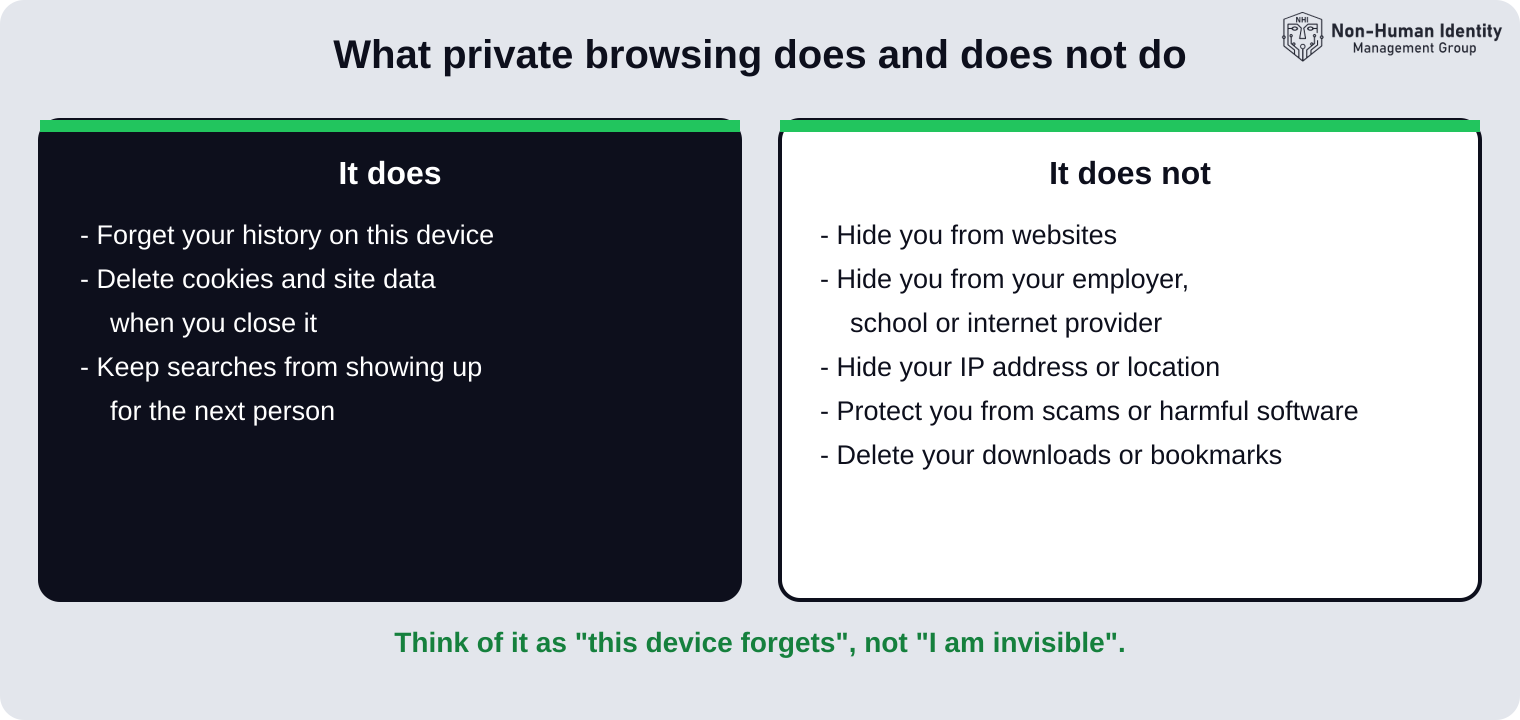
- Private browsing stops your browser saving your history, cookies and site data on this device after you close the window.
- It does not make you invisible. Websites, your employer or school, and your internet provider may still see what you do.
- It does not protect you from scams, fake websites or harmful software.
- Files you download and bookmarks you save stay on the device.
What you will learn
- Explain what private browsing hides in one sentence.
- Spot the people and services who may still see your activity.
- Check when private browsing helps and when it does not.
- Small website memory files (cookies)
- tiny files a website saves in your browser to remember you.
- Your internet address (IP address)
- a number that shows where your connection comes from, a bit like a postcode.
What is private browsing?
Think of a whiteboard in a meeting room that you wipe clean when you leave. The next person finds a blank board. But anyone in the room while you wrote still saw it.
Private browsing works like that. Each browser gives it its own name. Apple Safari has Private Browsing and Google Chrome has Incognito. Microsoft Edge has InPrivate, and Mozilla Firefox has a Private Window.[1][2][3][4]
While the private window is open, the browser keeps cookies and site data as normal. When you close it, the browser removes them and does not keep a list of the sites you visited.[2]
So the next person who uses the same device should not see your history. That is the main thing it does.
Where the comparison stops working: a wiped whiteboard has nothing left. Private browsing keeps any files you downloaded and any bookmarks you saved, so a few traces can stay on the device.[2][4]
Why does it matter?
Many people believe private browsing hides them from everyone. It hides your activity from the next person on the device, and not much else.
If you share a computer at home
What could happen: without private mode, a family member sees your searches for a surprise present.
Check this: use a private window for that shopping, then close it when you are done.
If you use a work or school device
What could happen: you assume private mode is private, but your employer or school may still see the sites you visit.
Check this: read your workplace or school rules for its devices and network.
If you use a public computer
What could happen: you sign in to your email at a library and forget to sign out.
Check this: use a private window, sign out, then close every private window.
What does it look like?
Example only. All values are made up.
[ Private window ]  FakeBrowser                  (1)
You are browsing privately.
This device will not keep: history, cookies,     (2)
  site data after you close all private windows.
Others may still see your activity:              (3)
  sites you visit, your school or employer,
  your internet provider.
Downloads and bookmarks are kept.                (4)
Address bar: shop.example.com
- A darker window or a mask icon shows the private mode is on.
- What the browser forgets once you close the private windows.
- Who may still see what you do. In a real screen, this warning is easy to skip past.
- Files and bookmarks stay on the device, even after you close it.
Why this is risky: people read the first line and skip the rest. They think they are hidden, and share or click things they would not otherwise.
The safer way: treat private mode as "this device forgets". For other kinds of privacy, use the tools in the steps below.
How does it work?
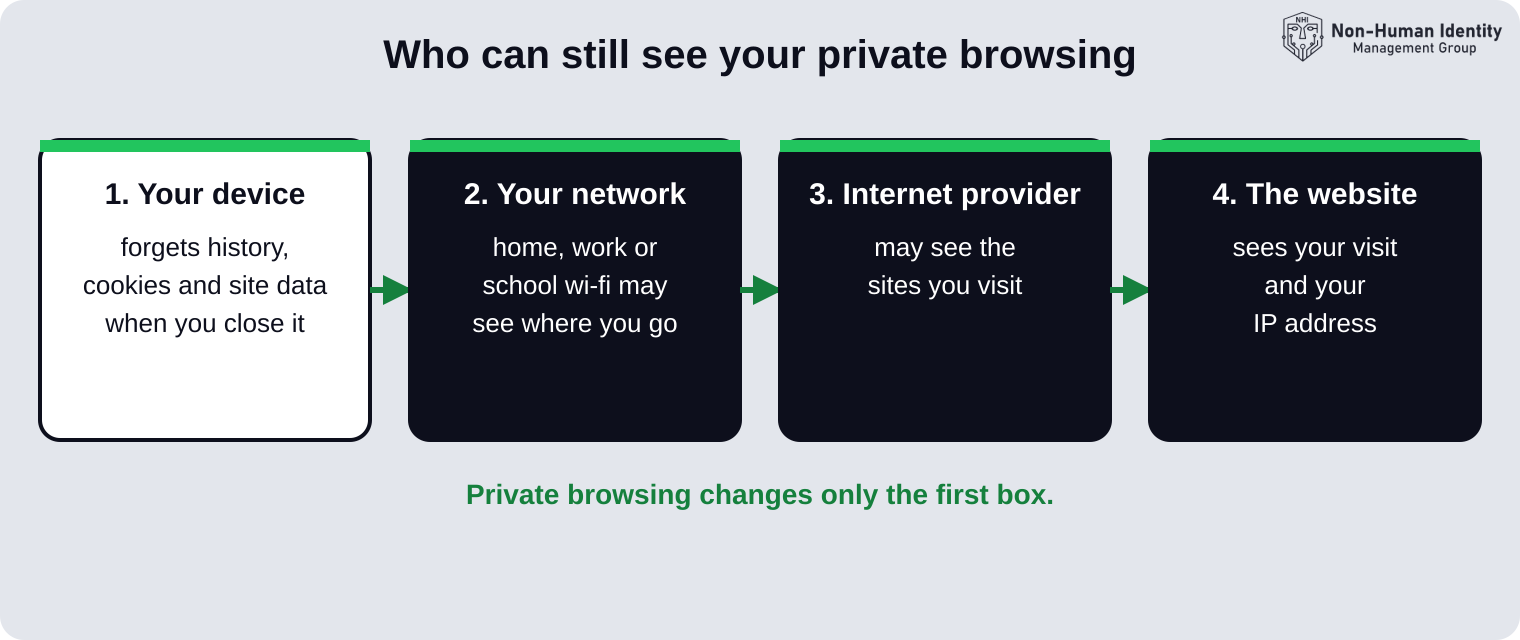
When you visit a website, your request passes through several hands. Private browsing only changes what happens on the first one: your device.
- Your device. In private mode, the browser deletes history, cookies and site data when you close the private windows.[2]
- Your network. Home, work or school wi-fi passes your request on. Whoever runs it may be able to see where it goes.[2]
- Your internet provider. The company that gives you internet access may see which sites you visit.[4]
- The website. The site sees your visit and your IP address, the number that shows roughly where your connection comes from. A private window does not hide it.[4]
Private browsing also does not stop scams. A fake website looks the same in a private window, and a harmful download is still harmful. Some browsers warn you about known harmful sites in any window.[4]
If you want more than "this device forgets", other tools help. Browser privacy settings can block some tracking. A VPN, a service that sends your traffic through another company's server, can hide your visits from your local network. But that company can then see them instead, so choose with care.
A worked example
This story is made up to show how it can happen.
Hiro Delgado is 34 and works for a delivery firm in Ohio. He uses a laptop from work for his job, and his family shares an old desktop at home.
His daughter's birthday is coming up. On the home desktop, he opens a private window to look at bikes. When he closes it, the searches are gone. His daughter uses the computer that evening and sees nothing. Private browsing did its job.
The next week, Hiro is on his lunch break at work. He opens an Incognito window on his work laptop to look at job adverts at other firms. He thinks no one can see.
A friend in IT tells him this is not quite right. The laptop and the office network belong to his employer. The firm's tools may record which sites the laptop visits, even in Incognito. The browser's own message said so too, but he had skipped it.
Hiro does not panic. He has done nothing wrong. But he decides to look at job adverts on his own phone, using his home internet, from now on.
He also learns one more thing. Private browsing does not protect him from fake websites. So he keeps typing his bank's address himself, rather than clicking links in emails.
What made the difference: Hiro learned that private mode means "this device forgets", not "nobody can see".
Myths and mistakes
| What people think | What is true |
|---|---|
| Private browsing makes me anonymous. | It does not. Websites can still see your visit and your IP address.[4] |
| My employer or school cannot see what I do in incognito. | Organisations that run your network may still be able to see your activity.[2] |
| Everything I do in private mode is deleted. | Downloads and bookmarks stay on the device.[2][4] |
| Private mode protects me from viruses and scams. | It does not change what a website or download can do. Keep your browser updated and be careful with links. |
| Closing the tab is enough. | The browser clears the private data when you close all private windows. Close them all.[2] |
What can I do this week?
- Open a private window in your browser and read the full message it shows.
- Use a private window when you use a shared or public computer, then close every private window.
- Look at your browser's privacy settings and turn on tracking protection if it has one.
- Keep personal browsing off work or school devices.
Checklist
- I know private browsing only makes this device forget my activity.
- I know websites, my network and my internet provider may still see my visits.
- I close every private window when I am done.
- I check my downloads folder on shared computers.
- I do not rely on private mode to protect me from scams.
- I use my own device for personal browsing, not a work or school one.
Common questions
Does private browsing keep me safe?
Only in one way. It stops the next person on your device seeing your history, and it clears the cookies that keep you signed in. It does not hide you from websites or your network, and it does not protect you from scams or harmful downloads.[4]
Can my internet provider see what I do in incognito?
Yes, it may be able to. Your internet provider passes your traffic on, whatever mode your browser is in. Browser makers say that internet providers, employers and schools may still see some activity in private windows.[2][4]
Is private browsing the same as a VPN?
No. Private browsing changes what your device remembers. A VPN changes the route your traffic takes, so your local network sees less. The VPN company can see your traffic instead. They solve different problems, and you can use both.
Should I use private browsing for online banking?
It can help on a shared or public computer, because it clears your session when you close it. On your own device it adds little. Strong sign-in protection, such as a second sign-in step, matters much more for your bank.
Does private browsing lock on my phone?
On some phones it can. On an iPhone with a passcode, Safari's Private Browsing locks when it is not in use, though Apple says it may not lock straight away.[1]
Where next?
Ready for the detail? Read the practitioner guide: Privacy-Respecting Browsers and Search Guide. It goes further into how tracking works, the privacy settings already in your browser, and choosing a private search engine.
Also useful:
- Cookies and Online Tracking for Beginners
- Browser Security for Beginners
- Browser Privacy and Security Settings Guide
- Choosing a VPN Safely Guide
- Data Privacy for Beginners
Related NHI Mgmt Group resources: Work and Personal Browser Profiles · Browser Extension Security Guide
Key terms
- Private browsing mode
- A browser mode that does not keep your history, cookies or site data on the device after you close it.
- Incognito mode
- Google Chrome's name for its private browsing mode.
- A small file a website saves in your browser so it can remember you.
- IP address
- A number that identifies where an internet connection comes from.
- VPN
- A service that sends your internet traffic through an encrypted tunnel to another server.
- Browser fingerprinting
- Recognising a browser from its settings and features, even without cookies.
Sources and further reading
- Browse the web privately in Safari on iPhone. Apple Support, iPhone User Guide. https://support.apple.com/guide/iphone/browse-privately-iphb01fc3c85/ios, accessed 28 Nov 2026.
- Browse in Incognito mode. Google Chrome Help. https://support.google.com/chrome/answer/95464, accessed 28 Nov 2026.
- Browse InPrivate in Microsoft Edge. Microsoft Support. https://support.microsoft.com/en-us/microsoft-edge/browse-inprivate-in-microsoft-edge-cd2c9a48-0bc4-b98e-5e46-ac40c84e27e2, accessed 28 Nov 2026.
- Common myths about private browsing. Mozilla Support. https://support.mozilla.org/en-US/kb/common-myths-about-private-browsing, accessed 28 Nov 2026.