SCIM provisioning is a standard way for one system to create, change and remove user accounts in other apps automatically.
This guide is for anyone who has heard the word SCIM and wants to know what it does. You do not need to be technical to be affected: if your business pays for online apps, someone has to open and close an account in each one for every member of staff.
In short
- SCIM is a shared language that lets your main sign-in system tell other apps about staff changes.
- When someone joins, their accounts can be created for them. When they leave, the accounts can be switched off.
- It cuts out slow manual work, so fewer old accounts are left open after people leave.
- It only works for apps that support it and are connected, so check which apps are left out.
What you will learn
- Explain what SCIM provisioning is in one sentence.
- Spot what happens to accounts when someone joins or leaves.
- Check which of your apps are connected and which are not.
- Ask the right questions before you buy a new app.
- Setting up accounts (provisioning)
- creating an account for a person and giving them the right access.
- Closing accounts (deprovisioning)
- switching off or removing access when a person leaves or no longer needs it.
- Main sign-in system (identity provider)
- the central system that holds your staff list and checks who people are.
What is SCIM provisioning?
Think of a head office that sends one memo to every branch when someone starts or leaves. Nobody at the branches has to guess. Each one gets the same news at roughly the same time.
SCIM works the same way for apps. The letters stand for System for Cross-domain Identity Management. It is an open standard, which means a public set of rules any company can follow.[1]
Most firms keep their staff list in one main sign-in system, called an identity provider. Their staff then use many other online apps, such as chat, payroll or file sharing. These rented apps are often called SaaS, short for software as a service.
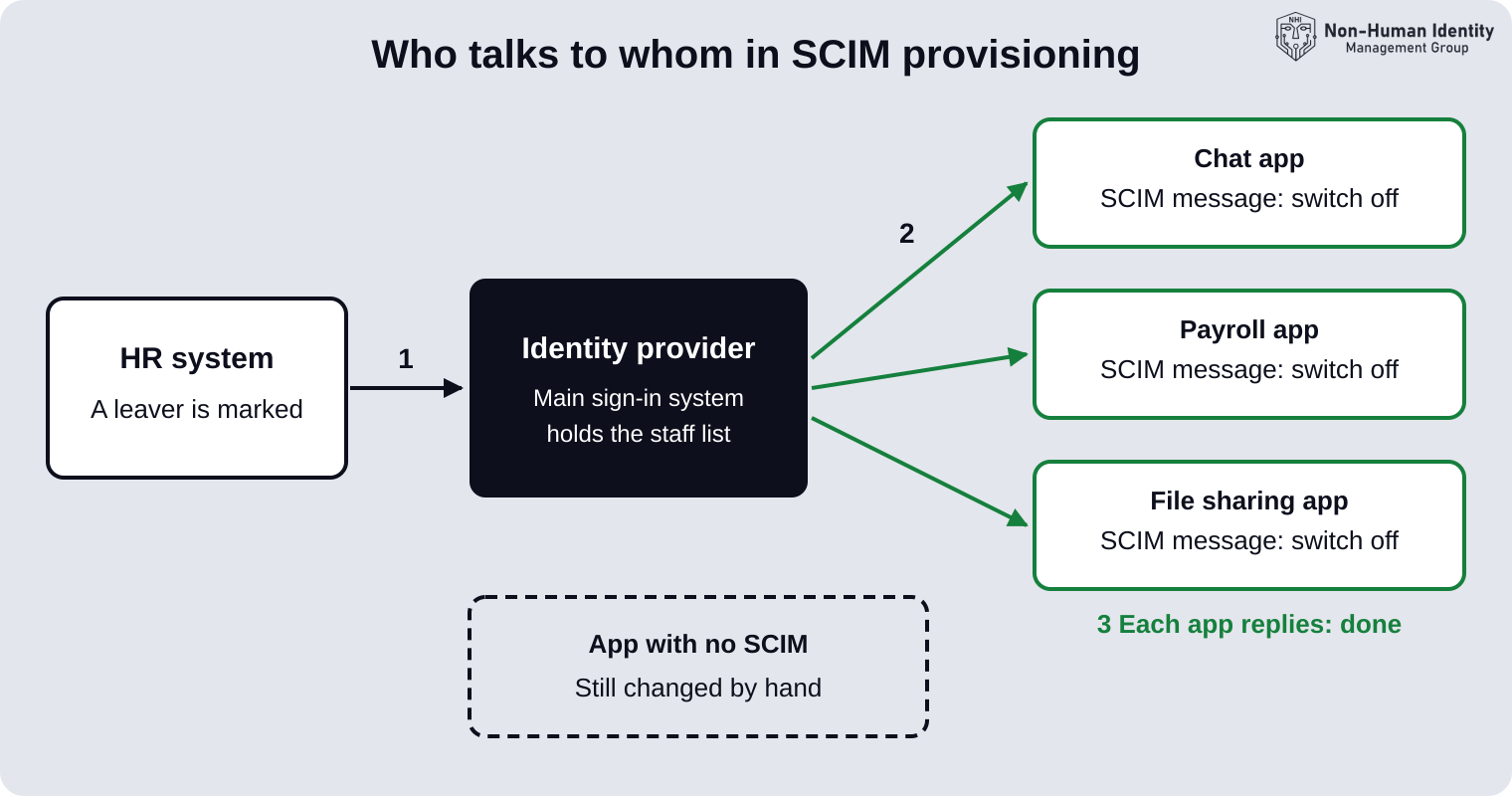
With SCIM, the identity provider sends each app a short message. The message might say "create this person", "change their team" or "switch this account off". The app makes the change without anyone logging in to do it by hand.[2]
Where the comparison stops working: a memo reaches every branch. SCIM only reaches apps that support it and that someone has connected. Any app left out still needs a person to make the change.
Why does it matter?
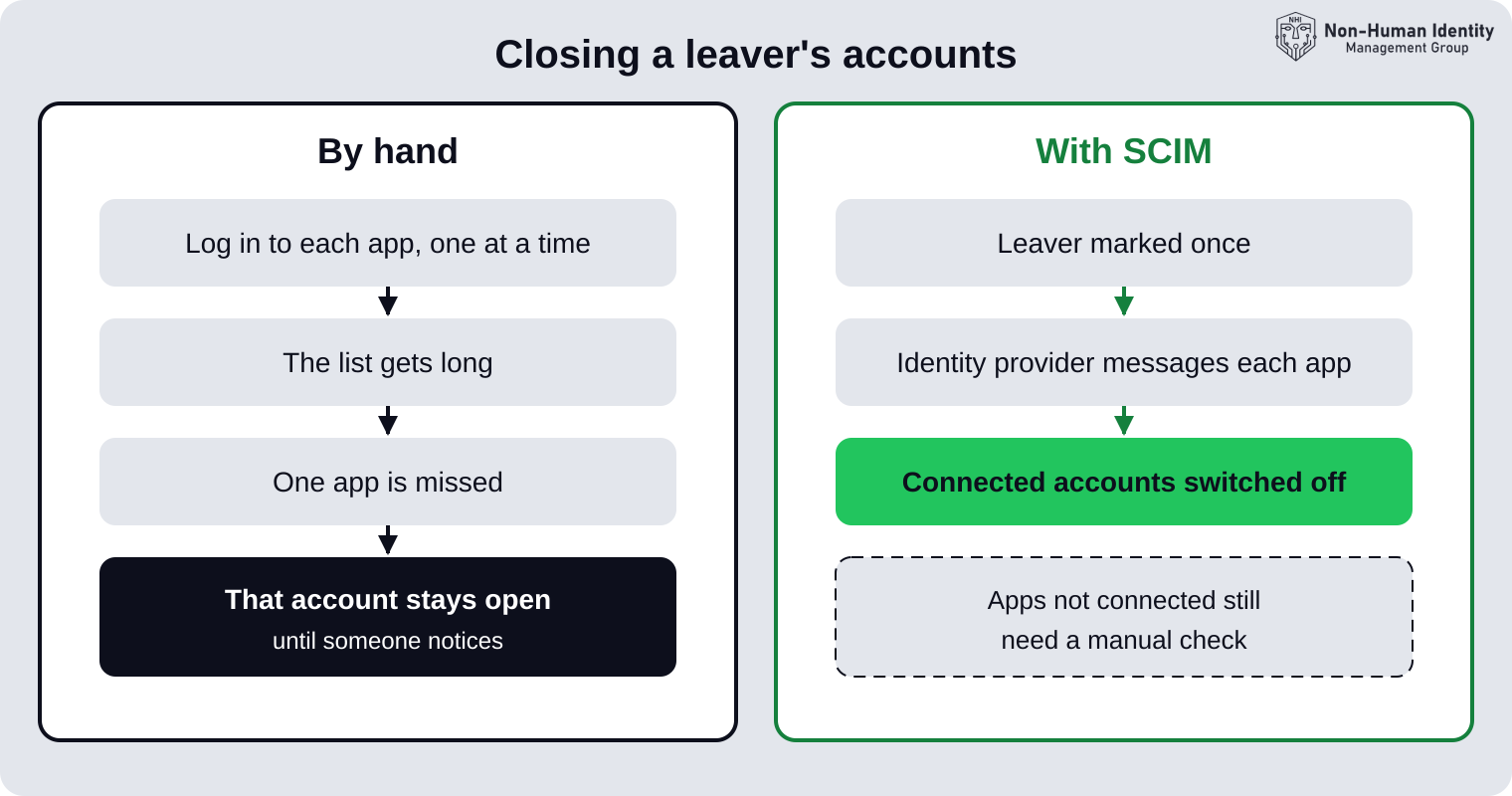
When people leave, their app accounts should close too. If nobody closes them, the former worker, or anyone who has their password, may still be able to get in. SCIM helps by switching accounts off as part of the leaving process.[4][6]
If you run a small business
What could happen: a person who left months ago can still open your shared files.
Check this: ask which apps close accounts automatically when someone leaves.
If you work in HR
What could happen: a leaving date entered late means accounts stay open for days.
Check this: agree with IT how fast a leaver's record reaches the sign-in system.
If you are new to IT work
What could happen: you spend hours making the same account in ten apps, and miss one.
Check this: list which apps are connected to SCIM and which are still done by hand.
If you choose which apps to buy
What could happen: a new app has no SCIM support, so every leaver must be removed by hand.
Check this: ask the supplier if the app supports SCIM, and on which price plan.
Next: SSO and SCIM
What does it look like?
A SCIM message is a short text record about one person. Here is a made-up one, sent when a member of staff leaves a fictional electrical firm.
Example only. All values are made up.
{
  "schemas": ["urn:ietf:params:scim:schemas:core:2.0:User"],
  "id": "EXAMPLE-0000",                       (1)
  "userName": "[email protected]",      (2)
  "name": { "givenName": "Fake", "familyName": "Person" },
  "active": false                              (3)
}
- In a real file, this line would contain the app's own reference number for the account.
- In a real file, this line would contain the name the person signs in with, often their work email.
- Active set to false. In many apps this means the account is switched off and the person can no longer sign in.
Why this is risky: without a message like this, the app has no way to know the person left. Their account stays open until someone remembers to close it.
The safer way: the identity provider sends this record when HR marks the person as a leaver. Exactly what "active false" does is up to each app, so check what it means in yours.[3]
How does it work?
Here is the usual path, from a change in the staff list to a change in each app.
- The change. HR adds a new starter, moves someone to a new team or marks a leaver. This often happens in an HR system that feeds the identity provider.[5]
- The check. The identity provider works out which apps the person should have. This is often based on the groups or apps they are assigned to.[5]
- The message. It sends a SCIM request to each connected app over the internet. Requests can create, read, update or delete a user record.[2]
- The proof. The request carries a secret token (a long password for software) so the app knows the message is genuine.[2]
- The update. The app creates, changes or switches off the account and replies to say if it worked.
- The repeat. Many services check for changes on a regular cycle, so an update may take a little while to arrive.[5]
SCIM is often set up alongside single sign-on, where staff use one login for many apps. Single sign-on checks who you are when you log in. SCIM keeps the account itself up to date, even when you are not logged in.[4]
A worked example
Kiri Dubois looks after IT at Flint Electricals, a fictional electrical firm with four branches. Staff use a chat app, a rota app, a payroll app and a shared drive.
Until last spring, Kiri made every account by hand. Each new starter took her about an hour. Leavers were worse. She kept a paper list and ticked off each app as she closed it.
Then she connected three of the apps to the firm's identity provider using SCIM. The rota app did not support it on their price plan, so she wrote that down.
In October, an electrician called Yuki Zielinski moved to another job. HR marked Yuki as a leaver on Friday afternoon. Kiri remembered the head office memo: one change, sent to every connected branch.
On Monday she checked the provisioning records. The chat app, payroll app and shared drive each showed Yuki's account switched off, with a time and a success note. She did not need to log in to any of them.
The rota app was another story. It still showed Yuki as active, because it was not connected. Kiri closed that account by hand and noted the time.
She then asked the rota app's supplier about upgrading to a plan with SCIM. Until then, the rota app stays on her manual leaver list. She checks that list each month against the records available to her.
Myths and mistakes
| What people think | What is true |
|---|---|
| SCIM and single sign-on are the same thing. | Single sign-on handles logging in. SCIM creates, updates and switches off the accounts behind it. Many firms use both. |
| Once SCIM is on, every app is covered. | Only apps that support SCIM and are connected get the updates. Keep a list of the rest. |
| Switching an account off deletes the person's data. | Often it only blocks sign-in. What happens to the data depends on the app and on your settings.[3] |
| Changes reach every app at the same moment. | Many services work in cycles, so there can be a short delay.[5] For urgent leavers, also act directly. |
| Set it up once and forget it. | Connections can fail, and tokens can expire. Someone should check the records for errors. |
What can I do this week?
- List every app your team uses, and mark which ones are connected to SCIM.
- Pick one recent leaver and check that each of their accounts was switched off.
- Ask who looks at the provisioning records, and how often.
- Add "Does it support SCIM?" to the questions you ask before buying any new app.
Checklist
- Our staff list lives in one main sign-in system.
- Each app that supports SCIM is connected to it.
- Apps without SCIM are listed, with a named person who closes accounts by hand.
- Leavers are marked in HR promptly, so the change can flow through.
- Someone checks the provisioning records for errors on a regular basis.
- The secret token for each SCIM connection is stored safely and has an owner.
- We test a leaver now and then to confirm accounts really switch off.
Common questions
Do I need SCIM if I already have single sign-on?
Usually it helps a lot. Single sign-on controls the login, but an app may still hold an open account, and some apps let people in by other routes. SCIM makes sure the account itself is created and switched off on time. See SSO and SCIM for how they fit together.
Is SCIM a product I can buy?
No, it is a public standard, not a product. Identity providers and apps build it into their own software. You switch it on and connect the two sides. Some suppliers only offer it on certain price plans, so check before you buy.
What happens if an app does not support SCIM?
Someone has to create and close accounts by hand, or use another method the supplier offers. Put those apps on a clear list with a named owner. Then check them every time someone leaves, so no account is missed.
How quickly does a leaver lose access?
Often within a short time, but not instantly. Many services send changes on a regular cycle, so there can be a delay. For a sensitive leaver, we suggest also switching off key accounts directly and ending open sessions, rather than waiting.
Can SCIM go wrong?
Yes. A connection can fail, a token can expire, or a setting can send the wrong access. That is why someone should check the records for errors. See SCIM Provisioning Errors Troubleshooting Guide for common problems.
Where next?
Ready for the detail? Read the practitioner guide: SCIM Provisioning Guide. It goes further into SCIM requests and replies, where connections fail and how to secure the connection.
Also useful:
- Joiner, Mover, Leaver for Beginners
- Single Sign-On for Beginners
- SCIM vs JIT Provisioning
- LDAP vs SCIM
Related NHI Mgmt Group resources: Joiner-Mover-Leaver Guide · Employee Offboarding Security Checklist · Access Reviews for Beginners
Key terms
- SCIM
- A public standard that lets an identity provider and an app exchange details about users and groups.
- Provisioning
- Creating, updating and removing accounts and access so they match what a person needs.
- Deprovisioning
- Removing access when a person changes role or leaves.
- Identity provider
- The central system that checks who people are and tells other apps.
- Single sign-on
- A way to log in once and use many apps without signing in again.
- Joiner, mover, leaver
- The process for giving, changing and removing access as people join, move or leave.
- Orphaned account
- An account still open with no clear owner or reason to exist.
Sources and further reading
- RFC 7642: System for Cross-domain Identity Management: Definitions, Overview, Concepts, and Requirements. IETF, September 2015. https://www.rfc-editor.org/rfc/rfc7642, accessed 28 Nov 2026.
- RFC 7644: System for Cross-domain Identity Management: Protocol. IETF, September 2015. https://www.rfc-editor.org/rfc/rfc7644, accessed 28 Nov 2026.
- RFC 7643: System for Cross-domain Identity Management: Core Schema. IETF, September 2015. https://www.rfc-editor.org/rfc/rfc7643, accessed 28 Nov 2026.
- Understanding SCIM. Okta Developer documentation, Okta. https://developer.okta.com/docs/concepts/scim/, accessed 28 Nov 2026.
- How application provisioning works in Microsoft Entra ID. Microsoft Learn, Microsoft. https://learn.microsoft.com/en-us/entra/identity/app-provisioning/how-provisioning-works, accessed 28 Nov 2026.
- What is app provisioning in Microsoft Entra ID? Microsoft Learn, Microsoft. https://learn.microsoft.com/en-us/entra/identity/app-provisioning/user-provisioning, accessed 28 Nov 2026.