A network port is a numbered doorway that lets data reach the right program on a device.
This guide is for students, small business owners and anyone who has heard "close that open port" and wondered what it means. You do not need to be technical to be affected: if your office router or a supplier has opened a port to the internet, strangers can try that door too.
In short
- A port is a number that sends data to the right program, like a door number on a building.
- A protocol is the agreed set of rules two programs use to talk, such as the rules for web pages.
- An open port means a program is waiting for visitors. Each one reachable from the internet is a door strangers can try.
- Keep only the doors you need open, and put remote access behind a safer front door.
What you will learn
- Door number (port)
- a number from 0 to 65535 that sends data to one program on a device.
- Shared rules (protocol)
- the agreed way two programs take turns and format what they send.
- Waiting door (open port)
- a port where a program is listening and will answer visitors.
What are network ports and protocols?
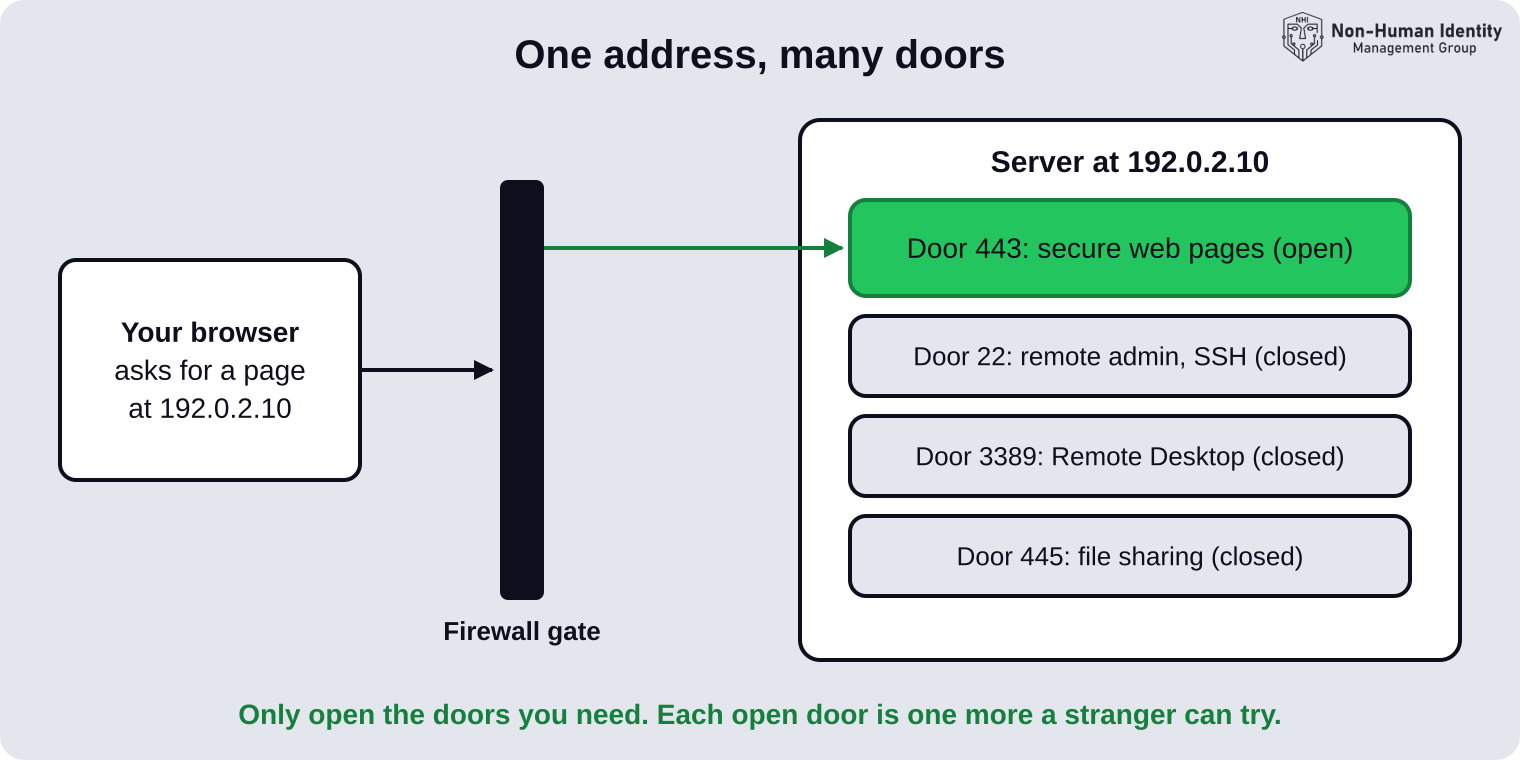
Think of a big office building with one street address and many numbered doors. The address gets a parcel to the building. The door number gets it to the right team inside.
Computers work the same way. The IP address (a device's network address) finds the device. The port number picks the program on it. One computer can run a website, an email service and a file share at once, each behind its own door.
A protocol is the language spoken at that door. It is the set of rules two programs agree on, so each knows what the other means. Web browsers and web servers use a protocol called HTTPS, for example.
Most traffic also uses one of two delivery methods. TCP checks that every piece arrives in order, a bit like signed-for post. UDP sends pieces without checking, which is faster for things like video calls. A port number is set up for one or both of these.[2]
Where the comparison stops working: a real building has a few doors you can see. A computer has 65,536 possible port numbers for each delivery method, and you cannot tell which are open just by looking at it.
Why does it matter?
An open port is not bad in itself. A website needs one. The risk is a door that faces the internet when it does not need to, or one that leads to a weak program.
Attackers often get into networks through remote services that are exposed and poorly secured. A US government ransomware guide advises against putting services such as remote desktop on the web. It also suggests closing ports the business does not use.[5]
If you run a small business
What could happen: a forwarding rule on your router leaves an office PC reachable by anyone online.
Check this: ask your IT helper for a list of every port your router sends in from the internet, and why.
If you are a student
What could happen: exam questions and job interviews ask about common ports, and the numbers seem random.
Check this: learn five or six common ports and the job each one does, then practise on your own lab only.
If you work from home
What could happen: a gadget or game asks your home router to open a port, and you never notice.
Check this: look at your router's port forwarding page and remove rules you do not recognise.
What does it look like?
Here is a made-up page from a small gym's office router. It lists the doors the router opens from the internet to devices inside.
Example only. All values are made up.
Router: port forwarding rules (EXAMPLE)
Name            Outside port   Inside device        Protocol
booking-site    443            192.0.2.10           TCP      (1)
old-remote      3389           192.0.2.25 (desk PC) TCP      (2)
cctv-viewer     8080           192.0.2.40           TCP      (3)
file-share      445            192.0.2.30           TCP      (4)
- Port 443 is the usual door for secure web pages. This line sends website visitors to the booking server.
- Port 3389 is the usual door for Windows Remote Desktop. This line puts a desk PC's login screen on the internet.
- Port 8080 is often used for extra web pages, such as a camera's admin screen.
- Port 445 is used by Windows file sharing. This line lets anyone online try to reach shared folders.
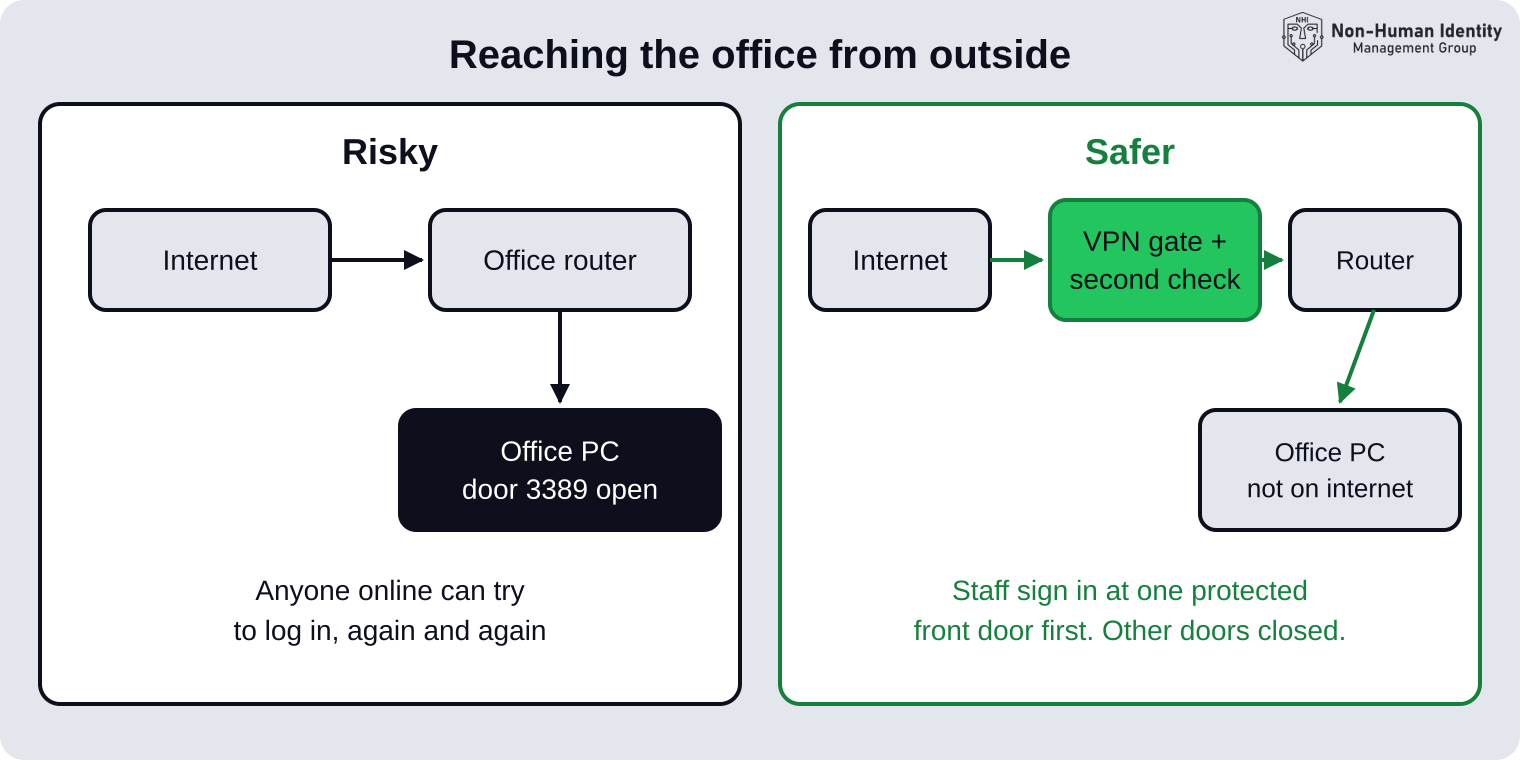
Why this is risky: lines 2 to 4 open doors that most small offices do not need on the internet. Microsoft advises blocking file sharing traffic on port 445 that comes in from the internet.[4] Remote Desktop uses port 3389 unless someone changes it.[3]
The safer way: keep only the website rule if it is needed. Remove the rest. Staff can reach office systems through a protected route instead. One example is a VPN, a private tunnel into the office network, used with a second sign-in check.
How does it work?
Here is what happens when you open a website, step by step.
- Find the building. Your device looks up the website's IP address.
- Knock on the door. Your browser connects to that address on a port. For secure web pages the default is port 443, and for plain web pages it is port 80.[6]
- Leave a return address. Your device picks a temporary port of its own for the reply. Numbers from 49152 to 65535 are set aside for short-term use like this.[2]
- Speak the same language. Browser and server follow the protocol's rules to ask for and send the page.
- Check at the gate. A firewall (a filter for network traffic) can allow or block the knock based on the port and where it comes from.
Port numbers are listed by a body called IANA, which keeps the official register. Ports 0 to 1023 are called System Ports, and 1024 to 49151 are User Ports.[2] For example, the register lists port 22 for SSH, a tool for secure remote admin.[1]
A listed number is a habit, not a promise. The rules behind the register say traffic on a listed port may not be the listed service. It may not be good traffic either.[2]
A worked example
Petra Lindahl runs Slate Gym, a fictional gym with eight staff. Her friend Zane Grover helps with the office IT on Fridays.
Petra reads that open ports can let strangers in. She asks Zane, "Do we have any?"
Zane logs in to the office router and opens the port forwarding page. He finds four rules, much like the sample above. Petra recognises only one: the booking website.
Zane explains the others in plain words. One opens Remote Desktop on the old desk PC, set up years ago so a former supplier could fix things. Another opens the camera viewer. A third opens the shared folders.
Petra thinks of the building. Why leave three side doors open when only the front door is needed? They agree a plan.
First, Zane removes the Remote Desktop and file sharing rules. He checks with the camera company, which offers its own app, so the camera rule goes too. Then he sets up the router's VPN with a second sign-in check for the two managers who work from home.
Next, he looks at the desk PC's sign-in records. He sees many failed logins from unknown places, but no successful ones in the records available to him. He changes the PC's password anyway.
Last, Zane writes a short list: each open port, what it is for, who asked for it and when to review it. Petra puts a reminder in her diary to look at the list every three months.
Myths and mistakes
| What people think | What is true |
|---|---|
| An open port is a security hole. | It is a door a program is using. The risk depends on who can reach it and how well the program is protected. |
| Moving a service to an unusual port number hides it. | Scanning tools check many ports quickly. A different number may cut some noise, but it is not a lock. |
| Traffic on port 443 is always a normal website. | Port numbers are a habit, not a rule. Any program can use port 443, so defenders look beyond the number.[2] |
| Our router came from the provider, so it is set up safely. | Forwarding rules are often added later by staff, suppliers or gadgets. Check them yourself. |
| We only opened it for a day. | Temporary rules are easy to forget. Write down every rule with an end date. |
What can I do this week?
- Open your router's port forwarding page, or ask your IT helper to, and list every rule.
- Remove any rule nobody can explain, starting with Remote Desktop and file sharing.
- Ask suppliers how they reach your systems, and move them to a protected route.
- Turn off the router's automatic port opening feature (often called UPnP) if nothing needs it.
- Learn five common ports: 80, 443, 22, 445 and 3389.
Checklist
- I can explain what a port and a protocol are.
- Every port opened to the internet has a written reason and an owner.
- Remote Desktop and file sharing are not opened straight to the internet.
- Staff and suppliers use a VPN or similar protected route with a second sign-in check.
- Unused rules and automatic port opening are switched off.
- Someone reviews the list of open ports at least every few months.
- Only systems we own or have written permission for are ever scanned.
Common questions
What is the difference between a port and a protocol?
A port is the door number, and a protocol is the language spoken at that door. The port tells data which program to reach. The protocol sets the rules for the conversation, such as how to ask for a web page and what the answer looks like.
How many ports are there?
There are 65,536 numbers, from 0 to 65535, for each delivery method such as TCP and UDP. The low numbers, 0 to 1023, hold many well-known services. The highest range, 49152 and up, is kept for short-term use, such as the return address on a request.
Is it safe to check my own open ports?
Yes, on systems you own or have written permission to test. Your router's settings page is the easiest place to start. Scanning other people's systems without permission can break the law in many countries. See Network Scanning for Beginners.
Does a firewall close ports?
Partly. A firewall decides who may knock on a door, and can block a port from the internet. The program behind the door can still be listening inside your network. For the full picture, close unneeded programs and block unneeded ports. See Firewalls for Beginners.
Why is port 3389 talked about so much?
Because it is the usual door for Windows Remote Desktop, which gives full control of a computer. When it faces the internet, strangers can try to log in again and again. See Remote Desktop for Beginners.
Where next?
Ready for the detail? Read the practitioner guide: Network Ports and Protocols Security Guide. It goes further into a high-risk ports reference, Windows and legacy protocols, and how to choose between blocking, restricting and replacing a service.
Also useful:
- Networking Fundamentals for Beginners
- Shodan and Internet Exposure Search for Beginners
- VPNs for Beginners
Related NHI Mgmt Group resources: Retiring Cleartext Protocols · Port 8080 and 8443 Exposure Guide
Key terms
- Port
- A number from 0 to 65535 that sends network data to one program on a device.
- Protocol
- The agreed rules two programs use to talk to each other.
- Open port
- A port where a program is listening and will answer connections.
- Port forwarding
- A router rule that sends traffic arriving on a port from the internet to a device inside.
- Firewall
- A filter that allows or blocks network traffic based on set rules.
- Port scanning
- Checking a device's ports to see which ones answer.
- VPN
- A private, encrypted tunnel that links a device to a network over the internet.
Sources and further reading
- Service Name and Transport Protocol Port Number Registry. Internet Assigned Numbers Authority (IANA). https://www.iana.org/assignments/service-names-port-numbers/service-names-port-numbers.xhtml, accessed 28 Nov 2026.
- RFC 6335: Procedures for the Management of the Service Name and Transport Protocol Port Number Registry (BCP 165). IETF, August 2011. https://www.rfc-editor.org/rfc/rfc6335, accessed 28 Nov 2026.
- Change the Remote Desktop listening port on your computer. Microsoft Learn, Microsoft. https://learn.microsoft.com/en-us/windows-server/remote/remote-desktop-services/clients/change-listening-port, accessed 28 Nov 2026.
- Secure SMB Traffic in Windows Server. Microsoft Learn, Microsoft. https://learn.microsoft.com/en-us/windows-server/storage/file-server/smb-secure-traffic, accessed 28 Nov 2026.
- #StopRansomware Guide. Cybersecurity and Infrastructure Security Agency (CISA) and partners, September 2023. https://www.cisa.gov/stopransomware/ransomware-guide, accessed 28 Nov 2026.
- RFC 9110: HTTP Semantics, sections 4.2.1 and 4.2.2. IETF, June 2022. https://www.rfc-editor.org/rfc/rfc9110#section-4.2, accessed 28 Nov 2026.