A mobile device administrator sets up, protects and looks after the work phones, tablets and laptops an organisation uses.
This guide is for students, new IT staff and career changers who want to know what the job is like. You do not need a technical job to meet this role: if your employer gave you a work phone or asked you to install a work app, a mobile device administrator was probably behind it.
In short
- The job is to keep work devices set up, updated and safe from one central tool, often called an MDM tool.
- Typical tasks include adding new phones, sending out work apps, checking updates and locking or wiping lost devices.
- The role also has to respect privacy on personal phones that staff use for work.
- Many people start on an IT help desk, then specialise in device management.
What you will learn
- Explain what a mobile device administrator does in one sentence.
- Describe the life of a work phone from first setup to retirement.
- Spot why some actions, like wiping a phone, need extra care.
- Choose a first step if you want to work towards the role.
- Central phone control (MDM)
- a tool that lets IT set up, check and protect many devices from one screen.
- Joining the system (enrolment)
- the step where a device signs up to be looked after by the MDM tool.
- Bring your own device (BYOD)
- staff using their personal phone or laptop for work.
What is a mobile device administrator?
Think of the person who runs the company car fleet. They hand out the cars, book the services and get a car back when someone leaves. A mobile device administrator does the same job for work phones, tablets and often laptops.
They do most of the work from one central tool. This is often called mobile device management, or MDM. Tools that also look after laptops are often called unified endpoint management, or UEM. An endpoint is any device a person uses to reach work systems.
Through the tool, the administrator can send settings, install work apps, check that devices are up to date, and lock or erase a device remotely.[1][2] In small firms, the same person may also run the other IT systems.
Where the comparison stops working: a fleet manager owns every car. Many staff use their own phones for work. On those phones, the administrator should manage only the work apps and work data, not the whole device.
Why does it matter?
Phones go everywhere, get lost and hold work email, files and chat. A well-run device setup makes it harder for a lost or out-of-date phone to become a way into the business.
If you work on an IT help desk
What could happen: you reset phones and install apps every week without seeing it as a specialist skill.
Check this: ask whether you can shadow the person who runs your MDM tool for a day.
If you run a small business
What could happen: a staff phone with work email is lost on a train, and nobody can lock it.
Check this: ask your IT supplier whether work phones can be locked or wiped remotely, and who can do it.
If you use your own phone for work
What could happen: you worry that IT can see your photos and messages.
Check this: ask what the work app can see. Many setups manage only the work apps and their data.
What does it look like?
Much of the work happens on a device list in the MDM tool. Here is a made-up view of a few devices.
Example only. All values are made up.
DEVICE LIST (EXAMPLE)   example-mdm.invalid
Device        Owner          Type       Last check-in   Status
PHONE-0001    FAKE-USER-A    company    today           OK
PHONE-0002    FAKE-USER-B    company    41 days ago     Not compliant  (1)
TABLET-0003   FAKE-USER-C    company    today           Update missing (2)
PHONE-0004    FAKE-LEAVER    personal   today           Work data left (3)
- This phone has not been in touch for weeks. It may be lost, broken or switched off in a drawer.
- This tablet has not installed the latest system update.
- The owner has left, but work apps are still on their personal phone. In a real screen, this line would show the person's name.
Why this is risky: a lost or out-of-date device that still holds work data can expose email and files.
The safer way: the administrator follows up each warning, and removes work data from personal phones when a person leaves.
How does it work?
Each device goes through the same life, and the administrator looks after every stage.
- Enrol. The device joins the MDM tool. Company devices can join automatically when first switched on.[1]
- Set up. Settings, Wi-Fi details and work apps are sent to the device by policy, a set of rules applied to a group of users or devices.
- Check. The tool checks that each device meets the rules, such as having a screen lock and recent updates. Devices that fail can be blocked from work systems.[1]
- Help. The administrator fixes problems, and locks or wipes a device that is lost or stolen. On personal phones, they can remove only the work data.[1]
- Retire. When a device is replaced or a person leaves, work data is removed and the device comes off the list.
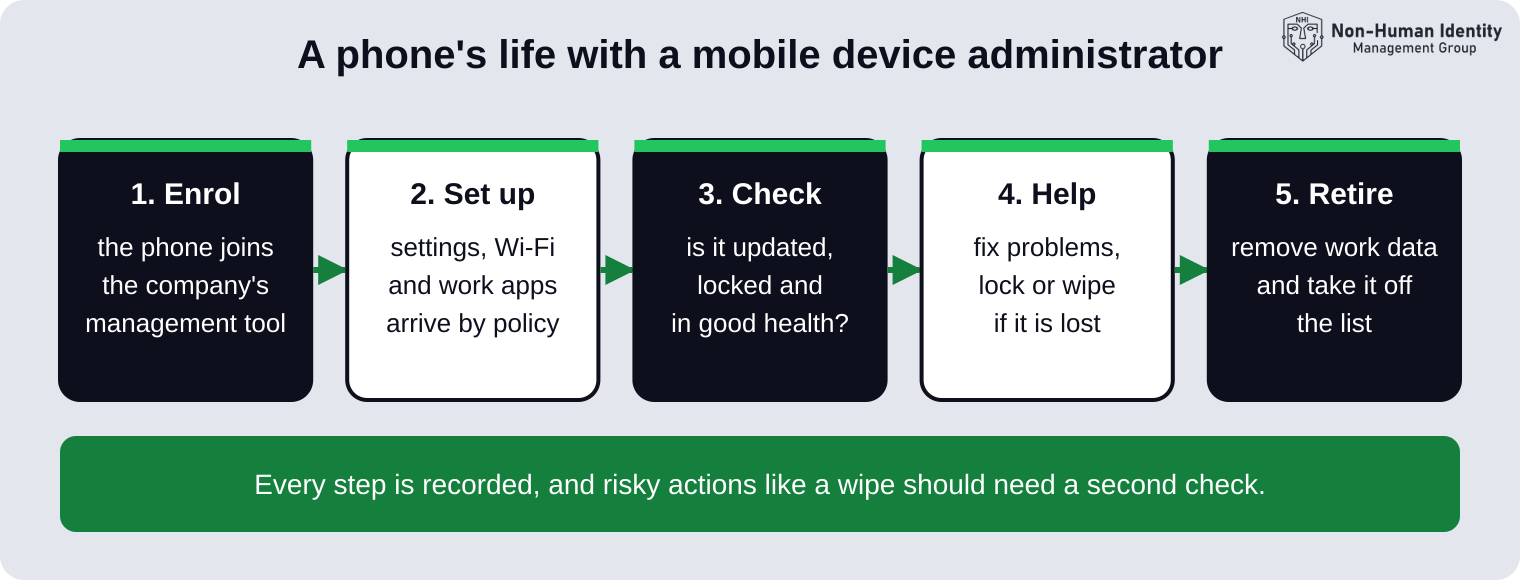
A US government guide on mobile security covers this whole life, from setting devices up to getting rid of them. It covers both company-owned and personal devices.[3]
The MDM tool is powerful. Whoever controls it may be able to change or erase every device at once. So access to the tool itself needs strong sign-in checks and careful limits on who can do what.
Skills and tools
You do not need all of these on day one. Most people build them up on the job.
- Phone and laptop systems. How Apple, Android and Windows devices handle settings, updates and apps.
- An MDM or UEM tool. Most employers use one main product, and many vendors offer free training on their own tool.
- Sign-in and access basics. How the device check links to who may reach email and files.
- Clear writing. Short guides for staff on setting up a new phone.
- Care with privacy. Knowing what the tool can and cannot see on a personal phone.
How people get in
A common route is an IT help desk or desktop support job, then taking on device tasks, then running the MDM tool. A US careers handbook says employers may want certificates in the products they use.[4] Vendor courses on a specific MDM tool are a common next step.
A worked example
This is a made-up day in the life. Dario Fairweather looks after the devices at Basalt Vets, a group of five animal clinics. Vets and nurses use tablets for notes and phones for on-call work.
Dario starts by checking the device list. One phone has not checked in for six weeks. He messages the owner, Bea Iyer, who finds it in a drawer at the branch. She switches it on and it updates the same day.
Mid-morning, three new tablets arrive for a new clinic. Dario has set the clinic's group in the MDM tool already. The tablets join the system as soon as they are switched on, and the notes app installs itself.
After lunch, a nurse calls. Her phone was stolen from a car. Dario confirms it is a company phone, then asks his manager to approve a wipe. He sends the command and records the time.
Late afternoon, he handles a leaver. The person used their own phone for work. Dario removes only the work apps and work data, and leaves the personal photos alone.
Before he goes home, he reads the release notes for next week's phone system update. He plans to send it to a small test group first.
Myths and mistakes
| What people think | What is true |
|---|---|
| IT can see everything on a phone with a work app. | It depends on the setup. On personal phones, many setups manage only the work apps and their data. |
| It is just handing out phones. | Much of the work is checking updates, setting rules and responding to lost devices. |
| Wiping a phone is a quick fix to use often. | A wipe erases data. It should be approved, recorded and used only when needed. |
| Once a phone is set up, the job is done. | Updates, new apps and leavers mean each device needs care for its whole life. |
| Anyone in IT can have full access to the MDM tool. | Full access can change every device. Give each person only the access their task needs. |
What can I do this week?
- Read three mobile device administrator or MDM job adverts and list the tools they name.
- Open the settings on your own phone and find where updates and screen lock are set.
- Read the free overview of one MDM product from its vendor's documentation.
- If you work in IT, ask to see how a new work phone is set up.
Checklist
- I can explain what a mobile device administrator does in one sentence.
- I know what MDM and enrolment mean, in plain words.
- I can name the five stages of a work device's life.
- I know why personal phones are handled differently from company phones.
- I understand why a remote wipe needs approval and a record.
- I know at least one route into the role.
- I know where to find the practitioner guide for more detail.
Common questions
Do I need a degree to become a mobile device administrator?
Not always. A US careers handbook says a degree is typical for systems administrators, but some employers accept a certificate or shorter qualification.[4] Many people enter through help desk work, then build skills on the job and through vendor training.
Is this a security job or an IT job?
It is both. Day to day, it looks like IT work: setting up devices and fixing problems. But many of the settings are security controls, such as screen locks, updates and remote wipe. Some people use the role as a step into endpoint security.
Can my employer read my messages if I enrol my phone?
Usually not, but check your employer's policy. Personal phones are often set up so the tool manages only the work apps and the data inside them, not the rest of the device.[1] Ask IT what is visible before you enrol.
What is the difference between MDM and UEM?
Mostly the range of devices. MDM began with phones and tablets. UEM tools manage phones, tablets and laptops from one place. In job adverts, the two names are often used for the same kind of work, so read the duties rather than the title.
Do I need to know how to code?
No, not to start. Most of the work happens in a web console. Over time, simple scripts can help with checks and reports across many devices. Learning a little scripting is useful, but it is not usually needed on day one.
Where next?
Ready for the detail? Read the practitioner guide: Mobile Device Management Security Guide. It goes further into enrolment options, compliance rules and how to protect the MDM tool itself.
Also useful:
- Mobile Device Management for Beginners
- MDM vs EMM vs UEM
- Enterprise Mobile Hardening Checklist
- Systems Administrator for Beginners
Related NHI Mgmt Group resources: Cybersecurity Careers Guide · IT to Cyber Security Career Guide · Mobile Device Management Policy Template
Key terms
- Mobile device management
- Setting up, checking and controlling work devices from one central tool.
- UEM
- Software that manages phones, tablets and laptops from one console.
- BYOD
- Staff using personally owned devices for work, under rules the organisation sets.
- Device compliance
- A device meeting the organisation's security rules before it is trusted with access.
- Remote wipe
- Erasing data on an enrolled device from a distance, a useful action that needs careful control.
- Endpoint
- Any device, such as a phone or laptop, that connects to work systems.
Sources and further reading
- What is Microsoft Intune? Microsoft Learn, Microsoft. https://learn.microsoft.com/en-us/intune/intune-service/fundamentals/what-is-intune, accessed 28 Nov 2026. (One vendor's product, used here to show typical MDM features.)
- Intro to device management. Apple Platform Deployment, Apple. https://support.apple.com/guide/deployment/intro-to-mdm-depc0aadd3fe/web, accessed 28 Nov 2026.
- NIST SP 800-124 Rev. 2, Guidelines for Managing the Security of Mobile Devices in the Enterprise. National Institute of Standards and Technology, May 2023. https://csrc.nist.gov/pubs/sp/800/124/r2/final, accessed 28 Nov 2026.
- Network and Computer Systems Administrators. Occupational Outlook Handbook, US Bureau of Labor Statistics. https://www.bls.gov/ooh/computer-and-information-technology/network-and-computer-systems-administrators.htm, accessed 28 Nov 2026.