Disposing of an old device safely means wiping your data off it before it leaves your hands.
This guide is for anyone selling, trading in, donating or recycling an old phone, tablet or computer. If you run a small business, the same steps apply to every work laptop and phone you retire.
In short
- Deleting files or photos one by one usually leaves the data on the device, where it may be recovered.
- A factory reset, done the maker's way, is the main tool for wiping a phone or computer before it goes.
- Back up first, sign out of your accounts, and take out any SIM card and memory card.
- If a device is broken and cannot be reset, use a trusted wiping service or have the storage destroyed.
What you will learn
- Explain why deleting files is not the same as wiping a device.
- Follow five steps to get a phone or computer ready to sell or recycle.
- Check that a device is really wiped before you hand it over.
- Decide what to do with a device that will not switch on.
- Back to new (factory reset)
- a built-in option that erases your data and settings and returns the device to how it left the factory.
- Scrambled storage (encryption)
- data stored in a coded form that can only be read with the right key.
- Phone chip (SIM card)
- the small card that links a phone to your mobile number.
What is safe device disposal?
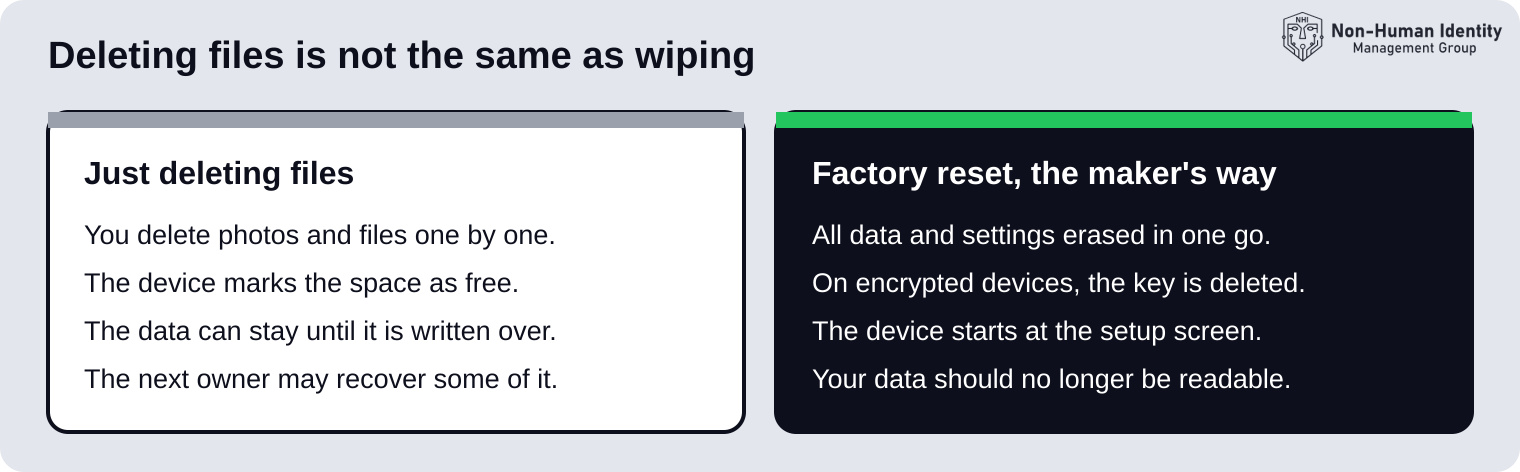
Think of a book where you rub out the contents page but leave every chapter in place. Anyone who flicks through can still read the story. Deleting a file often works the same way.
When you delete a photo or a document, the device usually just marks the space as free. The data can stay there until something new is saved over it. The UK's national cyber security agency puts it simply: hitting the delete key is not enough.[1]
Safe disposal means using a proper wipe. On most phones and computers this is a factory reset, which erases your data and settings in one go. Many modern devices also use encryption, which means data is stored in a scrambled form. A reset on these devices deletes the key that unscrambles it.[1]
Where the comparison stops working: a rubbed-out book still has its pages. On an encrypted device, a reset is closer to throwing away the only key to a locked box. The box is still there, but its contents should no longer be readable.
Why does it matter?
An old phone or laptop can hold years of photos, messages, saved passwords and bank apps. If it is not wiped, the next owner may be able to see some of that.
If you are selling or trading in a phone
What could happen: the buyer finds your photos, contacts or signed-in apps.
Check this: after the reset, the phone should start with the "Hello" or setup screen.
If you run a small business
What could happen: an old work laptop sold online still holds customer details.
Check this: keep a simple record of each device you retire, how it was wiped and by whom.
If you help a relative with their tech
What could happen: an old tablet goes to a charity shop still signed in to their email.
Check this: sit with them, back up what they want to keep, then reset it together.
What does it look like?
Here is a made-up checklist screen, like the one you might keep on paper before handing over an old phone.
Example only. All values are made up.
OLD PHONE HAND-OVER CHECK      Device: EXAMPLE-PHONE-0000
[x] Photos and contacts backed up              (1)
[x] Signed out of my main account              (2)
[ ] SIM card and memory card taken out          (3)
[x] Factory reset done                          (4)
[ ] Setup screen shows on restart               (5)
- Back up first, because a reset erases everything on the device.
- Signing out unlinks the device from your account, so the next owner can set it up.
- Not ticked yet. Your SIM card or memory card is still inside.
- The reset is the main wipe.
- Not ticked yet. This is your proof that the reset finished.
Why this is risky: two steps are still open. A SIM card or memory card left inside can carry your details with it.
The safer way: finish every line before the device leaves your hands, and keep the SIM if you want to use your number again.
How does it work?
The exact menus change between makers, so follow the maker's own help page. The steps below are the same for most devices.
- Back up. Copy the photos, files and contacts you want to keep to a new device, an online storage account or an external drive.[2][7]
- Sign out. Sign out of your main account, such as your Apple Account or Google account. On an iPhone, erasing the phone turns off Activation Lock, the setting that ties the phone to you. The next owner can then set it up.[4]
- Take out cards. Remove the SIM card and any memory card, because they can hold your details.[3] If the phone uses an eSIM, a built-in digital SIM, choose to erase it when the phone asks.[4]
- Reset. Use the built-in reset. On Android it is a factory reset, which the help page says erases all your data from the phone.[5] On Windows, choose "Remove everything" and turn on the option to clean the drive if you plan to sell, donate or recycle.[6]
- Check. Restart the device. It should show the first setup screen, with none of your apps or files.
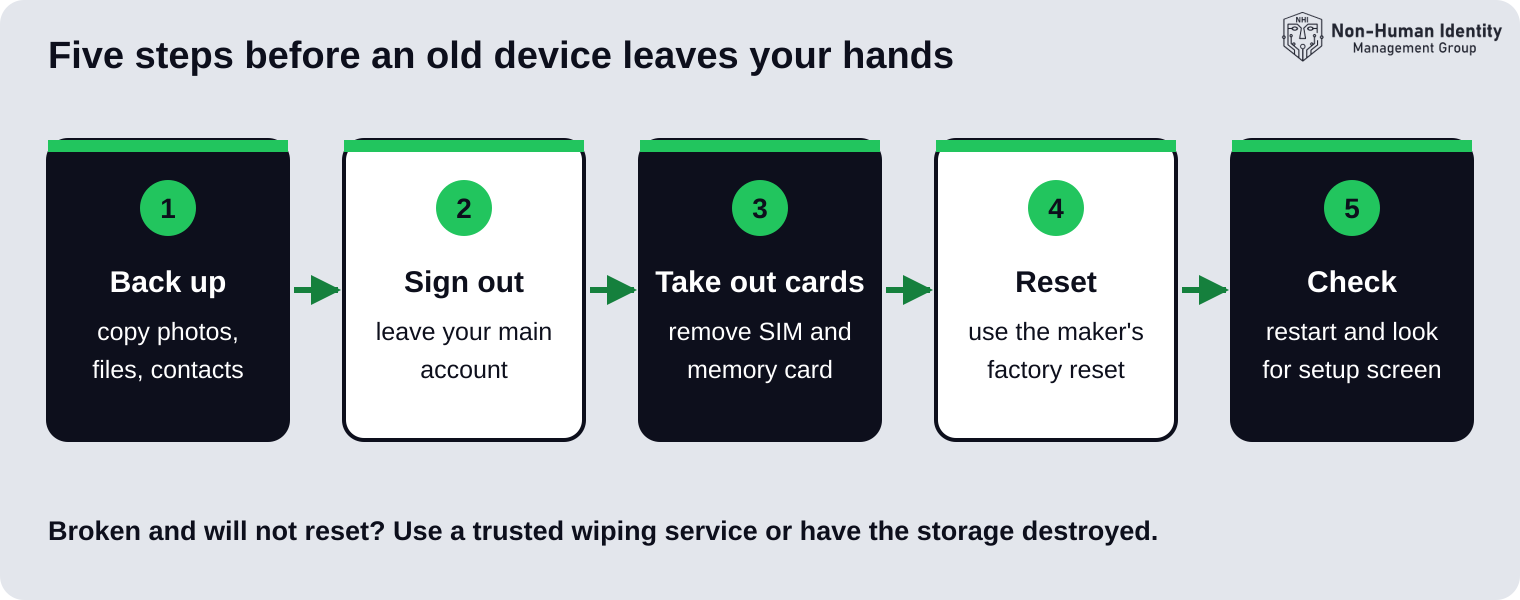
If a device is broken and will not switch on, you cannot reset it. For very sensitive data, the UK cyber agency suggests physical destruction of the storage, and checking that any disposal company holds recognised certifications.[1]
A worked example
This story is made up to show how it can happen.
Wendy Larsen is a teacher in Ohio. She has a new phone and wants to sell her old one online. Her old laptop is going to a local recycling centre.
Her first idea is to delete her photos and apps one by one. A friend tells her that deleting is not the same as wiping. So Wendy looks up the maker's help page instead.
She starts with a backup. Her photos and contacts go to her online account, and she checks they show up on the new phone. Then she signs out of her account on the old phone.
She pops out the SIM card. She is keeping her number, so the SIM goes in a drawer until the new phone is fully working. There is no memory card in this phone.
Next she chooses the option to erase all content and settings. The phone restarts and shows the "Hello" screen. That tells her the reset has finished.
The laptop takes a little longer. Wendy copies her school files to an external drive. She then uses the built-in reset, picks "Remove everything" and turns on the option to clean the drive. It runs for over an hour. When it restarts, it asks her to set it up like a new computer.
Only then does she post the phone for sale and drop the laptop at the recycling centre.
What made the difference: Wendy backed up first, then used the proper reset, and checked for the setup screen each time.
Myths and mistakes
| What people think | What is true |
|---|---|
| Deleting my photos and files is enough. | Deleted data can stay on the device until it is written over. Use the maker's reset instead.[1] |
| The shop or recycler will wipe it for me. | Some do, but you cannot see it happen. Wipe it yourself first where you can. |
| The SIM card does not matter once I have a new phone. | It can hold your details. Take it out, and keep it if you want your number.[3] |
| A broken phone holds no data. | The storage inside may still work. Use a trusted wiping service or have it destroyed.[1] |
| I can skip the backup because I have a new phone. | Check your photos and contacts are on the new device before you reset the old one. |
What can I do this week?
- Find the old phones, tablets and laptops in your drawers and make a list.
- Back up anything you want to keep from each one.
- Look up the maker's reset steps for each device and follow them.
- Take out SIM cards and memory cards, and keep or cut them up.
- Take any device that will not switch on to a recycler that offers data wiping.
Checklist
- I have backed up the photos, files and contacts I want.
- I have checked the backup works on another device.
- I have signed out of my main account on the old device.
- I have taken out the SIM card and any memory card.
- I have used the maker's factory reset, not just deleted files.
- The device now starts at the setup screen.
- For broken devices, I have used a trusted wiping or destruction service.
Common questions
Is a factory reset enough to wipe a phone?
For most people, yes. On modern encrypted phones, a reset deletes the key that unlocks your data. The UK cyber agency says this is usually enough, though not a promise for every device.[1] For very sensitive data, physical destruction is the stronger choice.
Should I take the SIM card out before selling my phone?
Yes. A SIM card can hold personal details and is linked to your number. Take it out before you sell. Move it to your new phone if you want to keep your number, or cut it up if you do not need it.
What if my old device will not turn on?
Do not assume it is safe. The storage inside may still hold your data. Take it to a recycler that offers data wiping and ask how they do it. You can also have the storage destroyed by a company with recognised certifications.
Why do I need to sign out before resetting?
Signing out unlinks the device from your account. Phones often have an anti-theft lock tied to the owner's account. If it stays on, the next owner may be blocked from setting up the device. On an iPhone, erasing the phone turns this lock off.
Where can I recycle an old device?
Many makers, phone shops and local councils run take-back or recycling schemes. Electronics contain materials that should not go in household rubbish.[2] Wipe the device first, then ask the scheme how they handle any data left on it.
Where next?
Ready for the detail? Read the practitioner guide: Media Sanitisation Guide. It goes further into the clear, purge and destroy methods, proof of wiping for organisations, and how to check a disposal supplier.
Also useful:
- Data Retention and Secure Deletion for Beginners
- Encryption for Beginners
- Smartphone Security for Beginners
- Lost or Stolen Devices for Beginners
Related NHI Mgmt Group resources: Media Sanitisation Record and Destruction Certificate Template · Disk Encryption Guide: BitLocker and FileVault · Securing Your Smartphone Guide
Key terms
- Factory reset
- A built-in option that erases a device's data and settings and returns it to its original state.
- Encryption
- Scrambling data so that only someone with the right key can read it.
- Crypto erase
- Wiping an encrypted device by deleting the key, so the stored data can no longer be unscrambled.
- Data remanence
- Data that stays on a device after it has been deleted, and may be recovered.
- Sanitisation
- The general word for making data on a device unrecoverable, by wiping or by destroying the storage.
- Degaussing
- Using a strong magnet to wipe older magnetic hard drives and tapes.
Sources and further reading
- Secure sanitisation and disposal of storage media. National Cyber Security Centre (NCSC), published 23 September 2016, reviewed 5 February 2025. https://www.ncsc.gov.uk/guidance/secure-sanitisation-storage-media, accessed 28 Nov 2026.
- How To Remove Your Personal Information Before You Get Rid of Your Computer. Federal Trade Commission (FTC), Consumer Advice. https://consumer.ftc.gov/articles/how-protect-your-data-you-get-rid-your-computer, accessed 28 Nov 2026.
- How To Remove Your Personal Information Before You Get Rid of Your Phone. Federal Trade Commission (FTC), Consumer Advice. https://consumer.ftc.gov/articles/how-remove-your-personal-information-you-get-rid-your-phone, accessed 28 Nov 2026.
- What to do before you sell, give away, or trade in your iPhone or iPad. Apple Support. https://support.apple.com/en-us/109511, accessed 28 Nov 2026.
- Reset your Android device to factory settings. Android Help, Google. https://support.google.com/android/answer/6088915, accessed 28 Nov 2026.
- Reset your PC. Microsoft Support. https://support.microsoft.com/en-us/windows/reset-your-pc-0ef73740-b927-549b-b7c9-e6f2b48d275e, accessed 28 Nov 2026.
- Buying, selling and donating second-hand devices. National Cyber Security Centre (NCSC), published 28 December 2020, reviewed 7 November 2022. https://www.ncsc.gov.uk/guidance/buying-selling-second-hand-devices, accessed 28 Nov 2026.