Working from home securely means keeping work data safe on your home network, devices and video calls.
This guide is for anyone who works from home some or all of the time, and for managers of remote teams. You do not need to be technical: if you open work email on a laptop at your kitchen table, your home set-up is now part of your employer's security.
In short
- At home, your router, your laptop and the people around you all affect how safe work data is.
- Change the router's factory password, keep devices updated and lock the screen when you step away.
- Use 2-step checks or passkeys on work accounts, and use the work device for work only.
- If a device goes missing or a message looks odd, tell your IT team straight away.
What you will learn
- Explain why a home office needs its own security habits.
- Spot the weak points in a typical home set-up.
- Check your router, laptop and accounts in under an hour.
- Know what to report, and who to tell.
- Home internet box (router)
- the box from your broadband provider that connects your home devices to the internet.
- Private tunnel (VPN)
- a protected link from your laptop to your employer's systems across the open internet.
What is working from home securely?
Think of running a small branch office from your spare room. The company's files are now in your house. So the house rules start to matter: who comes in, who can see your desk, and whether the door is locked.
In the office, an IT team looks after the network, the doors and the cupboards. At home, some of that becomes your job. Your router, a box that links your home devices to the internet, now carries work traffic. Your laptop sits where family or visitors pass by.
Working from home securely means a few habits. Keep your router and devices up to date. Lock your screen. Keep work and home use apart. Sign in safely, and report problems fast.
Where the comparison stops working: a branch office has a manager on site. At home, nobody else may notice that something is wrong, so you have to speak up.
Why does it matter?
Home networks and shared rooms are harder for an employer to protect. A small gap at home can open a door to the whole company.
If you work from home
What could happen: someone in the house sees a customer's details on your screen, or a child clicks a link on your work laptop.
Check this: lock your screen when you step away and keep the work laptop for work only.
If you use your own laptop or phone for work
What could happen: work files mix with personal ones, and a lost phone carries both.
Check this: read your employer's rules on personal devices before you use one for work.
If you manage a remote team
What could happen: a staff member loses a laptop but waits days to say so, because they fear getting into trouble.
Check this: tell your team that quick reporting is welcome and will not be punished.
What does it look like?
Here is a made-up note about one person's home office. Each marked line is a weak spot.
Example only. All values are made up.
MY HOME OFFICE SET-UP
Router:   FakeBroadband box, password on sticker   (1)
          admin / FAKE-0000, never changed
Wi-fi:    HomeNet-EXAMPLE, shared with neighbours  (2)
Laptop:   work laptop, kids play games on it       (3)
Screen:   no lock when I make a cup of tea         (4)
Files:    copies on USB stick in the kitchen drawer (5)
- In a real file, this line would contain the router's factory login, which is often printed or easy to find.
- Anyone with the wi-fi password can join the same network as your work laptop.
- Games and downloads from other users can bring in harmful software.
- An unlocked screen lets anyone passing read or send work messages.
- A USB stick is easy to lose and may hold customer data.
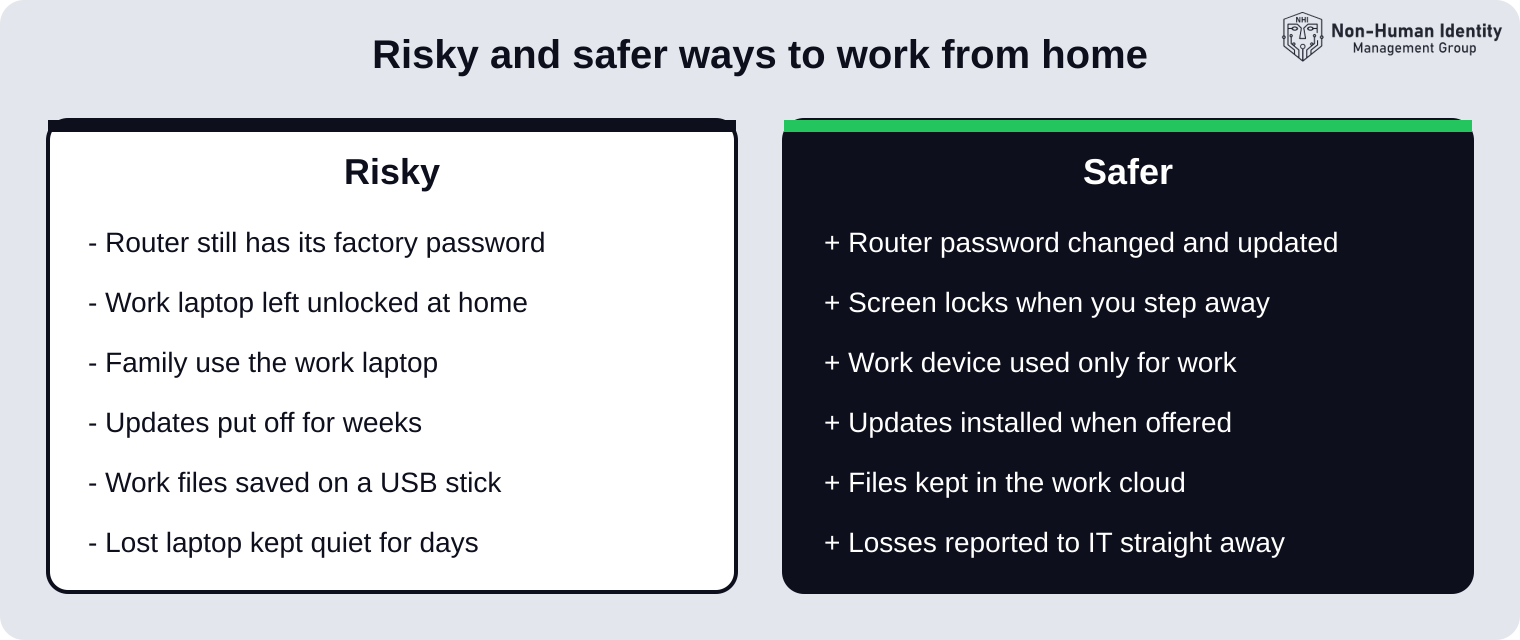
Why this is risky: each of these can feel minor on its own. Together they give several easy ways to reach work data.
The safer way: change the router password and update it. Keep the work laptop for work. Lock the screen each time you step away. Keep files in the work cloud, not on loose sticks.
How does it work?
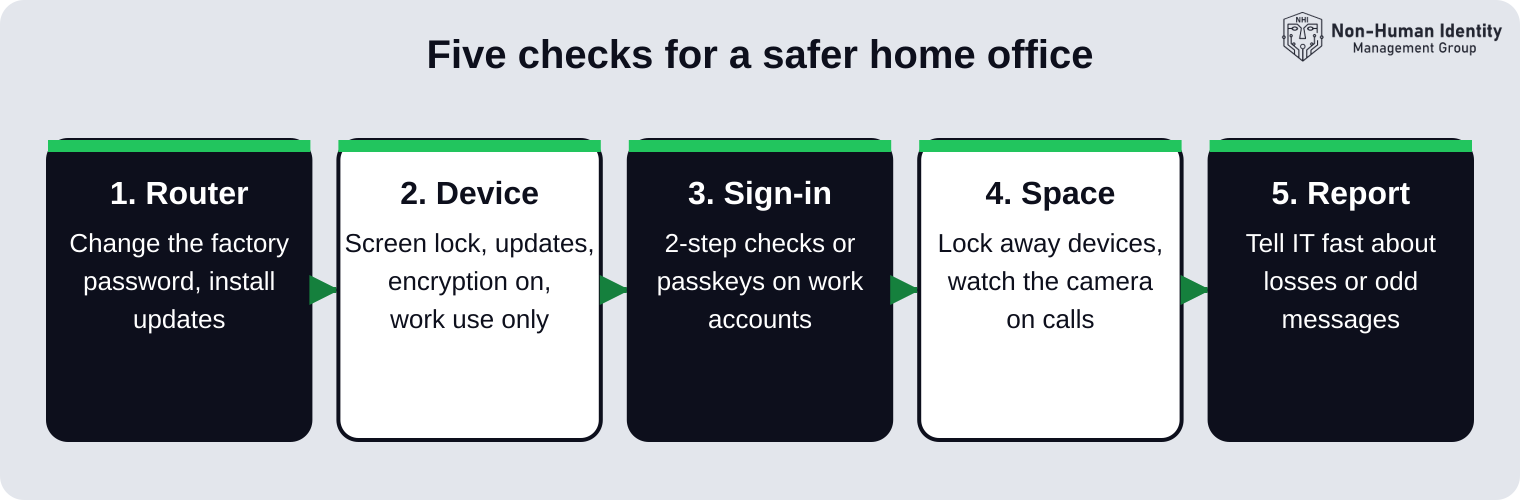
Work data travels from your employer's systems, through the internet and your router, to your laptop and your screen. Each step is a place to protect.
- Secure the router. A US cyber agency says a home router is probably not secure out of the box. At the least, change its default password to one only you know.[2] Install its updates too, or ask your broadband provider how.
- Secure the device. Keep it updated. Use a 6-digit PIN or strong password on every device used for work, including personal phones.[3] Your employer may also turn on encryption, which scrambles the data so a thief should not be able to read it.[1]
- Sign in safely. Use 2-step verification, where you give a code or tap an app as well as your password, or a passkey where offered.[5] Your employer may ask you to connect through a VPN, a private tunnel to work systems.[1]
- Mind your space. Lock the screen when you step away, and put devices away when you finish.[1] On video calls, check what is behind you and know how to mute.[4]
- Report fast. Tell IT straight away about a lost device or an odd message. Quick reports give them time to lock or wipe the device.[1]
Governments have written guides on this. The US National Security Agency, for example, has published advice on securing home networks for people who work from home.[6]
A worked example
This story is made up to show how it can happen.
Niamh O'Connor works for an accountancy firm in Belfast. Three days a week she works from her dining table. Her teenage son sometimes borrows her work laptop to watch videos.
One evening he says a pop-up asked him to install a "video player". He clicked yes. Niamh is not sure what it was.
She remembers the firm's message: report anything odd quickly, and nobody will be blamed. She emails the IT helpdesk from her phone and leaves the laptop switched off. The next morning she switches it on while IT is on the phone, and they check it remotely. They find an unwanted program, remove it and ask her to change her work password.
IT finds no signs that client data was taken, in the records available to them. Even so, the firm uses the event to help everyone check their home set-up.
Niamh makes some changes. She gives her son his own login on the family computer, so the work laptop is for work only. She sets the laptop to lock after a few minutes. She finds the router's admin page using her broadband provider's help guide, changes the factory password and installs an update.
She also turns on 2-step verification for her work account, using a code app on her phone. Now a stolen password alone is less likely to get someone in.
What made the difference: Niamh reported the pop-up the same evening, so IT could act before any harm spread.
Myths and mistakes
| What people think | What is true |
|---|---|
| My home wi-fi has a password, so it is safe. | The wi-fi password is one part. The router's own admin password and updates matter too.[2] |
| A VPN makes everything safe. | A VPN protects data on its way to work systems. It does not stop a fake email, an unlocked screen or harmful software. |
| It is fine for family to use my work laptop. | Other users can install apps or click links that put work data at risk. Keep the work device for work. |
| If I lose my laptop I should wait and see if it turns up. | Report it straight away. IT may be able to lock or erase it remotely.[1] |
| A USB stick is a handy way to take files home. | Sticks are easy to lose and can carry harmful software. Use the tools your employer provides.[1] |
What can I do this week?
- Change your router's factory admin password and check for updates.
- Set your work laptop and phone to lock after a few minutes.
- Turn on 2-step verification or a passkey for your work account.
- Find out who to call if your device is lost or something looks wrong.
- Agree at home that the work laptop is for work only.
Checklist
- My router's factory password has been changed.
- My router and devices install updates when offered.
- My work devices lock with a PIN or password.
- Only I use my work laptop.
- My work account uses 2-step verification or a passkey.
- I keep work files in the tools my employer provides, not on loose USB sticks.
- I check what the camera can see before a video call.
- I know how to report a lost device or an odd message.
Common questions
Do I need a VPN to work from home?
Only if your employer asks you to use one. Many firms use a VPN, a private tunnel to their systems. Others use cloud apps that you sign in to directly. Follow your employer's set-up rather than adding your own VPN for work.
How do I change my router's password?
Look on your broadband provider's help pages or the sticker on the router. They explain how to open the router's settings page. Change the admin password to a strong one only you know, and turn on automatic updates if offered.
Can I use my own laptop for work?
Check your employer's rules first. Some allow it with conditions, such as a screen lock, updates and an approved app. If allowed, protect it with a strong PIN or password. Keep work files in the work apps, not mixed with your own.
Is it safe to work on public wi-fi?
It is riskier than at home. Check the network's exact name with staff before joining, and use your employer's VPN if you have one.[2] Your phone's own data connection is often a safer choice.
What should I do if I lose my work laptop?
Tell your IT team or manager straight away, even if you think it may turn up. They may be able to lock or erase it remotely. Quick reporting matters more than blame.[1]
Where next?
Ready for the detail? Read the practitioner guide: Home Office and Remote Worker Security Guide. It goes further into device management, remote access choices such as VPN and newer options, and how to roll out a remote working policy.
Also useful:
- VPNs for Beginners
- Securing Your Wi-Fi Network Guide
- End-of-Life Home Routers Guide
- Phishing for Beginners
- Public Wi-Fi Safety Guide
Related NHI Mgmt Group resources: Small Business Device Management Guide · Two-Factor Authentication for Everyone Guide · Passkeys for Everyone Guide
Key terms
- Wi-Fi
- Wireless networking that lets devices connect to your home network and the internet without cables.
- Virtual private network (VPN)
- A protected tunnel between your device and another network, such as your employer's, across the open internet.
- Screen lock
- A setting that hides the screen and blocks use until you unlock it again.
- Device encryption
- Scrambling the data stored on a device so it cannot be read without the right unlock.
- Multi-factor authentication
- Asking for two or more kinds of proof, such as a password and a code, before letting someone in. Also called 2-step verification.
- Bring your own device
- Using your own phone or laptop for work tasks, usually under your employer's rules.
Sources and further reading
- Working from home: How to prepare your organisation and staff. Northern Ireland Cyber Security Centre (NICSC). https://www.nicybersecuritycentre.gov.uk/working-home-how-prepare-your-organisation-and-staff, accessed 28 Nov 2026.
- Telework Guidance and Resources. Cybersecurity and Infrastructure Security Agency (CISA). https://www.cisa.gov/telework, accessed 28 Nov 2026.
- Protecting your devices (Small organisations guide to cyber security). National Cyber Security Centre (NCSC). https://www.ncsc.gov.uk/collection/small-organisations-guide-to-cyber-security/protecting-your-devices, accessed 28 Nov 2026.
- How to secure your online meetings. National Cyber Security Centre (NCSC), 19 March 2026. https://www.ncsc.gov.uk/guidance/home-working, accessed 28 Nov 2026.
- Secure your email (Small organisations guide to cyber security). National Cyber Security Centre (NCSC). https://www.ncsc.gov.uk/collection/small-organisations-guide-to-cyber-security/secure-your-email, accessed 28 Nov 2026.
- NSA Releases Best Practices for Securing Your Home Network. National Security Agency (NSA), 22 February 2023. https://www.nsa.gov/Press-Room/Press-Releases-Statements/Press-Release-View/Article/3304674/nsa-releases-best-practices-for-securing-your-home-network/, accessed 28 Nov 2026.