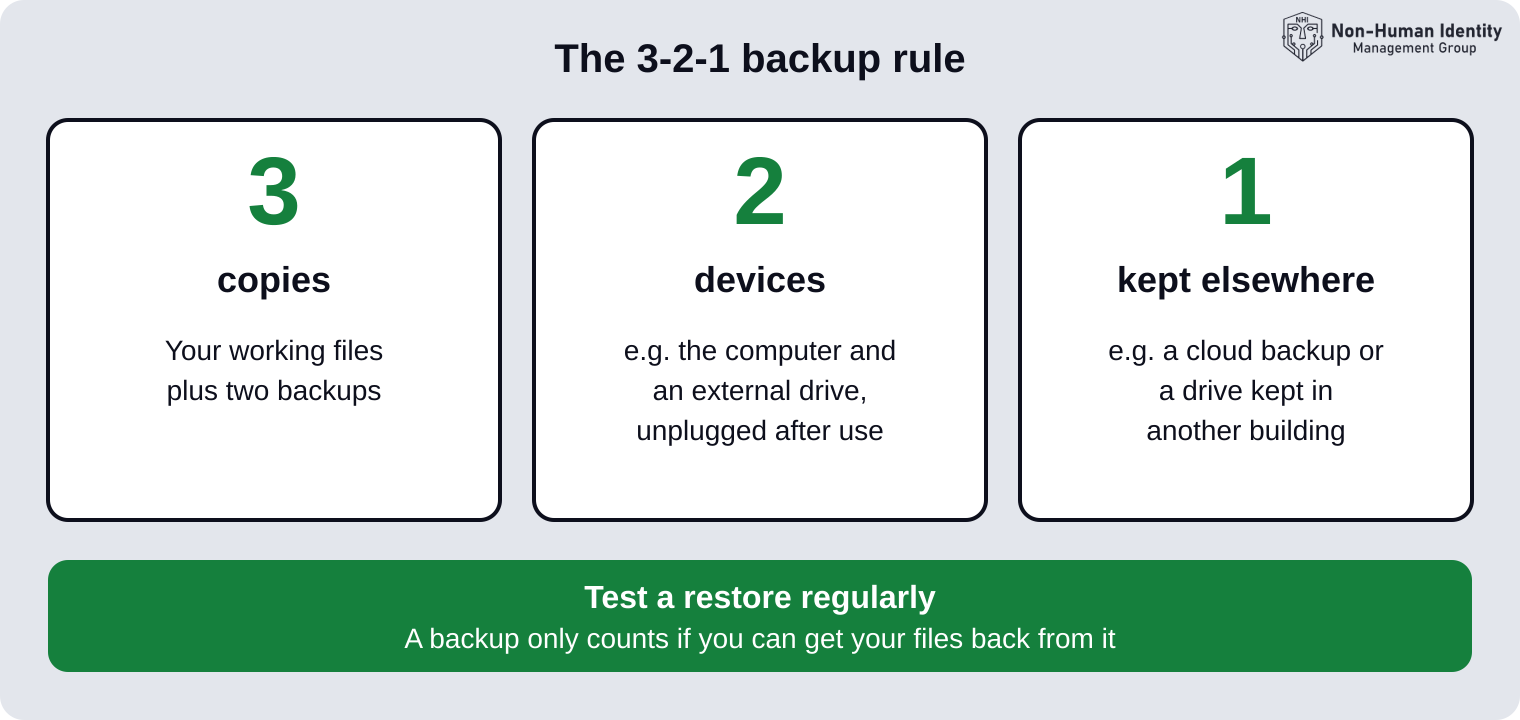
The 3-2-1 backup rule means keeping three copies of your data, on two devices, with one copy kept elsewhere.
This guide is for people at home and small business owners who want a simple way to stop losing files. You do not need to be technical: if a lost laptop or a locked computer would stop your work, this rule is for you.
In short
- Keep three copies of the files you cannot lose: the original plus two backups.
- Keep the copies on at least two different devices, so one fault cannot take them all.
- Keep one copy somewhere else, such as a cloud service or a drive stored off site.
- A backup only counts once you have checked that you can get your files back from it.
What you will learn
- Explain what each number in 3-2-1 means.
- Spot the difference between a synced folder and a backup.
- Check whether your own setup meets the rule.
- Ask your IT helper the right questions about your copies.
- Spare copy (backup)
- a second copy of your files, kept so you can get them back if the first is lost.
- Kept elsewhere (offsite)
- stored in a different place from the original, such as the cloud or another building.
- Getting files back (restore)
- copying files from a backup back to where you can use them.
What is the 3-2-1 backup rule?
Think of the photocopies people make of a passport before a trip. One stays at home, one goes in the bag and one is left with a relative. If the bag is stolen, the copy at home still exists. If the house floods, the relative still has one.
The 3-2-1 rule does the same for your files. In plain words: at least three copies, on two devices, with one offsite.[1]
- 3 copies. Your working files count as one. You need two more.
- 2 devices. The copies should not all sit on the same laptop or the same drive.
- 1 elsewhere. At least one copy is kept away from your home or office, so a fire, flood or theft does not reach it.
Where the comparison stops working: a paper copy of a passport stays the same. A backup that is always plugged in or online can be changed or deleted along with the original. So how each copy is connected matters too.
Why does it matter?
Files get lost in ordinary ways. A laptop is dropped, a drive wears out, a file is deleted by mistake or harmful software locks everything. The rule spreads your copies out, so one bad day is less likely to take them all.
If you keep family photos at home
What could happen: your only copies are on one phone and one laptop in the same house, and both are lost in a break-in.
Check this: is any copy of your photos kept outside your home?
Next: Ransomware for Beginners
If you run a small business
What could happen: invoices and customer records live on one office computer, and a failed drive stops work for days.
Check this: list the files you could not trade without, and where each copy of them is kept.
If you look after IT for others
What could happen: backups run every night, but nobody has tried to get a file back, and the copies turn out to be incomplete.
Check this: when did someone last restore a file and check it opened?
What does it look like?
Here is a made-up "Am I covered?" card for a small office. Each line is one copy of the same important files.
Example only. All values are made up.
Files: invoices, customer list, photos of signed contracts
Copy 1: office computer (the working files)        (1)
Copy 2: USB drive, plugged in every Friday         (2)
Copy 3: cloud backup service, runs each night      (3)
Last test: restored "EXAMPLE-invoice-0000" on 3 March  (4)
Result: 3 copies, 2 devices, 1 elsewhere = covered
- The working files are the first of the three copies.
- A second device. It is unplugged after each backup, so a problem on the computer cannot reach it the rest of the week.
- The copy kept elsewhere. It sits in another company's data centre, away from the office.
- In a real file, this line would show the date someone last got a file back and checked it opened.
Why this is risky: many people stop at copy 1 and a synced folder. Syncing keeps the same files matched across your devices, so a deleted or scrambled file can be copied to every device too.
The safer way: treat syncing as handy sharing, not as a backup. Use a backup tool that keeps older versions, keep one copy unplugged or offline, and test a restore regularly.[2][3]
How does it work?
Setting up 3-2-1 takes an afternoon for most homes and small offices.
- Pick what matters. List the files you could not do without, such as customer details, invoices, messages, website files and photos. The NCSC suggests backing up all the data your business needs to operate.[2]
- Make a local copy. Copy those files to a second device, such as an external drive. The NCSC advises that the drive should not stay connected when it is not in use, because some harmful software can also affect connected devices.[2]
- Make a copy elsewhere. Use a cloud backup service, or keep a second drive in another building. If you use an online backup, turn on two-step sign-in (a second check, such as a code on your phone).[2]
- Keep older versions. Some services let you roll files back to an earlier version.[1] This helps when a problem is only noticed days later. Check how long yours keeps them.
- Test a restore. Get a file back, open it and check nothing is missing. The NCSC says it is important to know how to restore your data and to check it is all there.[2]
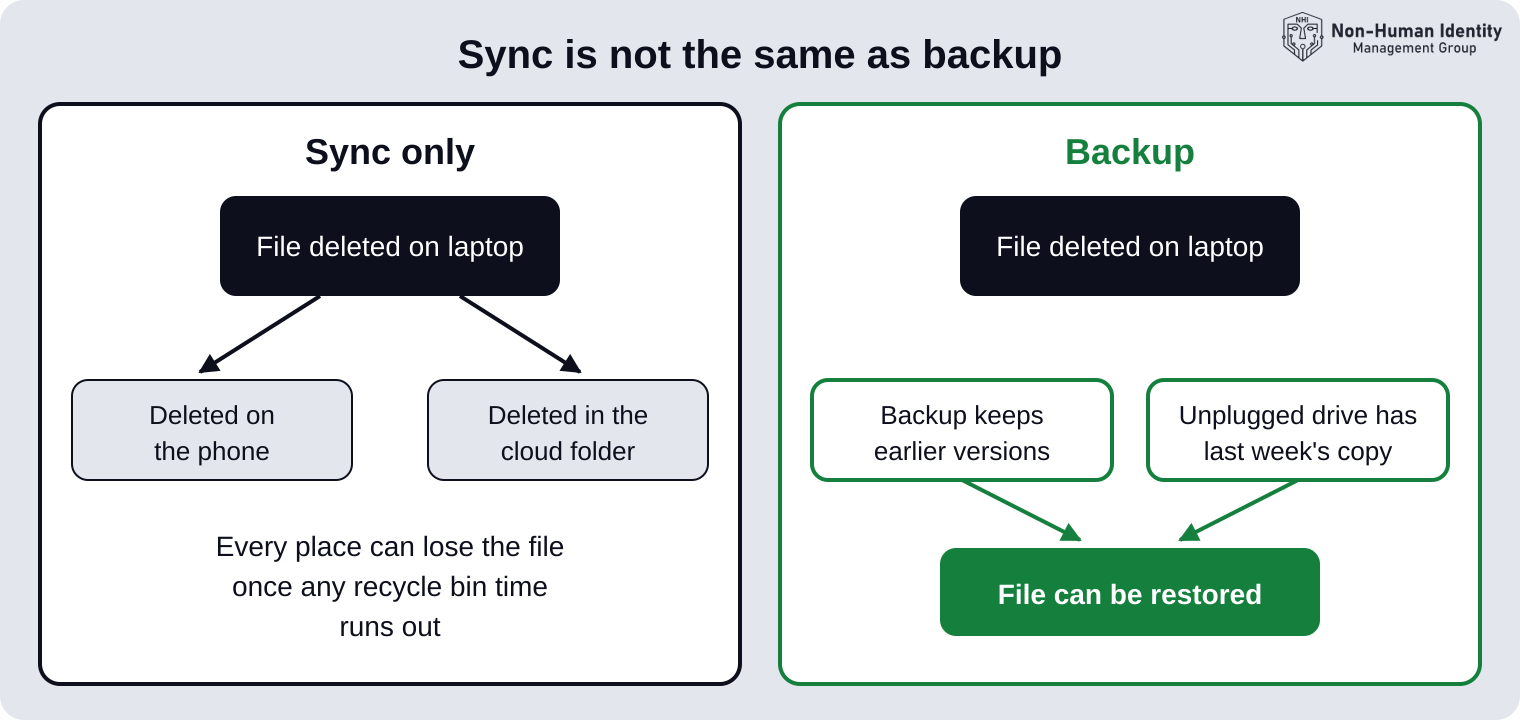
Sync services often have a recycle bin, but it is time-limited. Microsoft says personal OneDrive accounts can restore deleted files from the last 30 days. Work or school accounts get 93 days, unless an administrator changes this.[5] With a paid plan, OneDrive can also roll a whole account back to a date in the last 30 days.[4] These are helpful safety nets, but each is one company's feature with its own limits, so they do not replace a separate backup.
The rule does not by itself need any copy to be offline.[1] If someone breaks in and finds every copy online, they may be able to delete them all. That is why US and UK government advice suggests keeping at least one backup offline.[1][3] Our practitioner guide explains the longer 3-2-1-1-0 version, which adds that offline copy and checked restores.
A worked example
Freya Jensen runs Fern Lettings, a fictional lettings agency with four staff. Tenancy files, rent records and signed contracts all live on one office computer. The files are also synced to a cloud folder, so Freya thinks she is covered.
Her nephew, Bruno Lindahl, helps with IT. He asks her one question: "If someone deleted the contracts folder today, where would you get it back from?"
Freya checks. The cloud folder is a sync, so a deletion on the computer would be copied there too. Only the recycle bin would save her, and only for a limited time.
Bruno remembers the passport photocopies. They need copies that do not change when the original does. He sets up three copies:
- the working files on the office computer;
- a USB drive that a backup tool fills each Friday, which Freya then unplugs and locks in a drawer;
- a cloud backup service that keeps older versions, with two-step sign-in turned on.
That gives three copies, on two devices, with one elsewhere. Bruno then picks a contract at random, restores it to a spare folder and opens it. It works.
Two months later a member of staff deletes a folder of rent records by mistake. The sync copies the deletion. Freya restores the folder from Friday's drive in a few minutes, then checks the cloud backup for anything added since.
Freya adds a reminder to test one restore each month and to write down the date.
Myths and mistakes
| What people think | What is true |
|---|---|
| My files are in a synced cloud folder, so they are backed up. | Syncing copies changes and deletions to every device. Use a backup that keeps older versions as well. |
| Two copies on the same laptop count as two copies. | If the laptop fails or is stolen, both go. The copies need to be on different devices. |
| An external drive that stays plugged in is a safe second copy. | The NCSC advises unplugging it when not in use, because some harmful software can reach connected drives.[2] |
| Following 3-2-1 means I am safe from ransomware. | The rule does not require an offline copy. Keeping one copy offline gives much better protection.[1] |
| The backup software says it worked, so it did. | Only a test restore shows the files are complete and open properly. |
What can I do this week?
- Write down the files you could not do without.
- Count your copies of those files and note which device each sits on.
- Add a copy kept elsewhere if you do not have one, and turn on two-step sign-in for it.
- Unplug any backup drive that stays connected all the time.
- Restore one file from each backup and check it opens.
Checklist
- I know which files I need to keep my home or business running.
- Those files exist in at least three copies.
- The copies are on at least two different devices.
- At least one copy is kept away from my home or office.
- At least one copy is unplugged or offline when not in use.
- My backup keeps older versions, and I know for how long.
- Online backups are protected by two-step sign-in.
- I tested a restore in the last few months, and wrote down when.
Common questions
Does the cloud count as my offsite copy?
Yes, usually. A cloud backup is stored in a provider's data centre, away from your home or office. Check that it is a true backup that keeps older versions, not just a synced folder. Protect the account with a strong password and two-step sign-in.
Do the two devices have to be different types?
Not strictly. The NCSC describes the rule as two devices. Some versions of the rule say two types of storage. The aim is the same: one fault, such as a worn-out drive, should not destroy every copy at once.
How often should I back up?
Often enough that losing the work since the last backup would not hurt. For a busy business that might be every night. For family photos it might be weekly. We suggest letting backup software run automatically so it does not depend on memory.
What is the 3-2-1-1-0 rule?
It is a longer version of the same idea. It adds one copy that is offline or cannot be changed for a set time, and zero errors when you test a restore. See The 3-2-1-1-0 Backup Rule Explained.
Is a USB stick good enough as a backup?
It can be one of your copies for a small set of files. Small drives are easy to lose and can wear out, so do not rely on one alone. Pair it with a copy kept elsewhere, and check now and then that the files still open.
Where next?
Ready for the detail? Read the practitioner guide: The 3-2-1-1-0 Backup Rule Explained. It goes further into offline and locked copies, restore testing and how to apply the rule to different kinds of systems.
Also useful:
- Backup Security for Beginners
- Ransomware for Beginners
- Small Business Cyber Security for Beginners
- Backup and Recovery Testing Checklist
Related NHI Mgmt Group resources: Backup Security and Immutable Backup Guide · Backup and Recovery Policy Template · Backup Retention Design
Key terms
- 3-2-1 backup rule
- Keep three copies of your data, on two devices or kinds of storage, with one copy kept elsewhere.
- Restore
- Getting files back from a backup so you can use them again.
- Cloud backup
- A backup copy stored by an online service in its own data centres.
- Offline backup
- A backup that is not connected to your computer or network when not in use.
- Immutable backup
- A backup that cannot be changed or deleted until a set time has passed.
- Ransomware
- Harmful software that locks or steals files and demands payment.
Sources and further reading
- Offline backups in an online world. National Cyber Security Centre (NCSC) blog, 13 August 2019. https://www.ncsc.gov.uk/blog-post/offline-backups-in-an-online-world, accessed 28 Nov 2026.
- Small organisations guide to cyber security: Backing up your data. National Cyber Security Centre (NCSC). https://www.ncsc.gov.uk/collection/small-organisations-guide-to-cyber-security/backing-up-your-data, accessed 28 Nov 2026.
- #StopRansomware Guide. Cybersecurity and Infrastructure Security Agency (CISA), September 2023. https://www.cisa.gov/stopransomware/ransomware-guide, accessed 28 Nov 2026.
- Restore your OneDrive. Microsoft Support, Microsoft. https://support.microsoft.com/en-us/office/restore-your-onedrive-fa231298-759d-41cf-bcd0-25ac53eb8a15, accessed 28 Nov 2026.
- What happens when you delete files in the cloud. Microsoft Support, Microsoft. https://support.microsoft.com/en-us/office/what-happens-when-you-delete-files-in-the-cloud-2c8f79ca-6263-4b06-9e36-77e630116dc5, accessed 28 Nov 2026.